How to Build an Interests Page
An interests page is where visitors pick what to follow. Everything they follow here feeds their My Feed page. The page is built from blocks that already exist in Foxiz, each with its Follow Button set to Enable.
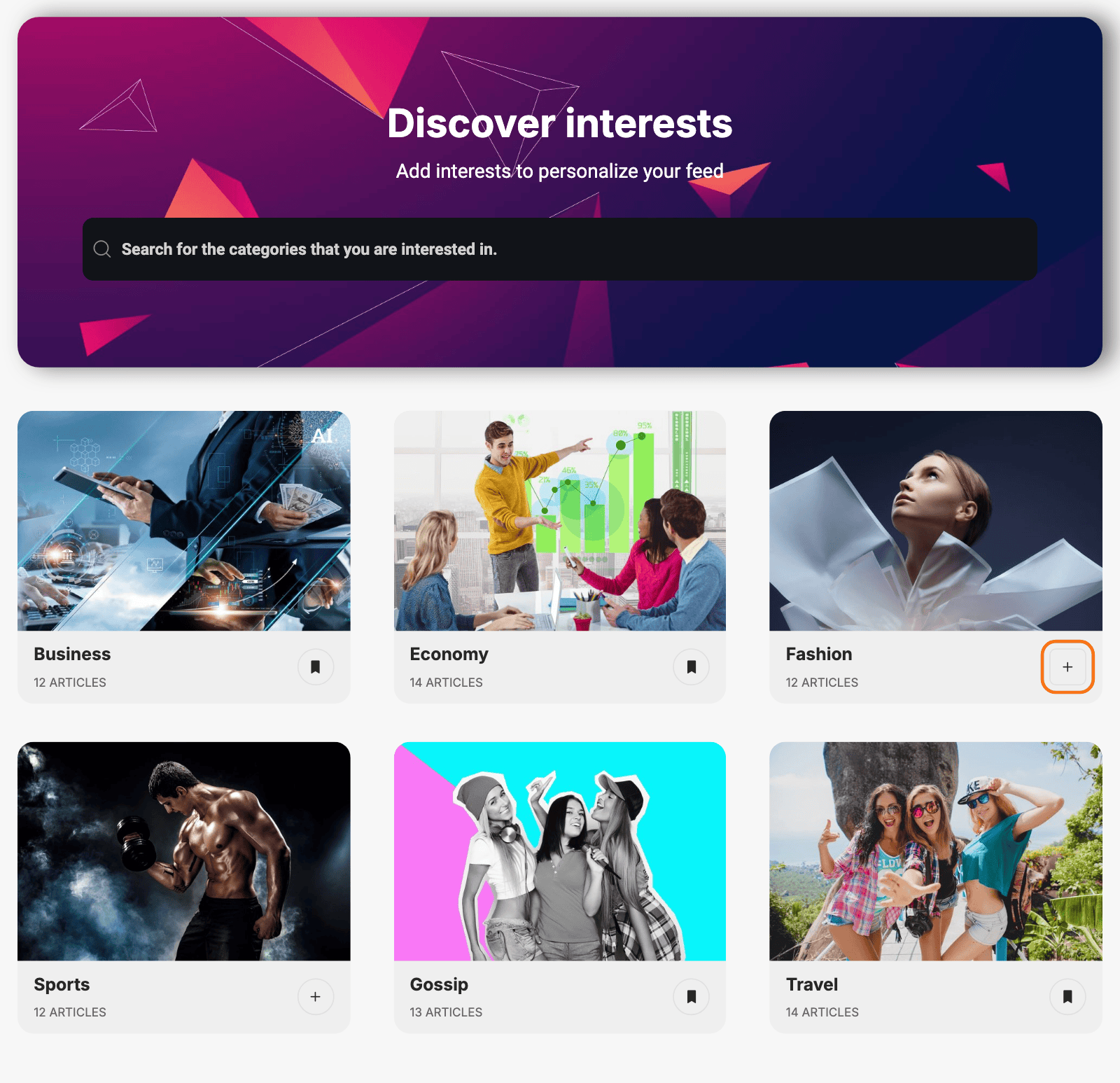
The demo's My Interests page holds, from top to bottom:
- "Discover interests": a Foxiz - Search Taxonomies box and a Foxiz - Taxonomies List 1 of categories.
- "Post Tags": a Foxiz - Taxonomies List 6 of tags.
- "Never Miss a Story": a Foxiz - Authors List 1 of writers.
- "Followed list": a Foxiz - Taxonomies List 2 that shows what the visitor follows.
- "Saved Stories": a Foxiz - Personalized Grid 1 on User Saved.
Before you start
- Theme Options > Personalized System > Global > Personalized System must be on. It is on by default. With it off, no follow button is drawn.
- Enable When in the same subsection decides who can follow. On Redirect to Login for Guest Users, a guest's follow button is a sign in link.
- Give your categories featured images, or the cards are plain. They are set under Posts > Categories, on each category's edit screen.
Then go to Pages > Add Page, name the page (the demo calls it My Interests) and click Edit with Elementor.
1. Add a search box for topics
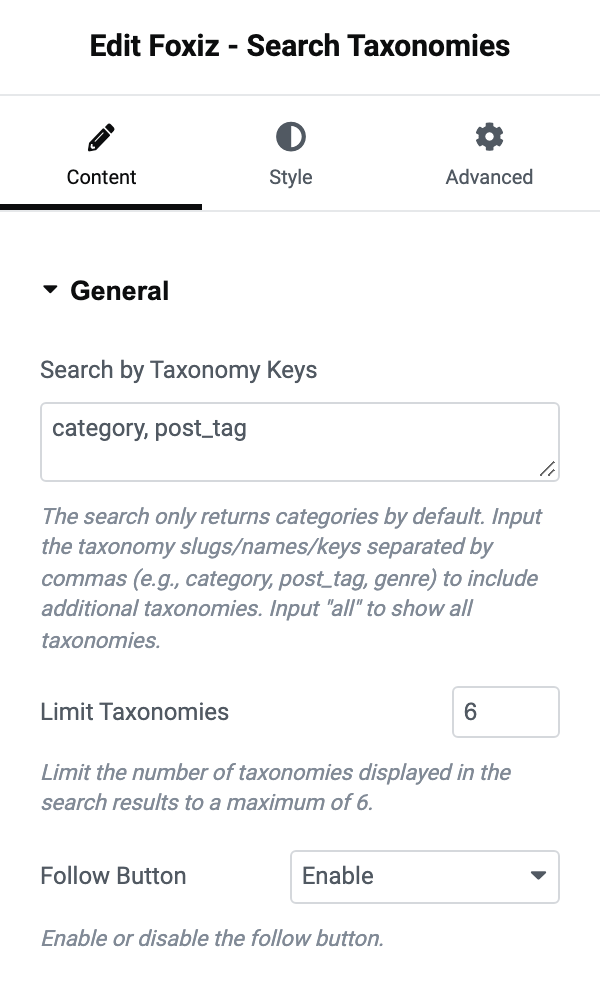
- Drag Foxiz - Search Taxonomies onto the page.
- In General, set Follow Button to Enable. It is Disable by default.
- The search finds categories only. To let visitors find tags as well, type
category, post_taginto Search by Taxonomy Keys. - Limit Taxonomies caps the results, at most 6.
The rest of the block is in The Foxiz Search Taxonomies Block in Elementor.
2. Add categories and tags to follow
-
Drag Foxiz - Taxonomies List 1 below the search box. Lists 2 to 6 work the same way; they only look different.
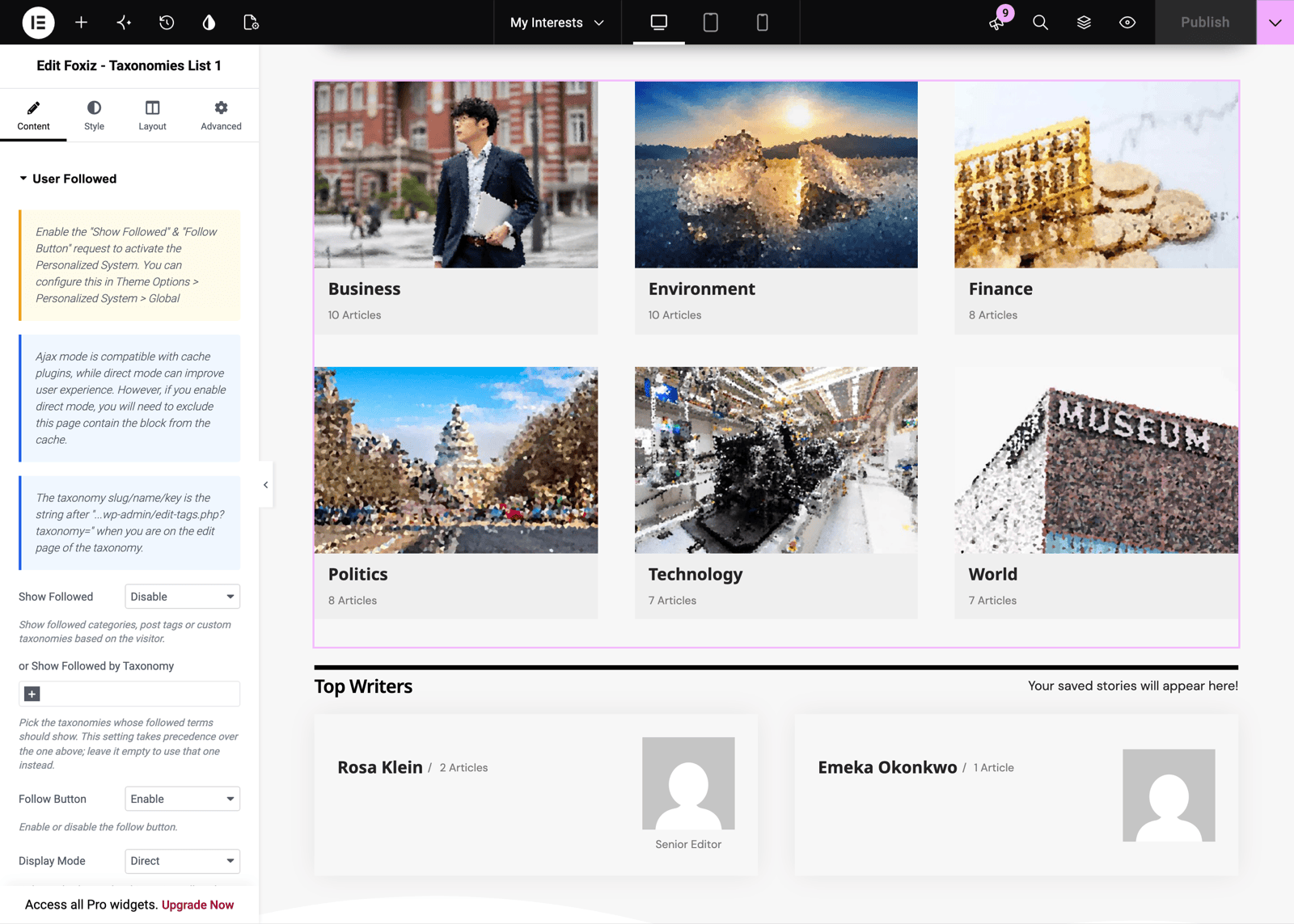
The editor does not draw the follow buttons. They appear on the published page.
-
In Taxonomies, pick the categories to offer. Data Source can add them one by one or load a whole taxonomy.
-
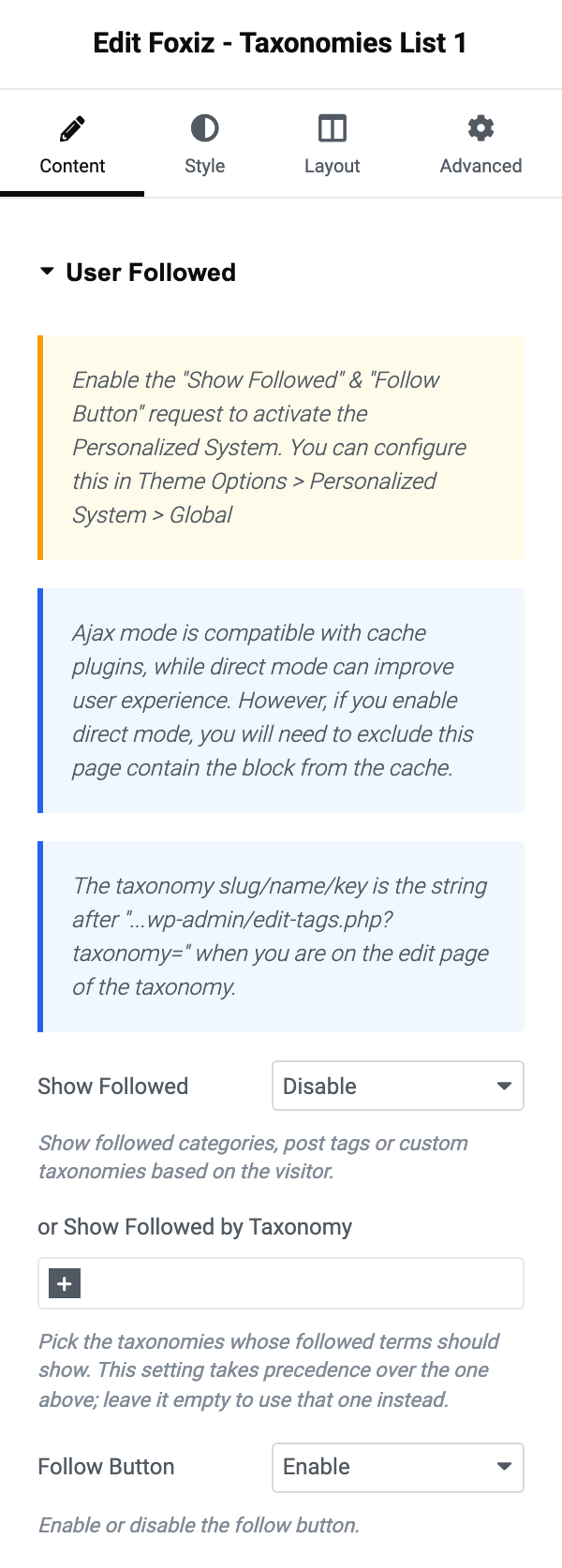
In User Followed, set Follow Button to Enable. It is Disable by default. Leave Show Followed on Disable for this block.
-
For tags, add a second list the same way and fill it with tags instead. The demo uses Foxiz - Taxonomies List 6 for its "Post Tags" row.
The follow button is a plus. Once a visitor follows the topic it turns into a filled bookmark, and clicking that unfollows it.
A followed tag counts in My Feed just like a followed category. Any public taxonomy can be followed.
How to fill and style the list is in The Foxiz Taxonomies List Blocks in Elementor.
3. Add writers to follow
- Drag Foxiz - Authors List 1 onto the page.
- In Authors, add each writer under Add Authors. The list holds only the writers you add.
- In Follow, set Follow Button to Enable. It is Disable by default.
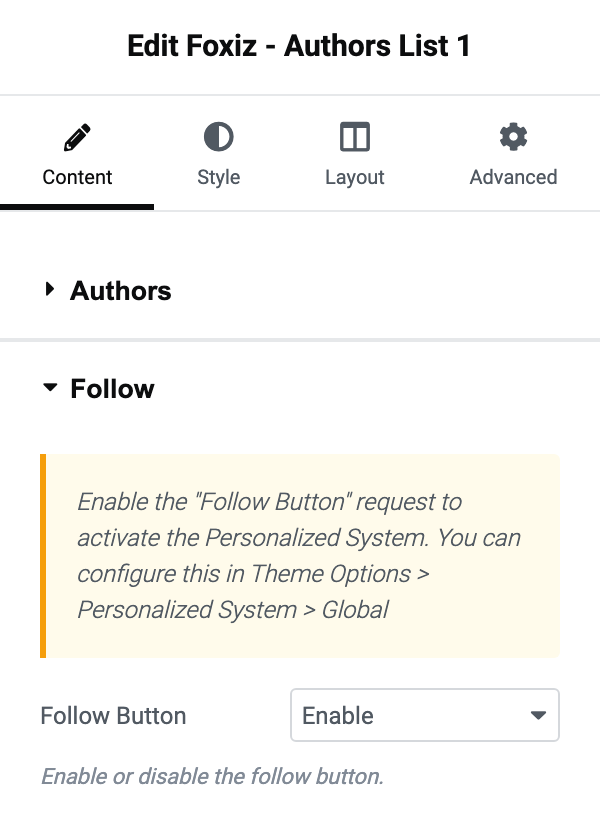
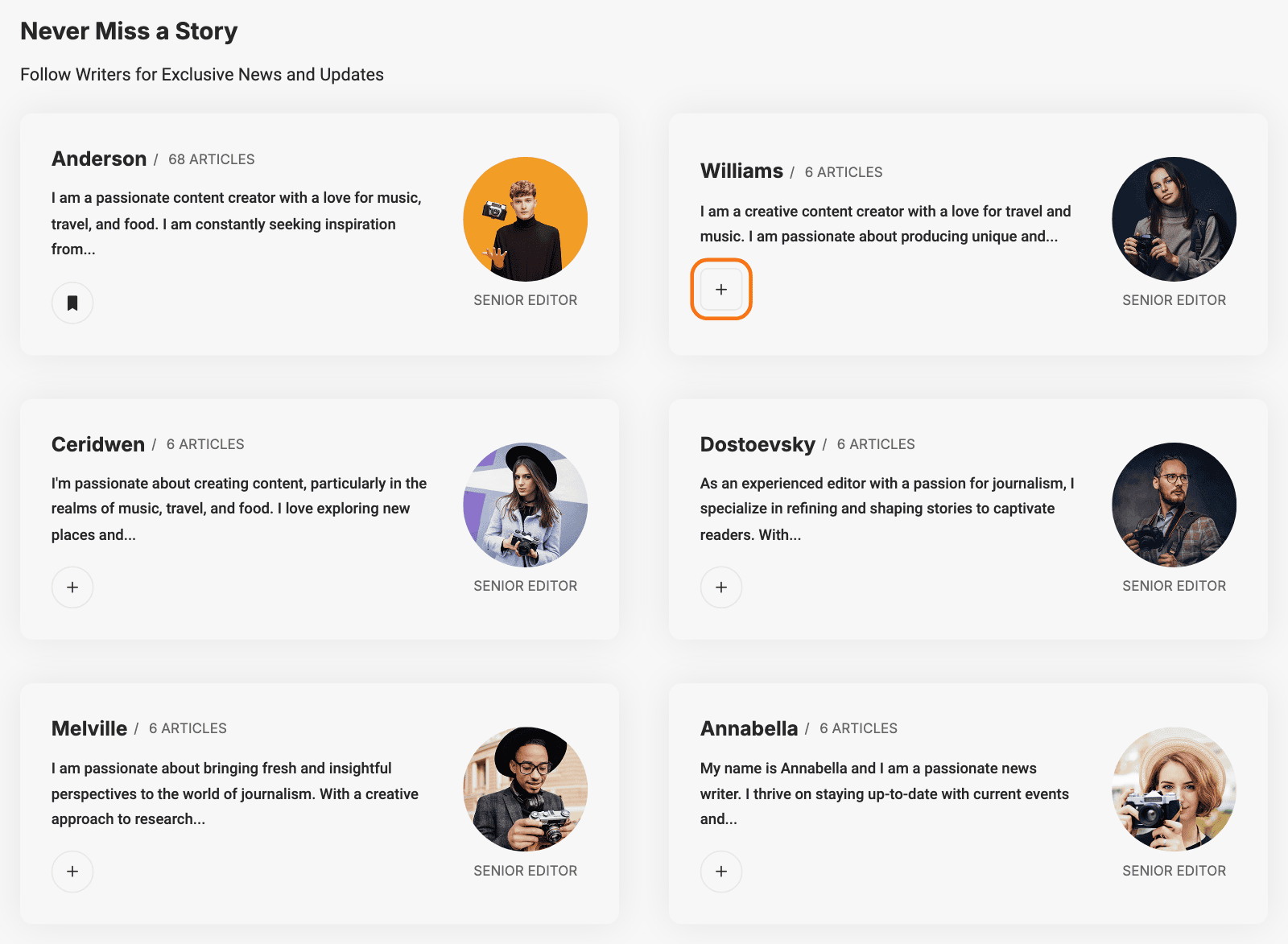
Foxiz - Authors List 2 has the same Follow Button. Both are described in The Foxiz Authors List 2 Block in Elementor.
4. Show what the visitor follows
A list of followed topics lets visitors check and undo their choices on the same page.
- Drag another Foxiz - Taxonomies List block onto the page. The demo uses Foxiz - Taxonomies List 2.
- In User Followed, set Show Followed:
- Categories: followed categories only.
- Tags: followed tags only.
- All Taxonomies: everything the visitor follows.
- Set Follow Button to Enable, so each followed topic can be unfollowed from here.
- Leave the Taxonomies rows empty if the list should hold only what the visitor follows. Any row you add is shown as well, after the followed topics.
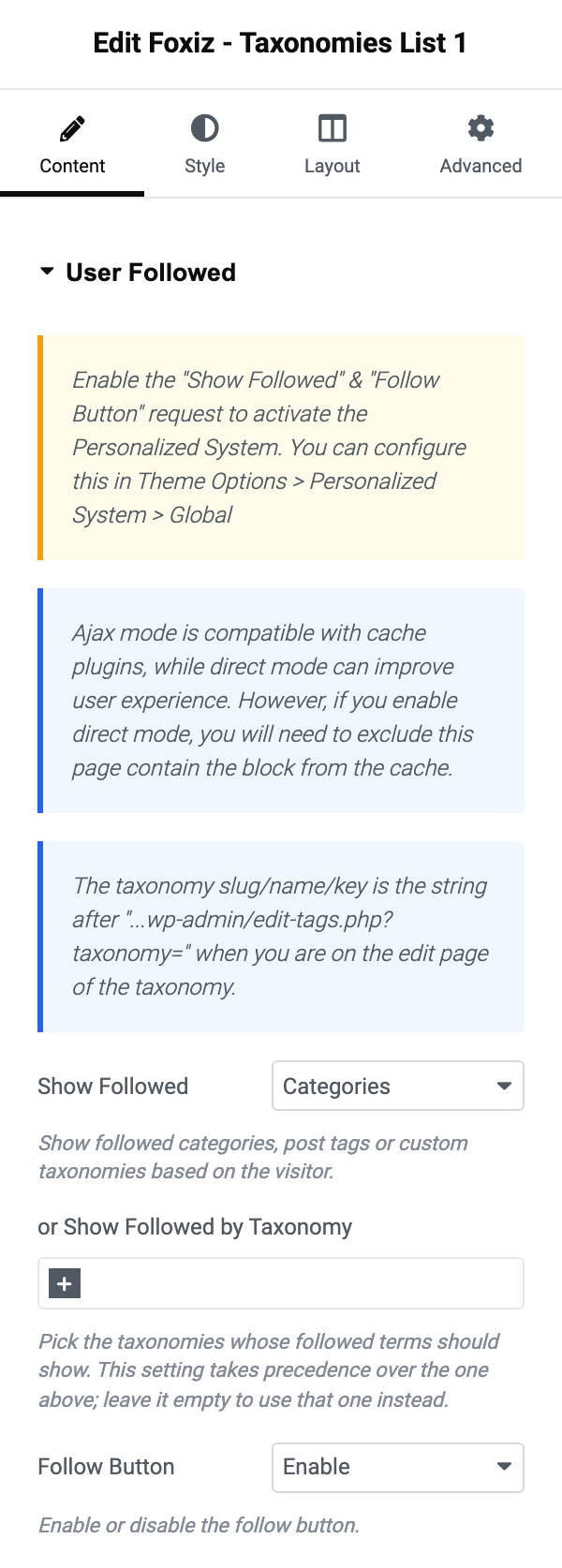
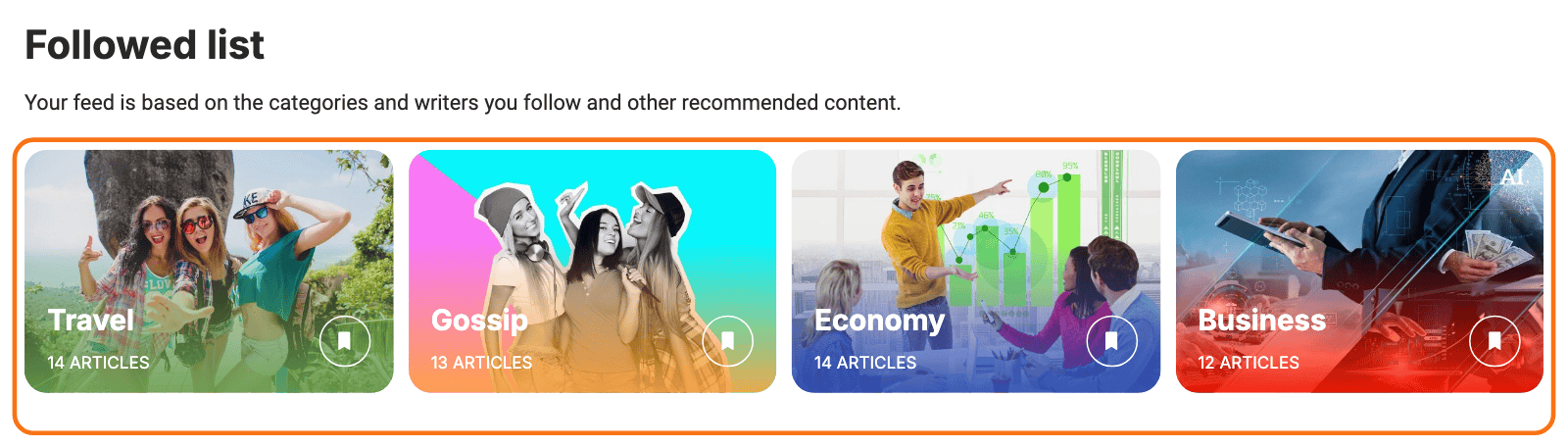
A visitor who follows nothing and a list with no rows draws an empty block. Write the heading above it so it still makes sense then, or add a few rows as suggestions.
With Show Followed on, the block's Display Mode applies: - AJAX -, the default, is safe behind a page cache, and Direct needs the page excluded from it.
There is no matching list for writers. The Follow section of the authors lists has only Follow Button, so followed writers are listed only on the Reading List page, under Writers Followed.
Click Publish when the page is done.
5. Send the Add More button here
If you also have a Reading List page, its followed categories and followed writers sections end in an Add More button. Point it at this page:
- Copy the address of the page you just published.
- Go to Theme Options > Personalized System > Reading List - Followed.
- Paste it into Redirect More Button. The field holds
#by default, so until now the button went nowhere. - Click Save Changes.
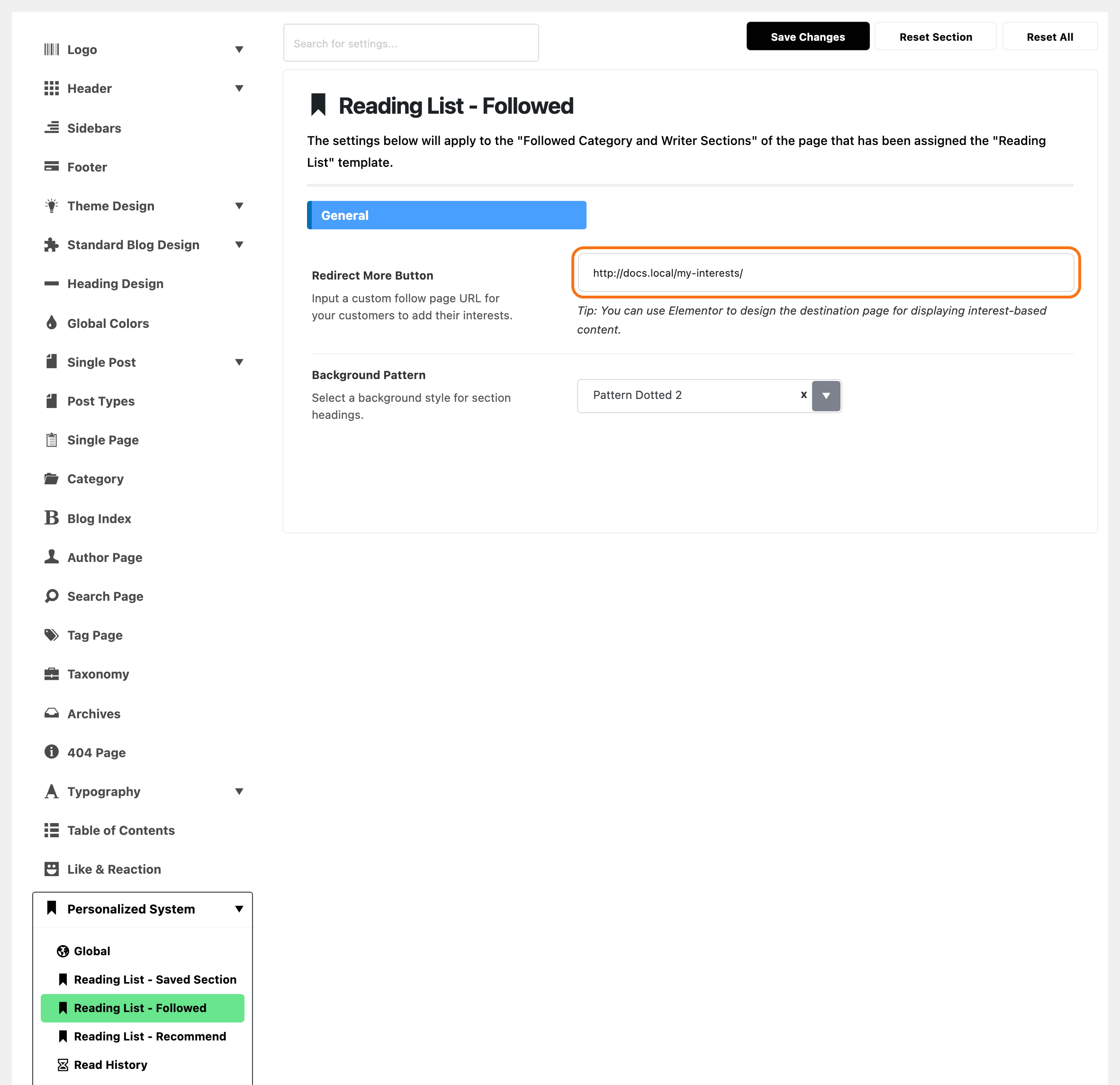
More on the button: How to Add URL for Add More Button. The rest of the section is in How to Build Personalized Pages with Elementor.
Did this answer your question?