Standard Blog Design & Styling
What are the blog modules?
These are the blog listing layouts of your website.
You can change the parts each module shows: the category, the meta info, the excerpt and the read more button.

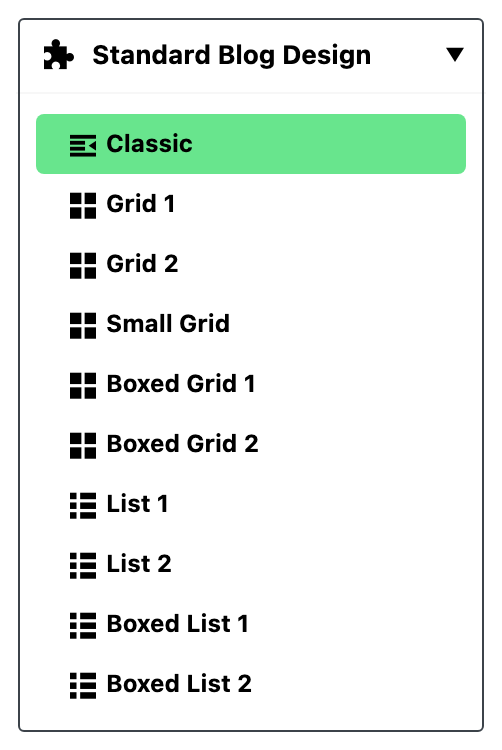
There are ten of them, each its own subsection:
- Classic
- The grids: Grid 1, Grid 2, Small Grid, Boxed Grid 1 and Boxed Grid 2
- The lists: List 1, List 2, Boxed List 1 and Boxed List 2
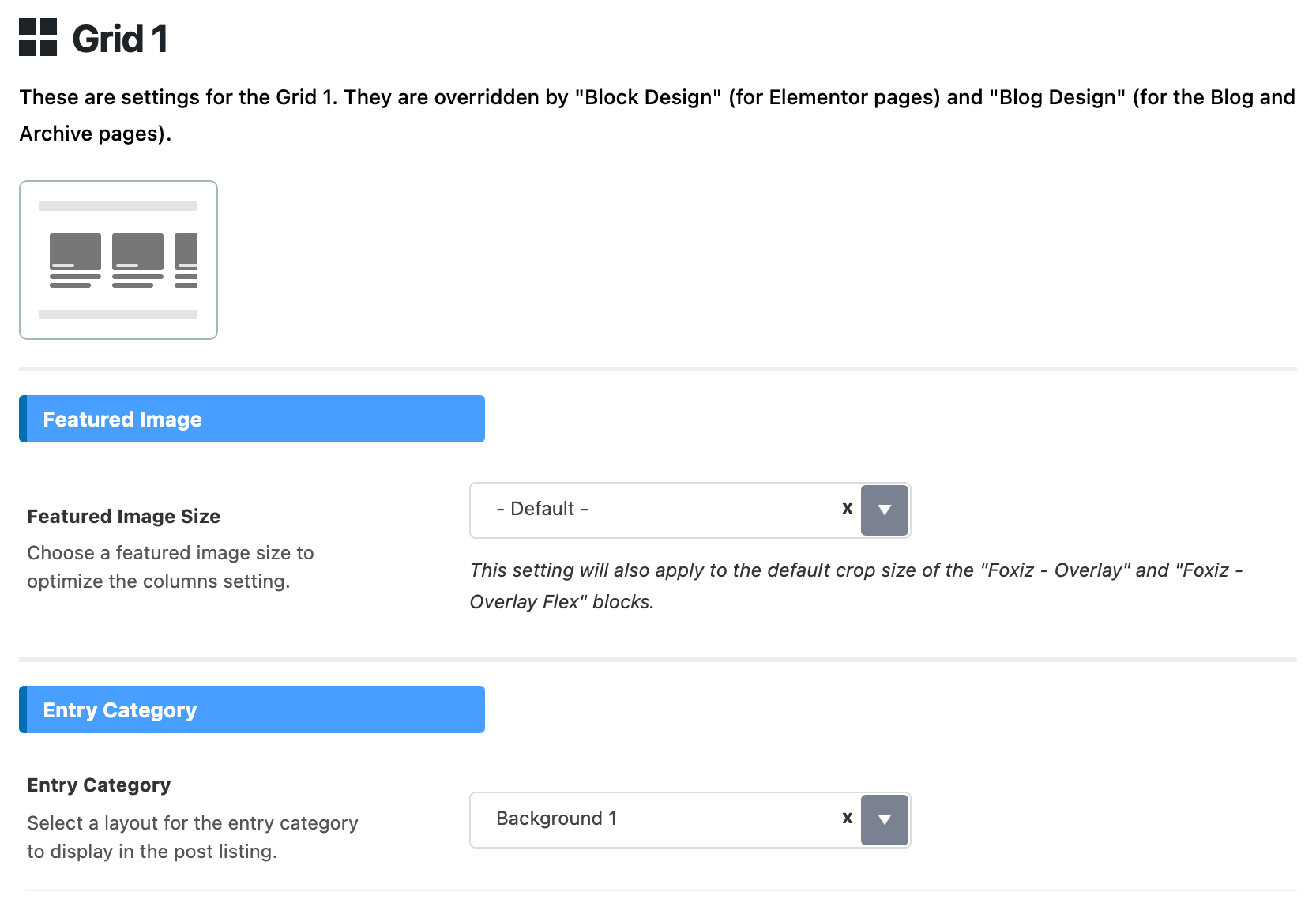
Each subsection opens with a picture of the layout it belongs to, so you can match the name to the shape before you change anything.
Which module does my listing use? The module carries the same name as the listing's layout:
- An Elementor block: the block's name. Foxiz - Grid 1 uses Grid 1, Foxiz - List 1 uses List 1, Foxiz - Classic uses Classic, and so on.
- A category, blog, author, archive or search page: the Predefined Layout picked in that page's Theme Options panel. By default category, author and archive pages use Grid 1, the blog page uses Classic and search results use Small Grid.
The settings here are the defaults for every post listing on the site. Three narrower places can change them, field by field:
- The Style tab of an Elementor block changes that one block.
- The Post Listing - Design group in the Theme Options panel of a listing page (Category, Blog Index, Author Page, Archives or Search Page) changes that kind of page.
- The Predefined Blog tab of a category's own Foxiz Category Settings box changes that one category's page, over Theme Options > Category.
The narrower setting wins. A field left on - Default -, Default from Theme Option or blank hands the decision back to the wider one, and in the end to the module here. So set each module here first, then change only the blocks and pages that should look different.
Getting started
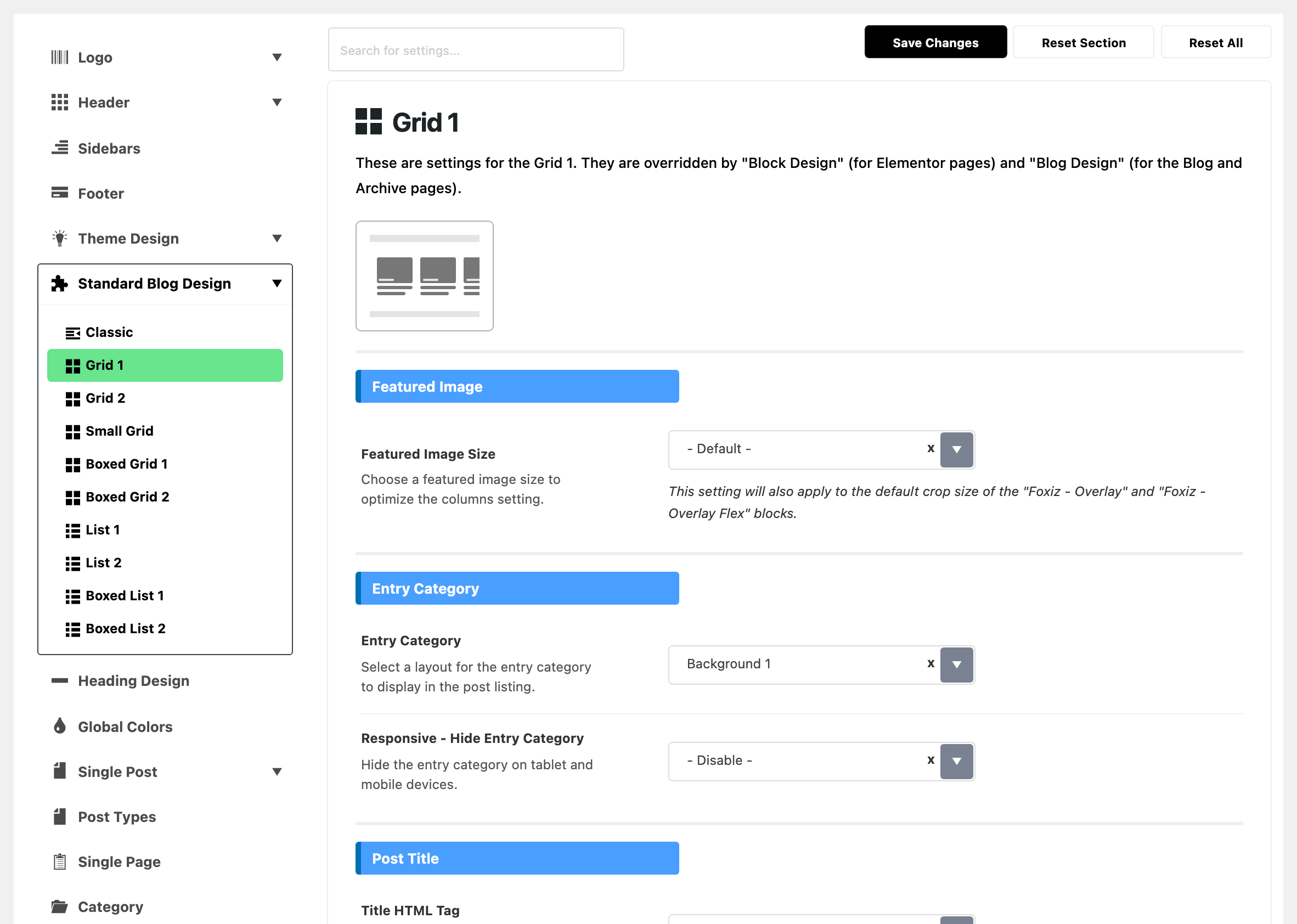
- Navigate to Theme Options > Standard Blog Design. The tab itself is empty; the ten modules are listed underneath it.
- Click the module you want to edit in the list that opens. Its panel starts with a picture of the layout, so you can check it is the right one.
- Edit options and click on the "Save Changes".
Module Options
-
Featured image size: Assign an image size for this module. The label is Featured Image Size and its default is - Default -, and the sizes it offers are the theme crop sizes you have left enabled at Theme Design > Featured Image > Theme Crop Sizes, plus the WordPress core sizes. Turn a crop size off there and it stops being offered here.
-
Entry category: this is a layout select, not a switch. Grid 1 defaults to Background 1. It offers ten styles:
- Background 1 through Background 4
- Only Text
- Border
- Bottom Line
- Bottom Dotted
- Bottom Border
- Left Dot
Most of them also come in a (Big) variant, and there is Disable.
-
Entry meta tags: select entry meta you would like to display. The label is Entry Meta Tags and it is a multi select. The keys are
avatar,author,date,category,tag,view,comment,update,read,bookmark,likeandcustom, plus Disabled. Grid 1 defaults to avatar, author and last updated.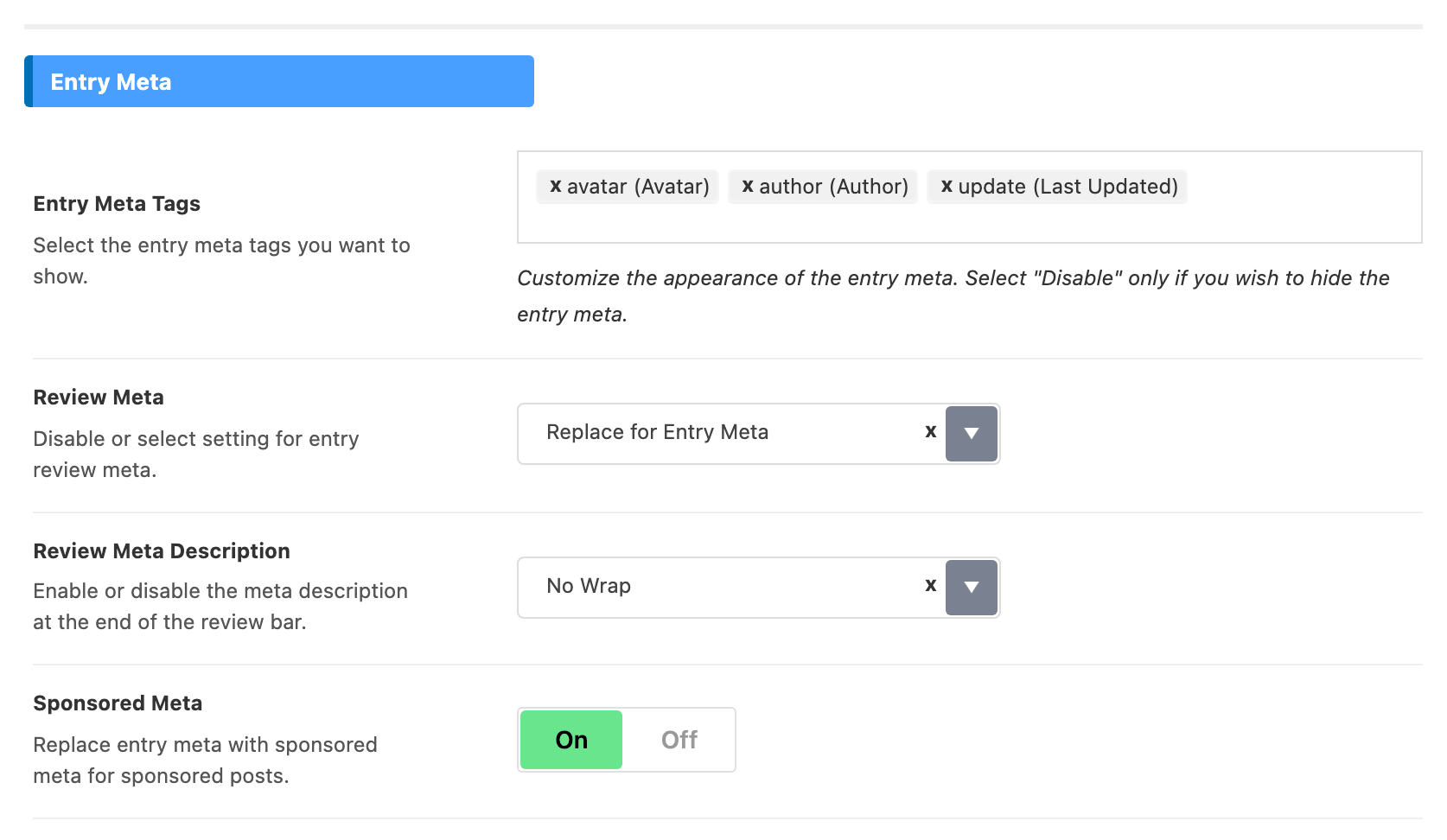
The three most changed fields start differently per module:
Module Entry Category Entry Meta Tags Read More Button Classic Background 1 (Big) avatar, author, update off Grid 1 Background 1 avatar, author, update off Grid 2 Background 1 avatar, author, update off Small Grid Background 1 update off Boxed Grid 1 Background 1 (Big) avatar, author, update off Boxed Grid 2 Background 1 avatar, author, update off List 1 Background 1 avatar, author, update off List 2 Background 1 avatar, author, update off Boxed List 1 Background 1 avatar, author, update off Boxed List 2 Background 1 avatar, author, update off -
And many more other options. Each module also carries these, group by group:
- Entry Category: Responsive - Hide Entry Category
- Post Title: Title HTML Tag
- Entry Meta: Review Meta, Review Meta Description, Sponsored Meta, Hide Entry Meta on Tablet and Hide Entry Meta on Mobile
- Bookmark: Bookmark Icon
- Post Format: Post Format Icon
- Excerpt: Excerpt - Max Length, Excerpt - Source and Responsive - Hide Excerpt
- Read More: Read More Button
- Centering: Centering Content
Two of those are worth knowing before you go looking for them elsewhere. Excerpt - Max Length is a word count, and where it starts depends on the module: 12 on most of them, 30 on Classic, 20 on List 2, and blank on Small Grid, which therefore shows no excerpt until you type a number. Leave it blank or set it to 0 to hide the excerpt for that module. Read More Button is off by default on Grid 1, so the button you styled at Theme Design > Read More Button will not appear until you turn it on here.
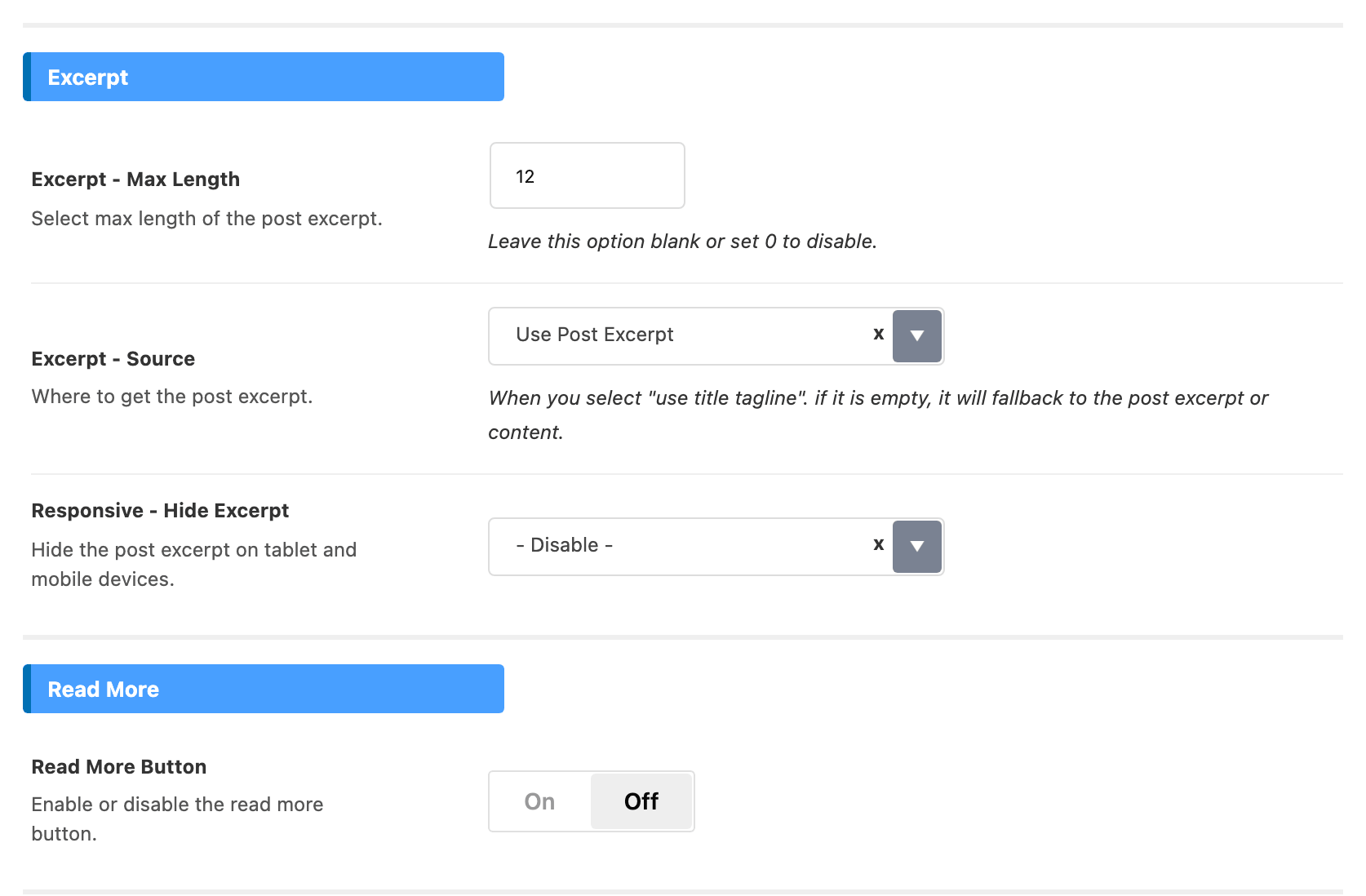
Entry Meta Tags has two behaviours that catch people out.
The order you pick the items in is the order they come out, left to right. Remove one and add it back and it goes to the end of the line, so to reorder the line you clear the field and pick the items again in the order you want.
Disabled only takes effect as the first value in the field. Picked after anything else it is passed over and the line still prints, so clear the field completely and then choose Disabled on its own.
Three kinds of post replace the whole meta line rather than adding to it, and two of them are on as the theme arrives:
- Review Meta is set to Replace for Entry Meta by default in every module except Classic, so a post with a review shows its score bar where the meta line would be. Set it to Enable to have both. Classic already defaults to Enable and shows the two together.
- Sponsored Meta is on by default, so a post marked as sponsored shows its sponsor line instead of the meta line. Turn it off to keep the ordinary meta on sponsored posts.
- A WooCommerce product shows its price in place of the meta line, and there is no module setting for that one.
Review Meta Description, directly under Review Meta, decides what follows the score bar or stars on a review post: the score written out, such as 8 out of 10, and the short Meta Description you typed in the post's Review tab.
- No Wrap keeps the text on the same line as the bar, and is the default in nine of the ten modules.
- Line Wrap puts the text on its own line under the bar, and Desktop No Wrap - Mobile Line Wrap does that only below 1024px of screen width, so on tablets and phones.
- No Wrap (Show Score Only) and Line Wrap (Show Score Only) print the score and leave the post's own description out.
- Disable shows the score bar or stars alone. Small Grid defaults to this one, because its cards are narrow.
It only matters while Review Meta is on Enable or Replace for Entry Meta. See how to create a review post for the post side.
The four boxed modules, Boxed Grid 1, Boxed Grid 2, Boxed List 1 and Boxed List 2, open with one more group, Boxed, that the others do not have.
- Box Style is the frame each post sits in: Background, Border or Shadow. All four default to Background.
- Box Color is the colour of that frame: the fill for Background and Shadow, the line for Border. It is empty by default, which gives a light grey fill, a grey line, or no fill behind the shadow.
- Dark Mode - Box Color is the same colour in dark mode, and is also empty by default.
In an Elementor block the override is not automatic. Entry Meta Tags in the block is only read once the Entry Meta select above it is set to Custom Below. Left on Default from Theme Option the block uses the module values from this panel, whatever you typed in the box.
Did this answer your question?