Every Setting in the Login Panel
Theme Options > Login has two subsections. Login System decides where signing in happens: the WordPress login screen and how it looks, your own login and registration pages if you built them, and where readers land afterwards. Popup Sign In decides how a reader gets there from the front end: the sign in buttons in the header and the popup form they open.
For the order to set things up, start at How Frontend Login Works. To build a login page of your own, see Guide to Creating a Login Page; for a registration page, Guide to Creating a Registration Page. This page lists what every field does.
Login System
Default Login Screen
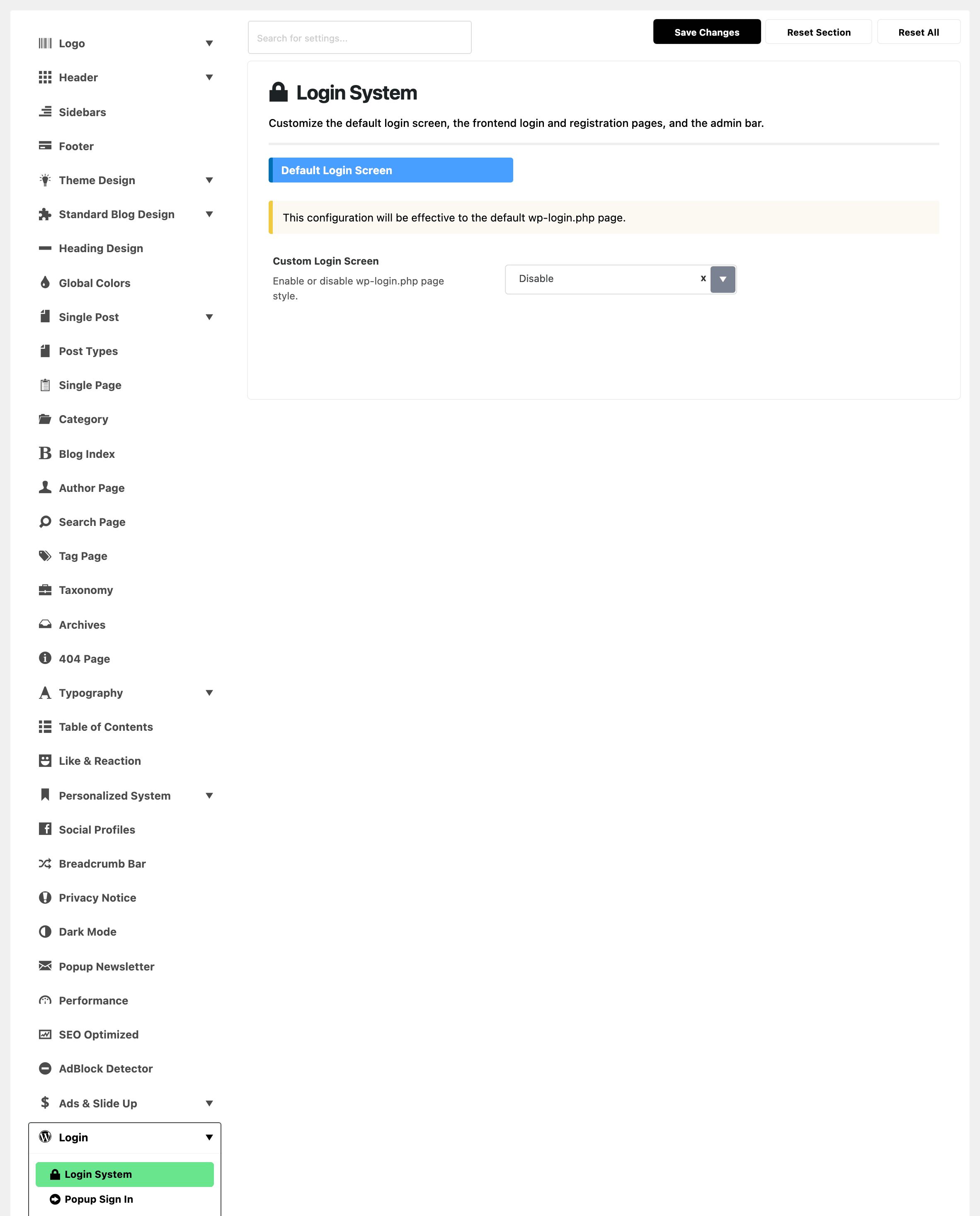
These fields restyle the standard WordPress login screen, the one at wp-login.php.
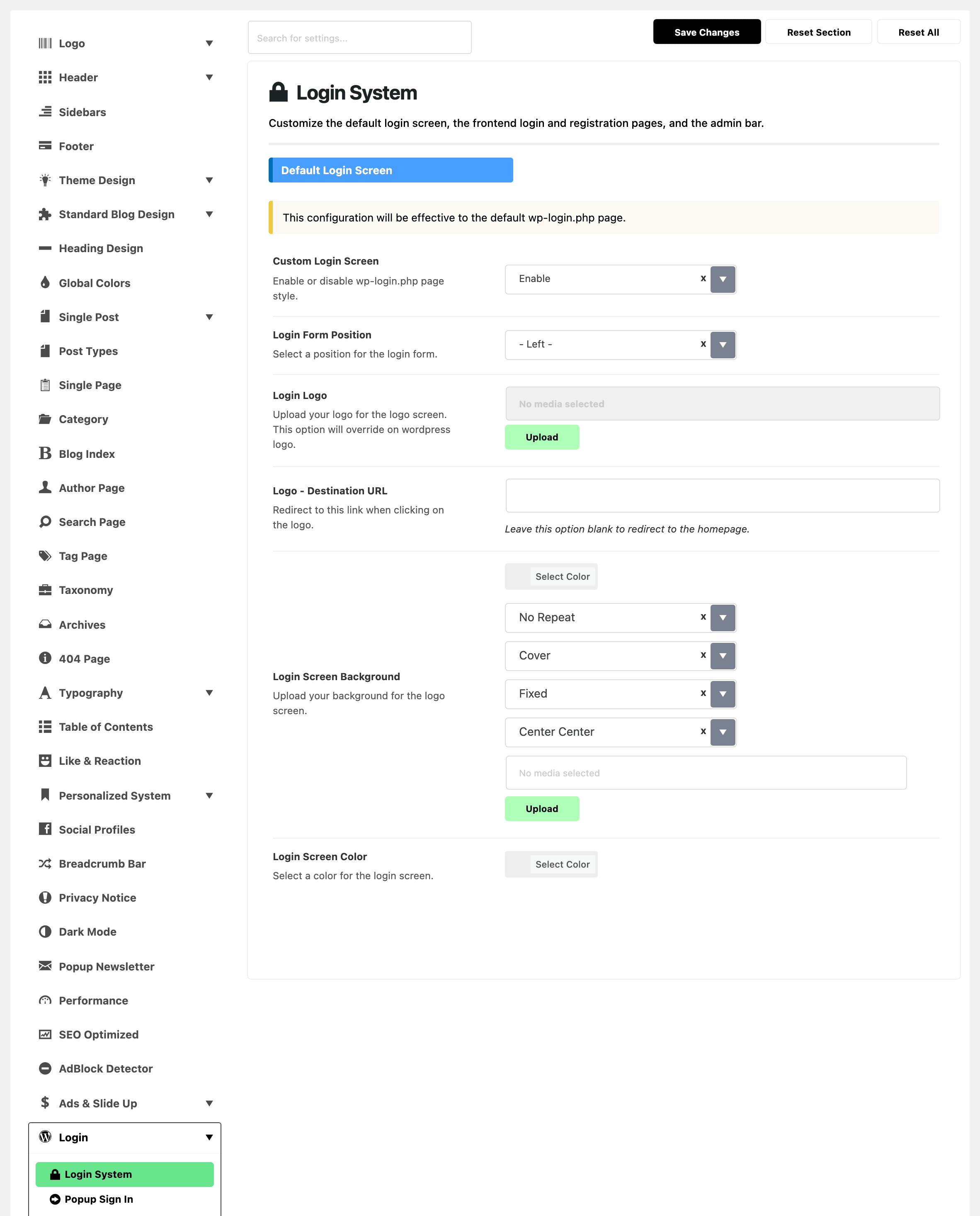
- Custom Login Screen turns the restyle on. It offers Enable and Disable and defaults to Disable, and the five fields below it stay hidden until you pick Enable.
- Login Form Position places the form on the screen: - Left -, the default, Center or Right.
- Login Logo replaces the WordPress logo above the form. It is drawn in a box 60 pixels tall and up to 300 pixels wide and scaled to fit, so a wide, short logo works best.
- Logo - Destination URL is where that logo links. Leave it blank and it goes to your homepage.
- Login Screen Background takes a colour or an image for the whole screen. An image starts out covering the screen, fixed in place and centred.
- Login Screen Color colours the Log In button and the show password icon. Leave it empty to keep the theme's own colour.
Frontend Login and Registration Pages
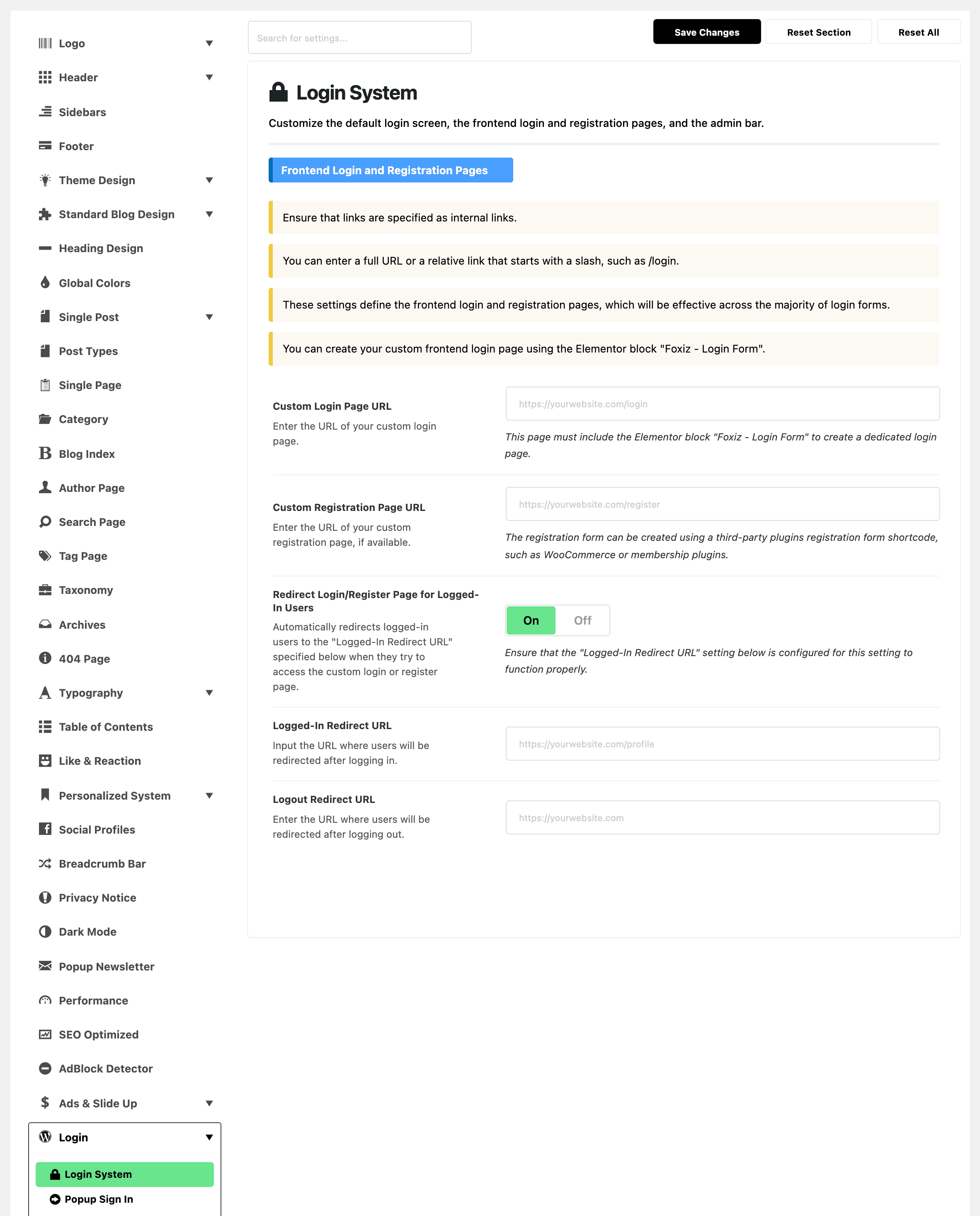
Fill these in when you have built your own pages. Each takes a full address or one that starts with a slash, such as /login, and both have to be pages on your own site.
-
Custom Login Page URL is your login page, which needs the Foxiz - Login Form block on it. Once it is set, the site's login links, the lost password link and a failed login all lead there instead of
wp-login.php. -
Custom Registration Page URL is your registration page, and the site's register links point to it. The form on it can come from another plugin, such as WooCommerce or a membership plugin.
-
Redirect Login/Register Page for Logged-In Users is on by default. A reader who is already signed in and opens either page is sent to the address in the next field instead. While that field is empty, nothing happens.
-
Logged-In Redirect URL is where a reader goes after signing in, and where the switch above sends a signed in reader.
/, the homepage, is a good value once you have a login page. Where a reader lands depends on where they signed in:- The popup: always back to the page they were on. This field does not apply.
- Your login page: this address. Blank leaves them on the login page.
wp-login.php, from the header's sign in link while the popup is off and no login page is set: this address. Blank returns them to the page they were on.- The field is hidden while the switch above is off, but a value saved in it still applies.
How to Choose Where Readers Land After Login and Logout has the full picture.
-
Logout Redirect URL is where a reader goes after signing out. Blank keeps them on the page they were on when they clicked Sign Out in the header.
Admin Bar
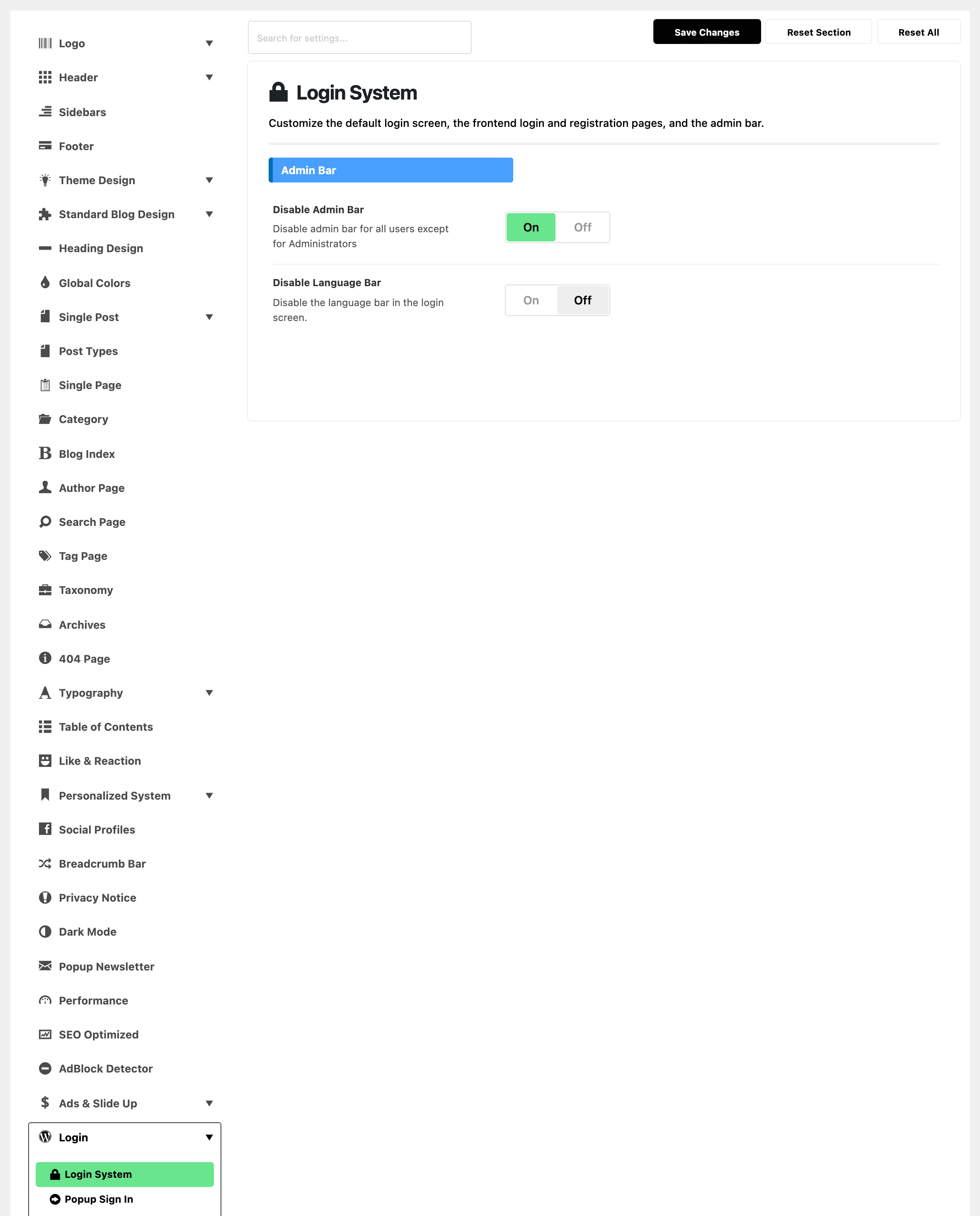
- Disable Admin Bar is on by default. It hides the WordPress toolbar along the top of the front end for every signed in user except administrators, which is what you want once readers can create accounts. Turn it off to give editors and authors their toolbar back.
- Disable Language Bar is off by default. Turn it on to remove the language picker under the form on
wp-login.php. It works whether or not Custom Login Screen is on. WordPress only shows the picker when a second language is installed.
Popup Sign In
The buttons in this subsection belong to the predefined headers, the five ready made layouts. To see which header you have, open Foxiz > Theme Options > Header > Header Layout: Layout 1 (Left Menu) to Layout 5 (Center Logo) is a predefined header. Use Ruby Template means a header template, built in Elementor; add the Foxiz - Login Link Trigger Button block to that template instead. How to Add a Sign In Button to the Header walks both. The popup form itself works with either.
Sign In Button for Desktop
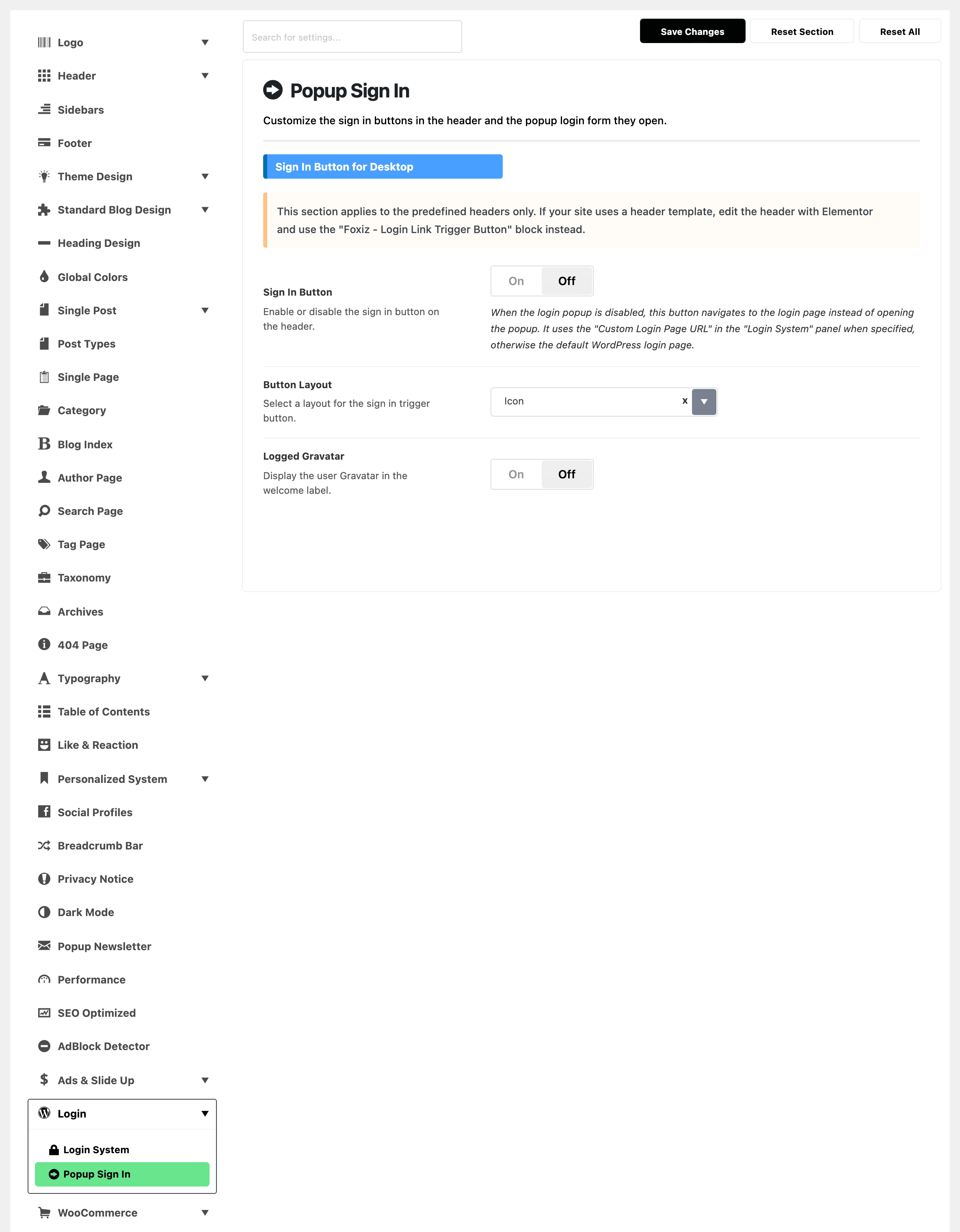
- Sign In Button puts the button in the header. It is off by default.
- Button Layout offers Icon, the default, Text Button and Text with Icon Button. Icon is a small person icon and takes the least room. Pick a text layout if you want the words "Sign In" in the header, so readers cannot miss it.
- Logged Gravatar adds the reader's avatar beside the "Hi, name" greeting that replaces the button once they are signed in. It is off by default. Turn it on if your readers have profile pictures, a Gravatar or one uploaded to their profile; leave it off and the greeting shows the name alone.
Sign In Button for Mobile
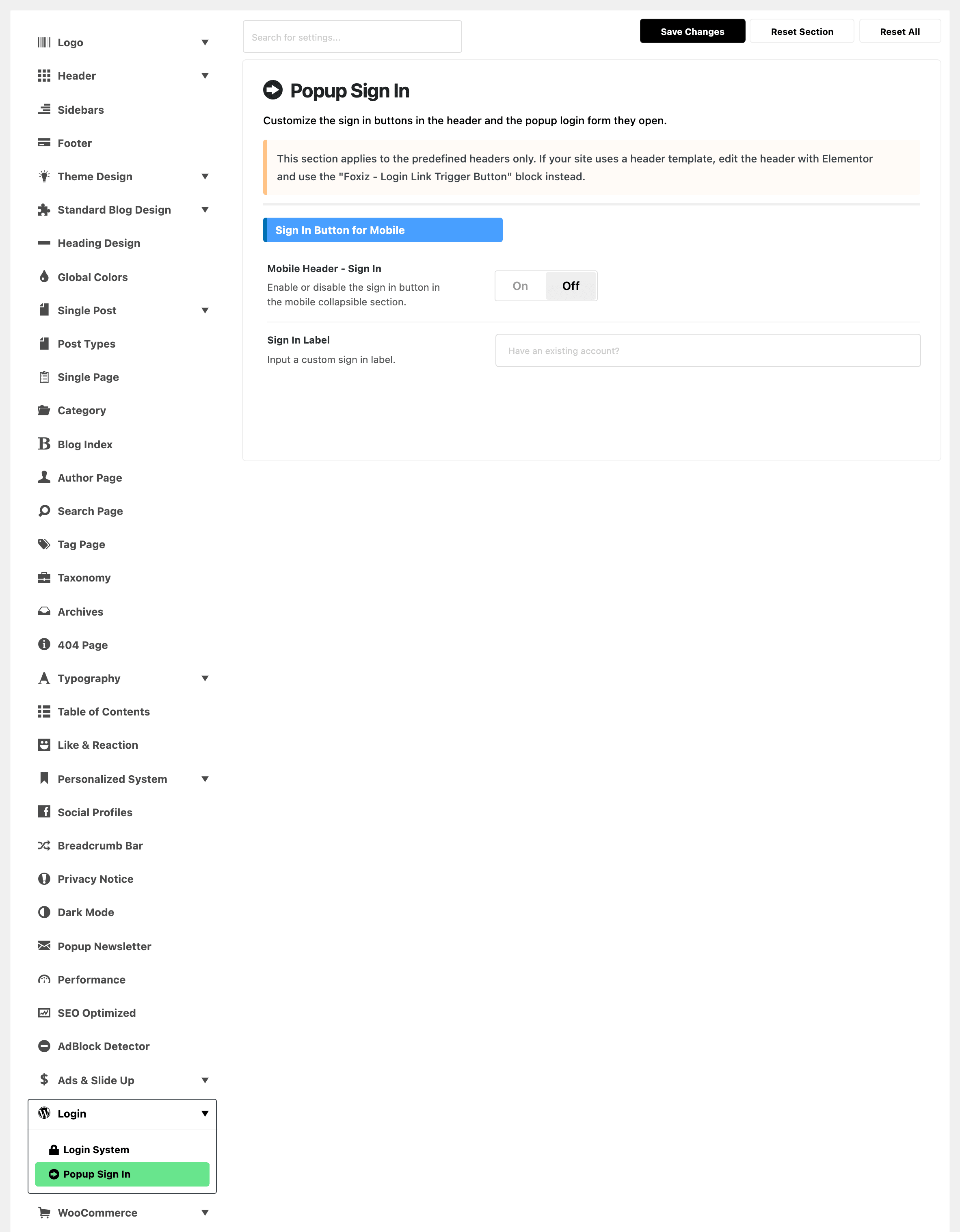
- Mobile Header - Sign In adds a sign in area to the mobile header's collapsible menu. It is off by default. A signed out reader sees a short line and a Sign In button; a signed in reader sees the greeting and Sign Out.
- Sign In Label replaces that short line, which reads "Have an existing account?" while the field is empty.
Logged User Menu
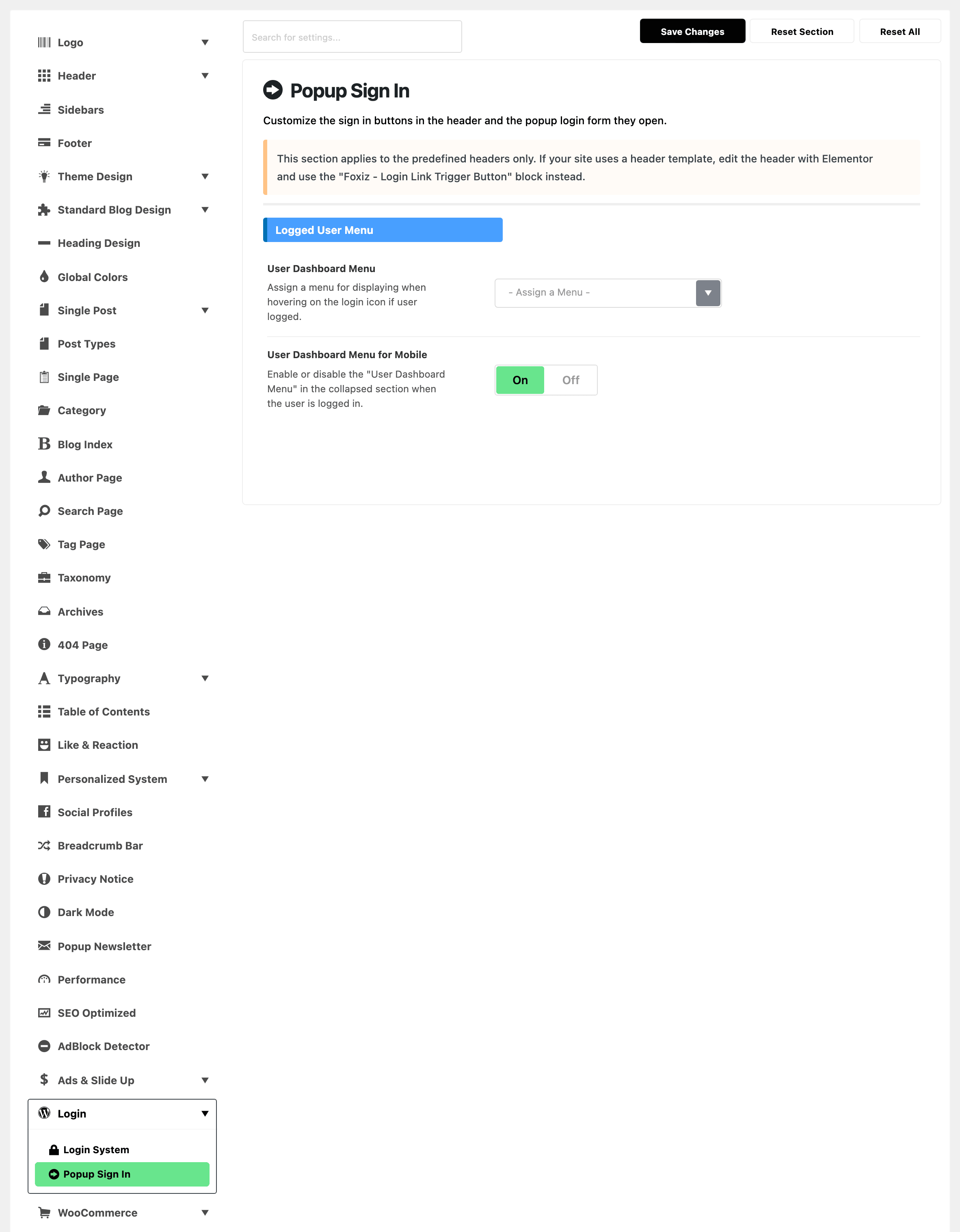
- User Dashboard Menu picks one of your menus to drop down under the greeting when a signed in reader clicks it, above the Sign Out link. The panel says hovering; it opens on a click. Build the menu first under Appearance > Menus; only its top level items are shown.
- User Dashboard Menu for Mobile shows the same menu in the mobile collapsible menu for a signed in reader. It is on by default, and it shows nothing until a menu is picked above.
Sign In Button Icon
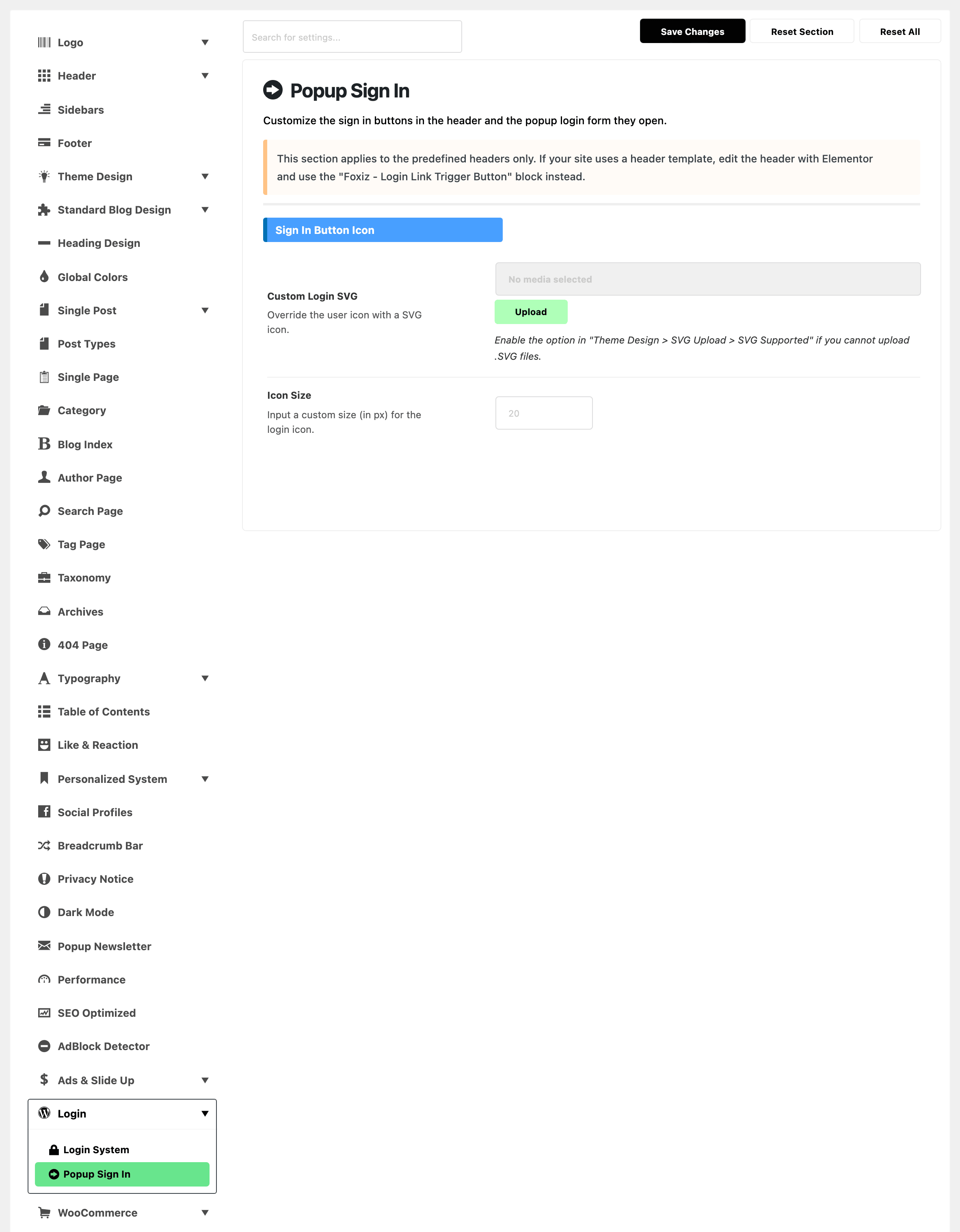
- Custom Login SVG replaces the person icon on the button. An SVG takes the colour of the header text like the icon it replaces; another image format is shown in its own colours. If the media library refuses
.svgfiles, turn on SVG Supported in Theme Options > Theme Design > SVG Upload first. - Icon Size sets the icon's size in pixels, and phones get 85 percent of it. Leave it empty to match the header's other icons.
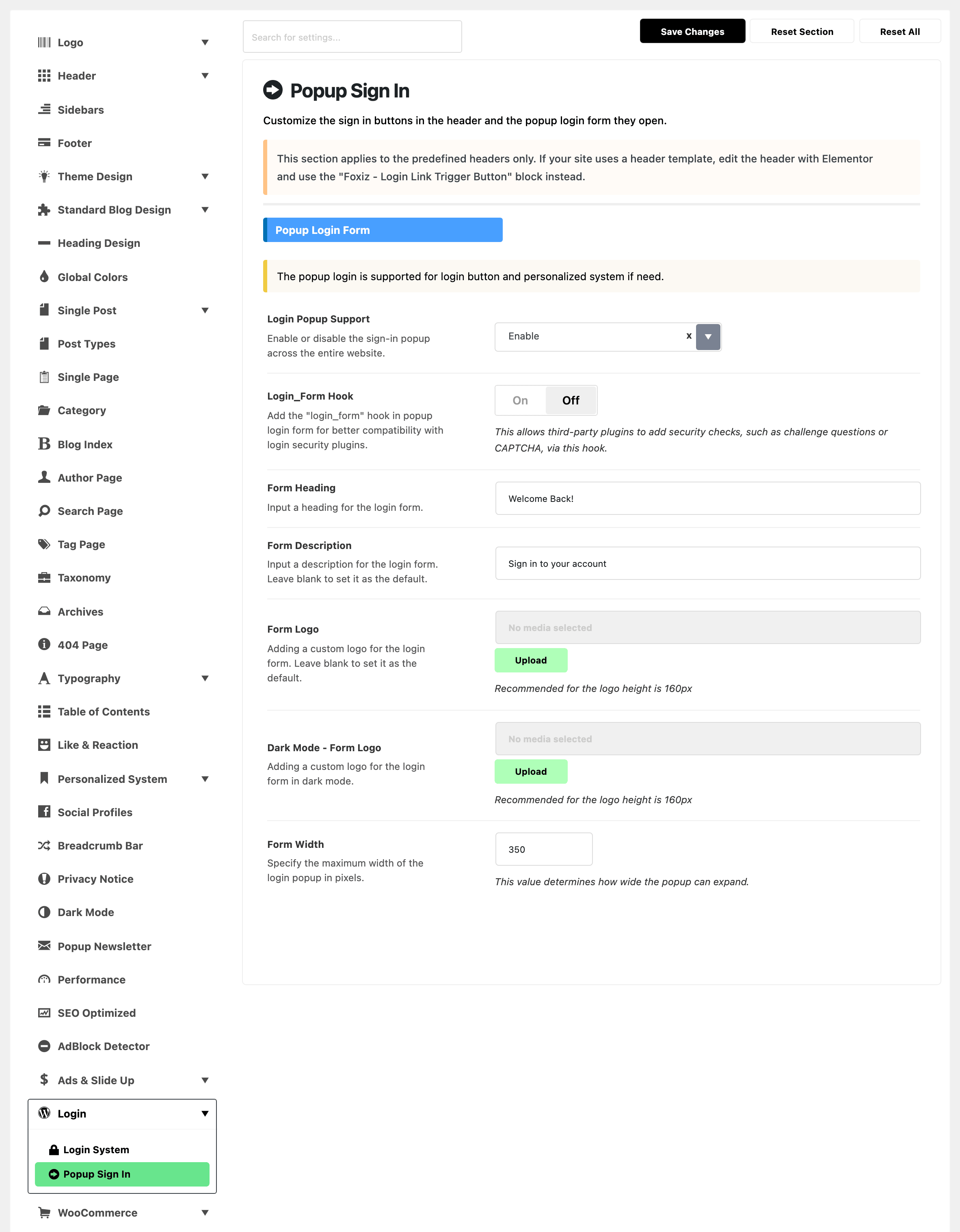
Popup Login Form
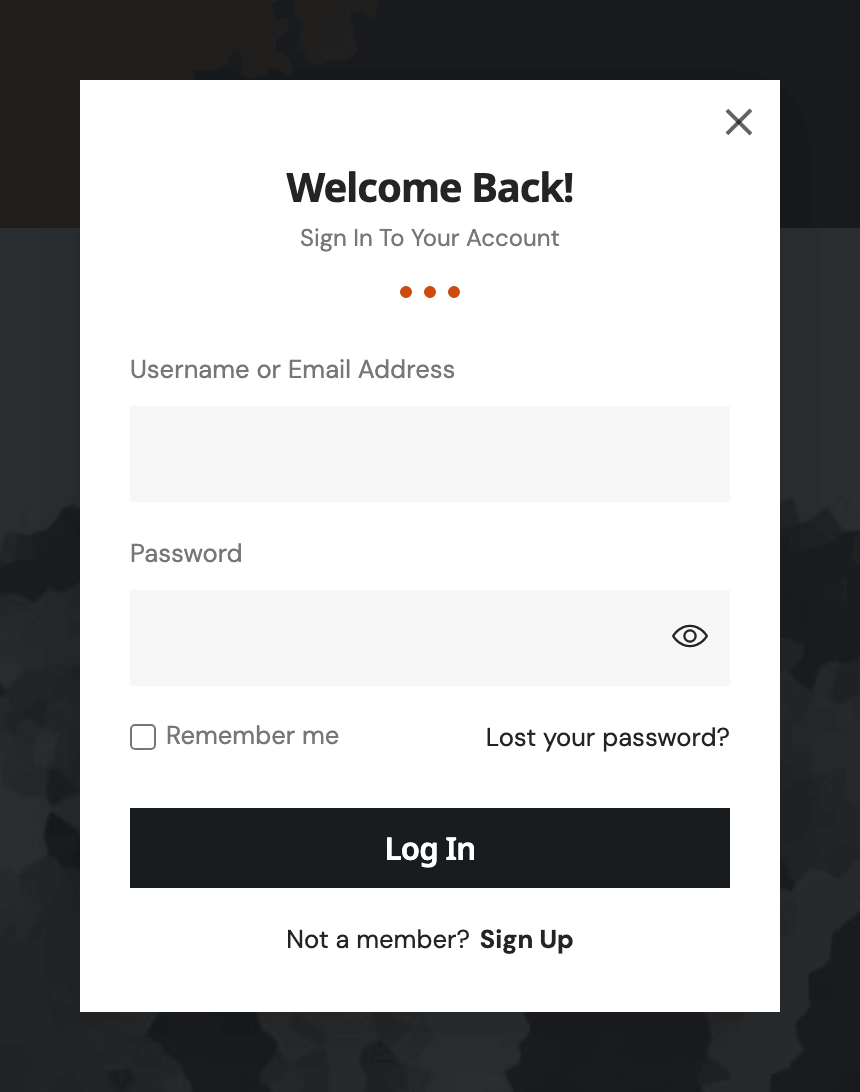
The popup opens from the sign in buttons, and from the bookmark and follow icons when guests are asked to sign in first.
- Login Popup Support defaults to Enable. On Disable, no popup is drawn anywhere and every sign in button goes straight to the login page: Custom Login Page URL if you set one, otherwise
wp-login.php. The fields below hide while it is disabled. - Login_Form Hook is off by default. Turn it on when a security plugin should add its CAPTCHA or challenge question to the popup form, because that is the hook such plugins attach to.
- By default, Form Heading reads "Welcome Back!" and Form Description reads "Sign in to your account". Empty either and that line is left out.
- Form Logo puts an image above the heading, and Dark Mode - Form Logo swaps in for it in dark mode. The dark one is only used when Form Logo is set too. Neither is shown by default.
- Form Width is the popup's maximum width in pixels, 350 by default.
When the site allows registration, the popup also shows a Sign Up link under the form, leading to Custom Registration Page URL if you set one.
Did this answer your question?