How to Config the Footer?
Footer Settings
Footer settings are a part of the Theme Options panel.
To get started, you can navigate to Theme Options > Footer
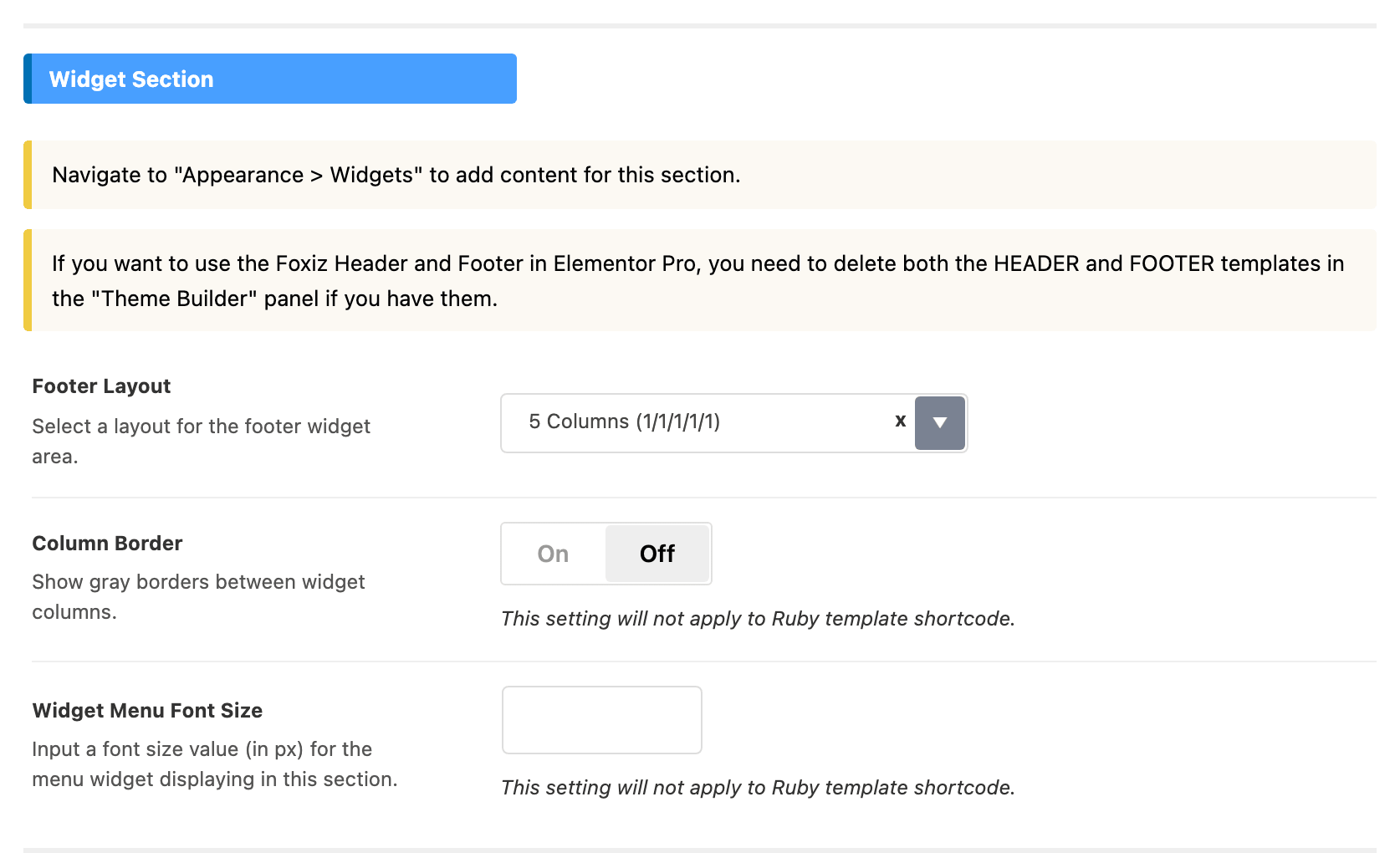
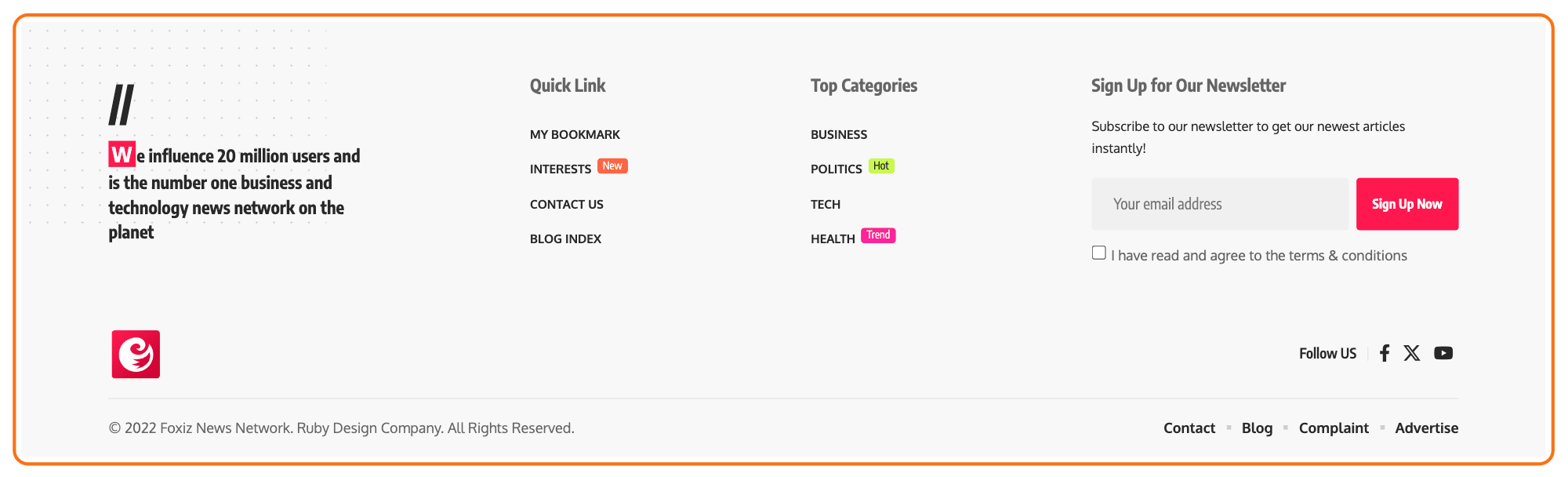
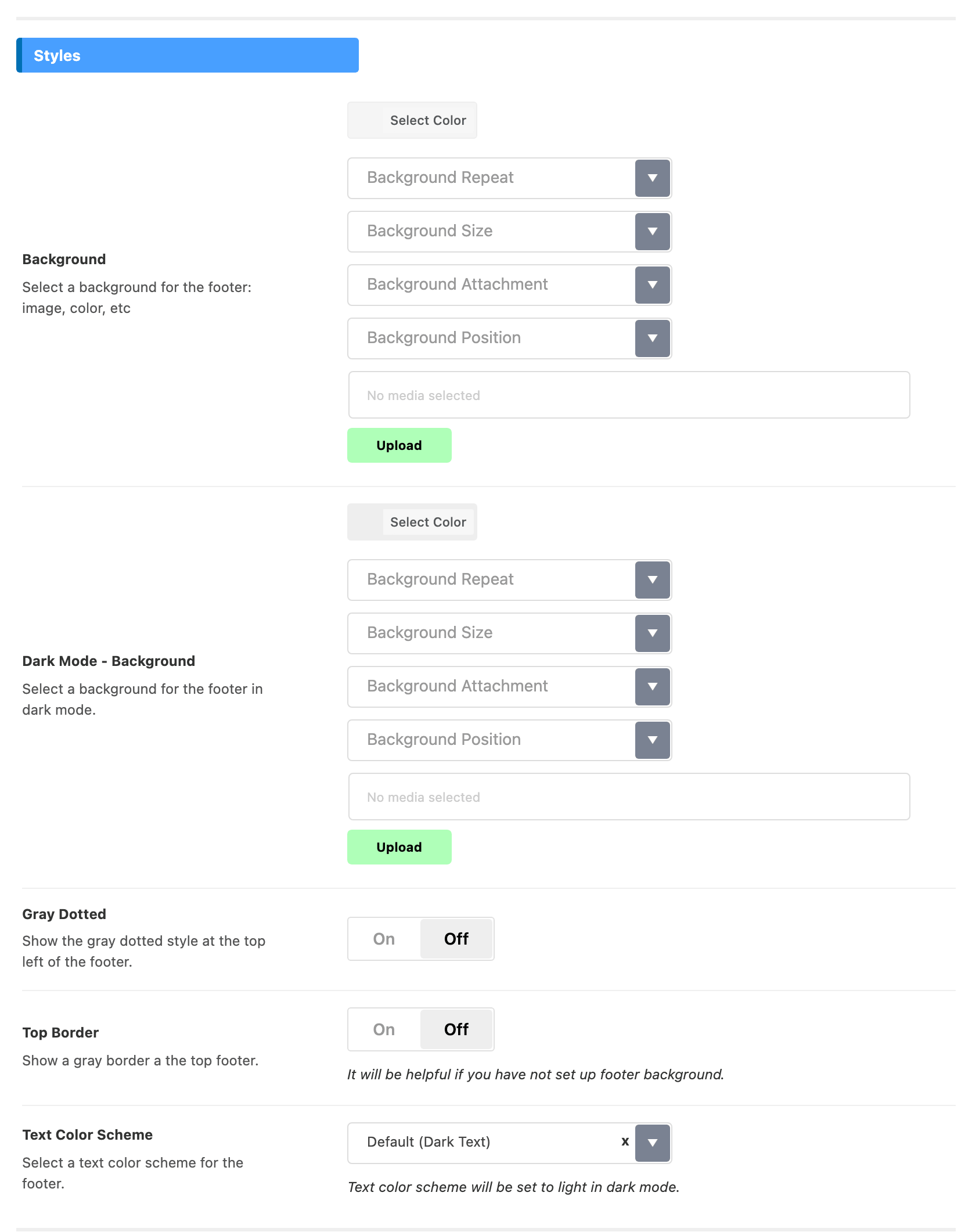
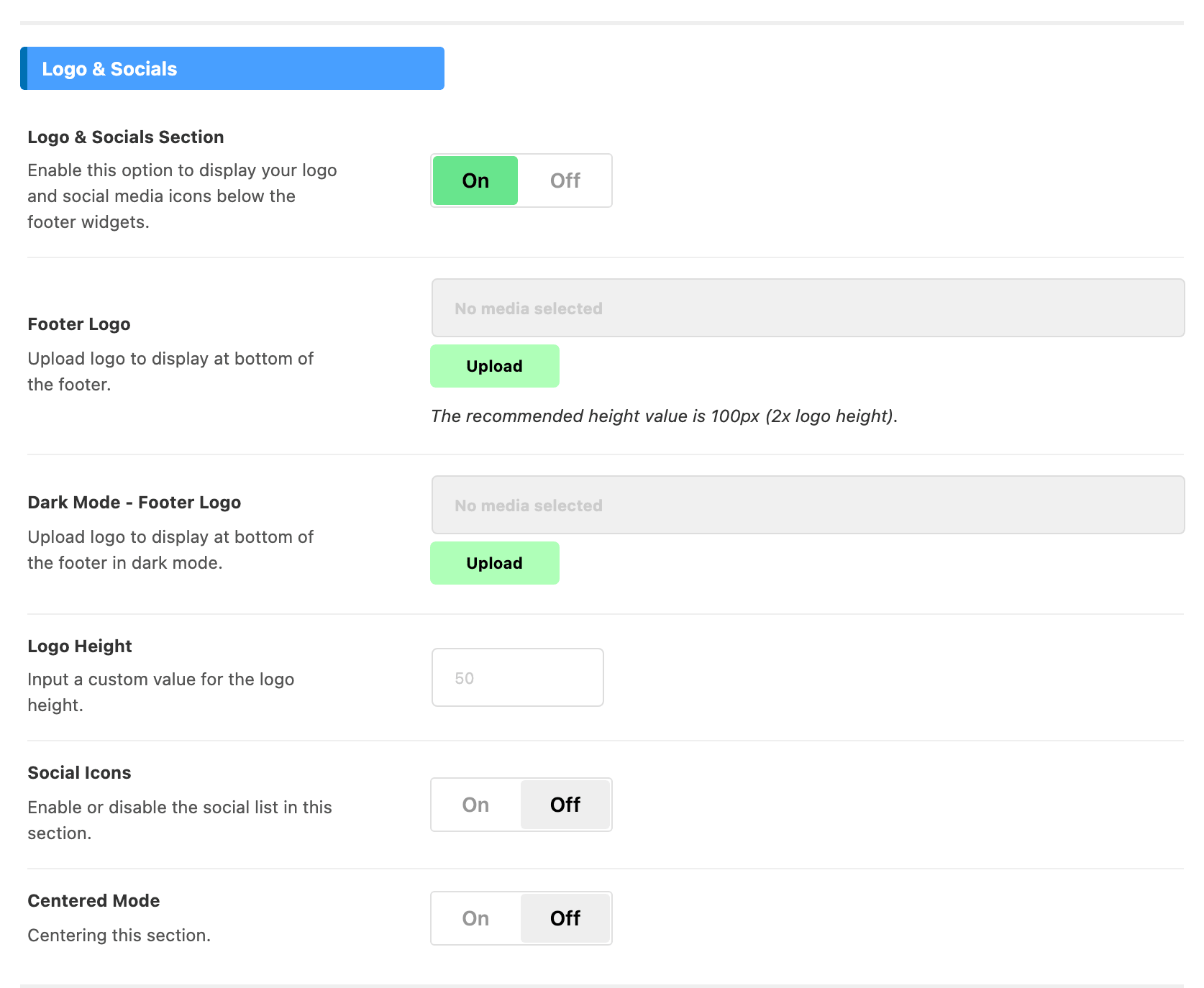
The panel is split into four sections, and every control below sits in one of them: Styles, Widget Section, Logo & Socials and Copyright.
You can change:
-
Footer Layout: select a layout for the footer. In Widget Section. Six choices: 4 Columns (3/2/2/3), 5 Columns (1/1/1/1/1), 5 Columns (40/15/15/15/15), 3 Columns (1/2/1), Use Ruby Template and Disable. Its default is 5 Columns (1/1/1/1/1).
The choice decides which widget areas exist. Disable removes the widget area and leaves only the copyright bar, and Use Ruby Template replaces the columns with a template shortcode: see Footer Builder.
-
Background: You can set a background color or background image for the footer. In Styles. It defaults to a faint grey,
#88888812. -
Dark Mode - Background: You can set a background color or background image for the footer in the dark mode. In Styles, no default.
-
Text Color Scheme: select a style for the footer. In Styles. Two values, Default (Dark Text) and Light Text, and its default is Default (Dark Text).
-
Footer Logo: logo to display in the footer. In Logo & Socials, and it only appears once Logo & Socials Section is on. The recommended height is 100px, which is twice the height you want it drawn at.
-
Dark Mode - Footer Logo: logo to display for the footer in the dark mode. In Logo & Socials, also behind Logo & Socials Section. Leave it empty and the light logo is used in dark mode too.
-
Social Icons: social icons in the footer. In Logo & Socials, off by default, and behind Logo & Socials Section. It is a switch, not a list: the icons and their addresses come from Theme Options > Social Profiles, so the footer shows nothing until at least one address is filled in there.
-
Copyright Text: the copyright info of your website. In Copyright. Raw HTML is allowed, and
{year}anywhere in the text is replaced with the current year.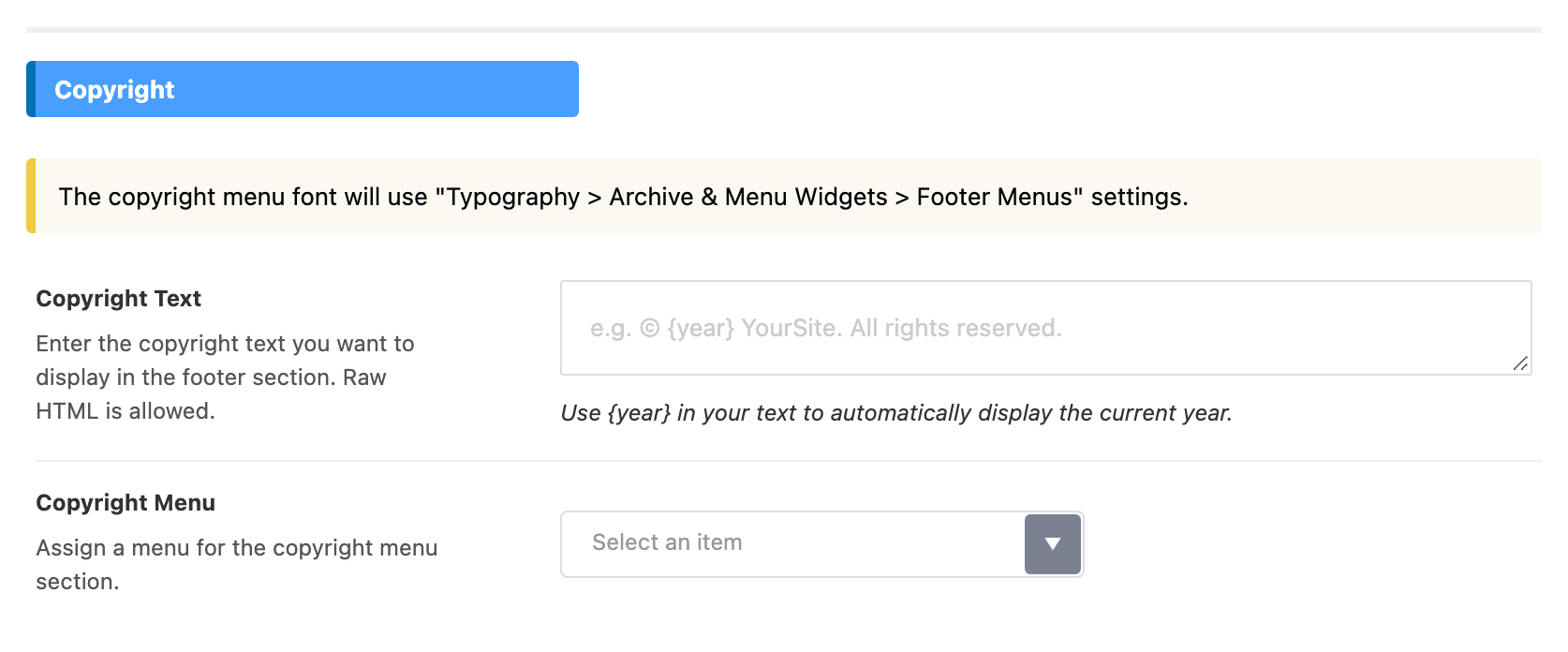

Text Color Scheme is an important option: it sets the colour of all the footer text, so pick the one that reads on your footer background. Use Light Text on a dark background.
In dark mode it is ignored: the footer text is always the light scheme there, whatever you set here.
The eight above are the ones most people change. The panel holds eleven more controls.
In Styles:
- Gray Dotted draws the grey dotted pattern at the top left of the footer. Off by default.
- Top Border draws a grey line along the top of the footer. Off by default, and most useful when you have not set a footer background.
In Widget Section:
- Template Shortcode takes the Ruby Template shortcode, and only appears when Footer Layout is Use Ruby Template.
- Column Border draws grey lines between the widget columns. Off by default. It does nothing under a Ruby template.
- Widget Menu Font Size sets the font size in px for menu widgets in this section. No default, and it does nothing under a Ruby template.
In Logo & Socials:
- Logo & Socials Section is the switch above the whole group. It is on by default, and turning it off hides the logo, the dark logo, the logo height and the social icons together.
- Logo Height sets a custom height for the footer logo, with 50 as the placeholder value.
- Centered Mode centres this section. Off by default.
In Copyright:
- Copyright Text Size sets the copyright text size in px, and only appears once Copyright Text is not empty.
- Copyright Menu assigns one of your WordPress menus to the copyright bar. The menu renders one level deep, so submenu items under a top level item are dropped.
- Copyright Menu Size sets that menu's font size in px, and only appears once a Copyright Menu is assigned. Its font family comes from Typography > Archive & Menu Widgets > Footer Menus.
Did this answer your question?