How to Add the Footer Logo, Social Icons and Copyright
The bottom of the footer has two rows. The first holds your footer logo on the left and the Follow US social icons on the right. The second holds the copyright text and a small menu.

Both rows are set in Theme Options > Footer. They show under a Ruby Template footer too, so this article applies whichever way you built the footer.
Add the logo and social icons
-
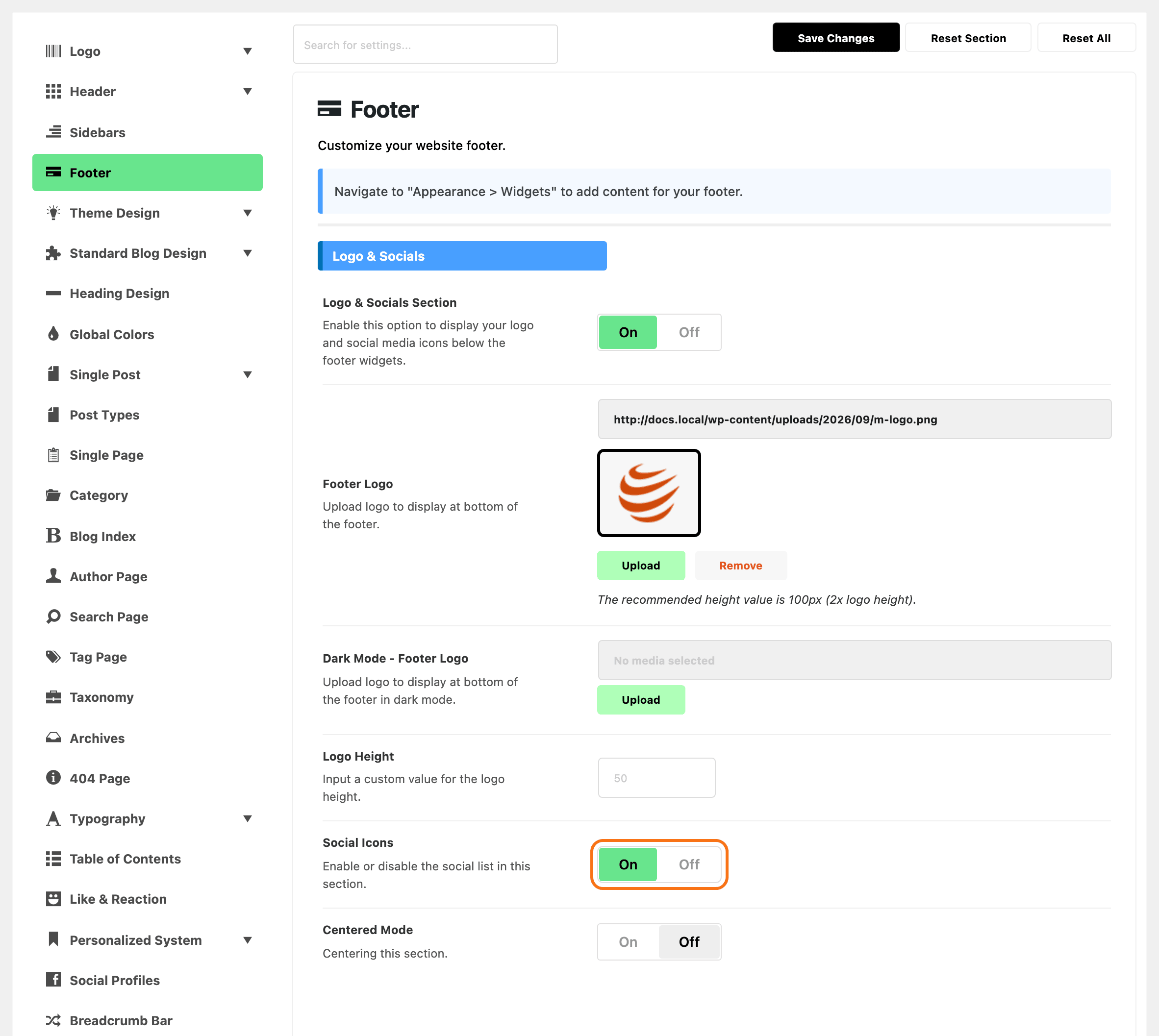
Navigate to Theme Options > Footer and scroll to the Logo & Socials section.
-
Check that Logo & Socials Section is On. It is on by default. Turned off, it hides the whole row: logo and icons together.
-
Upload your logo in Footer Logo. Make the image twice the height you want it shown at: for a logo that shows 50px tall, upload one 100px tall, so it stays sharp on high resolution screens.
-
Optional: upload a light version in Dark Mode - Footer Logo. Leave it empty and the normal logo shows in dark mode too, which is fine when your logo reads on a dark background.
-
Optional: type a number in Logo Height to set the height in px. Leave it empty to keep the theme's size.
-
Turn Social Icons to On. It is off by default.
-
Click Save Changes.
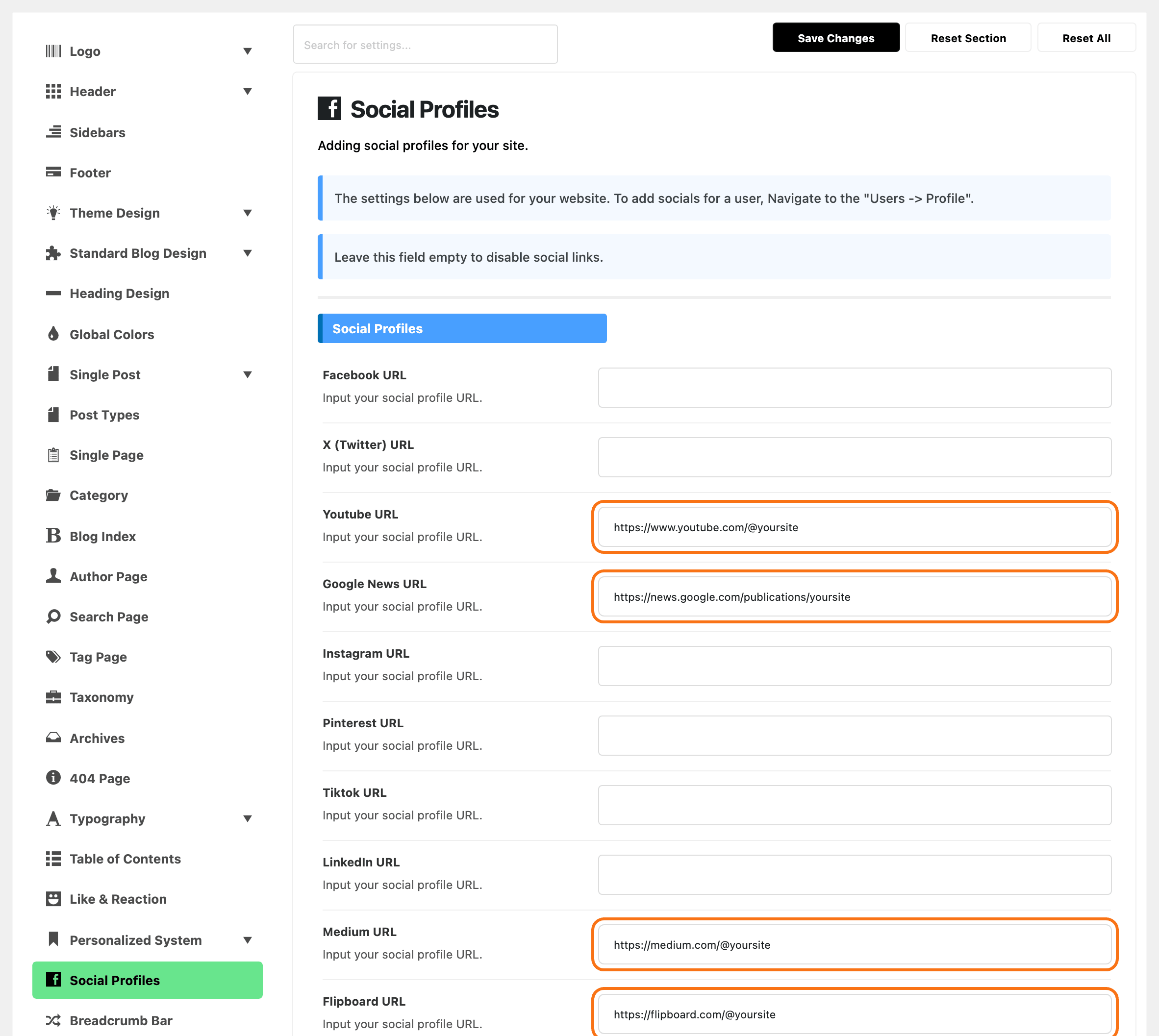
Social Icons is only a switch. The icons and their links come from your social profiles, at Theme Options > Social Profiles. Fill in the address of each profile you want shown there. Only a network with an address gets an icon, so with none filled in the footer shows the Follow US label and no icons. See Your Site Social Profiles.
Want the logo and icons centred instead of at the two sides? Turn on Centered Mode in the same section.
Add the copyright text
-
In Theme Options > Footer, scroll to the Copyright section.
-
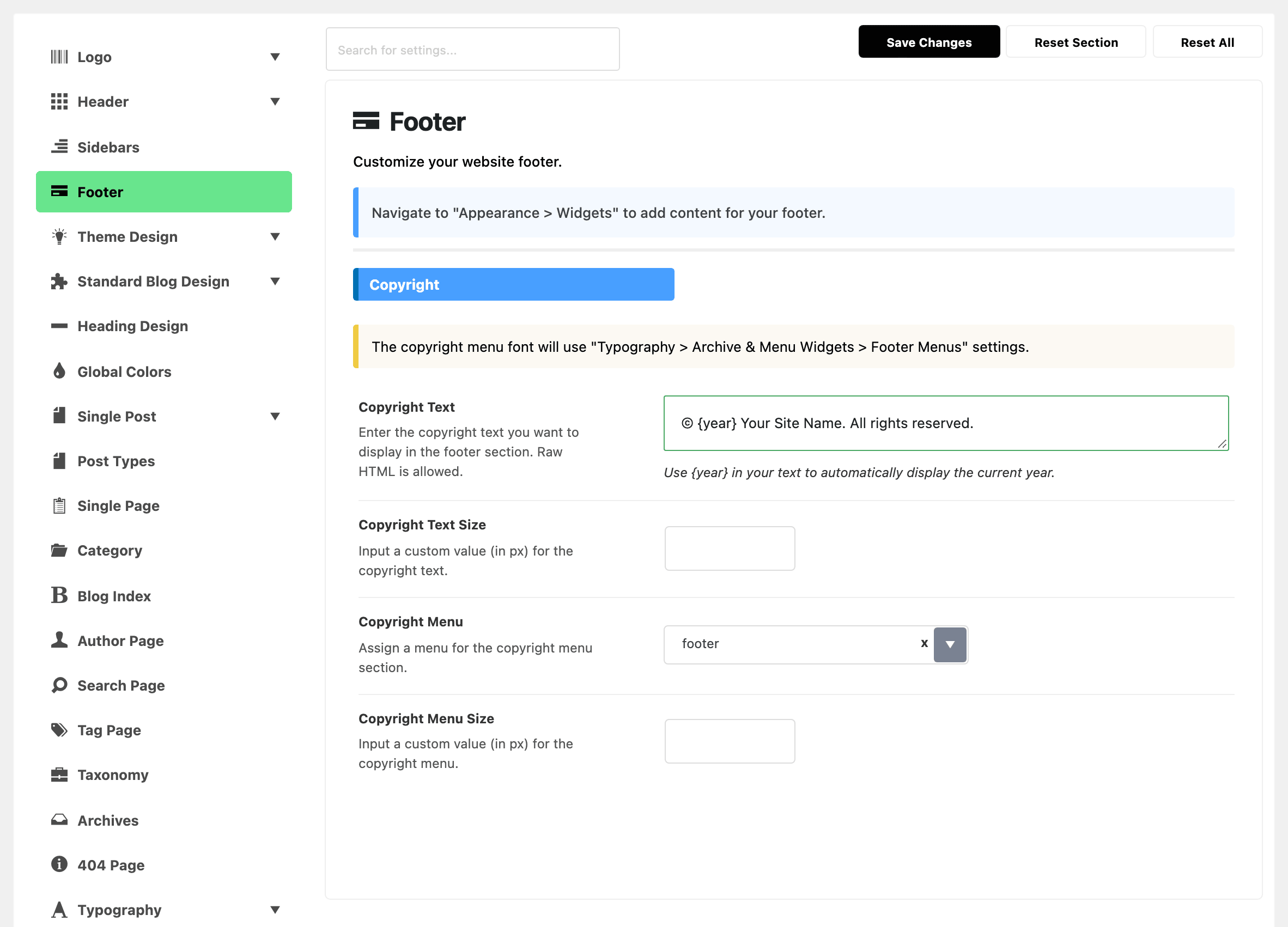
Type your text in Copyright Text. For example:
© {year} Your Site Name. All rights reserved.{year}turns into the current year on the site, so you never have to update it in January.HTML is allowed, so you can add a link:
<a href="/privacy-policy/">Privacy Policy</a>. -
Optional: once the field has text, Copyright Text Size appears under it. Type a size in px to change it.
Add the copyright menu
The copyright menu is the row of small links beside the copyright text, such as Contact, Privacy Policy and Advertise.
-
Create the menu first, at Appearance > Menus: give it a name, add your pages and save it. How to Create & Setup Header Menus shows the screen. You do not need to tick any display location.
-
Back in the Copyright section, pick that menu in Copyright Menu.
-
Optional: Copyright Menu Size appears once a menu is picked. Type a size in px.
-
Click Save Changes.
The menu shows one level only. Items you nested under another item in the menu are left out, so keep this menu flat.
The font of the menu comes from Theme Options > Typography > Archive & Menu Widgets > Footer Menus.
The result

To remove either row, empty its fields. The logo row disappears when it has no logo and Social Icons is off, and the copyright row disappears when Copyright Text and Copyright Menu are both empty.
Did this answer your question?