Getting Help from the Support Team
Your license comes with support for as long as it is active. The Foxiz dashboard shows yours in its top bar: Subscription: with the date it runs to, or Support: Lifetime on a lifetime license. Whenever you have a question or an issue with the theme, our support team is there to help.

We explain how to request support and details about support terms in this article.
Before Submitting, please ensure
- Your theme version is up to date. The version you are running is in the same top bar, after Ver:, and the What's new page lists what each release changed.
- Your question may already be answered in our documentation, so search it first. Common problems have their own articles under Tips & Troubleshooting > Troubleshooting in the sidebar; start with Changes Not Showing on the Site and There Has Been a Critical Error on This Website.
- Your plugins are up to date & you've tested to make sure a plugin conflict isn't the reason for your issue. Deactivating everything except Foxiz Core and Elementor, then reactivating one at a time, finds the culprit faster than describing the symptom to us does.
Submitting a ticket:
Our technical support is only provided through ticket submission from your account on the Foxiz store.
Our Support Includes:
- Theme related issues
- Foxiz Core and Essential Plugins related issues.
- Small modifications
Our Support Does Not Include
- Third-party plugin issues
- Custom coding
- Theme and plugin updating
Refer to Our Support Terms and Conditions for more details.
To Submit a Ticket:
- In your WordPress admin, open the Foxiz dashboard and click Open a Ticket at the top of the page. It goes to https://store.foxiz.io/account/#support/, so you can also reach it directly.
- Sign in to your Foxiz store account if you are not already signed in. The Support tab opens.
- Click New Ticket. A box headed Select a License for Support lists your licenses; click the one for the site with the problem. Only a license with active support can open a ticket.
- Fill in the Create New Ticket form:
- Subject and Description (both required): what is wrong, and what you did just before it started.
- Attachments: up to 3 screenshots, 2 MB each. Leave passwords and API keys out of them.
- Site Access (optional, but it makes the reply faster): the Issue URL, your WP Admin URL, and the Admin Username and Admin Password of a temporary account. Create that account at Users > Add User with the role Administrator, and delete it when the ticket is closed. Only the support staff can see the password.
- FTP Access and Additional Notes, if the problem needs them.
- Click Submit Ticket.
After the support team's first response, you can follow the ticket and reply to it straight from your email.
What to include
Every one of these saves a round trip, and a round trip across time zones is a day.
-
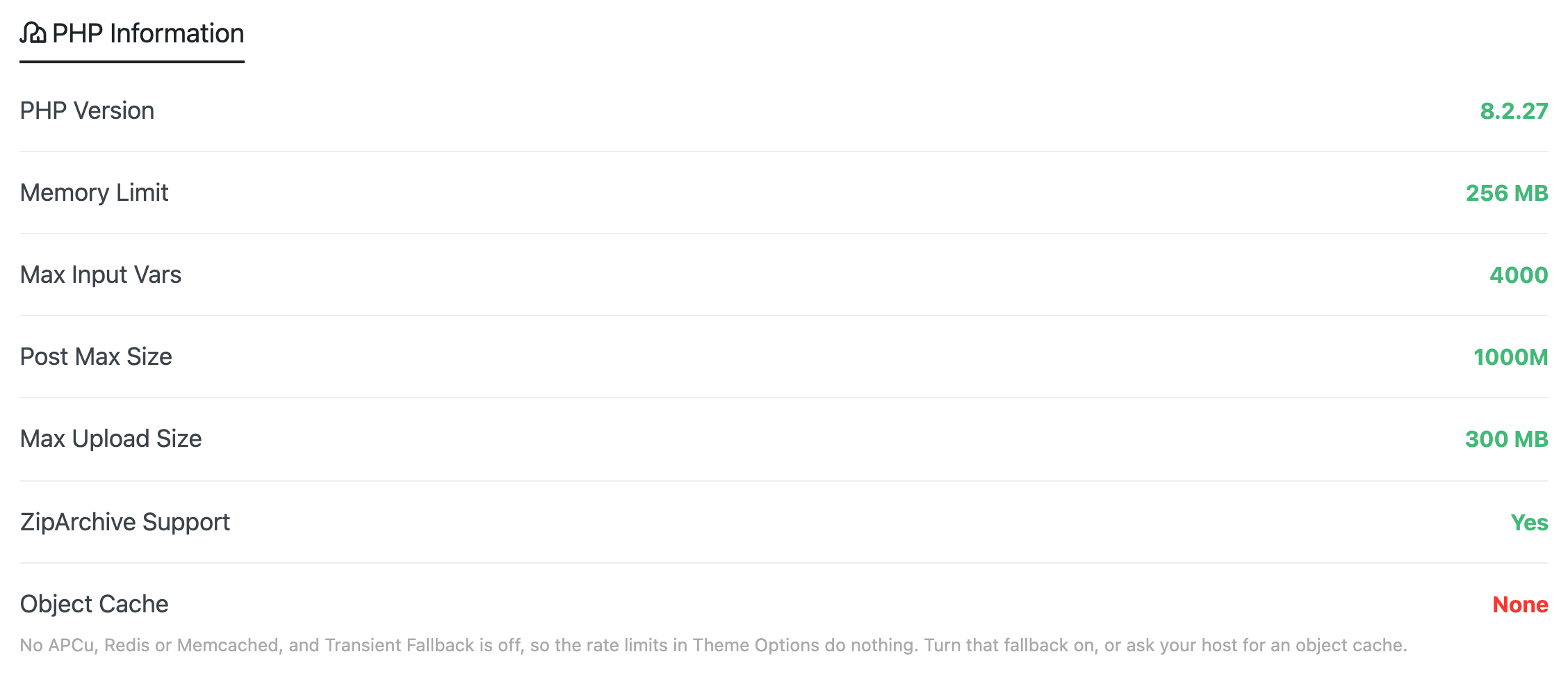
A screenshot of Foxiz > System Info. It carries the WordPress and theme versions, PHP version, memory limit, max input vars, post max size, max upload size, ZipArchive support, object cache and debug mode in one image, with anything below requirement already marked in red. Scroll down so the WordPress Info list is in the picture too. Checking Server Requirements explains each row.
-
The exact URL of a page that shows the problem, not the home page. If the problem is in wp-admin, say which panel.
-
An admin account we can use, temporary and deletable. Support cannot reproduce a Theme Options problem from a description of it.
-
What you changed last. Most tickets trace to an update, an imported demo or a new plugin.
Support Response Time:
We answer all questions within 48 hours on business days, Monday to Friday, and tickets on Professional and Business plans carry priority and are answered first. Some tickets take a little longer, for these reasons:
- Not enough information is provided.
- Influx of tickets.
- Different time zones or out of working hours.
- More than one question per ticket or asking new questions in the same ticket.
Please also make sure your account email can receive our emails, so our replies reach you.
Support working hours:
Monday to Friday: 10.00 to 19.00 SGT.
Support Period
How long your support runs depends on which license you hold. Foxiz Next licenses are issued as lifetime or subscription, and the dashboard shows which you have. A subscription includes support for as long as it is active; a lifetime license includes support that never needs renewing.
When the period ends, in order to continue using the support, you need to renew it.
For more information read the Renew theme support article.
When the dashboard says support is unavailable
A lapsed period is not the only thing that stops a ticket. Three license states show a notice in wp-admin, and each has its own way out.
| The notice says | What it means | What to do |
|---|---|---|
| Foxiz needs to reconnect this site | The license is registered to a different address, usually after a domain change or a move from staging | Open the Foxiz dashboard, which shows Reconnect Your License, and click Reconnect License |
| Foxiz license locked for review | Temporarily locked while the team reviews recent activity; the front end keeps working | Click Request an unlock review on the notice |
| Foxiz license revoked | Updates, demo imports and support are disabled | Click Contact support on the notice if you think it is a mistake |
The locked and revoked notices carry their own button, so you do not have to find the screen yourself. The reconnect notice has none; it sends you to the Foxiz dashboard, where the button is.
Did this answer your question?