The Foxiz Archive Title, Description and Featured Image Blocks in Elementor
Three blocks in the Foxiz - Element category of the Elementor panel print whatever archive the visitor is looking at, rather than anything you type into them: Foxiz - Archive Title, Foxiz - Archive Description and Foxiz - Taxonomy Featured Image.
That is the whole point of them and it is also the catch. Put one on an ordinary page and it prints nothing, because there is no archive to read. They belong in a Ruby Template that you then assign to your category, tag, taxonomy, search or post type archive pages, and each one says so in its own panel with a yellow notice.

Inside the Elementor canvas all three show a placeholder rather than live content:
- Foxiz - Archive Title shows the words "Dynamic archive title".
- Foxiz - Archive Description shows a line telling you the real description arrives once the template is assigned.
- Foxiz - Taxonomy Featured Image shows an empty grey box.
Judge them on a real archive page, not on the canvas.
Getting a template with these blocks onto an archive
- Build the template under Ruby Templates > All Templates and copy its shortcode. The full walkthrough is Ruby Templates.
- Drag the blocks you want in from the Foxiz - Element category.
- Assign the template where the archive you care about reads one:
-
Categories: Theme Options > Category > Top Template Builder > Template Shortcode, which draws it under the category header.
-
One category only: the Top Section tab of the Foxiz Category Settings box on that term, which beats the panel field above.
-
Tags: Theme Options > Tag Page > Top Template Builder > Template Shortcode.
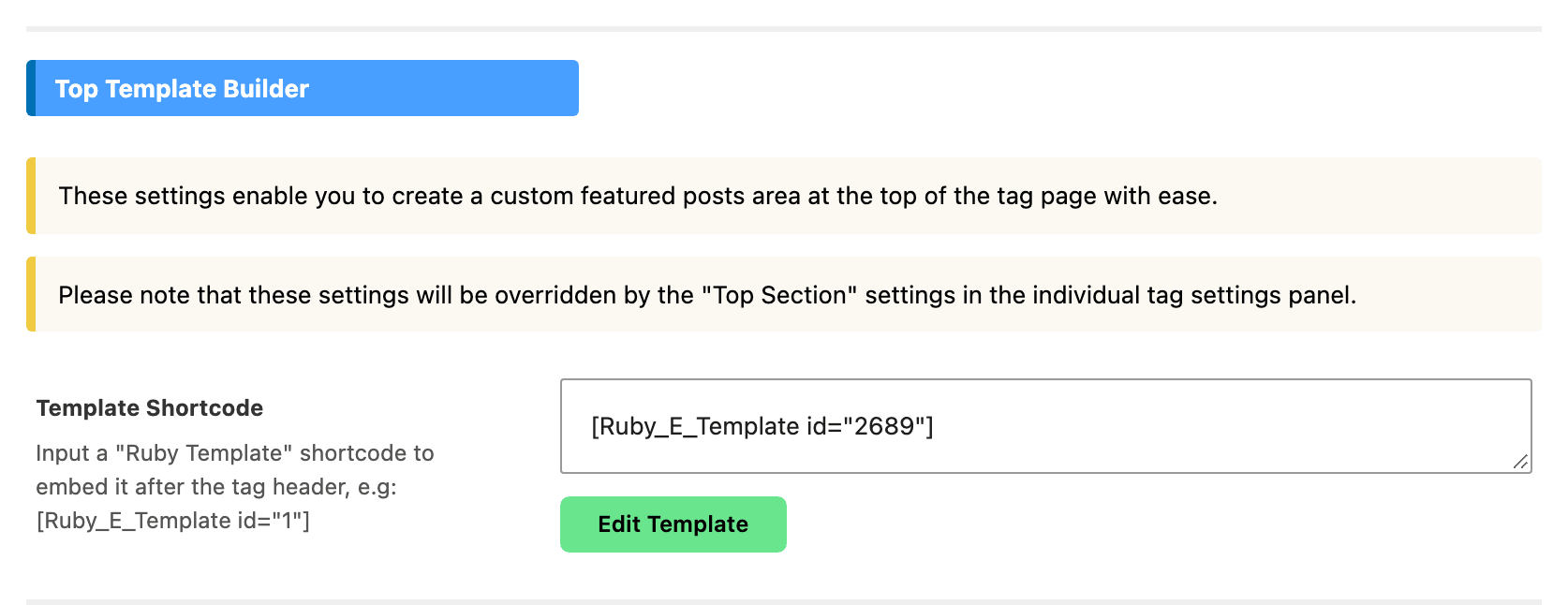
-
Search results: Theme Options > Search Page > Top Template Shortcode.
-
Or make your template the whole listing instead. The field has a slightly different name depending on the panel:
- or Use Ruby Template for the Post Listing on Theme Options > Category, Archives and Search Page.
- Use Ruby Template for the Post Listing on Theme Options > Tag Page and Taxonomy.
-
- Open the archive on the front end and check the real title appears.
Prefer a top template over a listing template when the template carries the title, and on a search page especially. A search that matches nothing draws no listing, so a title built into the listing template disappears exactly when the visitor needs the page most. The panel's own notice says the same.
One thing to turn off once your own title is working: the predefined archive header prints an H1 of its own, so you will otherwise have two. Set it to Disable on each panel your template covers:
- Category Header on Theme Options > Category. Its default is Layout 1 (Right Featured Image).
- Tag Header on Theme Options > Tag Page. Its default is - Default -.
- Archive Header on Theme Options > Archives. Its default is Left.
Foxiz - Archive Title
What it prints depends on the page:
- On a category, tag or custom taxonomy archive, the term's name.
- On a search results page, what the visitor searched for.
- On an author archive, the author's display name.
- On a year, month or day archive, the date, written the way WordPress writes its own archive titles: the year, the month and year, or the full date.
- On a post type archive, the post type's own archive title.
Content tab
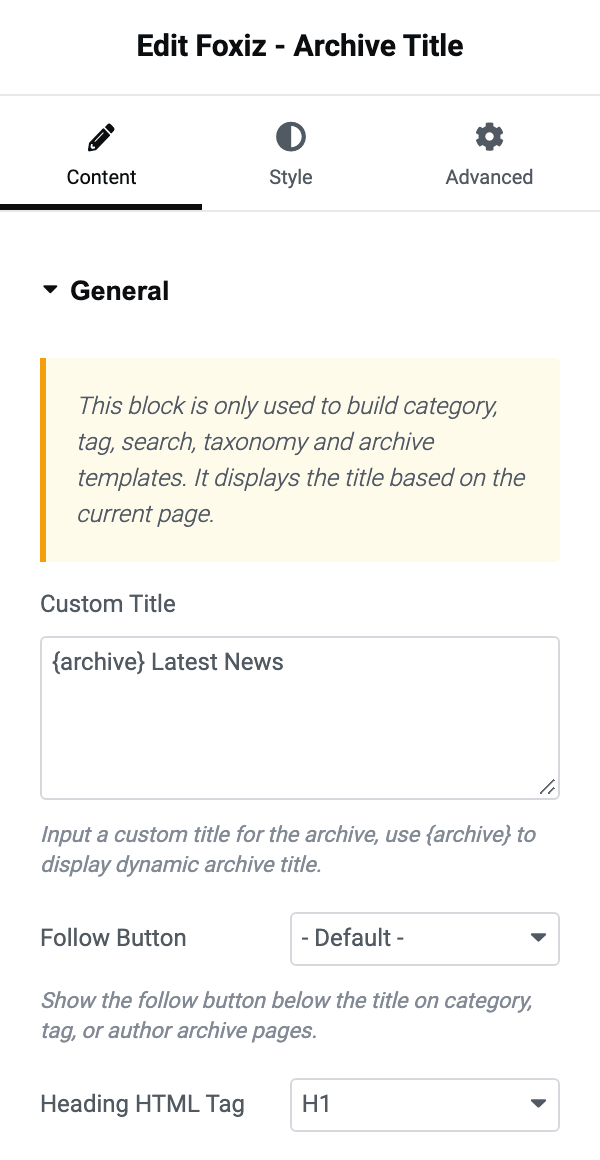
Its one section is General:
-
Custom Title wraps the automatic title in words of your own. Type
{archive}where the archive name should go, so{archive} Latest Newscomes out as "Fashion Latest News" on the Fashion category. It is empty by default, which prints the archive name on its own, and the panel shows that example as a hint. A Custom Title with no{archive}in it is ignored, so the block never prints a fixed string by mistake. -
Follow Button adds a follow control under the title on category, tag and author archives. It offers - Default -, Enable and Disable. Its default is - Default -.
- Default - hands the decision to three switches in the Archives group of Theme Options > Personalized System > Global. All three are off by default, so out of the box - Default - means no button:
- Follow in The Category Header
- Follow in The Tag Header
- Follow in The Author Header
A custom taxonomy archive has no switch of its own there, so it shows the button only when you choose Enable. Search, date and post type archives never show one.
-
Heading HTML Tag runs from H1 to H6 and then the
span,divandptags. Its default is H1. Leave it on H1 unless another block on the same template already carries the page's H1.
Two things the Follow Button needs beyond its own dropdown: the Personalized System switch at Theme Options > Personalized System > Global has to be on, and the button is never drawn on an AMP page.
Style tab
Its one section is Style:
- Title Color and Dark Mode - Title Color set the colour in each mode. Both are empty by default, which inherits your heading colour.
- Alignment offers Left, Center, Right and Justified, per device, and is unset by default so the title follows the section it sits in.
- Title Font is the full typography group, and Text Shadow adds a shadow behind the letters, which is worth having when the title sits over a background image.
Foxiz - Archive Description
This one prints the archive's description, and on a search page it prints how many results the search found instead.
The description it prints on a term archive is the one you type into the term's own Description box on the WordPress term editor, not anything set in Elementor. A term with an empty description gives this block nothing to draw.
Every control is on the Style tab, in a section also called Style. The block has no Content tab, because there is nothing to write.
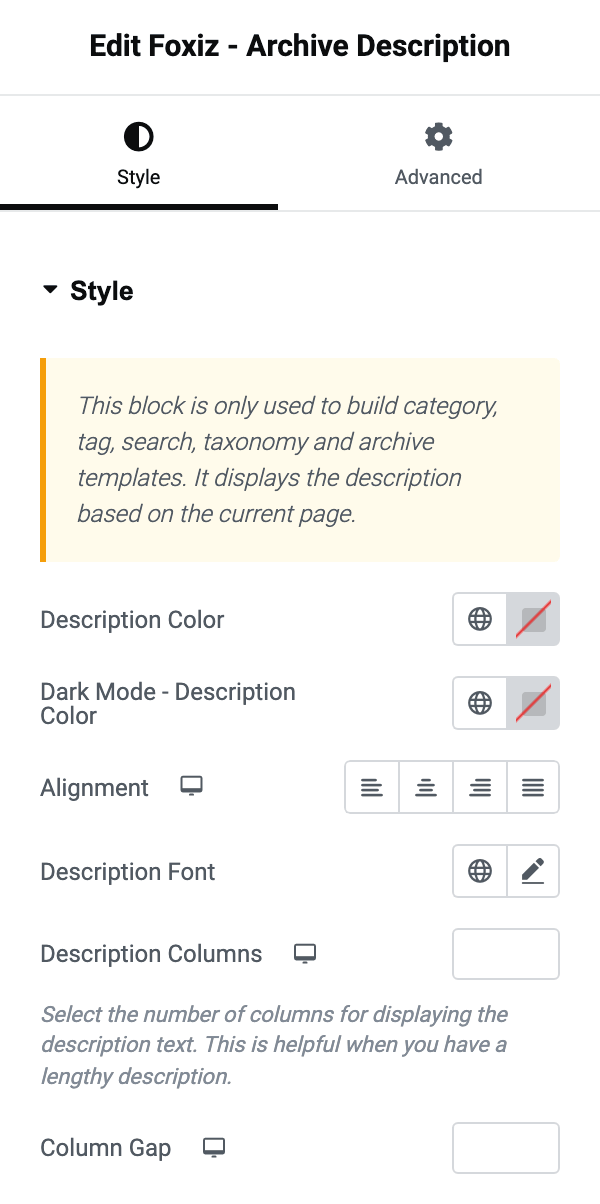
- Description Color and Dark Mode - Description Color set the text colour in each mode, and both are empty by default.
- Alignment offers Left, Center, Right and Justified, per device.
- Description Font is the typography group.
- Description Columns splits a long description into that many newspaper columns, per device, and Column Gap is the space between them in pixels. Both are blank by default, which gives one column. Two columns is the usual choice for a category description of a paragraph or more.
Foxiz - Taxonomy Featured Image
This draws the featured image saved on the term the visitor is looking at. You set that image on the term, not in Elementor: open Posts > Categories, edit the term, and use the Featured Images tab of the Foxiz Category Settings box. Tags and custom taxonomy terms have the same tab in their own boxes, and when a term holds two images this block draws the first.
All four controls are in the General section of the Content tab. It has no Style tab.
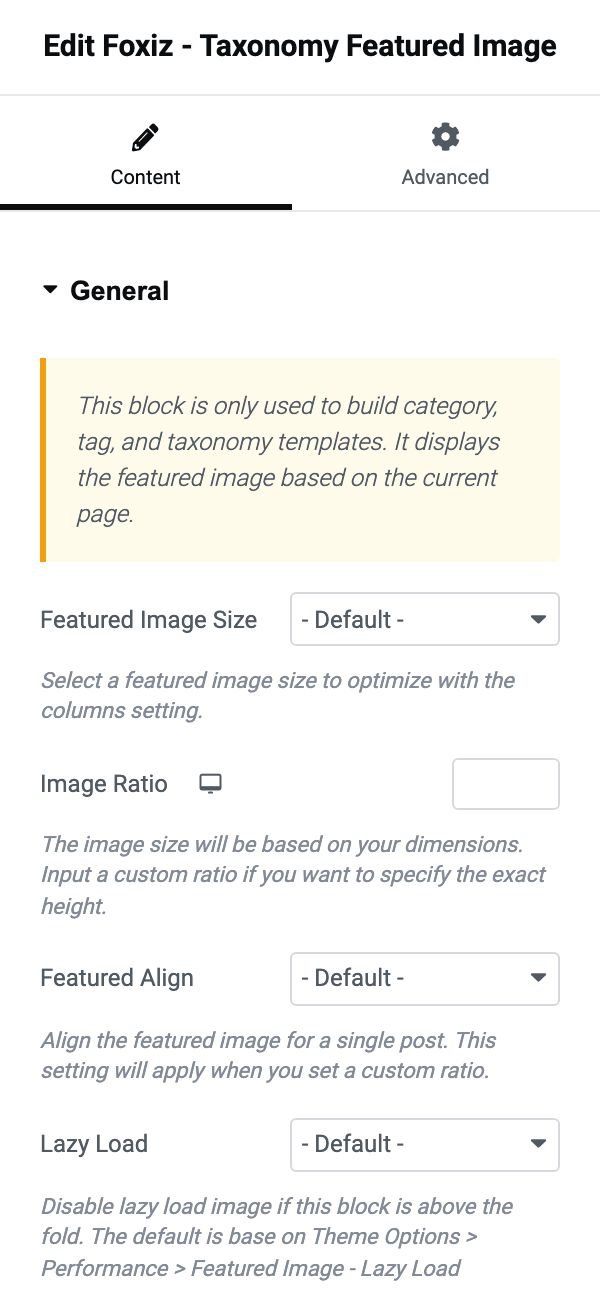
- Featured Image Size lists your registered crops with their dimensions, then the four WordPress core sizes. Its default is - Default -. Pick the one nearest the width you are drawing the image at: a header image asked for at thumbnail size looks soft, and asked for at full size it costs the visitor a slow load.
- Image Ratio takes a percentage, per device, and crops the image to exactly that shape: 50 for a banner twice as wide as it is tall, 100 for a square. Leave it blank to print the image at its own proportions.
- Featured Align offers - Default -, Top and Bottom, and decides which part of a tall photograph survives that crop. It does nothing until Image Ratio has a value.
- Lazy Load offers - Default -, Disable and Enable. Its default is - Default -. Choose Enable only if the image sits well down the page; on - Default - and on Disable the browser is told to fetch it at once and at high priority, which is what you want for an image at the top of an archive.
When one of them draws nothing
Elementor gives no warning for any of these, and on the canvas the placeholder hides all of them.
- The template is on a page rather than an archive. Nothing on a single post, a page, or the blog index has a term or a search query to read.
- Foxiz - Taxonomy Featured Image on a search results page. A search is not an archive, so this block stays silent there even though the other two work.
- Foxiz - Taxonomy Featured Image on a term that has no image in its Featured Images field. Nothing is drawn, not even an empty frame.
- Foxiz - Archive Description on a term whose Description box is empty.
- The template is assigned as the post listing on a search page that found nothing. Move it to Top Template Shortcode.
Did this answer your question?