How to Create a Single Page?
Creating a WordPress page is very similar to creating a post. Just remember that pages are intended for static content.
To get started adding a new page to your website, follow the steps below:
-
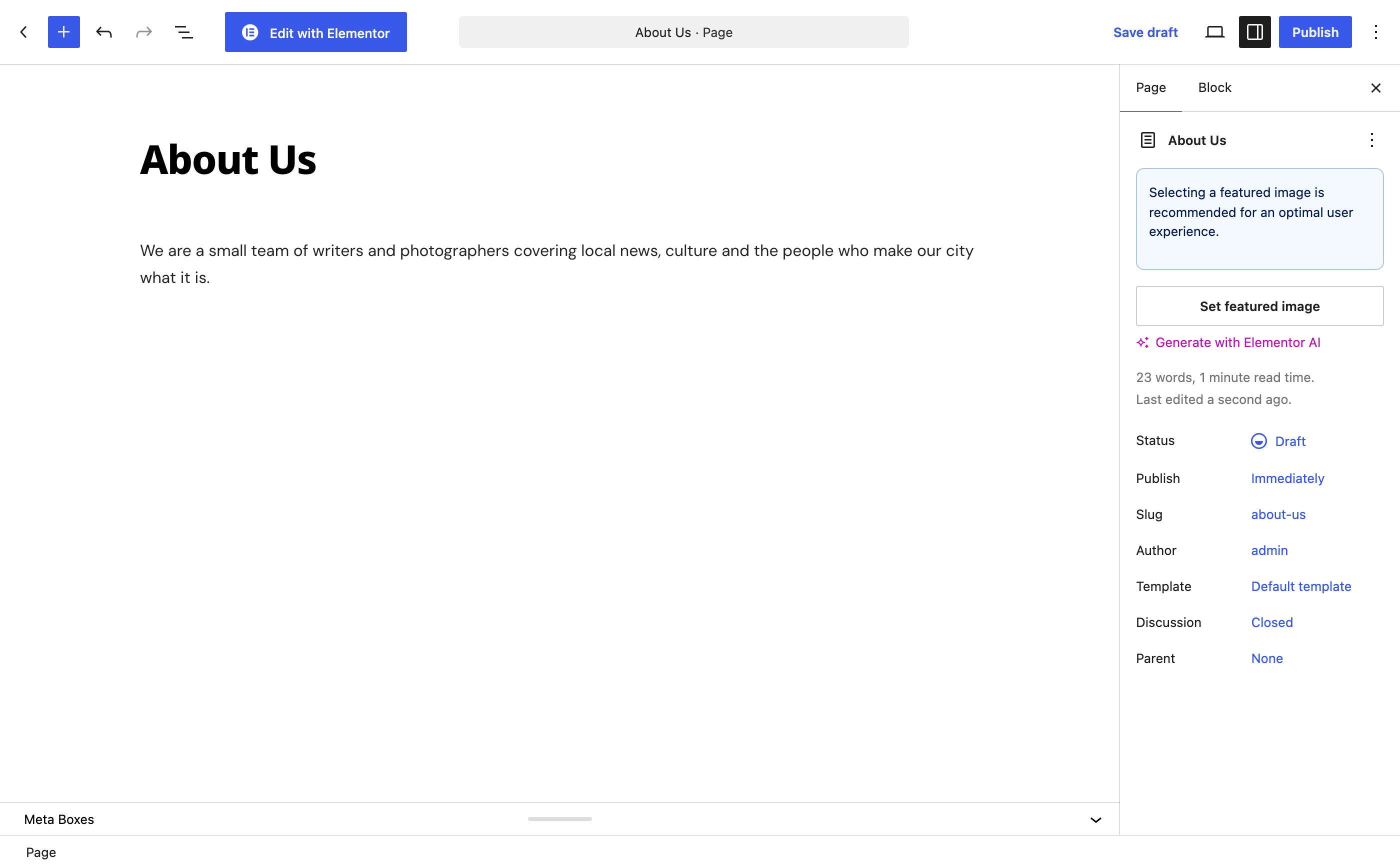
Navigate to Dashboard > Pages > Add Page.
-
Add the title of the page.
-
Next, add some content.
-
Publish the page the same way as a post. Click Publish to publish it now, or Save draft to finish it later. To publish it later, set a future date in the Page sidebar first; the button then reads Schedule.
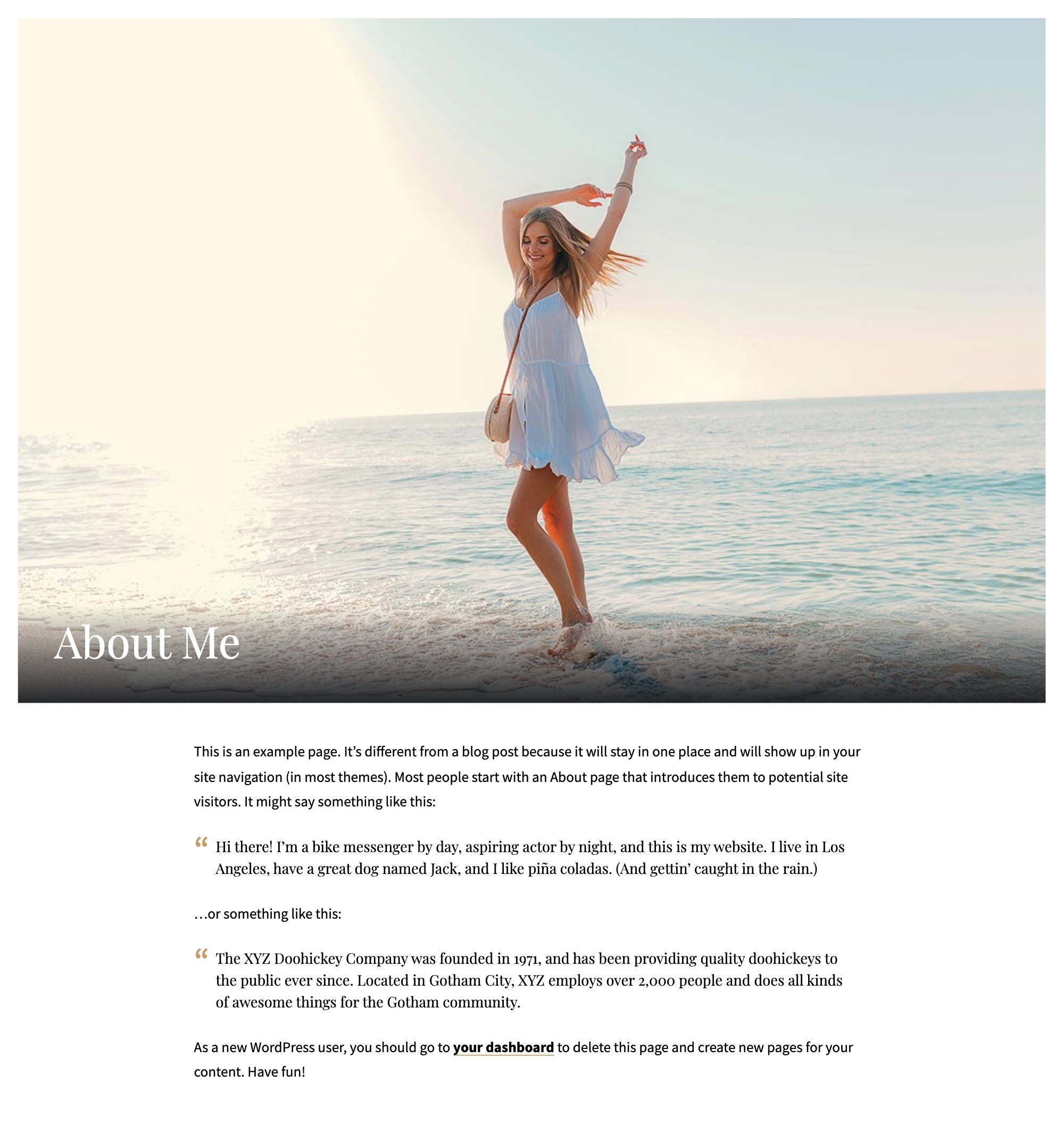
Single Page Settings
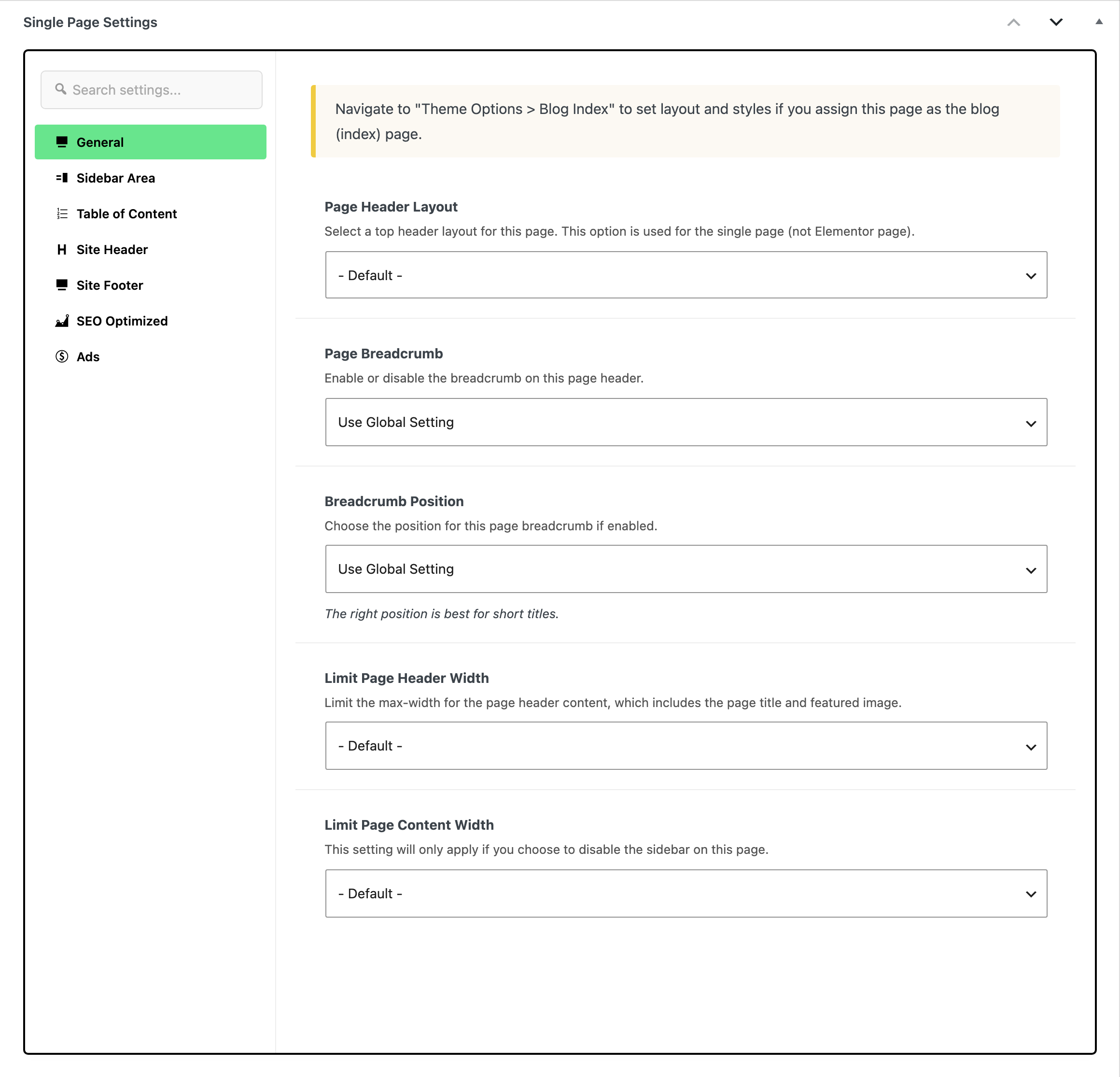
The theme supports the panel per page that allows you to config the page: header style, max-width content, sidebars... The box is titled Single Page Settings and it appears on pages only, not on posts, which have a Single Post Settings box of their own.
You can set how a page looks in two places:
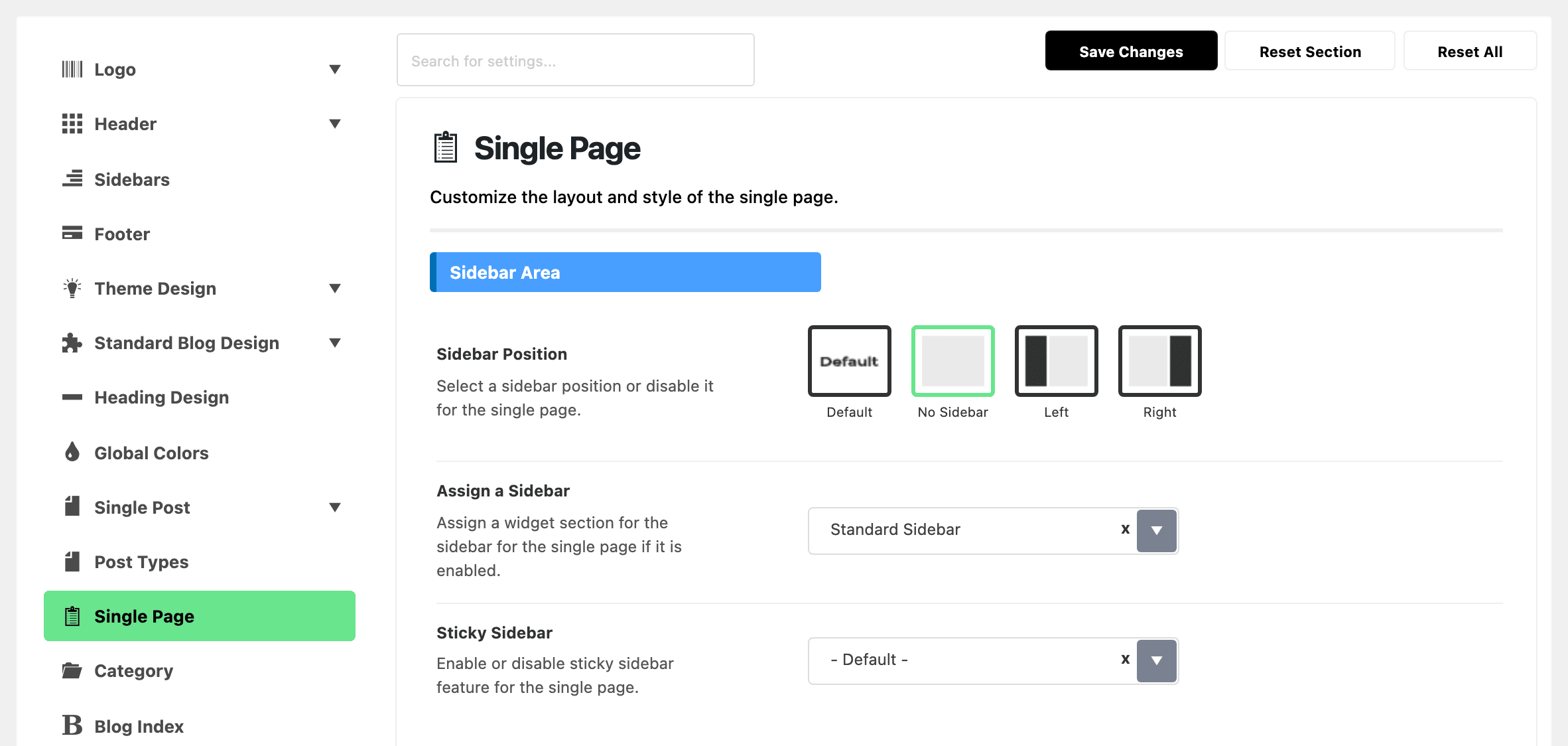
- Theme Options > Single Page sets the look of every page on the site.
- Single Page Settings, the box under the editor, changes one page only.
When both set the same thing, the page's own setting wins. Every field in the box starts on a default value, - Default - or Use Global Setting, which follows Theme Options.
So set the look you want for all pages in Theme Options > Single Page first. Then open the pages that should look different and change only those fields in their own box.
To get started, follow the steps below:
-
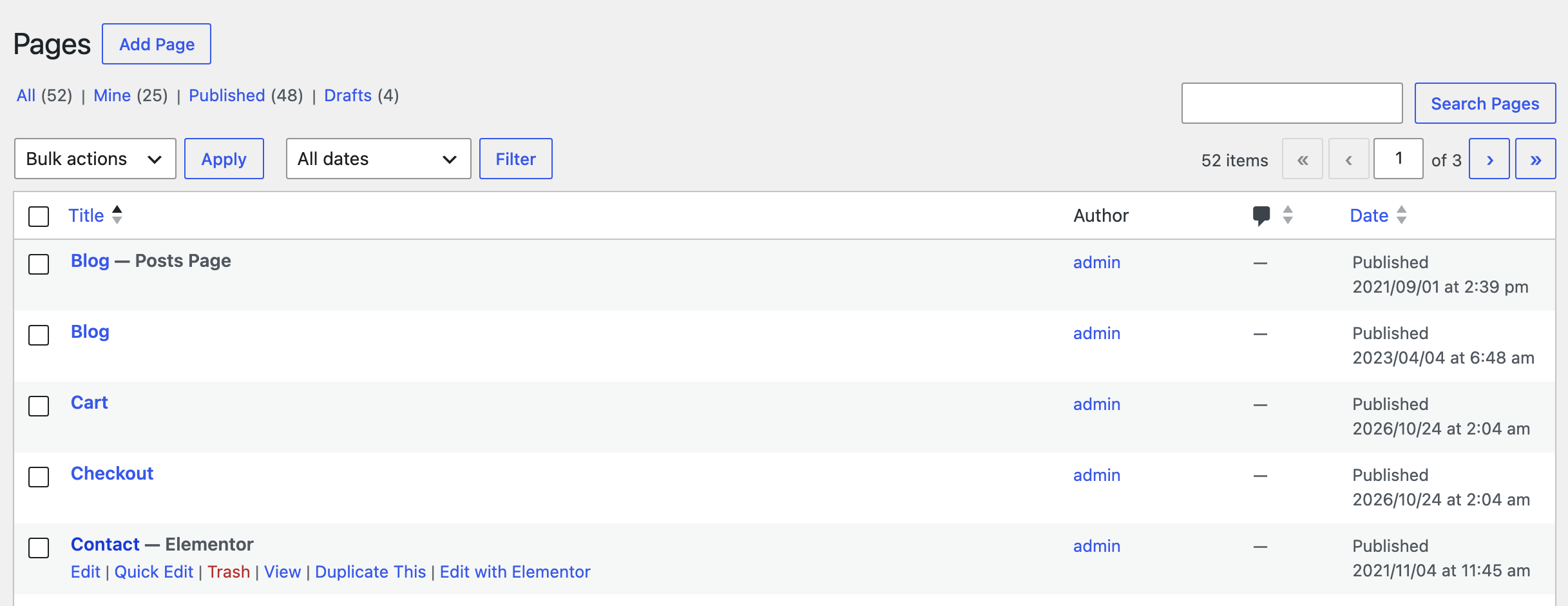
Navigate to the page you want to edit.
-
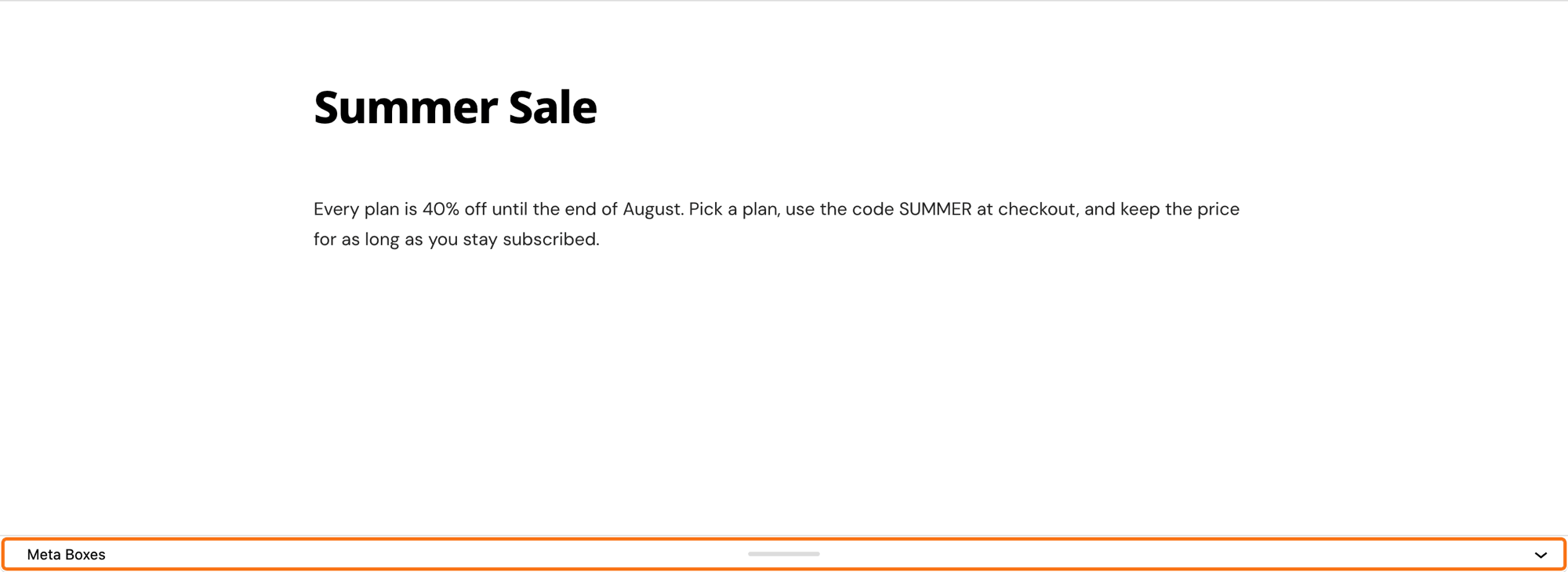
At the bottom of the editor, click the Meta Boxes bar to open it. The Single Page Settings box is there, under the content rather than in the right hand column.
-
Edit what you need. The box has seven tabs:
- General: Page Header Layout, Page Breadcrumb, Breadcrumb Position, Limit Page Header Width and Limit Page Content Width.
- Sidebar Area: Sidebar Position and Assign a Sidebar.
- Table of Content: whether this page gets one, which layout, and a Display Position.
- Site Header: Predefined Header Layout, or Use Ruby Template for Site Header, or Use Ruby Template for Mobile Header and Navigation Bar Style.
- Site Footer: a Footer Template Shortcode for this page only.
- SEO Optimized: a meta description for this page.
- Ads: switches to hide the top ad, the header ad, the alert bar and auto ads on this page.
How narrow Optimize Line Length makes the content is set once for every page, at Theme Options > Single Page > General > Default Max Width (Optimize Line Length), as a number in pixels. It applies to a page with no sidebar while Limit Page Content Width is on Optimize Line Length, which is that field's default. Left blank, the width is 860 pixels, or two thirds of Container Width if you set one at Theme Options > Theme Design > Container Width.
-
Click Save to save the changes, or Publish on a page that is not published yet.
A single page has no sidebar by default. Sidebar Position defaults to No Sidebar in Theme Options > Single Page > Sidebar Area, and this box's Sidebar Area tab starts on Default, which follows that, so page.php draws nothing. Assign a Sidebar is already set to Standard Sidebar in Theme Options, and the box's own select starts on - Default -, which follows it. That is why choosing a sidebar on its own looks like it did nothing: change the position to Left or Right as well, here for this page or in Theme Options for every page.
The box's own description adds one thing worth knowing: these settings apply to Elementor pages as well as ordinary ones, with one exception. Page Header Layout is for the single page only and does nothing on an Elementor page. And if you assigned this page as the blog index, its layout comes from Theme Options > Blog Index instead, not from here.
Did this answer your question?