Search Page
The search results page lists the posts that match what a visitor typed in your search box. WordPress makes it for every search.
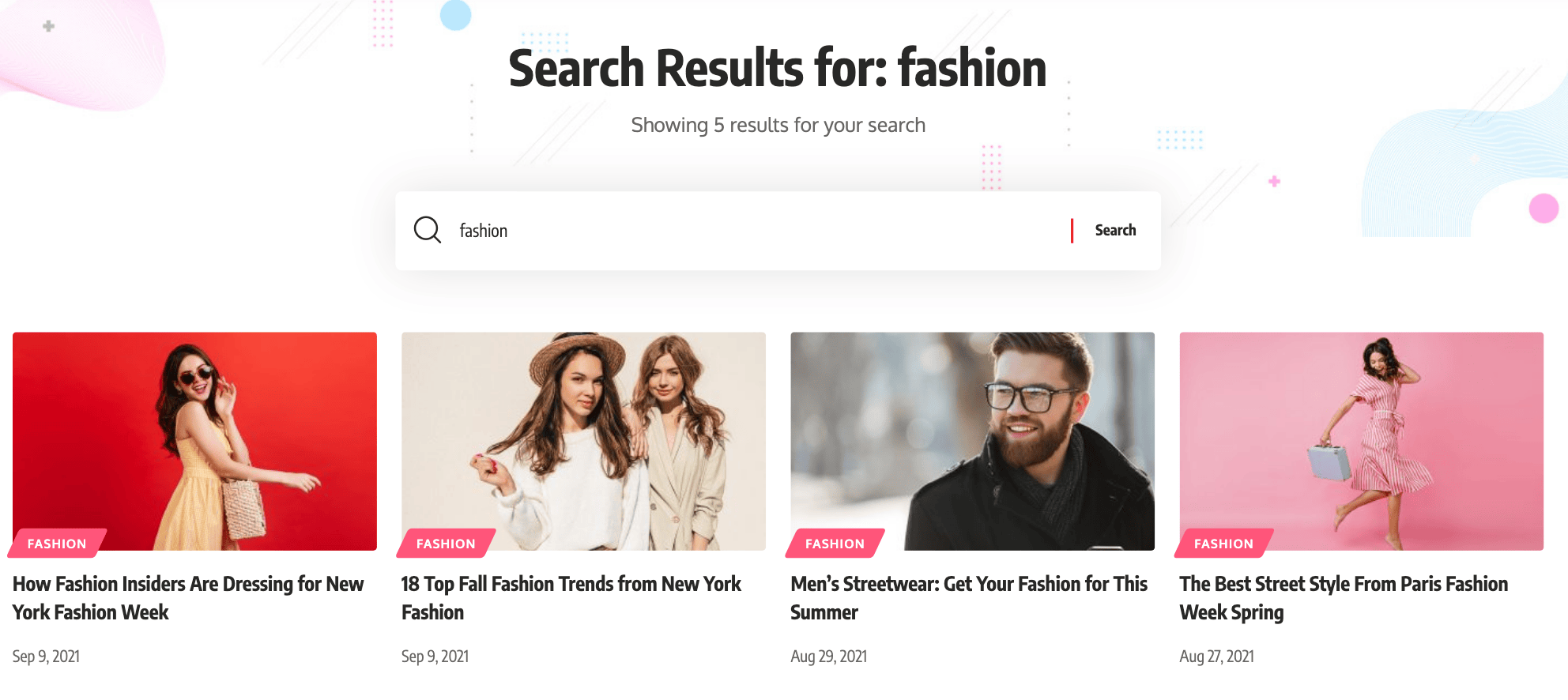
To get started, follow the steps below:
-
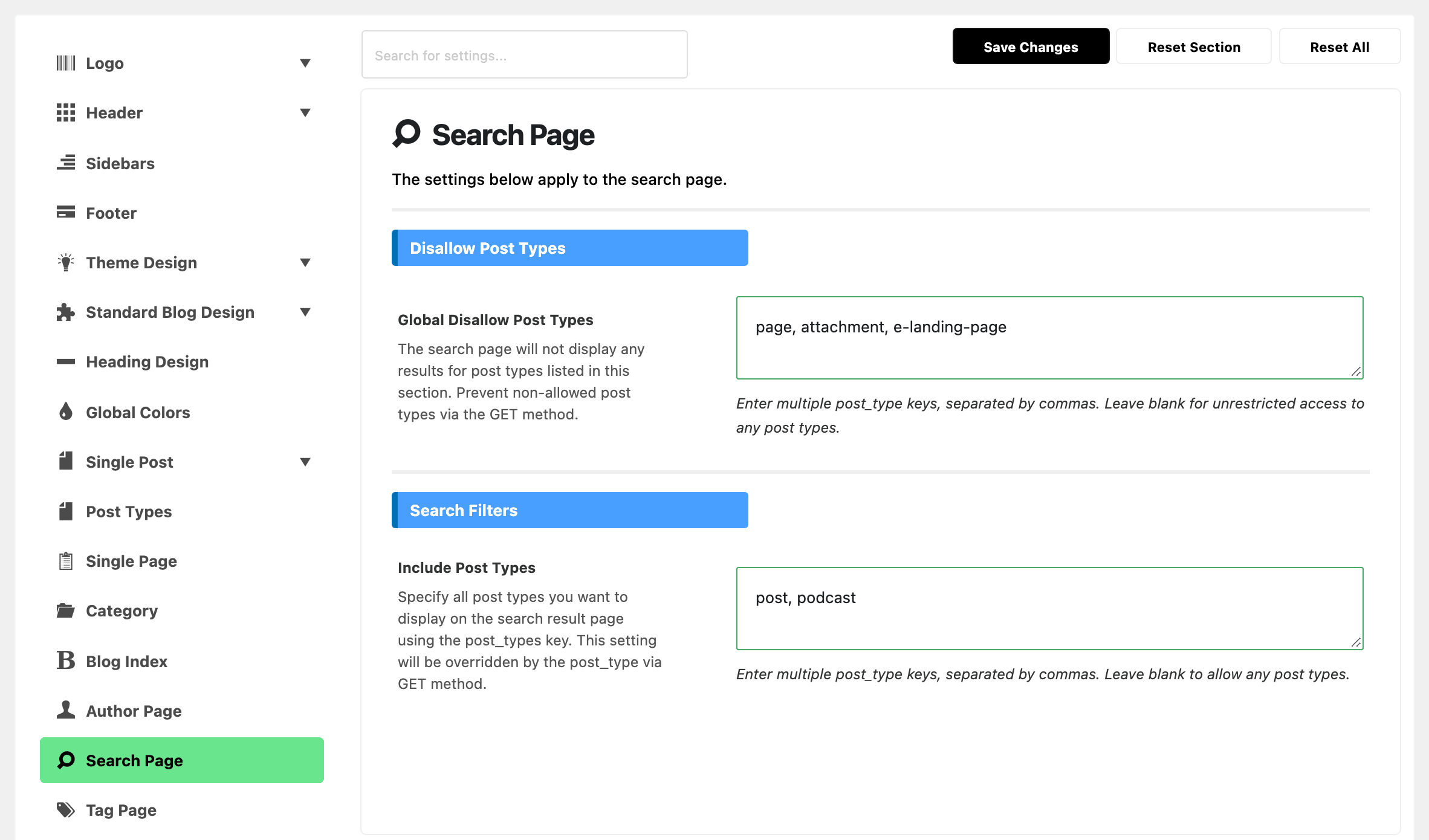
Navigate to Theme Options > Search Page to edit this page. It is a top level panel in the Theme Options list, named Search Page, not Search.
-
Choose what search can find. The first two sections of the panel decide that, and both hold a value by default:
- Search Filters > Include Post Types holds
post, podcastby default. Only those two types appear in results. Leave the field blank to allow every post type WordPress considers searchable. - Disallow Post Types > Global Disallow Post Types holds
page, attachment, e-landing-pageby default. This list is subtracted last, so a type named here stays out even if you also add it to Include Post Types.
To make pages searchable, do both: remove
pagefrom Global Disallow Post Types, and add it to Include Post Types (post, podcast, page) or clear that field. Then click Save Changes.Both lists govern the search results page and the header's live search alike, and a
?post_type=in the URL can narrow the search further but never widen it past these two lists.Search still misses a page or product? See Search Does Not Find Pages or Products.
- Search Filters > Include Post Types holds
-
Refer to the Post Listing - Sidebar section to select a sidebar for this page. The field is Assign a Sidebar and it already holds Standard Sidebar.
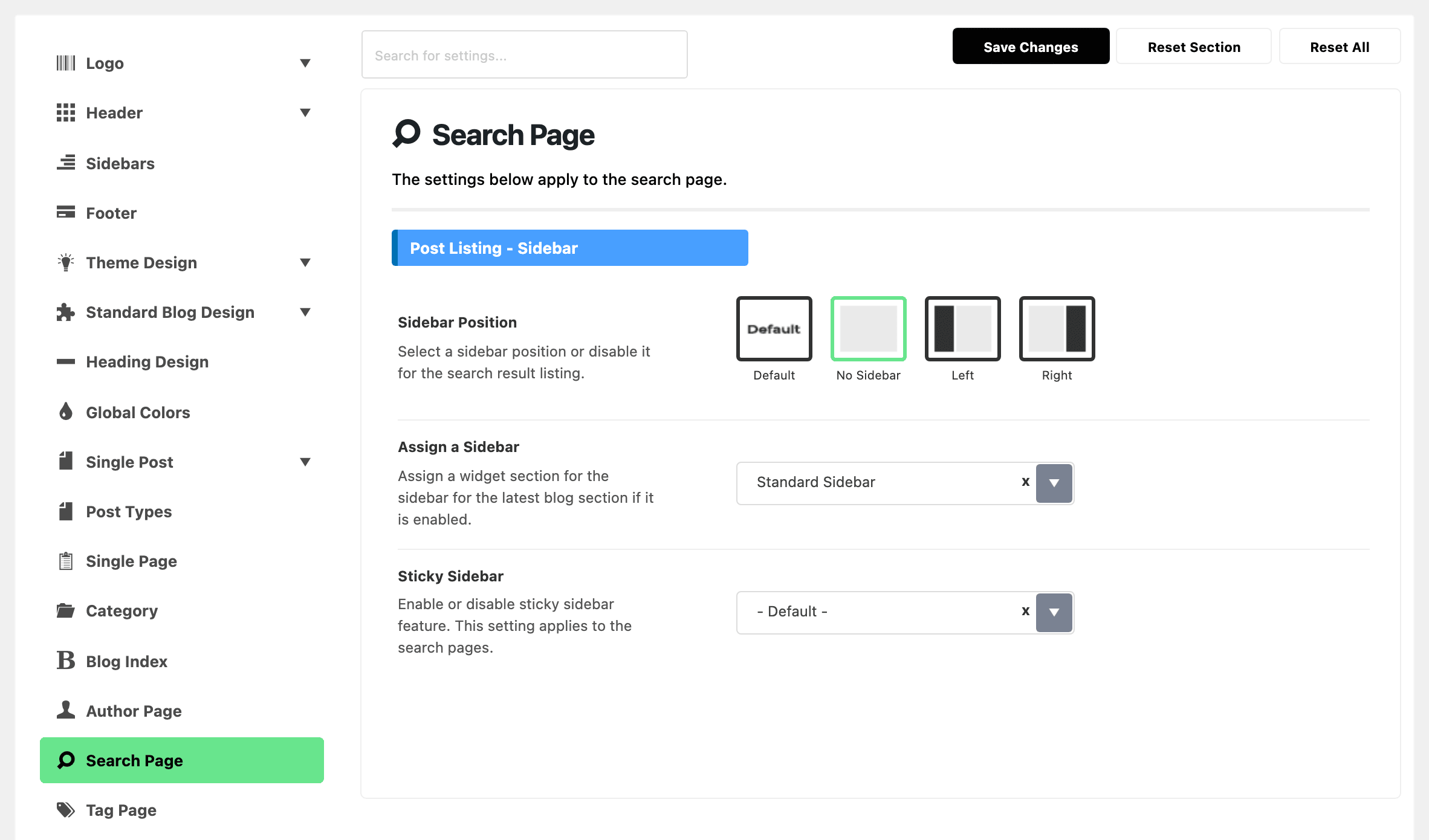 note
noteSidebar Position above it defaults to No Sidebar, and at that value the theme throws the assigned sidebar away before drawing. Set it to Left or Right in the same section, or the search page stays full width whichever sidebar you choose.
The whole section also disappears while or Use Ruby Template for the Post Listing holds a shortcode, because the template draws its own layout.
-
Navigate to Appearance > Widgets, then open that sidebar section to edit sidebar widgets for this page. An empty widget area counts as no sidebar: the theme checks the area has widgets before it draws the column.
Refer to Editing Sidebars and Widgets for further information.
How the results look
In the same panel, Global Listing Template > Predefined Layout sets how results look and defaults to Small Grid, and Search Header > Search Header Layout sets the band at the top of the page.
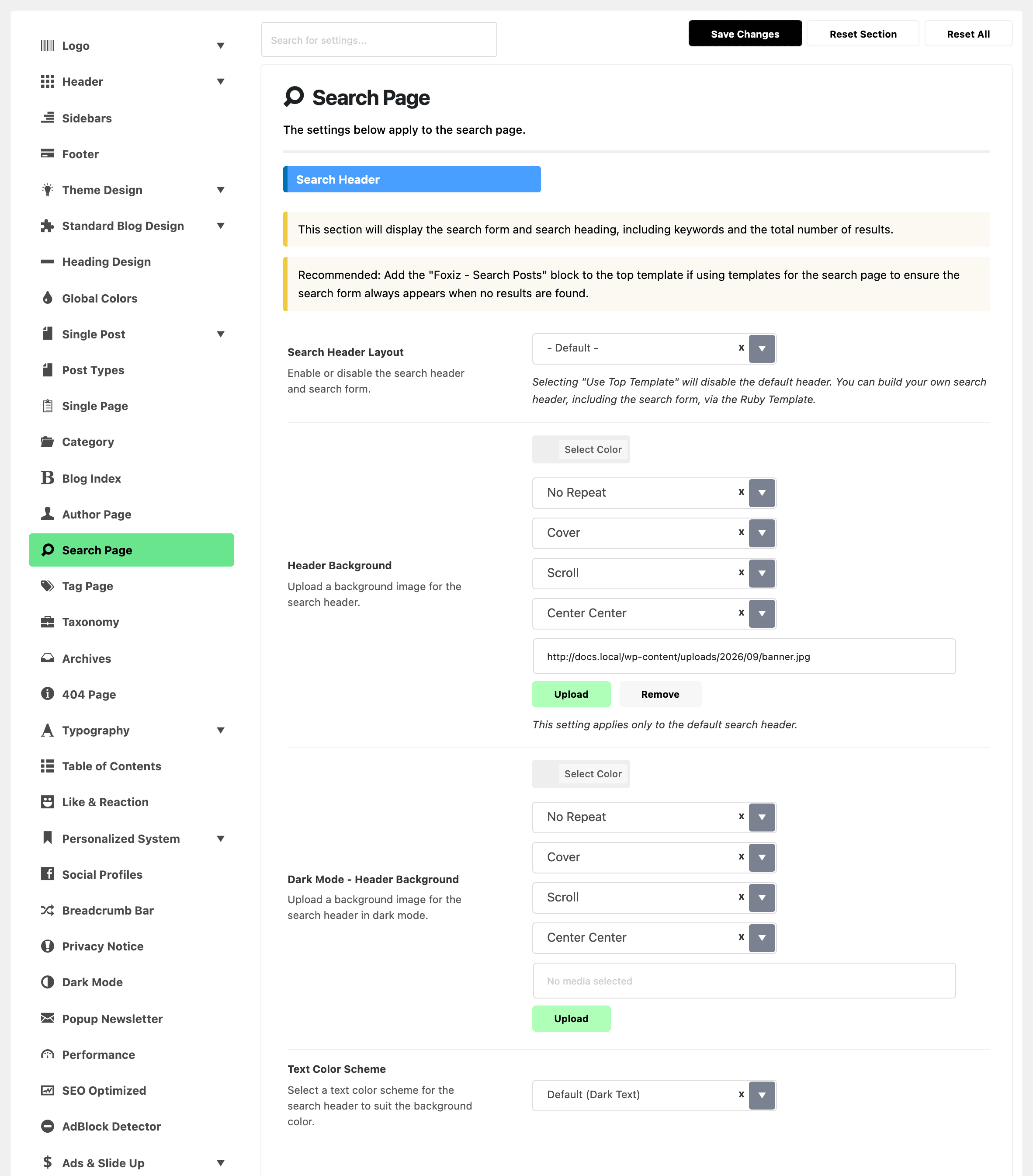
The same group styles that band. Header Background takes a colour or an image for it, and Dark Mode - Header Background takes the one shown while a visitor is in dark mode. Text Color Scheme defaults to Default (Dark Text); switch it to Light Text when the background you chose is dark, so the results heading and the result count stay readable. All three disappear when Search Header Layout is set to Use Top Template, because your template draws the band instead.
In Post Listing - Design, Desktop - Title Font Size, Tablet - Title Font Size and Mobile - Title Font Size set the result titles' size in pixels. The tablet size applies at 1024 pixels wide and below, the mobile size at 767 and below, and a blank field keeps the layout's own size.
Review Meta Description in the same section sets the text beside the stars or score bar on a result that carries a review: the score, such as 4.5 out of 5, then the post's own review Meta Description. No Wrap keeps it on one line with the stars, Line Wrap puts it underneath, Desktop No Wrap - Mobile Line Wrap puts it underneath at 1024 pixels and below, the two (Show Score Only) values drop the description, and Disable shows the stars or bar alone. Its default is - Default -, which uses the setting of the layout's module in Theme Options > Standard Blog Design.
Did this answer your question?