Author Page
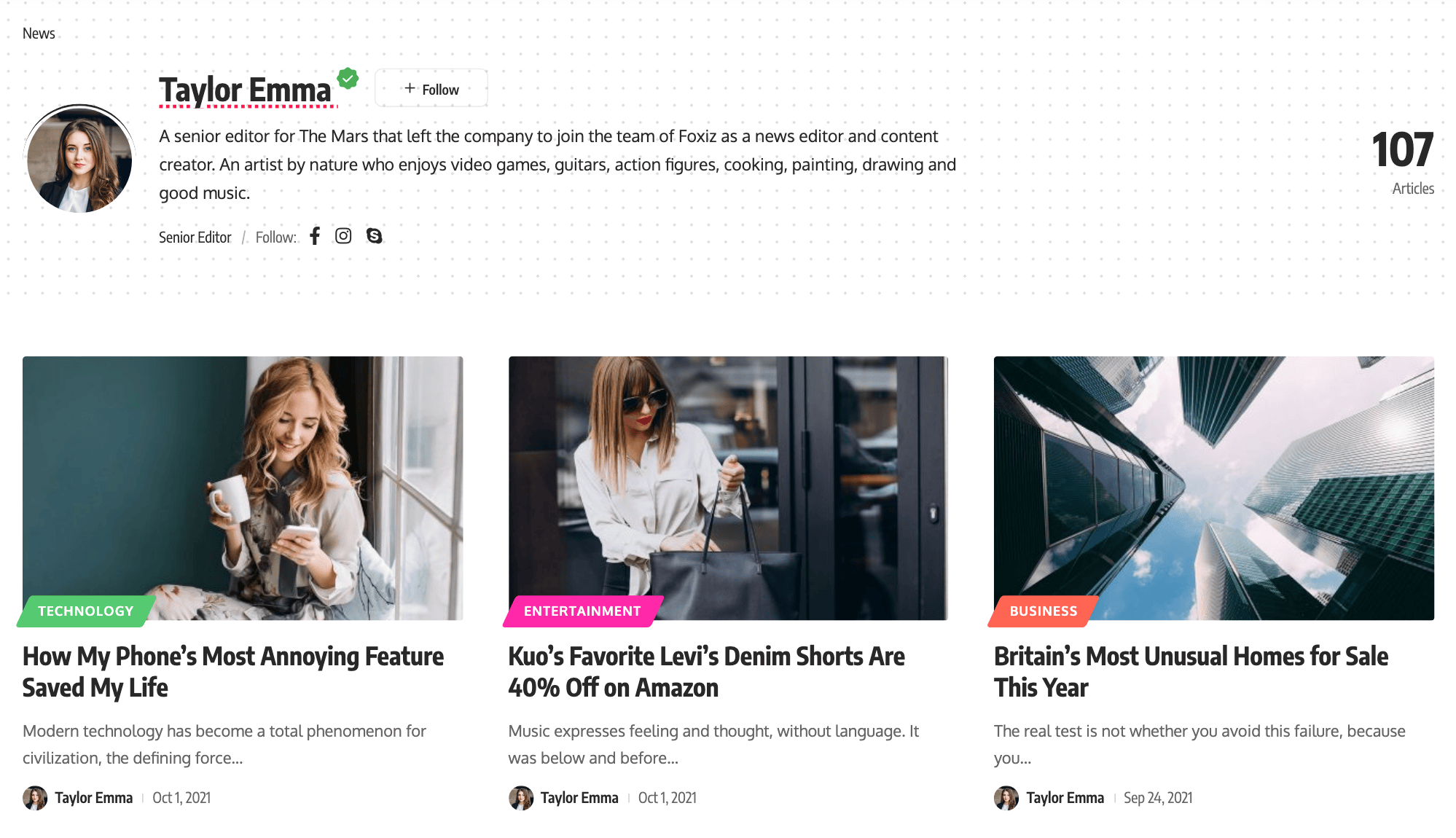
The author page lists one writer's posts under a header with their bio. WordPress makes one for every author, at the link on their name.
You can config the author layout and the header via the theme options panel.
Clicking an author's name opens the homepage instead? An SEO plugin has author pages switched off. See Author Page Redirects to the Homepage.
To get started, follow the steps below:
-
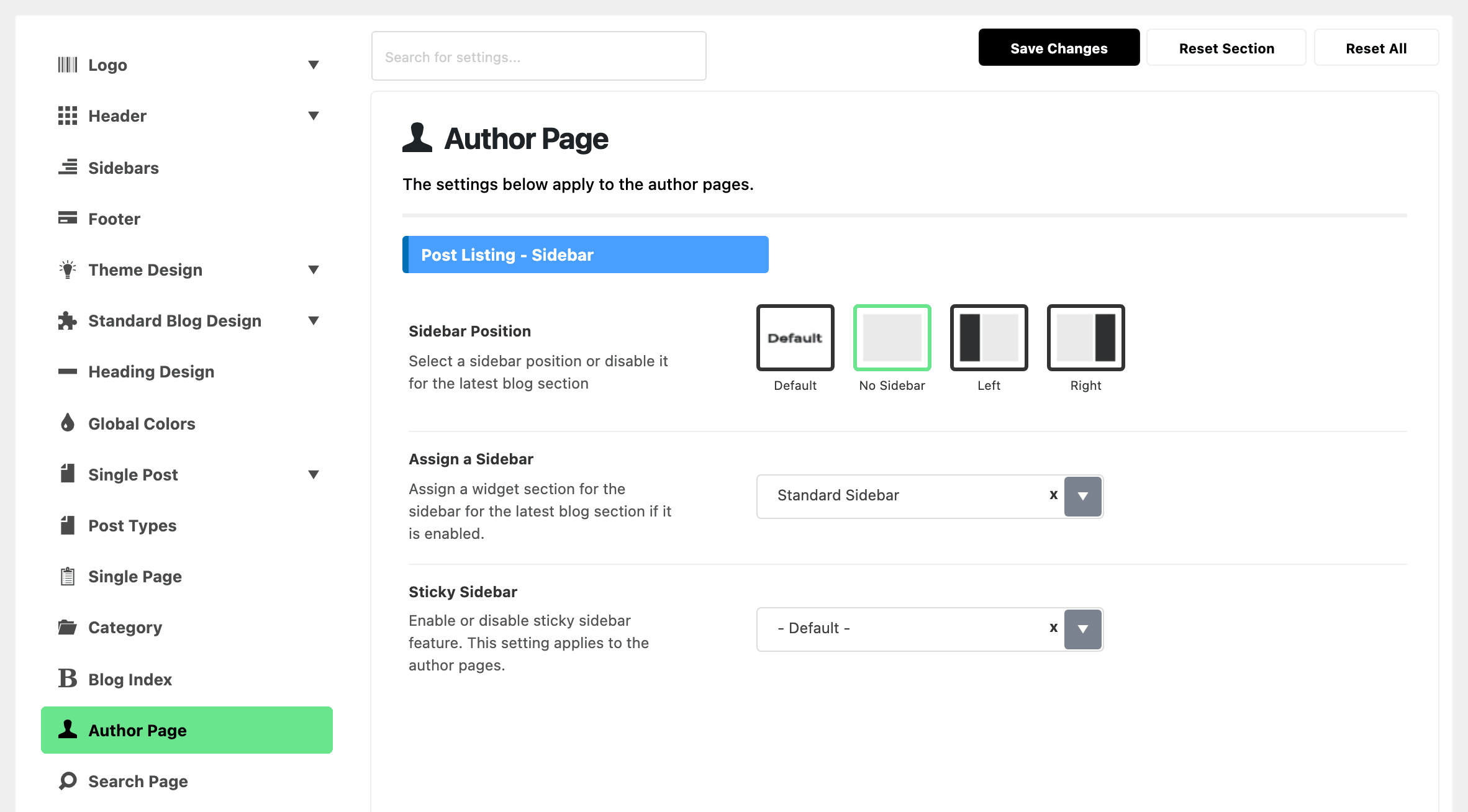
Navigate to Theme Options > Author Page to edit this page. It is a top level tab in the panel, with a person icon, and not a subsection of anything.
-
Scroll to Post Listing - Sidebar and set Sidebar Position to Left or Right. Its default is No Sidebar, so until you pick one, a sidebar has nowhere to draw.
-
In the same section, use Assign a Sidebar to select a sidebar for this page. It lists Standard Sidebar plus every sidebar you created at Theme Options > Sidebars > Unlimited Sidebars, and its default is Standard Sidebar. Click Save Changes.
-
Navigate to Appearance > Widgets, then open that sidebar section to edit sidebar widgets for this page.
The author's card box is a separate job: see Editing the Author Card Box. Its settings are at Users > Profile. For another author, open them from Users > All Users instead; the same table is on their edit screen. Foxiz adds a table headed Author Profile to that screen, and it renders only for users who can manage options, so an Editor editing their own profile will not see it. A value set in that table wins over the panel for that author; the list at the end of this page names the three settings it covers.
The Author Page tab is divided into eight sections, in this order.
-
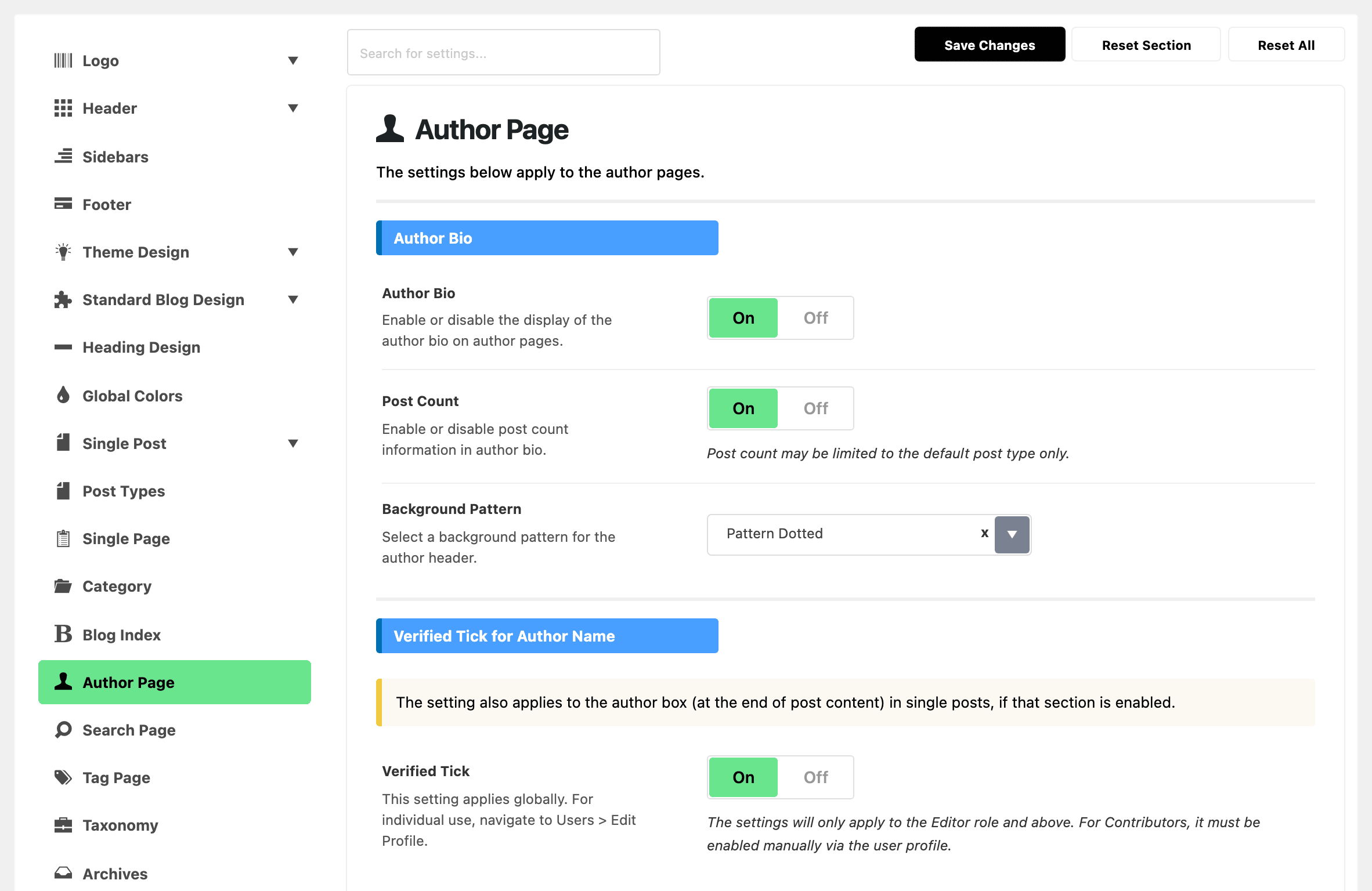
Author Bio is the header block at the top of the author page: avatar, display name, biography, job name and social links. The Author Bio switch is on by default, Post Count adds the article total beside it, and Background Pattern defaults to the dot pattern. The last two are hidden until Author Bio is on.
-
Verified Tick for Author Name holds one switch, Verified Tick, on by default. It also applies to the author box at the end of single posts, and it applies only to the Editor role and above; for a Contributor you turn it on from that user's profile.
-
Posts per Page takes a number and overrides Settings > Reading > Blog pages show at most for author pages only. Leave it blank to follow the WordPress setting.
-
Global Listing Template holds Predefined Layout, which defaults to Grid 1, and or Use Ruby Template for the Post Listing, which takes a Ruby Template shortcode and overrides the predefined layout.
-
Post Listing - Columns holds Columns on Desktop, Columns on Tablet, Columns on Mobile and Column Gap. All four default to - Default -. Desktop and tablet offer 1 Column through 7 Columns; mobile offers one or two only.
-
Post Listing - Sidebar is the section steps 2 and 3 use. It also holds Sticky Sidebar, which offers Sticky Sidebar, Sticky Last Widget or Disable.
-
Post Listing - Design overrides Standard Blog Design for author pages only. Each dropdown in it defaults to - Default -, which means "keep using Standard Blog Design". It holds:
- Featured Image Size and Custom Featured Ratio
- Entry Category and Title HTML Tag
- Entry Meta Bar and Entry Meta Tags
- the review and excerpt settings
- Bookmark Icon, Post Format Icon and Read More Button
Entry Meta Tags stays hidden, and is ignored, until Entry Meta Bar is set to the custom option.
Review Meta Description sets the text beside the stars or score bar on a post that carries a review: the score, such as 4.5 out of 5, then the post's own review Meta Description.
- No Wrap keeps it on one line with the stars.
- Line Wrap puts it underneath.
- Desktop No Wrap - Mobile Line Wrap puts it underneath at 1024 pixels and below.
- No Wrap (Show Score Only) and Line Wrap (Show Score Only) drop the description.
- Disable shows the stars or bar alone.
Desktop - Title Font Size, Tablet - Title Font Size and Mobile - Title Font Size, in the same section, set the size of post titles on author pages only. Leave one blank and author pages use the matching size from Theme Options > Archives.
-
Post Listing - Pagination offers Numeric or Simple and defaults to Numeric.
Put a shortcode in or Use Ruby Template for the Post Listing and the Post Listing - Columns, Post Listing - Sidebar, Post Listing - Design and Post Listing - Pagination sections vanish from the panel. Nothing is broken: your template draws the listing now, so those four sections no longer apply. Empty the field and they come back.
Three of those settings are global with a per user version on the profile screen named above. Left on - Default from Theme Options -, a per user setting follows the panel.
- Author Bio turns the header block off for one author without touching anybody else.
- Verified Tick for Author Box does the same for the tick.
- Author Page Template Builder takes a Ruby Template shortcode and replaces the listing template for that one author's page, ahead of anything set in the panel.
Refer to Editing Sidebars and Widgets for further information.
Did this answer your question?