Archive Page
The archive page lists the posts of a tag, a date or a custom taxonomy; WordPress makes one for each. The settings will apply to archive, tag pages.
Tag, custom taxonomy and custom post type archives start from these settings and override only a few fields from their own panels (step 1 lists them). Blog Index, Category, Author Page and Search Page have complete settings of their own, so changing Archives changes nothing on those four.
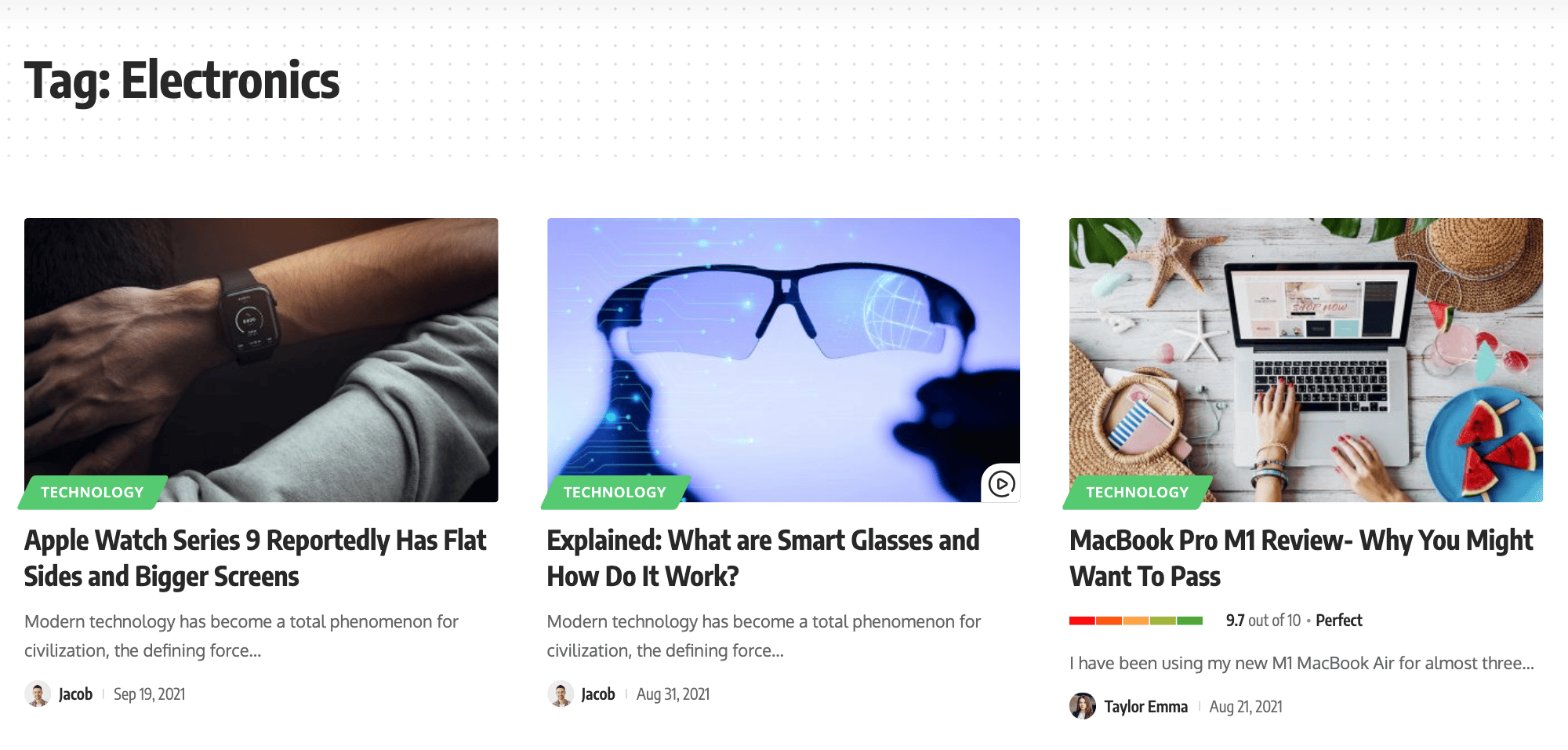
To get started, follow the steps below:
-
Navigate to Theme Options > Archives to edit this page. It is a top level panel in the Theme Options list, not a section inside another one.
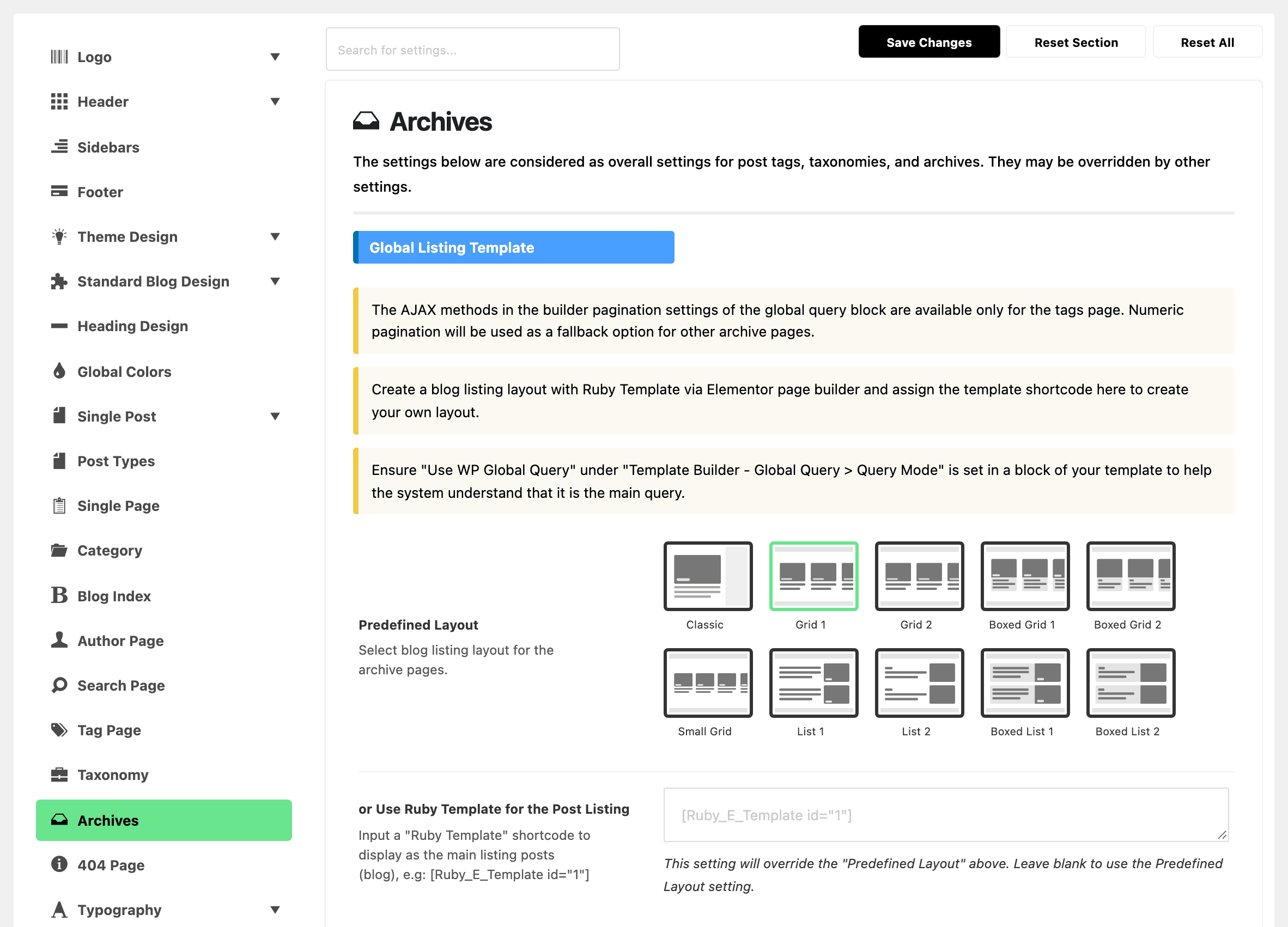
Three kinds of archive have a small panel of their own that overrides a few fields. Everything else they draw, the sidebar included, still comes from Archives:
- Tag pages: Theme Options > Tag Page overrides the header, the posts per page, the top template and the listing template.
- Custom taxonomies: three overrides in Theme Options > Taxonomy.
- Custom post type archives: Archive Header, Archive Template Shortcode and Archive Posts per Page, in the per type section of Theme Options > Post Types.
-
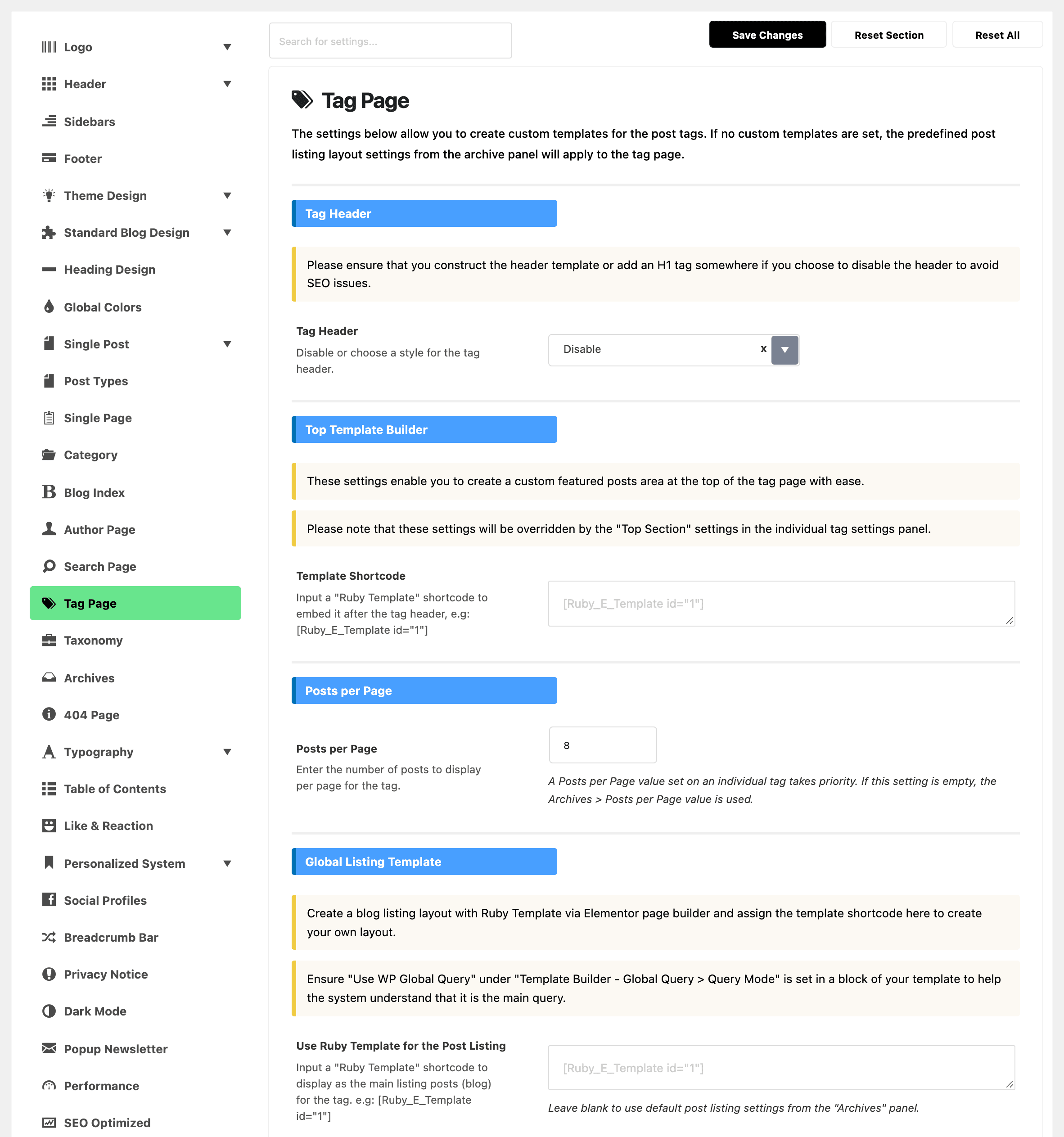
Refer to Global Listing Template > Predefined Layout to select the page layout. It offers ten and defaults to Grid 1. Keep Grid 1 unless you want tag pages to look like another listing on your site, such as your blog page (Classic by default); then pick that layout here:
- Classic
- Grid layouts: Grid 1, Grid 2, Boxed Grid 1, Boxed Grid 2 and Small Grid
- List layouts: List 1, List 2, Boxed List 1 and Boxed List 2
Directly below it, or Use Ruby Template for the Post Listing takes a Ruby Template shortcode and overrides the predefined layout completely. Leave it blank unless you built a listing template for archives. While it holds a shortcode, the Post Listing - Columns, Post Listing - Sidebar, Post Listing - Design and Post Listing - Pagination sections vanish from the panel, because the template draws all four itself. If the fields in the next step are not on your screen, that field is why.
-
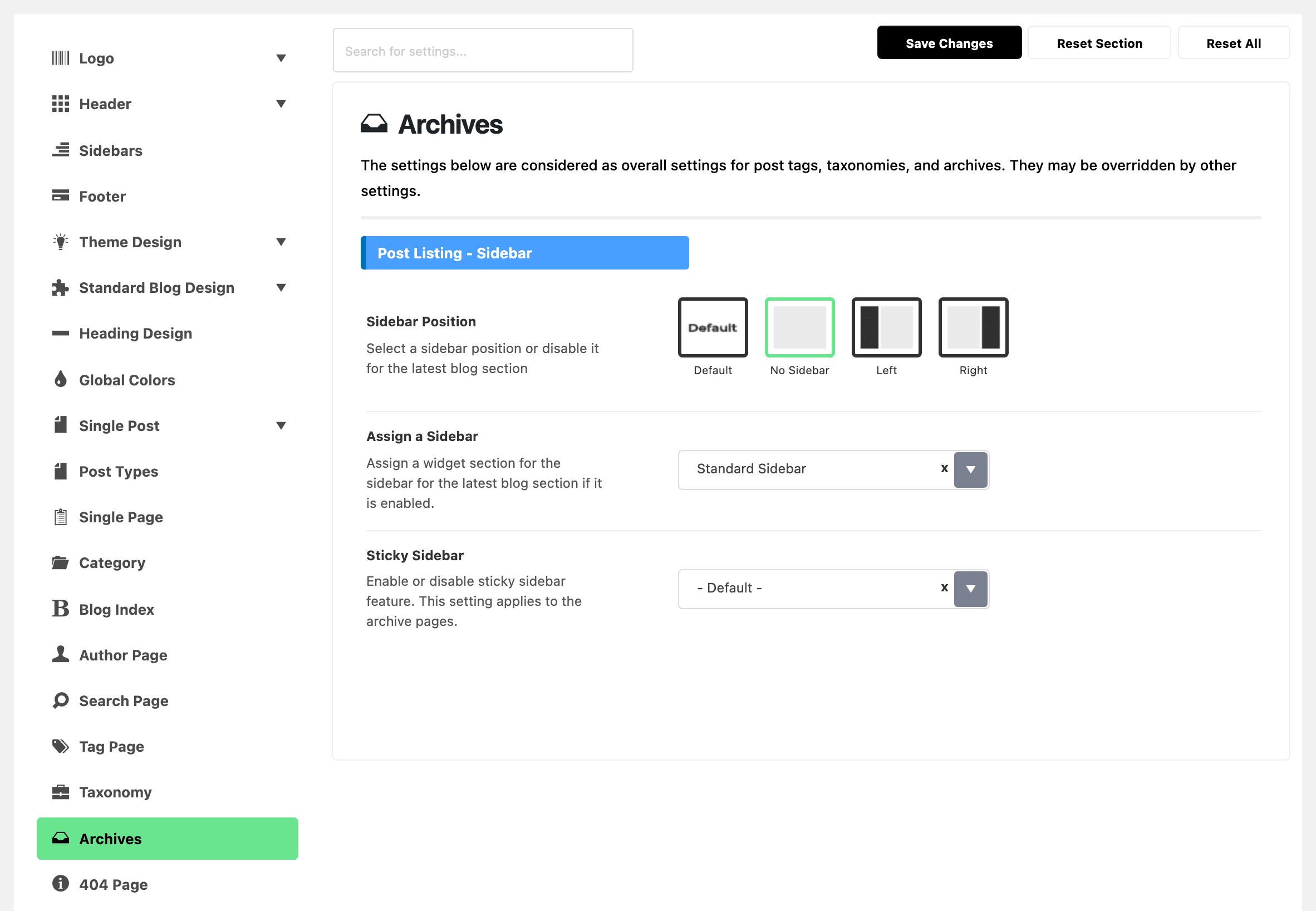
Refer to the Post Listing - Sidebar section to select a sidebar for it. The setting is called Assign a Sidebar, and it already holds Standard Sidebar. The dropdown also lists every sidebar you created under Theme Options > Sidebars > Unlimited Sidebars.
 note
noteSidebar Position, immediately above it, defaults to No Sidebar, and at that value the theme discards the assigned sidebar before it draws anything. Set it to Left or Right in the same section, or the archive stays full width no matter which sidebar you picked. This is the usual reason a sidebar assigned here never appears.
Sticky Sidebar sits below the two and starts on - Default -, which hands the decision to Theme Options > Sidebars > Sticky Sidebar.
-
Navigate to Appearance > Widgets, then open that sidebar section to edit sidebar widgets for this page. An empty widget area counts as no sidebar: the theme checks the area actually has widgets in it before it draws the column, so a sidebar that is assigned and positioned but never filled still renders full width.
Refer to Editing Sidebars and Widgets for further information.
Post Listing - Design
Post Listing - Design, further down the Archives panel, changes how each post in the layout looks. Its fields start on - Default - or blank, which keeps the look that layout already has under Theme Options > Standard Blog Design. Two of them are worth knowing about:
- Desktop - Title Font Size, Tablet - Title Font Size and Mobile - Title Font Size take a number in pixels for the post titles in the listing. The tablet size applies at 1024 pixels wide and below, the mobile size at 767 and below. Leave one blank to keep the layout's own size at that width. Tag pages take these sizes too, because Tag Page has no design fields of its own.
- Review Meta Description sets the text beside the stars or score bar on a post that carries a review: the score, such as 4.5 out of 5, then the post's own review Meta Description. Nothing shows at all while Review Meta above it is set to Disable. Its values:
- No Wrap keeps it on the same line.
- Line Wrap puts it underneath.
- Desktop No Wrap - Mobile Line Wrap puts it underneath only at 1024 pixels and below.
- The two (Show Score Only) values print the score without the description.
- Disable leaves the stars or bar on their own.
- - Default - uses the setting of the layout's own module in Standard Blog Design.
Did this answer your question?