How to Config the Blog Page?
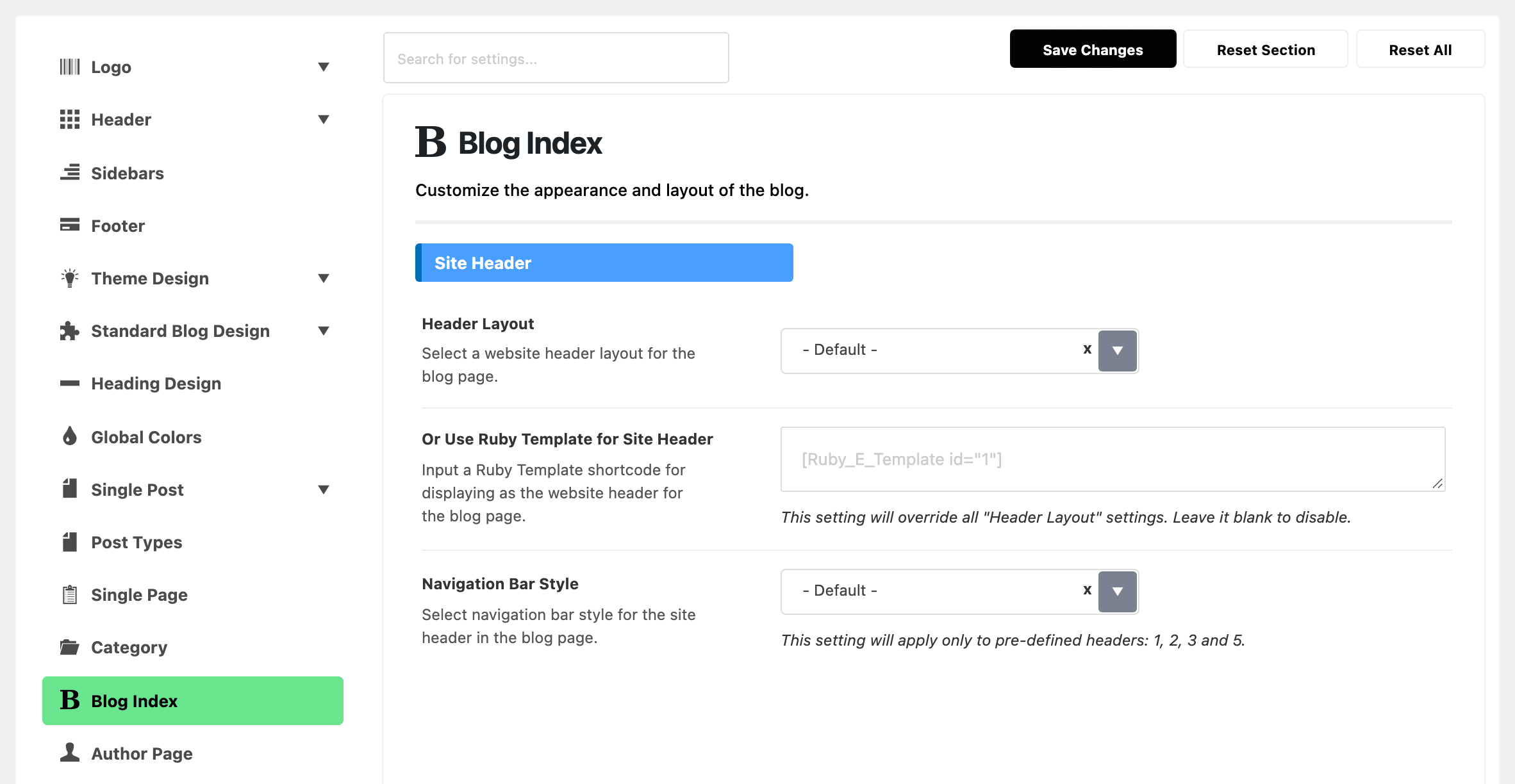
After you add the blog page, you can navigate to Theme Options > Blog Index to set up layouts, featured areas, and other options for this page. Blog Index is a top level panel in the Theme Options list (there is no Blog & Archive panel).
Which pages these settings change
These settings drive whichever page you set as the Posts page under Settings > Reading, and the front page too when that is set to show your latest posts. Both go through the same template.
The eight sections of the panel
The panel holds eight sections, in this order:
-
Site Header: a Header Layout for the blog page only, Or Use Ruby Template for Site Header if you built your own, and Navigation Bar Style. All three start on - Default -, meaning the blog page uses whatever Theme Options > Header says.
-
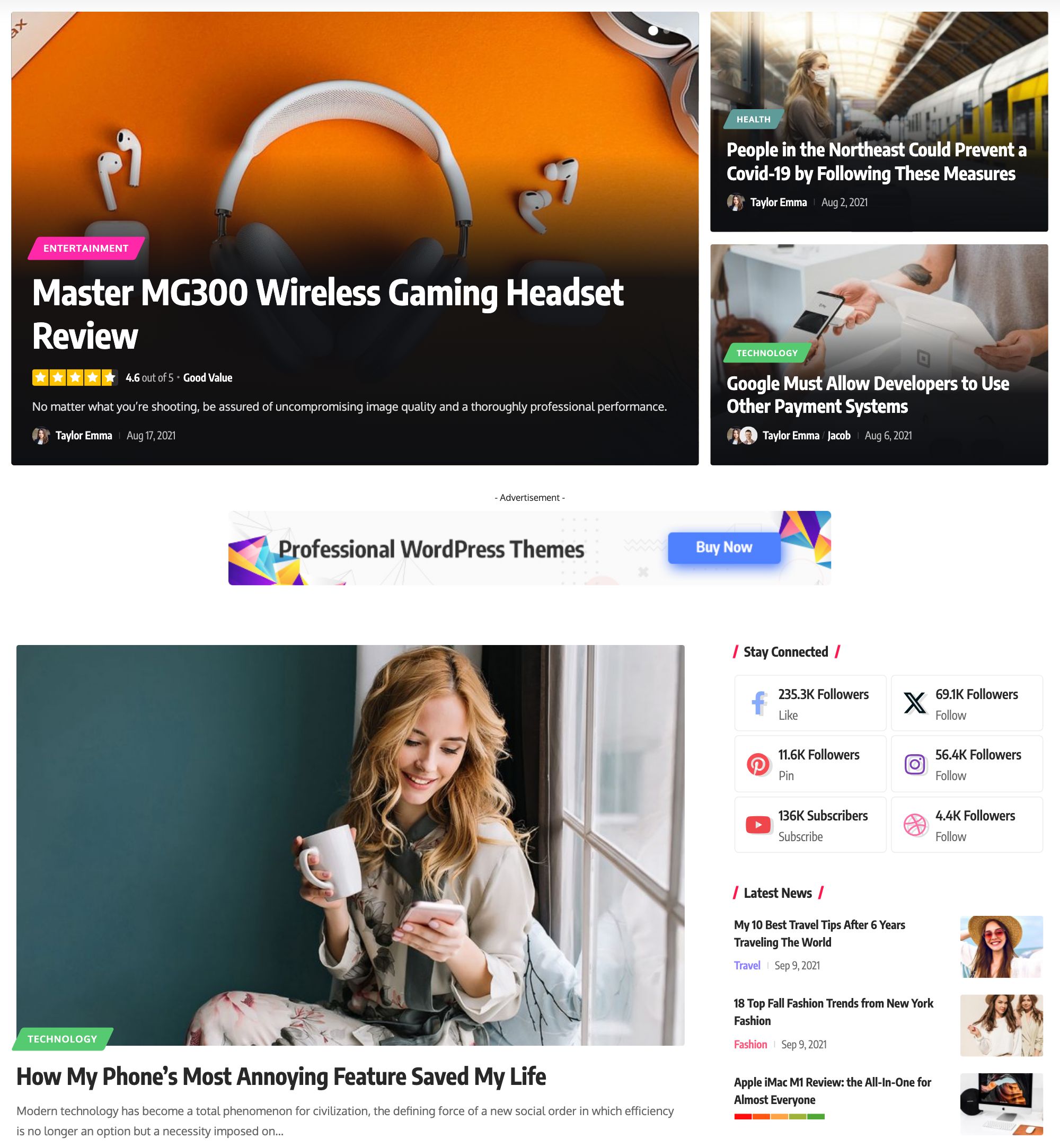
Top & Bottom Area Template Builder: Top Area Template Shortcode and Bottom Area Template Shortcode embed a Ruby Template above and below the post listing, which is how the featured area at the top of a blog page is built. A Ruby Template is a layout you build in Elementor and place with a shortcode; How to Create a featured block for blog page? walks the whole job. Display Conditional beside them offers Show on the first page and Show on all pages, and defaults to the first.
-
Posts Per Page: a value here overrides Settings > Reading > Blog pages show at most, and applies to a Ruby Template listing as well. Leave it blank and the blog page uses the WordPress value.
-
Global Listing Template: Predefined Layout, which defaults to Classic here rather than a grid, and or Use Ruby Template for the Post Listing below it.
-
Post Listing - Columns, Post Listing - Sidebar, Post Listing - Design and Post Listing - Pagination: the appearance of the listing itself.
In Post Listing - Design, Desktop - Title Font Size, Tablet - Title Font Size and Mobile - Title Font Size set the post title size in pixels for the blog page only. The tablet size applies at 1024 pixels wide and below, the mobile size at 767 and below, and a blank field keeps the layout's own size.
Review Meta Description in the same section sets the text beside the stars or score bar on a post that carries a review: the score, such as 4.5 out of 5, then the post's own review Meta Description. No Wrap keeps it on one line with the stars, Line Wrap puts it underneath, Desktop No Wrap - Mobile Line Wrap puts it underneath at 1024 pixels and below, the two (Show Score Only) values drop the description, and Disable shows the stars or bar alone. Its default is - Default -, which uses the setting of the layout's module in Theme Options > Standard Blog Design.
If the panel looks smaller than it is
Two things make this panel look smaller than it is.
If or Use Ruby Template for the Post Listing holds a shortcode, the last four sections disappear: the template draws the listing, so the theme stops offering to. Clear the field to get them back.
And the blog page is the one listing whose Sidebar Position does not default to No Sidebar. It starts on Default, which hands the decision to Theme Options > Sidebars > Sidebar Position, and that defaults to Right. Assign a Sidebar beside it already holds Standard Sidebar, so a blog page shows a right hand sidebar as soon as that widget area has anything in it.
Did this answer your question?