How to Create a Contact Page?
There are a lot of plugins for WordPress that allow you to add a contact form to a page. In this tutorial, we will talk about the most popular plugin: Contact Form 7
Foxiz styles Contact Form 7 directly. The theme's stylesheet lays a .wpcf7-form out as a flex row that wraps, with a 20px row gap and a 40px column gap, and styles the submit button, the spinner, the file field, the validation tips and every response message. That is why the column classes further down this article work at all, and why a form built with another plugin will not pick them up.
Contact Form 7
Contact Form 7 can manage multiple contact forms, plus you can customize the form and the mail contents flexibly with simple markup. The form supports Ajax-powered submitting, CAPTCHA, Akismet spam filtering, and so on.
You can find docs, FAQ, and more detailed information about Contact Form 7 on contactform7.com. If you were unable to find the answer to your question on the FAQ or in any of the documentation, the plugin's own support forum is where to ask: Contact Form 7 is not part of Foxiz and its screens are maintained by its authors.
Create a contact page
If you imported a demo, you already have a Contact page: the import brings one. Open it from Pages > All Pages and edit it rather than building a new one. Otherwise, to create a contact form using the contact form 7 plugin, follow the steps below:
-
Install "Contact Form 7" plugin: Navigate to the admin dashboard, click on Plugins > Add Plugin, and enter Contact Form 7 in the Search box. From the results, click on the Install Now button. When it finishes, click Activate.
-
Create a Contact Form: click on Contact > Contact Forms from the admin dashboard. You can manage multiple contact forms there.
![Contact > Contact Forms, listing Contact form 1 with its shortcode [contact-form-7 id="1eca73f" title="Contact form 1"] and Contact Us below it, with Author and Date columns](/docs/assets/images/cf7-contact-forms-list@2x-42ec2411bcc7de0ed55efb6ca4f6fbf4.png)
-
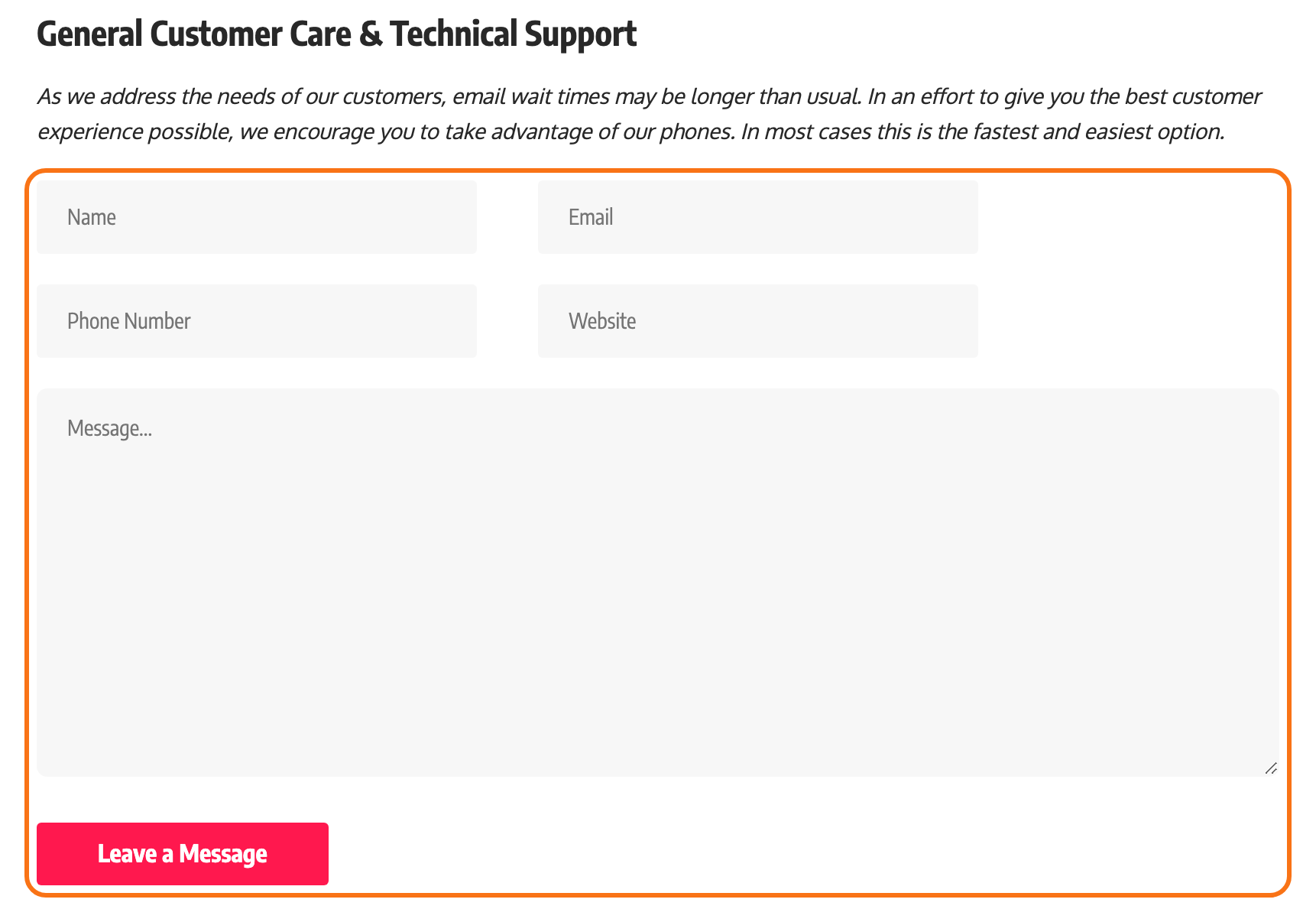
Build the form: open the form and replace what its Form tab holds. For a form like the theme demos, use this structure:
[text* your-name placeholder "Name"][email* your-email placeholder "Email"][text your-phone placeholder "Phone Number"][text* your-website placeholder "Website"][textarea your-message placeholder "Message..."][submit "Leave a Message"]![Edit Contact Form for Contact form 1, its Form tab open: the tag buttons from text to submit and the text area holding the template from the article, from [text* your-name placeholder "Name"] to [submit "Leave a Message"]](/docs/assets/images/cf7-form-tab-template@2x-5d7ecc4a183108dd291f72f7cc92b13d.png)
Click Save when you are done.
Keep the field named
your-messageif you can. The theme forces any field with that name to full width, so the message box spans the form even when the fields above it are in columns. -
Get contact shortcode: copy the shortcode shown at the top of the form's screen, under Copy this shortcode and paste it into your post, page, or text widget content:. The form the plugin creates for you, “Contact form 1”, has one like this:
[contact-form-7 id="a1b2c3d" title="Contact form 1"]The
idis a seven character hash now, not the form's post number, so copy the shortcode the plugin shows you on its own screen rather than typing one out. A numeric id from an older site still works: the plugin looks the hash up first and falls back to the post id, then to the title. -
Create Page: navigate to Pages > Add Page and give the page a title. In the content, type
/shortcode, press Enter to add a Shortcode block, and paste the shortcode into it. Click Publish.![The block editor on a new page titled Contact: a Shortcode block holding [contact-form-7 id="1eca73f" title="Contact form 1"], selected, with the Publish button top right](/docs/assets/images/editor-shortcode-block-cf7@2x-6cd33d8a3321996f4b3a663020391dbe.png)
Now your contact page setup is complete. Visitors to your site can now find the form and start submitting messages to you.
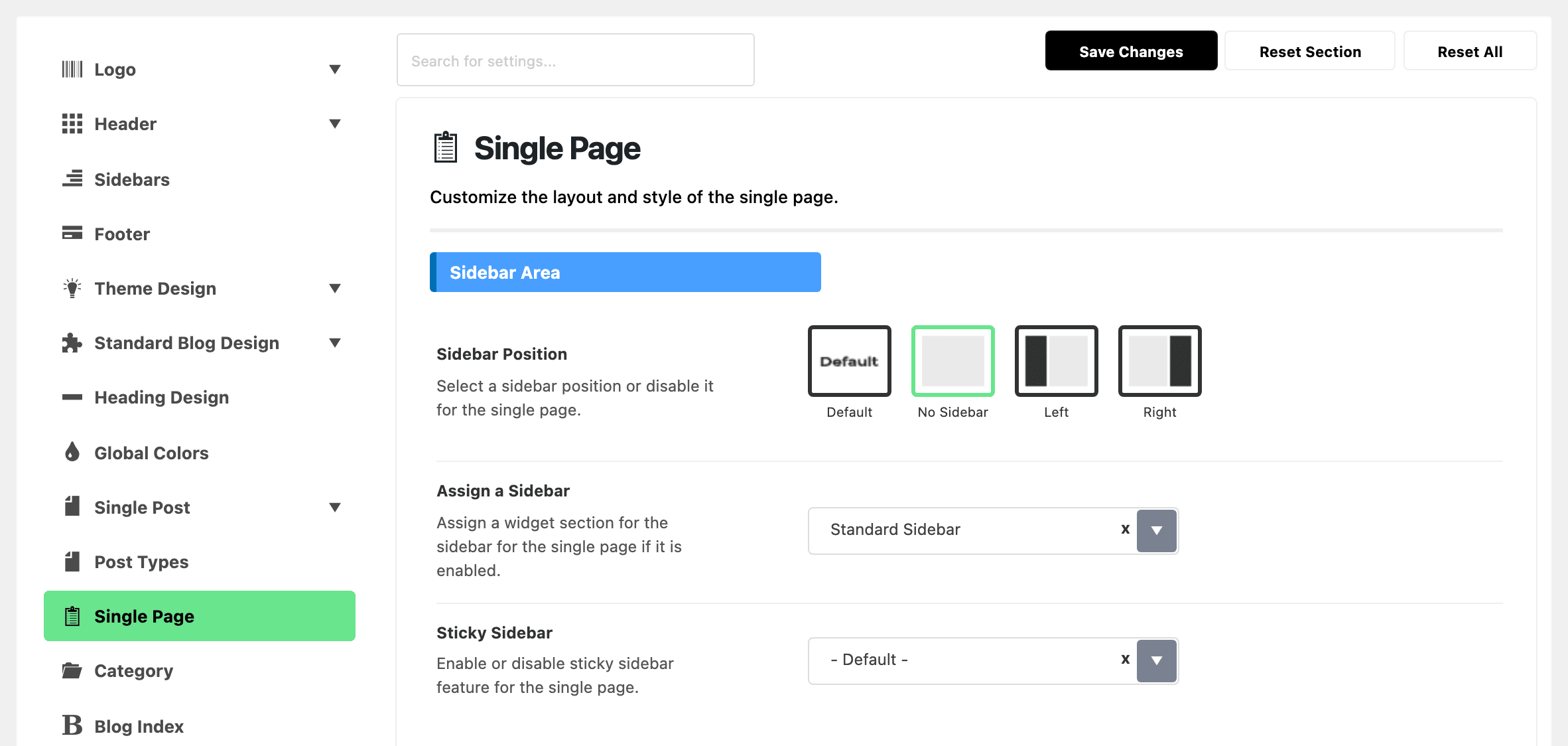
A contact page is a single page, and single pages have Sidebar Position set to No Sidebar by default, so the form fills the content width. If you want the contact details beside it instead of below it, set Sidebar Position to Left or Right, either in Theme Options > Single Page > Sidebar Area for every page or in the Single Page Settings box on this page alone. If both are set, this page's own setting wins; left on Default, it follows Theme Options. Assigning a sidebar without setting the position does nothing.
Customizing a Form
Navigate to Contact > Contact Forms then select the form you would like to edit. Tags can be created using a list with the tags as below:
- text fields (text, text*, email, email*, textarea and textarea*)
- checkboxes, radio buttons and menus (checkbox, checkbox*, radio, select and select*)
- file uploading an attachment (file and file*)
- captcha
- submit button
To add fields to a form, make tags for them and insert them into the ‘Form’ field. You’ll find unfamiliar codes in the ‘Form’ field, for example: [text* your-name]. These codes are called “tags” in the vocabulary for Contact Form 7.
A tag has a rather complex syntax, but don’t worry! You don’t have to learn it. You can use the “Generate Tag” tool to generate as many tags as you want.
The second word in the tag is its name. For example, the name of [text* your-name] is ‘your-name.’ This name is important as it is used later in your mail template.
Customizing Mail
You can edit mail templates in the ‘Mail’ fieldset as you did with the form template. You can use tags there as well, but note that tags for mail are different from those tags for forms.
Tags you can use in a mail template contain only one word in brackets and look like [your-name]. You should be aware that this ‘your-name’ is the same as the name of the form tag which is noted in the previous example. The two tags correspond to the same name.
In the mail, [your-name] will be replaced by the user’s input value, which is submitted through the corresponding form field, which, in this case, is [text* your-name].
Advanced Form Layouts
Everything in this section is Foxiz. The class names below are declared in the theme's own stylesheet, so they work on a Contact Form 7 form on a Foxiz site and nowhere else.
Form Label
By default, the input form will display placeholder text. You can use a label to make it more attractive. To do this, you can add label tag as below:
<label for="your-name">Your Name*</label>
[text* your-name id:your-name autocomplete:name]
The id:your-name part is what the label's for attribute points at, so keep the two matching. The theme gives .wpcf7-form label its own styling.
Input Style
By default, the input form will display a gray background. You can change it to a gray border by creating a div wrapper and adding the class name: is-input-border
<div class="is-input-border">
<label for="your-name">Your Name*</label>
[text* your-name id:your-name autocomplete:name]
</div>
That class sets a 1px border and a transparent background on the inputs and textareas inside the wrapper, and darkens the border on focus.
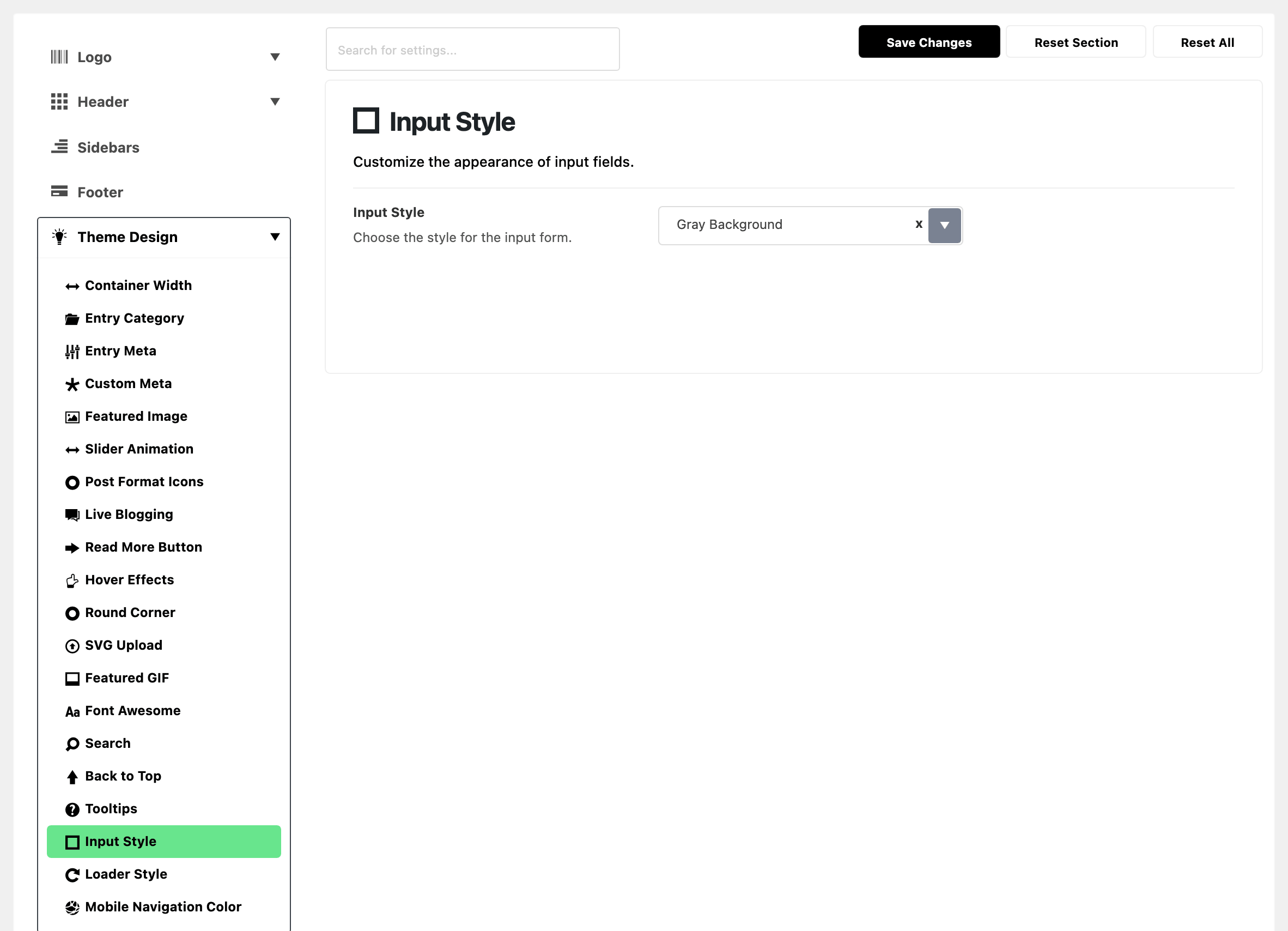
To change every input on the site instead of one form, use Theme Options > Theme Design > Input Style. It offers Gray Background, Gray Border and Dark Border, and is set to Gray Background, which is the default this section is describing.
Columns
You can control the column for the input form via additional class names:
input-col-1- 100% widthinput-col-2- 50% widthinput-col-3- 33% width
Below is an example code to add name and email in 2 columns with border style.
<div class="input-col-2 is-input-border">
<label for="your-name">Your Name*</label>
[text* your-name id:your-name autocomplete:name]
</div>
<div class="input-col-2 is-input-border">
<label for="your-email">Email Address*</label>
[email* your-email id:your-email autocomplete:email]
</div>
Two things about these are worth knowing before you build a long form.
The narrow widths only apply from 1025px up. Below that, every wrapper falls back to the full width rule that any input-col- class carries, so a two or three column form stacks into one column on tablets and phones. There is nothing to switch off for mobile.
And the widths subtract the form's gap, so input-col-2 is calc(50% - 20px) and input-col-3 is calc(33.3% - 30px). Do not add your own margins to the wrappers or the row will break early.
Input Description
You can add a description under the input via a span tag. For example:
<div class="input-col-1 is-input-border">
<label for="your-name">Your Name*</label>
[text* your-name id:your-name autocomplete:name]
<span class="is-meta">Please input your name.</span>
</div>
is-meta is the theme's own meta text class, so the description picks up the meta colour you set in Theme Options > Typography.
How to Prevent Spam
It’s really important to add measures to prevent spam from getting through your form submissions. The best way is to use CAPTCHA fields of contact plugins.
Foxiz's own Cloudflare Turnstile module does not cover contact forms. It protects the login form, the registration form, the lost password form and the comment form, so it is worth switching on for those (How to Protect Login, Registration and Comment Forms with Cloudflare Turnstile shows how), but a contact form still needs the spam protection its own plugin provides.
How to Add Contact Information at the Right Sidebar?
Refer to this article for further information.
Did this answer your question?