How to Create Post Types Using the UI Custom Post Type Plugin
Foxiz offers advanced support for fully customizable custom post types created through the UI Custom Post Type plugin.
Advanced Custom Fields works too. A post type made with either plugin gets its own section in Theme Options > Post Types. A post type registered in your own code or by any other plugin does not get that section.
How to Create a Custom Post Types:
-
Install and activate the plugin Custom Post Type UI
-
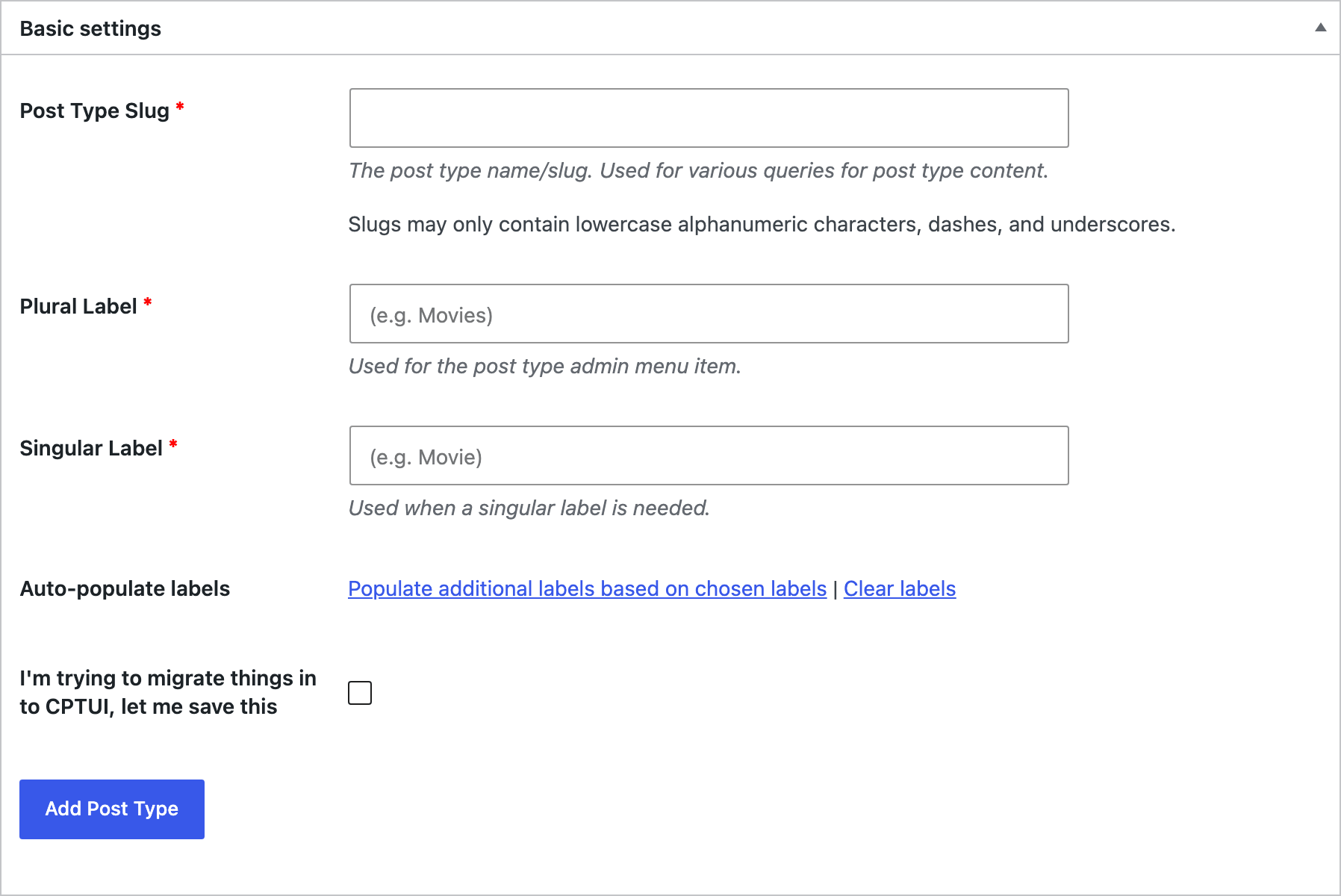
Navigate to CPT UI > Add/edit post types and stay on the Add New Post Type tab.
-
In the Basic settings panel, enter the necessary information: Post Type Slug, which is required, then Plural Label and Singular Label. Do not click Add Post Type yet.
-
Before you click it, open the Settings panel further down the same screen and check two things there, because Foxiz reads both.
-
Public has to be True. It already is unless you change it, and a post type that is not public gets no Single Post Type Settings box in its editor.

-
If you want an archive page for it, set Has Archive to True. It starts on False. The Archive Header, Archive Template Shortcode and Archive Posts per Page fields Foxiz adds for this post type only do anything when that is set, which the fields' own help text says.

-
-
Click Add Post Type to create your custom post type. The button is at the end of Basic settings and again at the bottom of the screen.
-
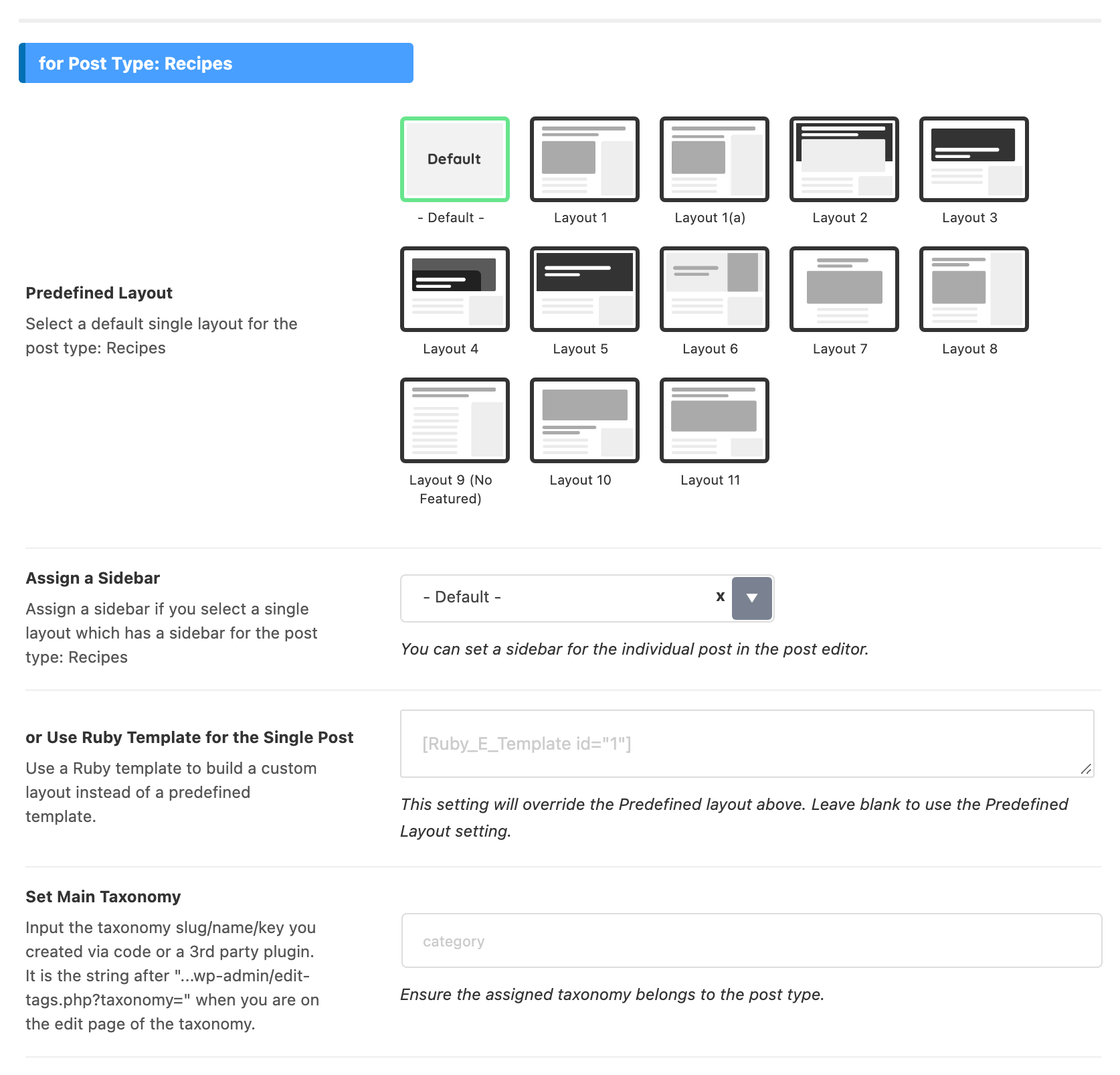
Once the type is saved, a for Post Type: section appears in Theme Options > Post Types carrying its name, and the box named Single Post Type Settings appears on each post of that type. Neither needs any further setup.
-
Your post type now has its own menu in the admin sidebar, named after its Plural Label, such as Recipes. Add its posts from there.
Next, give its posts a layout in Custom Post Type Layouts, and show them on a page with How to Display Custom Post Types and Taxonomy in Elementor Blocks.
Did this answer your question?