Every Setting in the Taxonomy Panel
Theme Options > Taxonomy sets up the archive pages of your custom taxonomies, the ones a plugin registered for you: Genre, Actor, Ingredient.
Categories, tags and podcast shows are not in this panel. Each has a panel of its own:
- Theme Options > Category for categories.
- Theme Options > Tag Page for tags.
- Theme Options > Ruby Podcast > Show for podcast shows.
If you arrived here looking for category settings, Category is the panel you want.
The panel opens with three sections that apply to every custom taxonomy at once, and then repeats a fourth section, once per taxonomy:
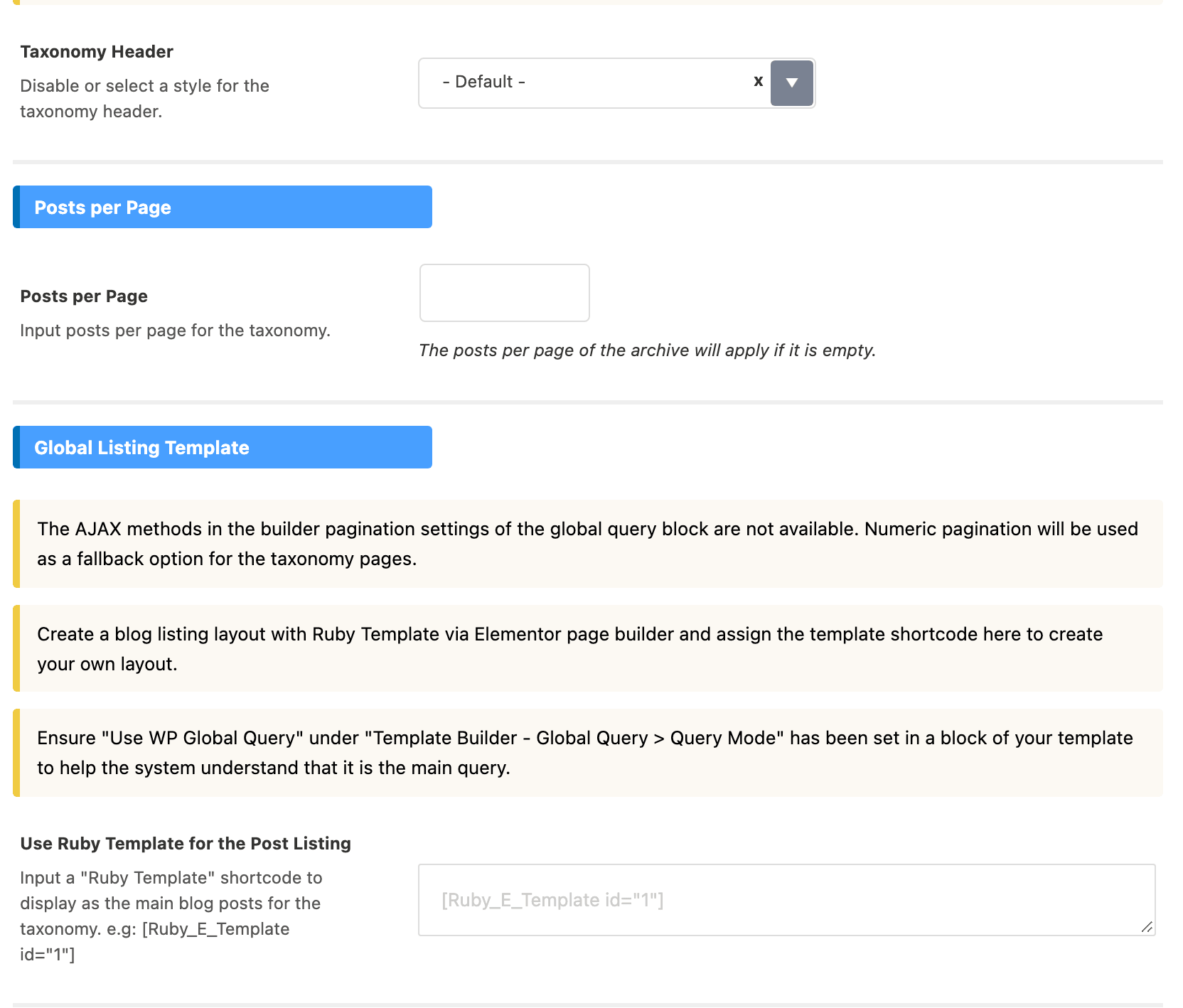
- Taxonomy Header chooses the style of the block at the top of a term archive, the one carrying the term name.
- Posts per Page sets how many posts a term archive lists before it paginates.
- Global Listing Template replaces the listing itself with a Ruby Template you built in Elementor.
- for Taxonomy: followed by a taxonomy's name repeats those same three settings for that one taxonomy. There is one such section per taxonomy the panel can see.
When the same setting is filled at more than one level, the narrowest wins: a term's own settings box, then its taxonomy's for Taxonomy: section, then the three globals, then Theme Options > Archives. A field on - Default - or left empty passes the choice down. Which setting wins has the full order.
Everything else a term archive draws, the listing columns and the sidebar included, comes from Theme Options > Archives.
Which taxonomies get their own section
The for Taxonomy: sections are built from the taxonomy lists that Custom Post Type UI and Advanced Custom Fields keep. Add a taxonomy in either plugin and its section appears in this panel the next time you open it, with no step in between.
Two consequences worth knowing before you go looking for a taxonomy that is not there:
- A taxonomy registered in your theme's own code, or by some other plugin, gets no section in this panel. Its archives fall back to the three global settings above, and its terms still get their own settings box. The theme's own Shows taxonomy is in this position, which is why it has a panel of its own instead.
- An Advanced Custom Fields taxonomy that is currently disabled still gets its section, because the panel reads the plugin's saved list rather than what is live on the site.
The name in the section heading is the taxonomy's Plural Label as you typed it into Custom Post Type UI, or the singular label for an Advanced Custom Fields taxonomy, falling back to the taxonomy slug when neither was filled in. That same name is prefixed onto each of the three field labels inside the section, so a taxonomy called Genres gives you Genres - Taxonomy Header, Genres - Posts per Page and Genres - Use Ruby Template for the Post Listing.
Taxonomy Header
Taxonomy Header is a single dropdown with four choices, and its default is - Default -.
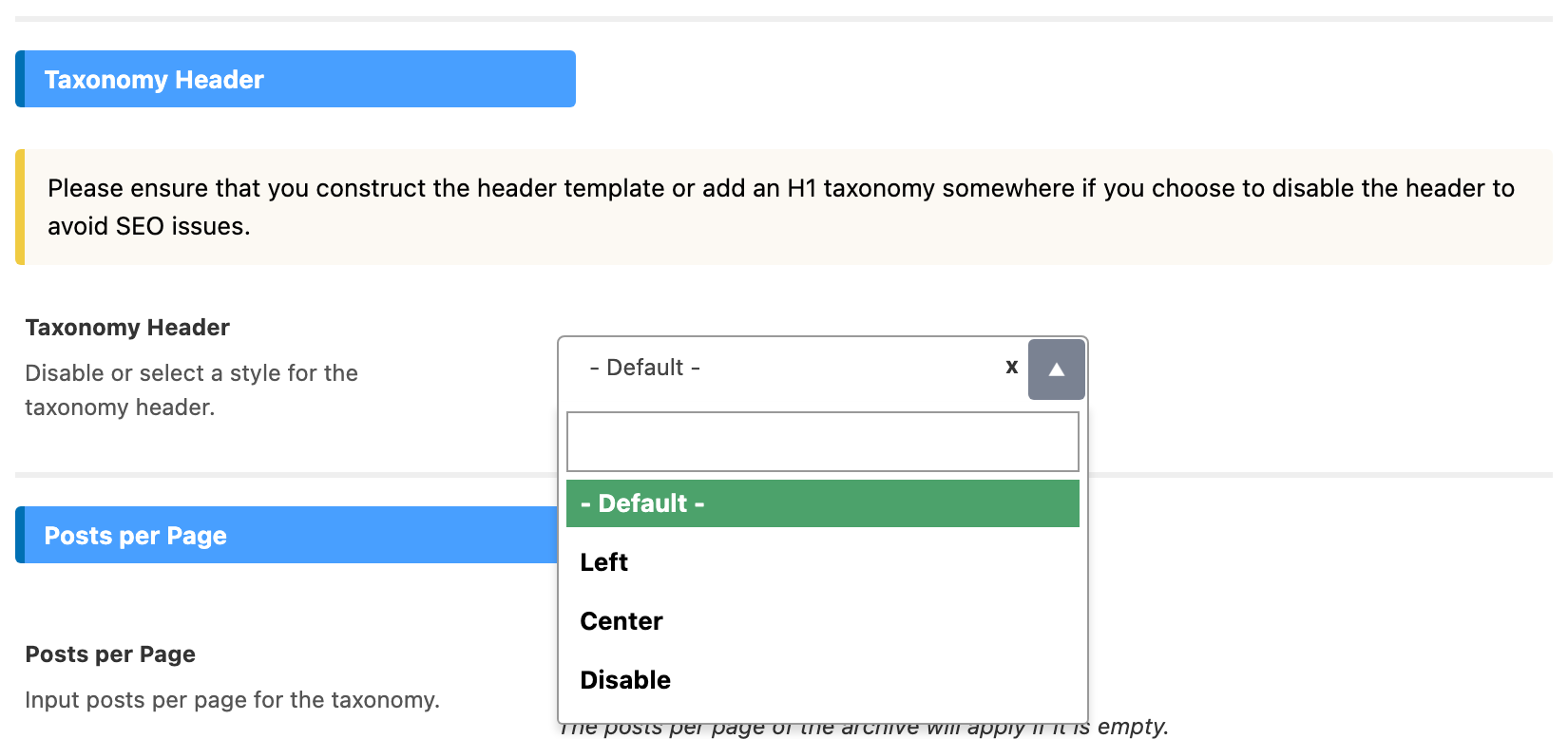
- - Default - hands the decision to Theme Options > Archives > Archive Header, which defaults to Left.
- Left puts the term name and its description against the left edge of the container.
- Center centres them.
- Disable prints no header at all.
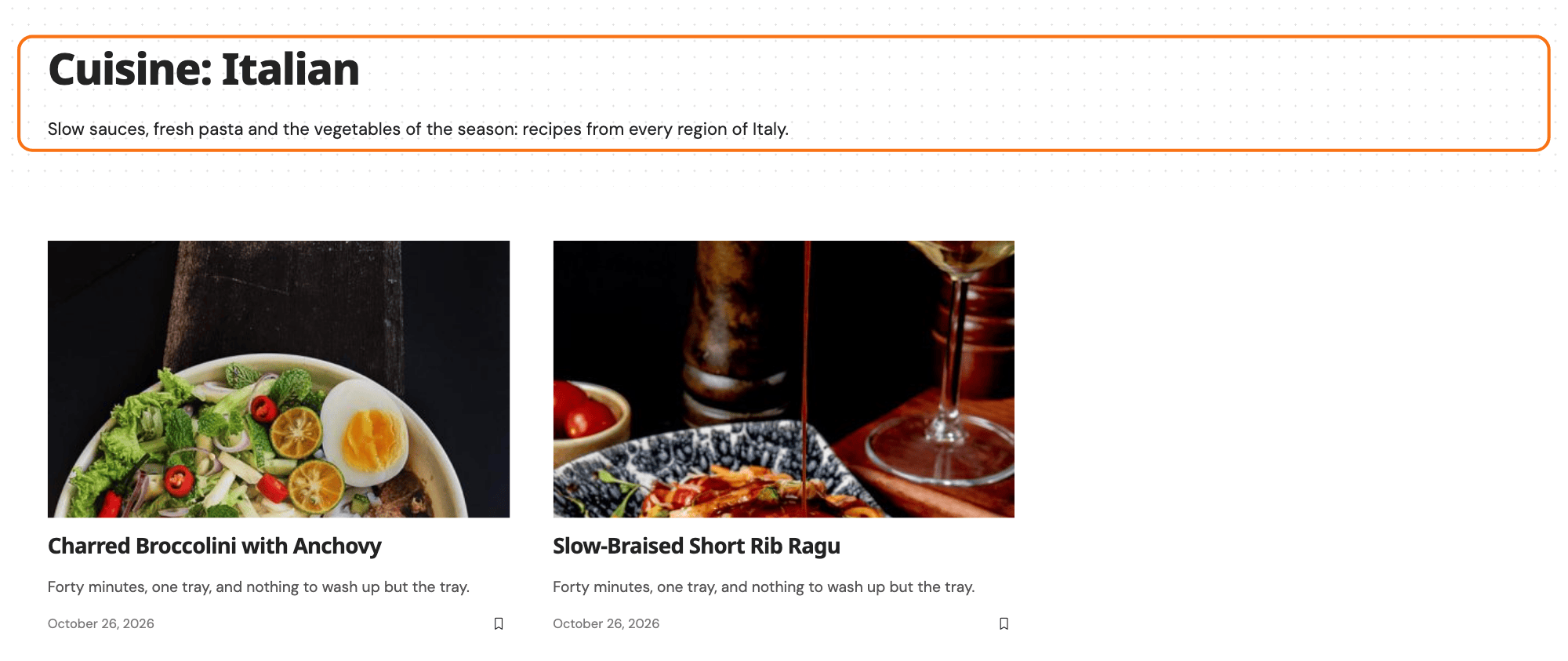
The header is where the term's H1 lives, so Disable takes the only heading off the page. If you turn it off, put an H1 back, either in a header template or in the listing template you assign below.
Three things print inside that header: the breadcrumb, the term name as an H1, and the term's Description from its edit screen.
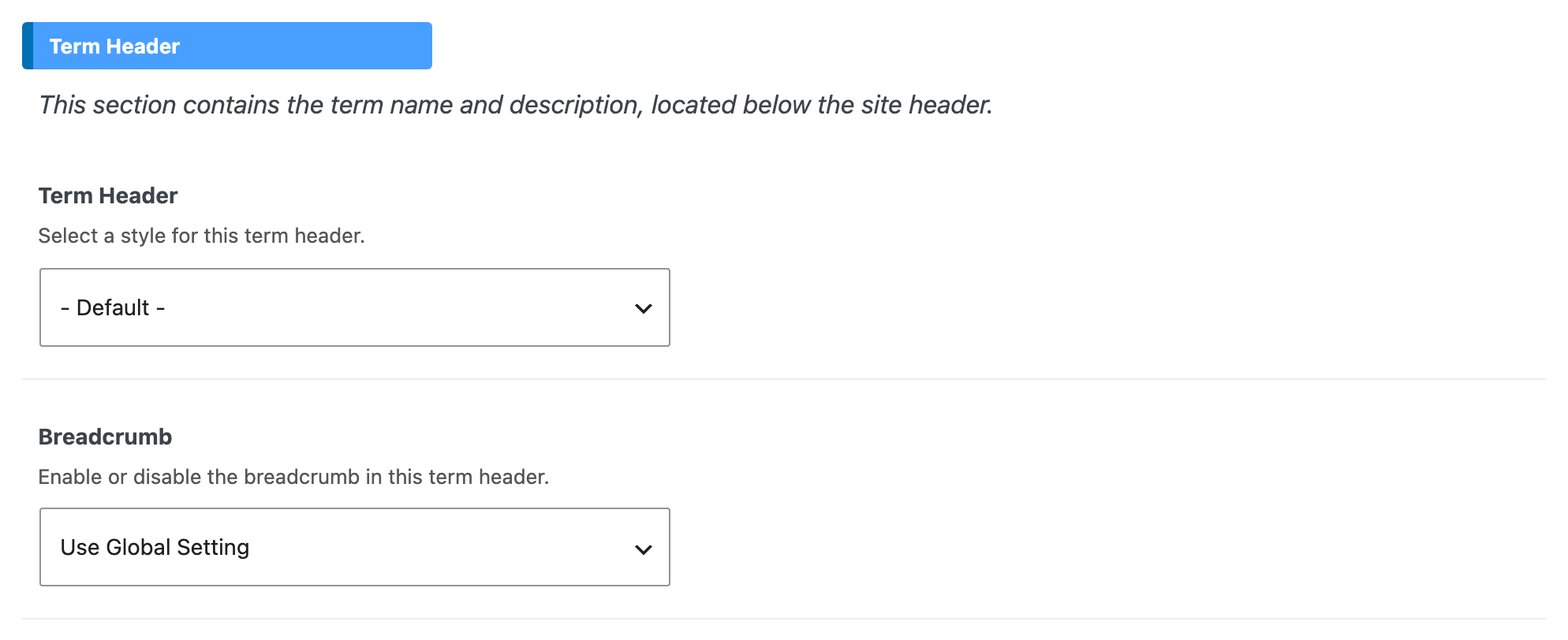
The breadcrumb is the one that surprises people. On a custom taxonomy archive it stays hidden until you ask for it, term by term:
- Open the term.
- Go to the Term Header tab of its settings box.
- Set Breadcrumb to Use Global Setting.
Theme Options > Breadcrumb Bar > Archive Breadcrumb on its own is not enough here, and a breadcrumb of any kind needs Breadcrumb NavXT, Yoast SEO or Rank Math installed.
The header keeps printing when you assign a listing template further down the panel, because the theme draws it before it hands the listing over. If you want the term name gone from a page built entirely in Elementor, set this dropdown to Disable.
Posts per Page
Posts per Page takes a number and nothing else. Leave it empty and the count comes from Posts per Page in Theme Options > Archives; leave that empty too and WordPress's own Settings > Reading > Blog pages show at most decides.
This number applies whether the archive uses the theme's predefined listing or a Ruby Template, because it is set on the page's main query before either one draws. The catch is that a block inside your template only follows the main query while its Query Mode is on Use WP Global Query. Left on Use Custom Query (default), the block counts posts with its own Number of Posts instead and this field changes nothing for it.
Global Listing Template
Use Ruby Template for the Post Listing takes one Ruby Template shortcode, in the form the placeholder shows: [Ruby_E_Template id="1"]. Fill it in and the theme renders your template where the post listing would have been, on every custom taxonomy archive on the site.
Build the template first. Ruby Templates covers creating one and copying its shortcode, and How to Add Blog Template Builder to Blog Index walks the same job for the blog, step by step. Two settings inside the template matter more than anything in this panel:
-
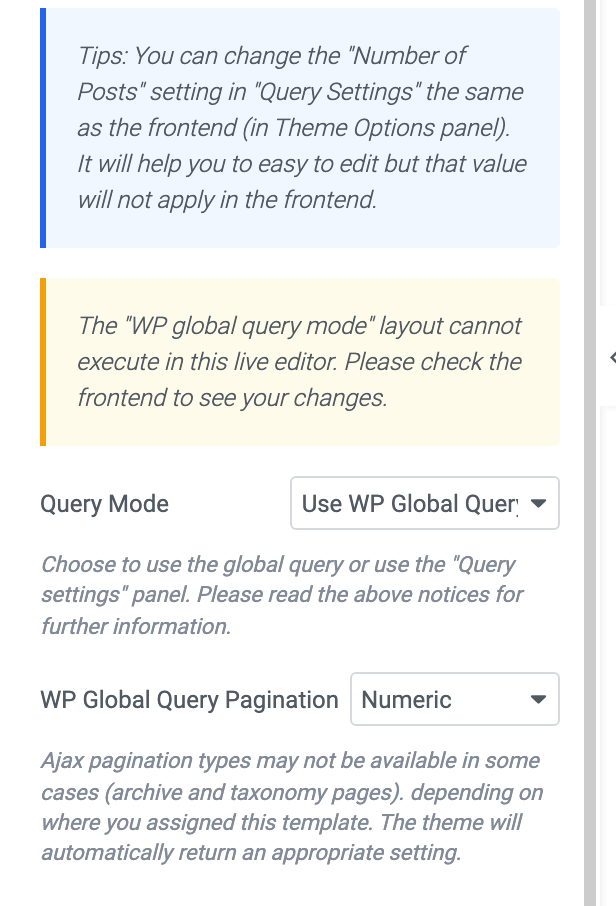
In the listing block, open Content > Template Builder - Global Query and set Query Mode to Use WP Global Query. This is what tells the block to show the term's posts rather than the query it was built with. The section only exists while you are editing a Ruby Template, and its default is Use Custom Query (default), so a template assigned here without this step renders happily and shows the wrong posts.
-
Set WP Global Query Pagination in the same section. Its default is - Disable -, which prints no pagination at all, so page two of a long taxonomy becomes unreachable. Choose Numeric or Simple.
Show More (ajax) and Infinite Scroll (ajax) are the two choices to skip on a taxonomy archive. The theme swaps either one for Numeric on these pages rather than loading posts in place, so picking them buys nothing.
Assigning a template here also retires the predefined listing settings: Predefined Layout, Post Listing - Columns and Post Listing - Sidebar in Theme Options > Archives stop applying to these pages. The whole listing is your template now, so layout, columns and sidebar are yours to build in Elementor.
Settings for one taxonomy
Each for Taxonomy: section carries the same three fields as the globals above, named after the taxonomy, and each one overrides its global counterpart for that taxonomy alone:
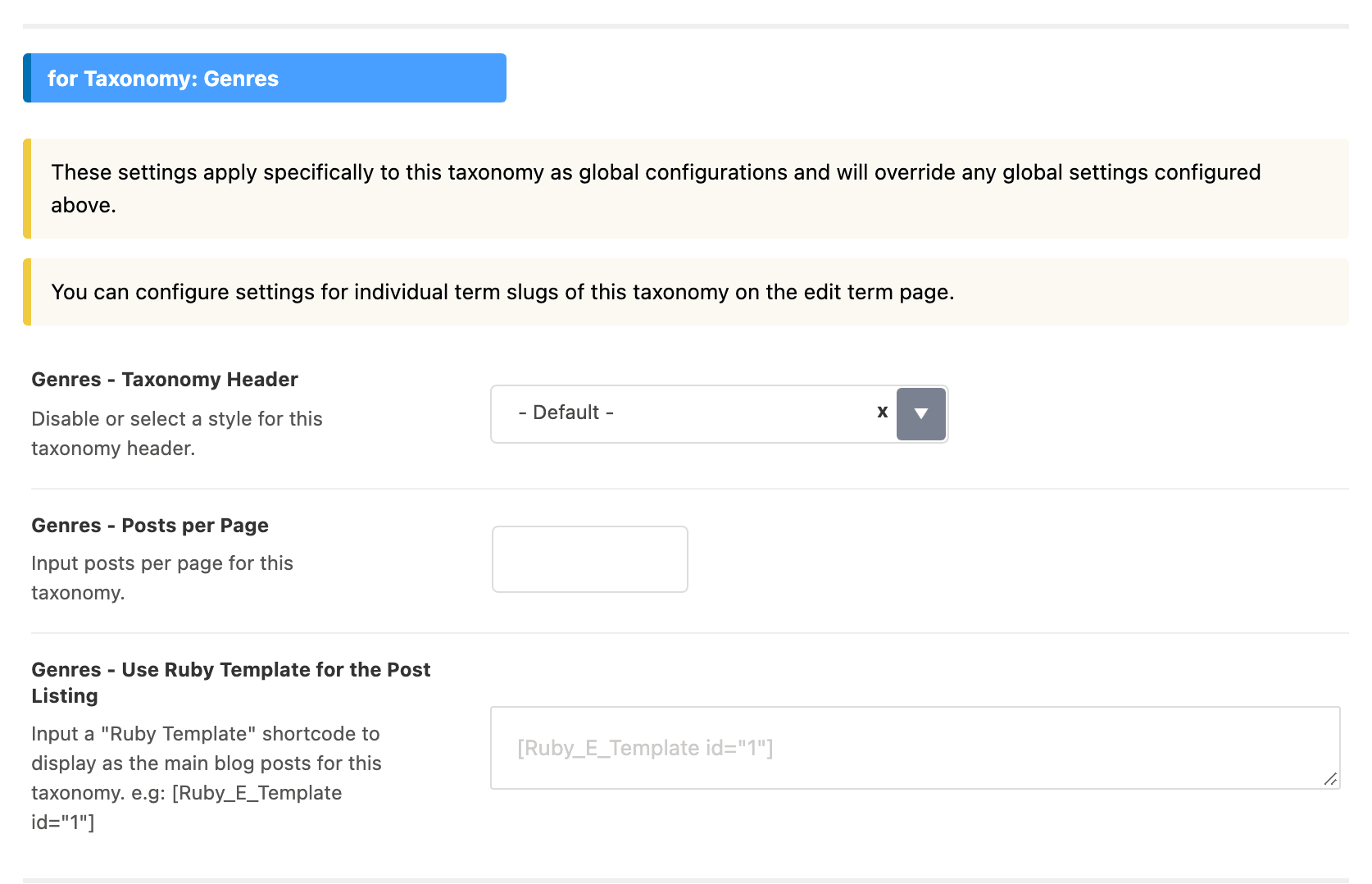
- Taxonomy Header, the same four choices, with - Default - as the default.
- Posts per Page, a number, empty out of the box.
- Use Ruby Template for the Post Listing, one shortcode, empty out of the box.
This is where you give one taxonomy a different treatment from the rest: 24 recipes per page for Ingredients while everything else keeps 10, or an Elementor built listing for Genres only. Leave a field alone and that taxonomy simply keeps using the global above.
For one term rather than the whole taxonomy, open that term and use its settings box. Individual Taxonomy Settings walks that box tab by tab.
Which setting wins
Four levels can answer the same question, and Foxiz takes the first one that has a value. Strongest first:
- The term's own field, on the Listing Queries, Listing Template or Term Header tab of its settings box.
- The taxonomy's field, in the for Taxonomy: section of this panel.
- The global field at the top of this panel.
- The matching field in Theme Options > Archives.
A dropdown left on - Default - and a text box left empty both count as no value, which is what makes the chain work: an untouched field never forces anything, it just passes the question down.
So which setting decides the layout of a taxonomy archive? Use Ruby Template for the Post Listing, at whichever of those four levels first supplies a shortcode: the term level beats the taxonomy level, which beats this panel, which beats Archives. Only when all four are empty does the theme fall back to Predefined Layout in Theme Options > Archives and the columns and sidebar settings beside it.
The term header is the one thing that does not follow the listing. The theme draws it before the listing template runs, so Taxonomy Header still applies at all four levels whatever the listing is made of.
Settings a taxonomy archive takes from somewhere else
Three settings is the whole panel. Here is where the rest of a term archive gets decided:
| What you want to change | Where it lives |
|---|---|
| Listing columns, column gap, sidebar position, sidebar to use, sticky sidebar | Theme Options > Archives, in Post Listing - Columns and Post Listing - Sidebar |
| The predefined listing layout, when no template is assigned | Theme Options > Archives > Predefined Layout |
| The background pattern behind the term header | Theme Options > Archives > Background Pattern for all of them, or Background Pattern on the term's Term Header tab for one |
| The "Genre:" style prefix in front of the term name | Theme Options > Archives > Archive Title Prefix, set to No Prefix |
| A featured image for a term, used by the taxonomy list blocks | Featured Images on the term's Featured Image tab |
| The site header on a term archive | Site Header on the term's Site Header tab |
| The single post layout for posts carrying these terms | Theme Options > Post Types, or the Layout tab of that post's own settings box. A custom taxonomy has no single post layout field; only Foxiz Category Settings carries one |
Did this answer your question?