How to Display Custom Post Types and Taxonomy in Elementor Blocks
To show your custom post type on a page, point a Foxiz listing block at it in Elementor. Steps 1 to 5 do that and show every post of the type; steps 6 to 8 are optional and narrow the block to some terms, such as one cuisine.
Leave the block's category fields in Query Settings blank: they only filter ordinary posts. The note at the end explains why.
How To Enable Custom Post Type On Elementor Builder
To get started, follow the steps below:
-
Navigate to Pages > All Pages.
-
Select a page you would like to edit, and click on the “Edit with Elementor” link.
-
In the Elementor editor, click the block you would like to edit. The section in the next step exists on nineteen of the Foxiz blocks, the listing blocks of these families:
- Classic
- Grid, Boxed Grid, Small Grid and Flex Grid
- List, Boxed List, Small List and Flex List
- Overlay
A block without it cannot be pointed at a custom post type.
-
In the block's settings panel, navigate to Content > Query for Post Type & Taxonomies > Custom Post Type. The section is named Query for Post Type & Taxonomies in full, which matters if you are searching the panel for it.
-
Select a custom post type for displaying your custom post type. The dropdown lists every public post type on the site except Ruby Templates and Elementor's own, with WordPress's own types marked (WP Core). It starts on - Default -, which means posts.
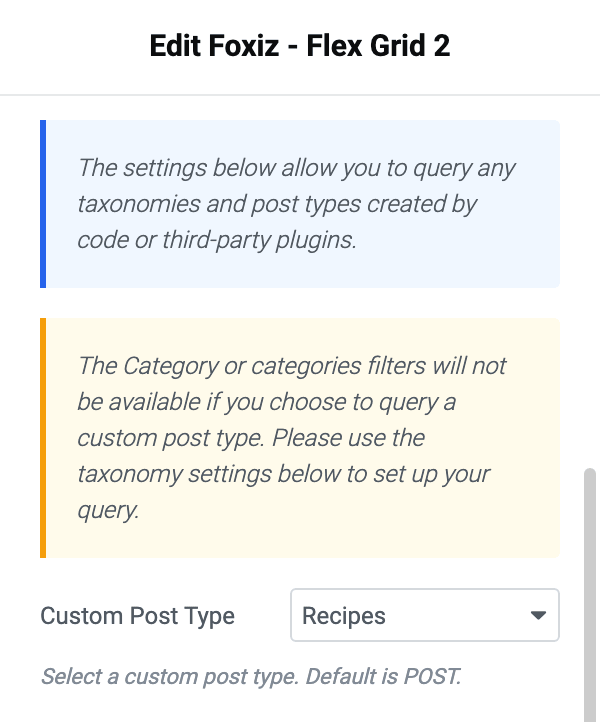
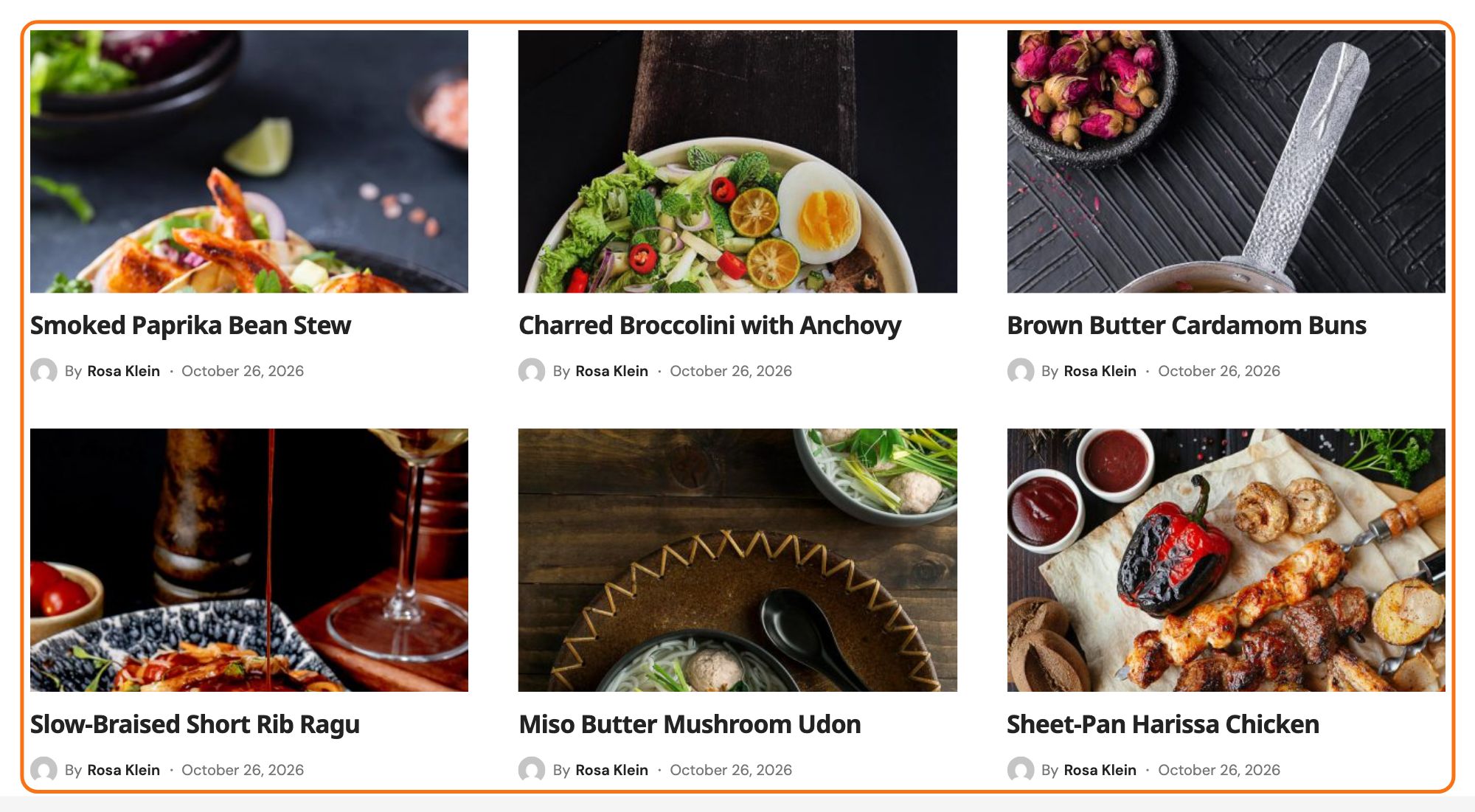
To show every post of that type, stop here and click Publish at the top of the editor.
-
Define Taxonomy: Input the taxonomy slug you created via code or a 3rd party plugin. It is the slug you gave the taxonomy when you created it: in CPT UI, the Taxonomy Slug field (also the
taxonomy=part of the address when you open the taxonomy's term list). Then fill in Term Slugs in the next step to filter the posts shown. Fill both: the filter only applies once the taxonomy and at least one term slug are set.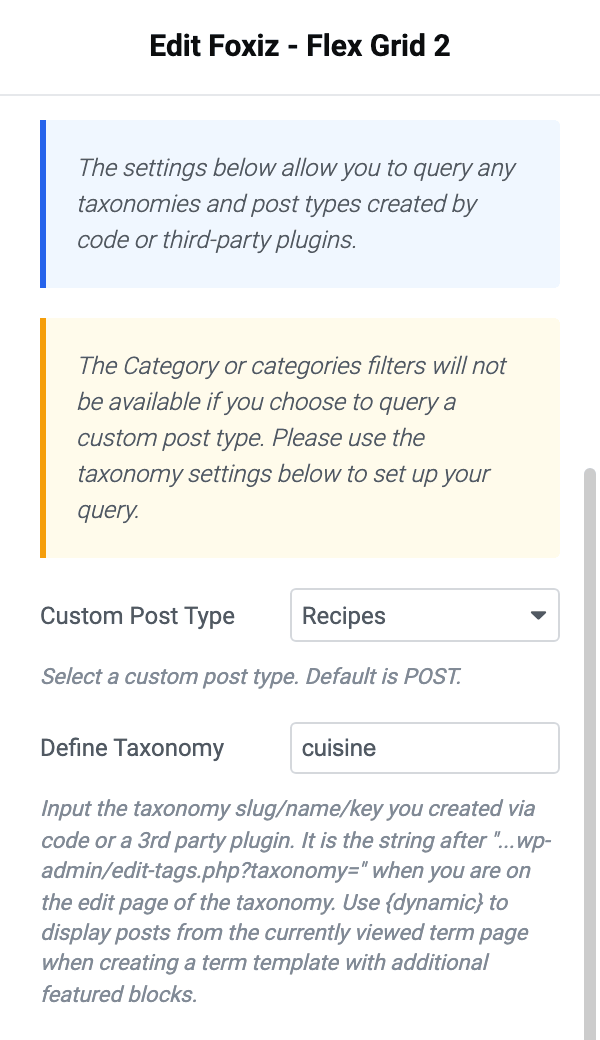
Define Taxonomy also accepts the keyword
{dynamic}. On a taxonomy archive that resolves to the term being viewed, which lets one template serve every term of a taxonomy. Anywhere else, including the Elementor preview, both this field and Term Slugs are cleared and the block shows unfiltered results. -
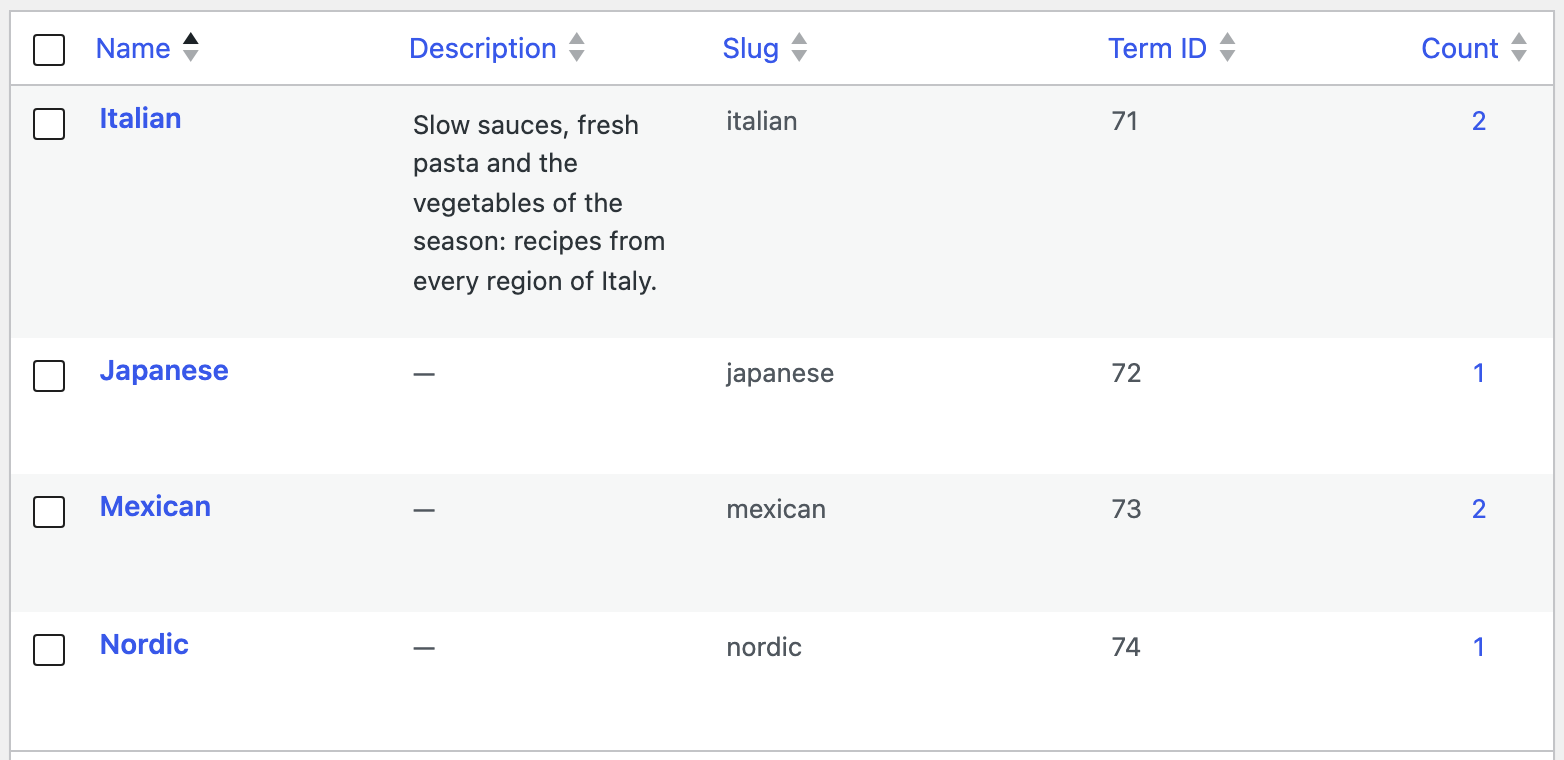
Term Slugs: Filter posts by multiple term slugs, separated by commas (e.g. termslug1, termslug2, termslug3). Leave blank to disable. The field is called Term Slugs, not Taxonomy Slugs, and the slugs have to belong to the taxonomy named above it.
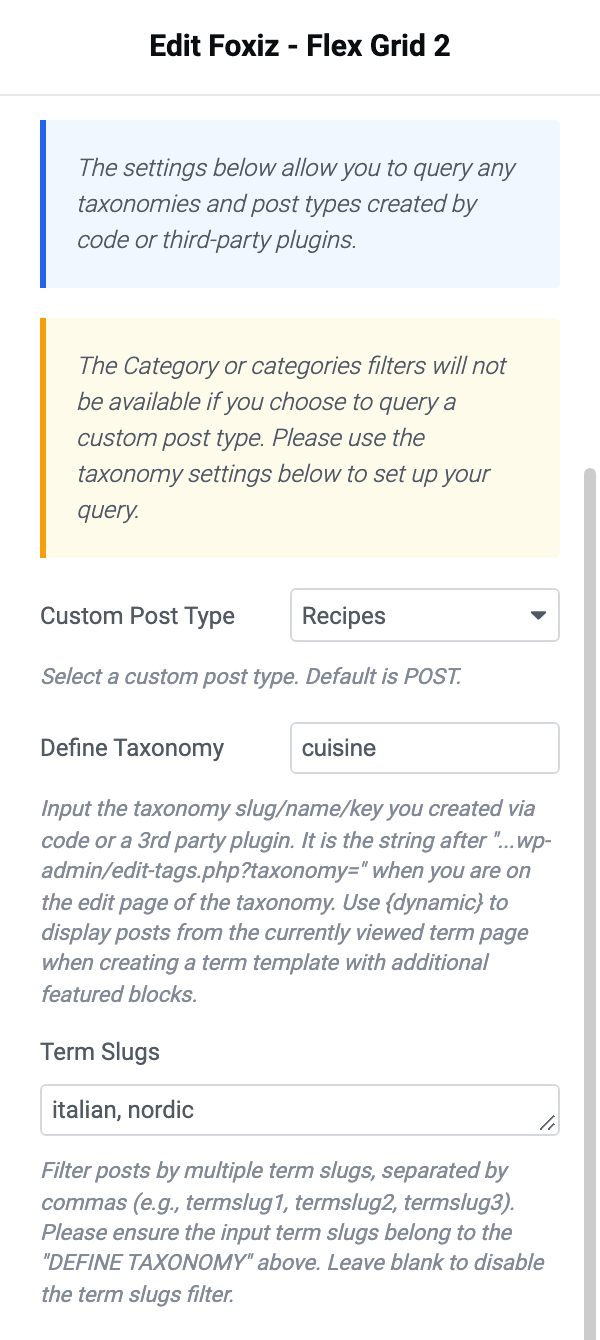
To find the slugs, open the taxonomy's own term list in the WordPress admin. The Slug column holds exactly the text this field wants.
-
Query Operator:
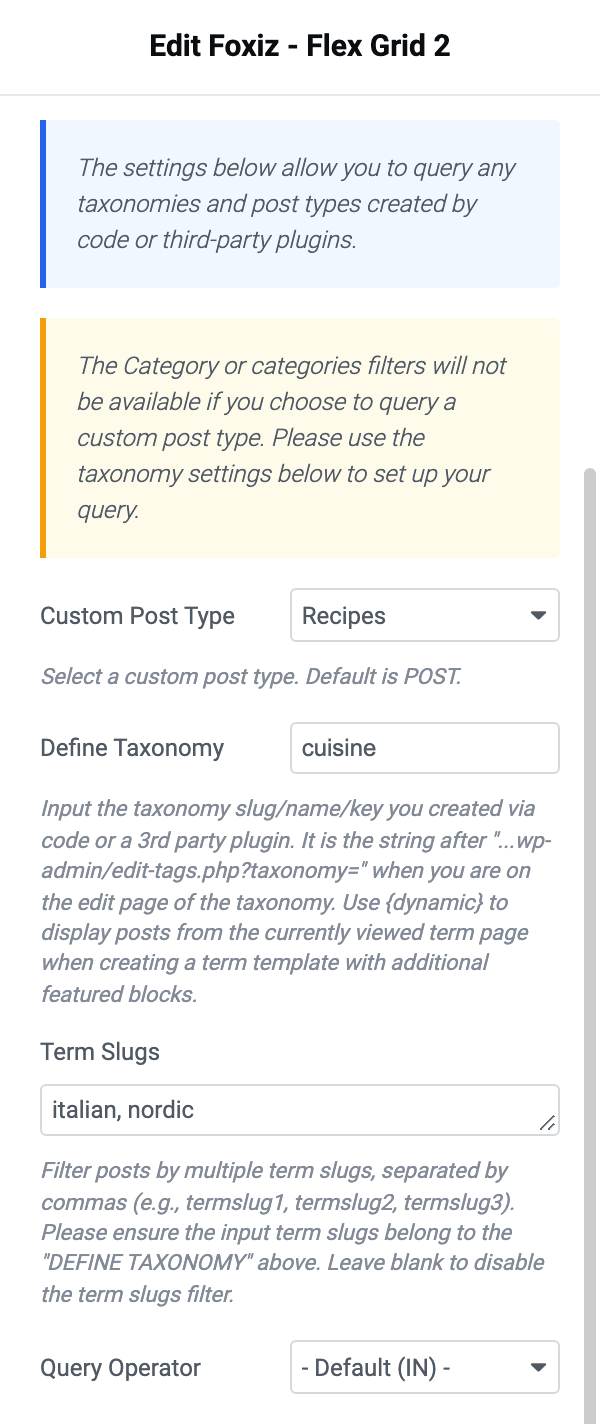
- - Default (IN) -: This option is used to filter or include taxonomies based on the Term Slugs option above, meaning that posts only need to have one of the specified taxonomies to be displayed.
- NOT IN: This option is used to exclude specific taxonomies based on the Term Slugs option above, meaning that posts with that taxonomy will not be displayed.
- AND: This option is used to filter and include taxonomies based on the Term Slugs option above, indicating that posts must have all of the specified taxonomies to be displayed.
-
Click Publish at the top of the editor to save the page.
The settings above allow you to query any taxonomies and post types created by code or third-party plugins.
The Category or categories filters will not be available if you choose to query a custom post type. Use the taxonomy settings above (steps 6 to 8) to set up your query.
Take that second line literally. Category Filter, Categories Filter and Exclude Category IDs stay on screen in Query Settings and stay editable, but they only filter ordinary posts; point the block at a custom post type and they leave it empty. Filter the custom post type with Define Taxonomy and Term Slugs instead, and leave the three category fields blank.
One more thing to watch in the same group, and it applies to ordinary posts too: Exclude Category IDs only takes effect when nothing is selected in Category Filter or Categories Filter. Use one or the other. If you need both an include and an exclude, exclude by term with Term Slugs and NOT IN.
Did this answer your question?