Custom Post Type Layouts
You can set the layout of a custom post in three places:
- Global Layout, in Theme Options > Post Types, covers every custom post type.
- for Post Type:, in the same panel, covers every post of one post type.
- The Layout tab of Single Post Type Settings, the box under the editor, covers one post.
The narrowest place that is set wins. So pick the look for all custom posts in Global Layout first, then change one post type in its for Post Type: section, and only then open the single posts that should look different.
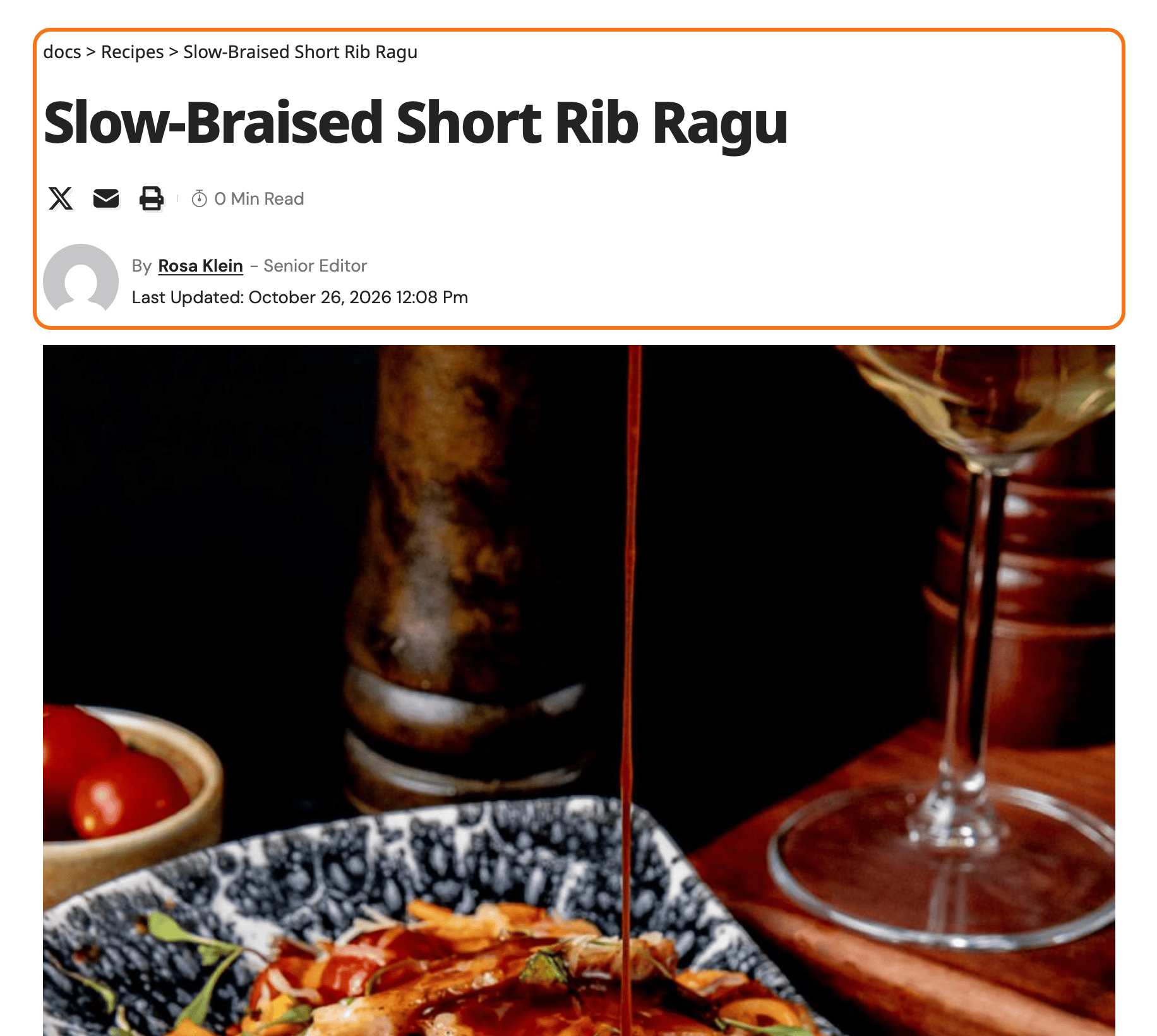
Global Options
These options will be applied to all custom posts. To get started, follow the steps below:
-
Navigate to Theme Options > Post Types. It is a top level panel in the Theme Options list, beside Single Post rather than inside it.

-
In this options section, you will find two parts: "Global Layout" and "for Post Type: the name of your custom post" (this section will be automatically generated for each of your existing custom post types, for example, a post type named Recipes gets the "for Post Type: Recipes" section in the image below).
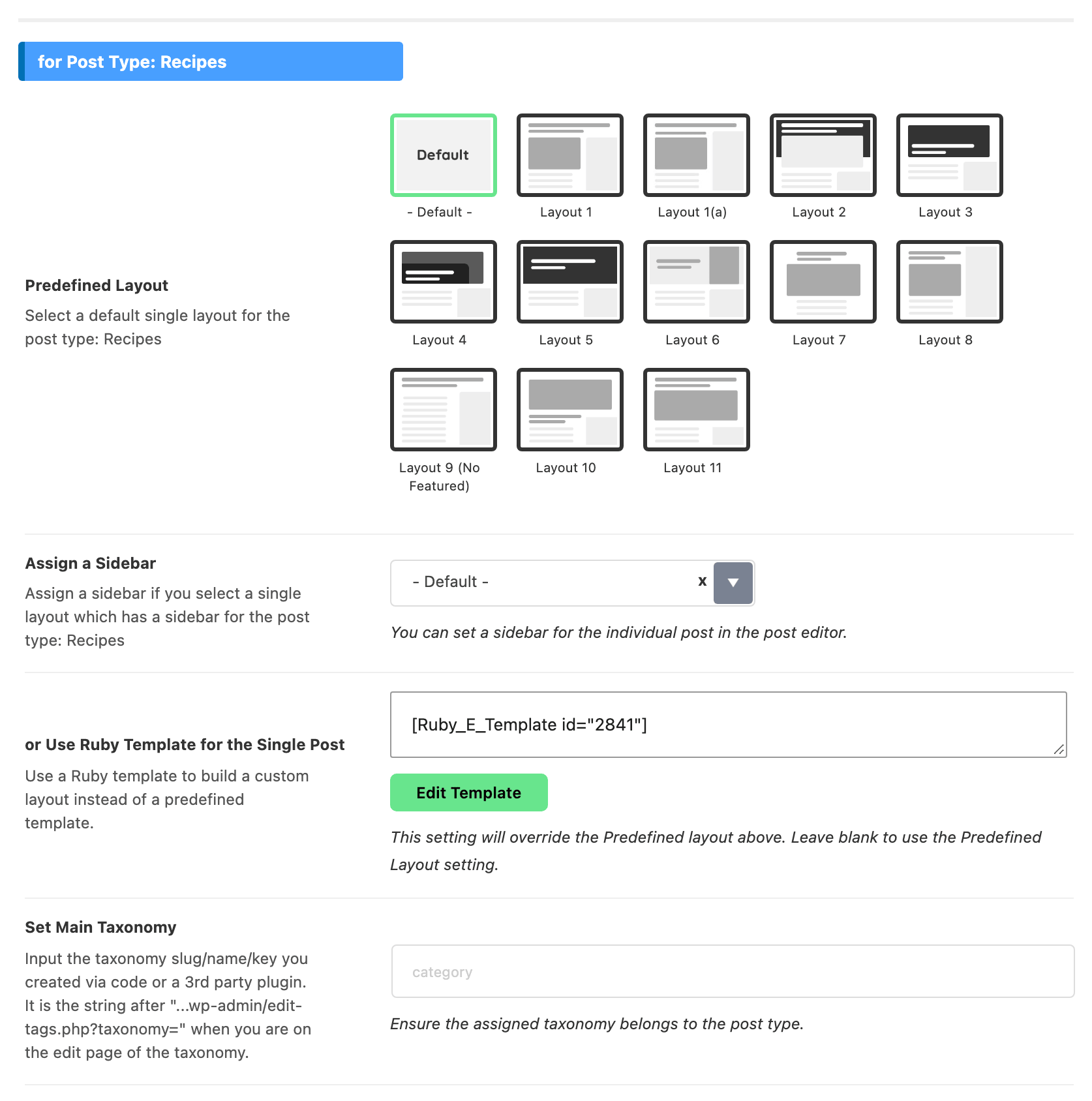
Global Layout holds two fields. They apply to every custom post type at once, excluding the built in post and the podcast type:
- Predefined Layout defaults to Layout 8. Your regular posts use the layout in Theme Options > Single Post > Post Layout, Layout 1 by default. Pick the same one here if your custom posts should look like your other posts; otherwise Layout 8 is fine. Post Settings & Layouts shows what the layouts look like.
- or Use Ruby Template for the Single Post, below it, overrides that layout when you paste a Ruby Template shortcode into it. A Ruby Template is a layout you build in Elementor, and its shortcode is the code in square brackets, such as
[Ruby_E_Template id="1"], that places it.
noteA for Post Type: section only appears for a post type registered through Custom Post Type UI or ACF. A post type registered in your own code, or by another plugin, gets no section here and falls back to Global Layout. Its posts still get the per post box described below.
A for Post Type: section carries eight fields, each labelled with your post type's name:
- Predefined Layout, starting on - Default -, which means "use Global Layout".
- Assign a Sidebar. A post's own Assign a Sidebar beats it, and left on default it falls back to Theme Options > Single Post > Sidebar Area.
- or Use Ruby Template for the Single Post
- Set Main Taxonomy
- Single Entry Meta Keys
- Archive Header, Archive Template Shortcode and Archive Posts per Page. These three only do anything if the post type was registered with an archive.
-
Set Main Taxonomy: Input the taxonomy slug you created via code or a 3rd party plugin. It is the Taxonomy Slug you gave it in Custom Post Type UI, or the slug shown in the address bar when you open that taxonomy's term list. This will replace the entry category meta info in the single post of this post type. The taxonomy has to belong to this post type, which is the one thing the field cannot check for you.
Single Entry Meta Keys, directly below it, is the companion field: a comma separated list such as
author, datethat sets the meta line for this post type and overrides Theme Options > Single Post > Entry Meta. The keys it takes are below; the post shows them in the order you type them.avatar,author,date,update(last updated),read(reading time)category,tag,view,comment,bookmark,like,custom- a taxonomy slug, such as
cuisine, to show the post's terms, or a custom field key to show its value
-
Click Save Changes.
Foxiz uses the first of these that has a value. A layout left on - Default - and an empty shortcode box both hand the choice down to the next place.
- The post's own Template Shortcode, then its Standard Layout.
- The post type's or Use Ruby Template for the Single Post, then its Predefined Layout.
- Global Layout: or Use Ruby Template for the Single Post, then Predefined Layout.
Individual Custom Post Options
These options apply to the current post only, and they override the global settings.
- Open the post in the editor.
- At the bottom of the editor, click the Meta Boxes bar to open it.
- In the Single Post Type Settings box, open the Layout tab.
- Pick a Standard Layout, or paste a Ruby Template shortcode into Template Shortcode.
- Click Publish, or Save on a post that is already published.
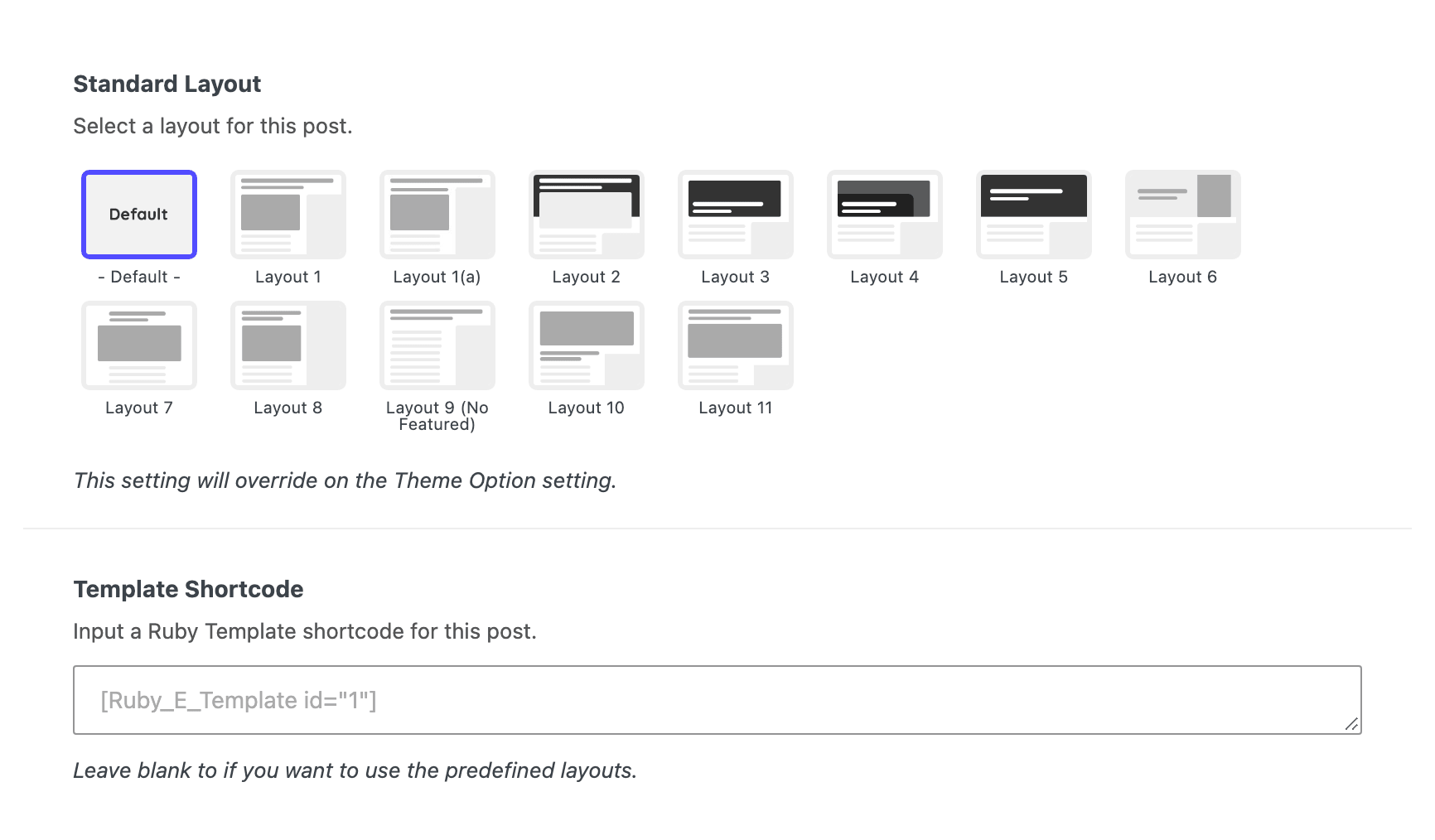
The Layout tab holds two fields: Standard Layout, starting on - Default -, and Template Shortcode for a Ruby Template. Leave the shortcode blank to keep the predefined layout.
The box has fifteen more tabs, from Tagline & Highlights to Site Footer. They carry the same names as the tabs of a regular post's Single Post Settings box: see Post Settings & Layouts.
It appears on every public post type except these, which have boxes or panels of their own:
post,pageandattachmentpodcast- WooCommerce products
- bbPress forums
- Elementor's own types
- Ruby Templates
Did this answer your question?