How to Create Taxonomies Using the UI Custom Post Type Plugin
Foxiz offers advanced support for fully customizable taxonomies created through the UI Custom Post Type plugin.
Advanced Custom Fields works too. A taxonomy made with either plugin gets its own section in Theme Options > Taxonomy. A taxonomy registered in your own code does not get that section, though its terms still get the settings box described at the end of this article.
How to Create a Custom Taxonomy:
-
Install and activate the plugin Custom Post Type UI
-
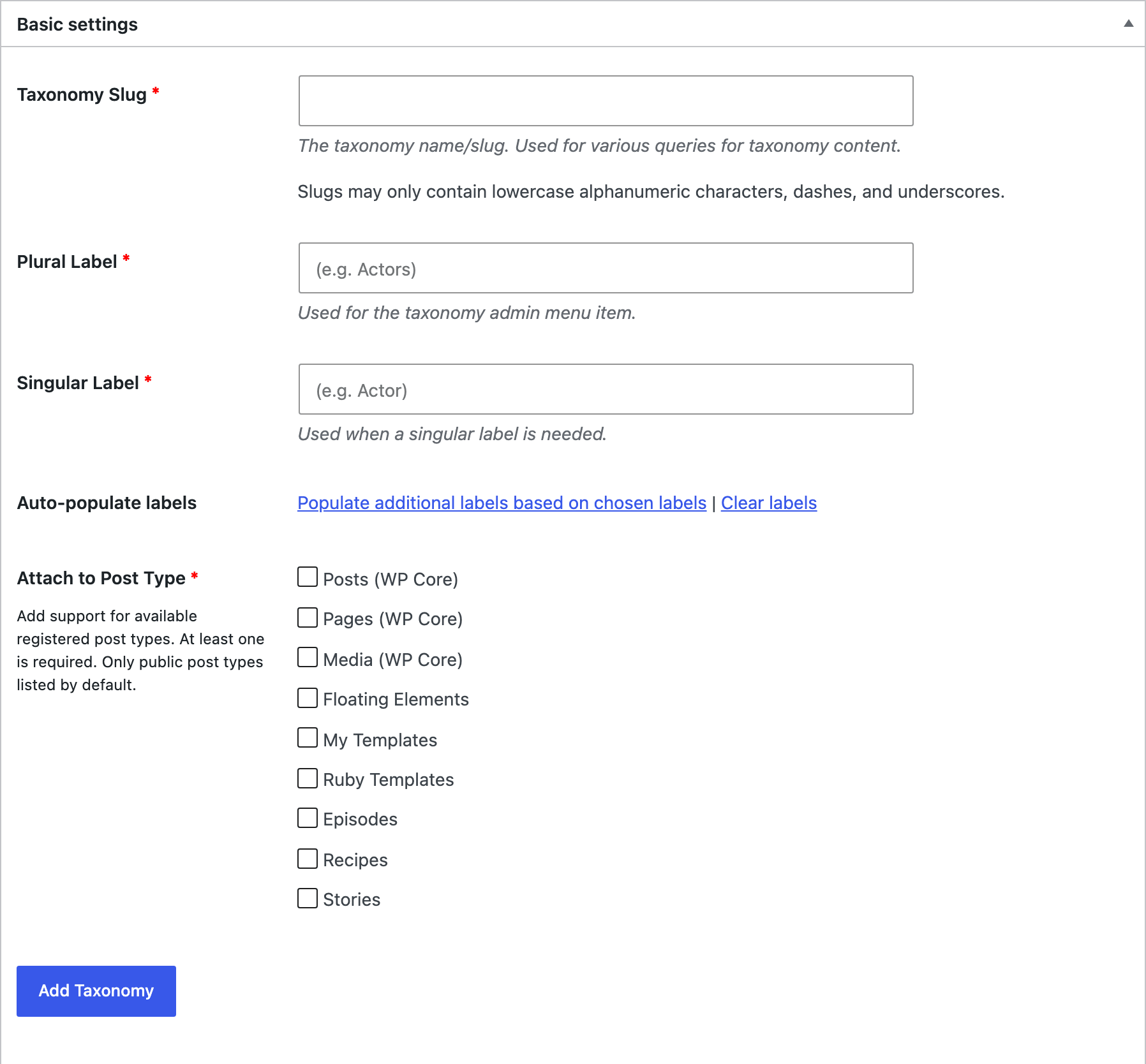
Navigate to CPT UI > Add/edit taxonomies and stay on the Add New Taxonomy tab.
-
In the Basic settings panel, fill in Taxonomy Slug and pick at least one post type under Attach to Post Type. Both are required. Before you save, decide Hierarchical in the Settings panel further down: Notes when adding Taxonomy explains the choice. Then click the Add Taxonomy button.
-
Once it is saved, two Foxiz screens appear for it, both automatically:
- Theme Options > Taxonomy grows a for Taxonomy: section (Every Setting in the Taxonomy Panel) named after your taxonomy, holding three fields: Taxonomy Header, Posts per Page and Use Ruby Template for the Post Listing, each prefixed with the taxonomy's name. They override the panel's own global values above them.
- Each term of the taxonomy gets a Foxiz Term Settings box on its edit screen (Individual Taxonomy Settings). The taxonomy itself sits under the post type's admin menu, for example Recipes > Cuisines. Anything set there beats both the taxonomy section above and Theme Options > Archives. It has six tabs:
- Term Colors
- Featured Image
- Term Header
- Listing Queries
- Listing Template
- Site Header
If you want this taxonomy to replace the category label on the post type's single posts and listings, put its slug in Set Main Taxonomy, in that post type's section of Theme Options > Post Types.
Notes when adding Taxonomy:
Hierarchical option, in the Settings panel below Basic settings, starts on False:

- If you choose "True" it will display checkboxes. This option will resemble the categories selection found on default post pages.

- If you choose "False" it will provide a text input field. This option will be similar to the tags selection on default post pages.

Either choice gets the same Foxiz screens. The theme does not treat a hierarchical taxonomy differently from a flat one: both land on Foxiz Term Settings, and both get the same three fields in Theme Options > Taxonomy. What the choice decides is only how you pick terms in the post editor.
Foxiz Term Settings is not the same box as Foxiz Category Settings. The category box has nine tabs and carries Single Post Layout, which can set the single post layout for every post in that category. A custom taxonomy's box has six tabs and no such field: layouts for a custom post type come from Theme Options > Post Types instead.
Did this answer your question?