How to Choose a Recipe Template
Two things decide how a recipe card looks. The template, set in WP Recipe Maker, decides what the card holds and in what order. While Load Styles is on in Foxiz, Foxiz decides how it looks, in place of the template's own styles.
For most sites, keep the default: the Meadow template with Load Styles on. That is the card in the picture below, and it needs no setting at all.
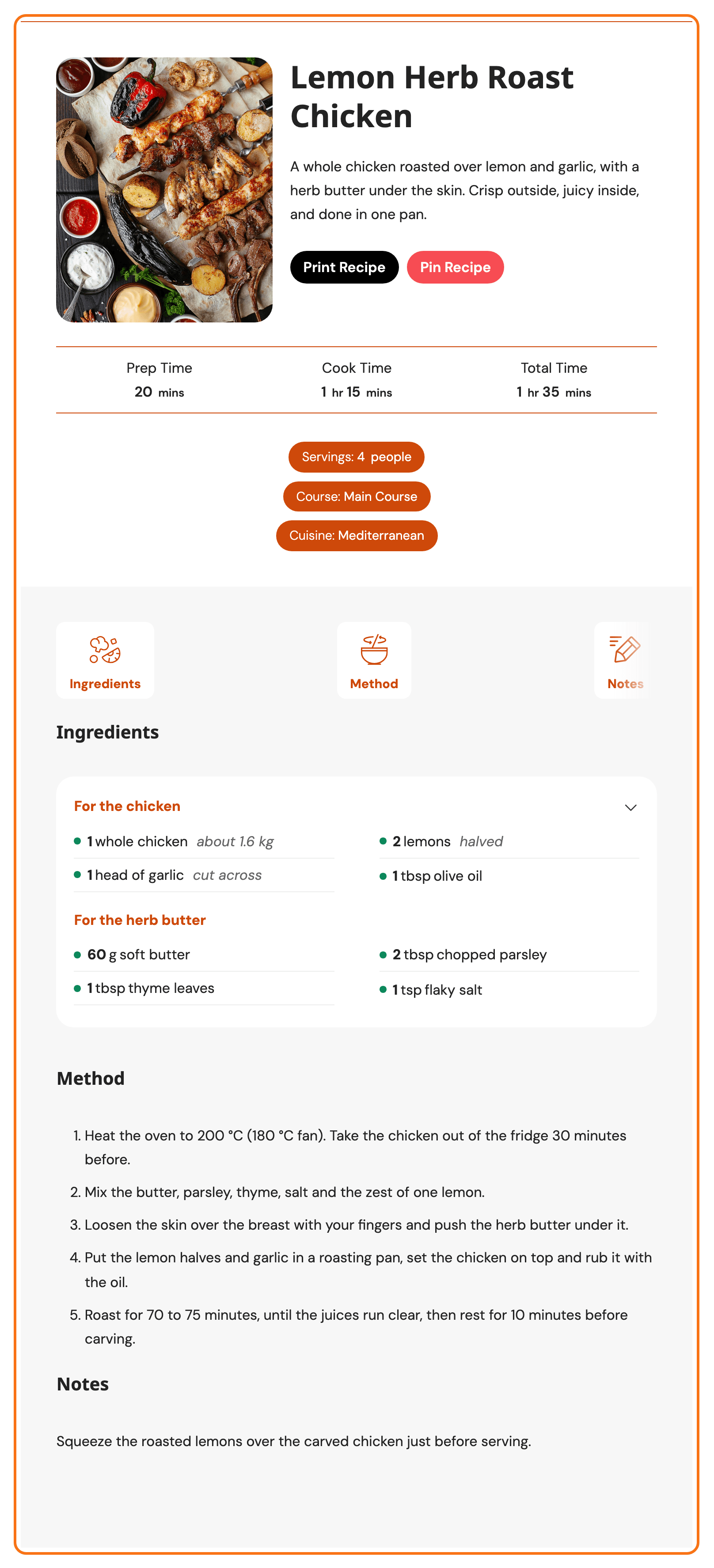
Pick the template
-
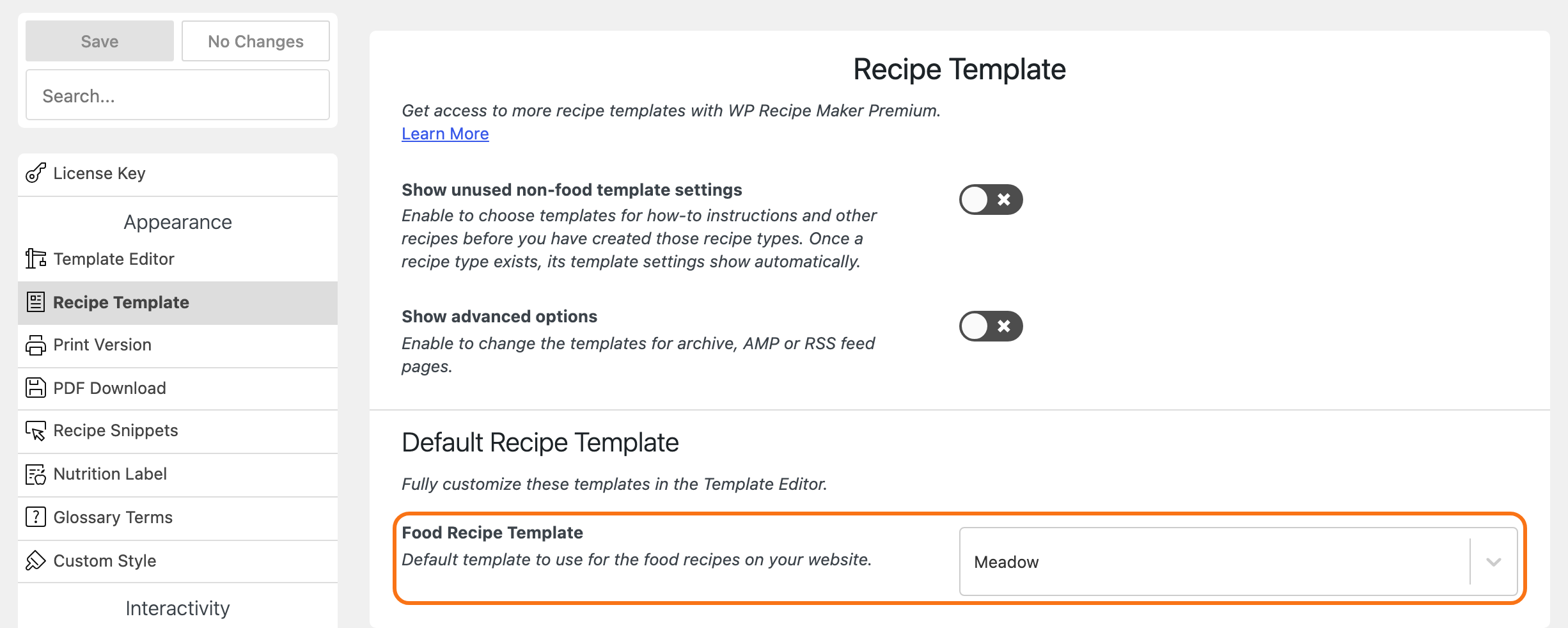
Go to WP Recipe Maker > Settings.
-
In the list on the left, under Appearance, click Recipe Template.
-
Choose a template in Food Recipe Template. Its default is Meadow.
-
Click Save, at the top of the list on the left.
Every recipe that follows the site default changes at once. For most sites, pick one of the templates Foxiz restyles, listed below.
How-to Instructions Template and Other Recipe Template set the card for the other two recipe types. They appear once you have a recipe of that type.
One recipe with a different template
Click the recipe block in the post. In the sidebar, under Recipe Details, set Recipe Template. The block's choice is used for that recipe instead of the site default; Use default from settings goes back to it.
The templates Foxiz restyles
With Load Styles on, Foxiz has its own styles for these templates, by the names the template list shows:
- Recipe cards: Meadow, Basic, Classic, Chic, Compact and Compact Howto.
- The buttons at the top of a recipe post: Snippet Basic and Snippet Basic Buttons.
- Recipe roundups: Roundup Clean and Roundup Button.
Any other template, such as Blend In or one you made in the Template Editor, loses its own styles while Load Styles is on. It keeps only Foxiz's general recipe styles, so it can look unfinished. Pick one from the list, or turn Load Styles off.
Colours and dark mode
The Foxiz styles take their accent from your Global Highlight Color, in Theme Options > Global Colors: links on every card, and on Meadow the line across the top and the accent colour of the times, pills and buttons. See Color Options.
They follow dark mode too: the grey panels and lines of the card switch with the rest of the site.
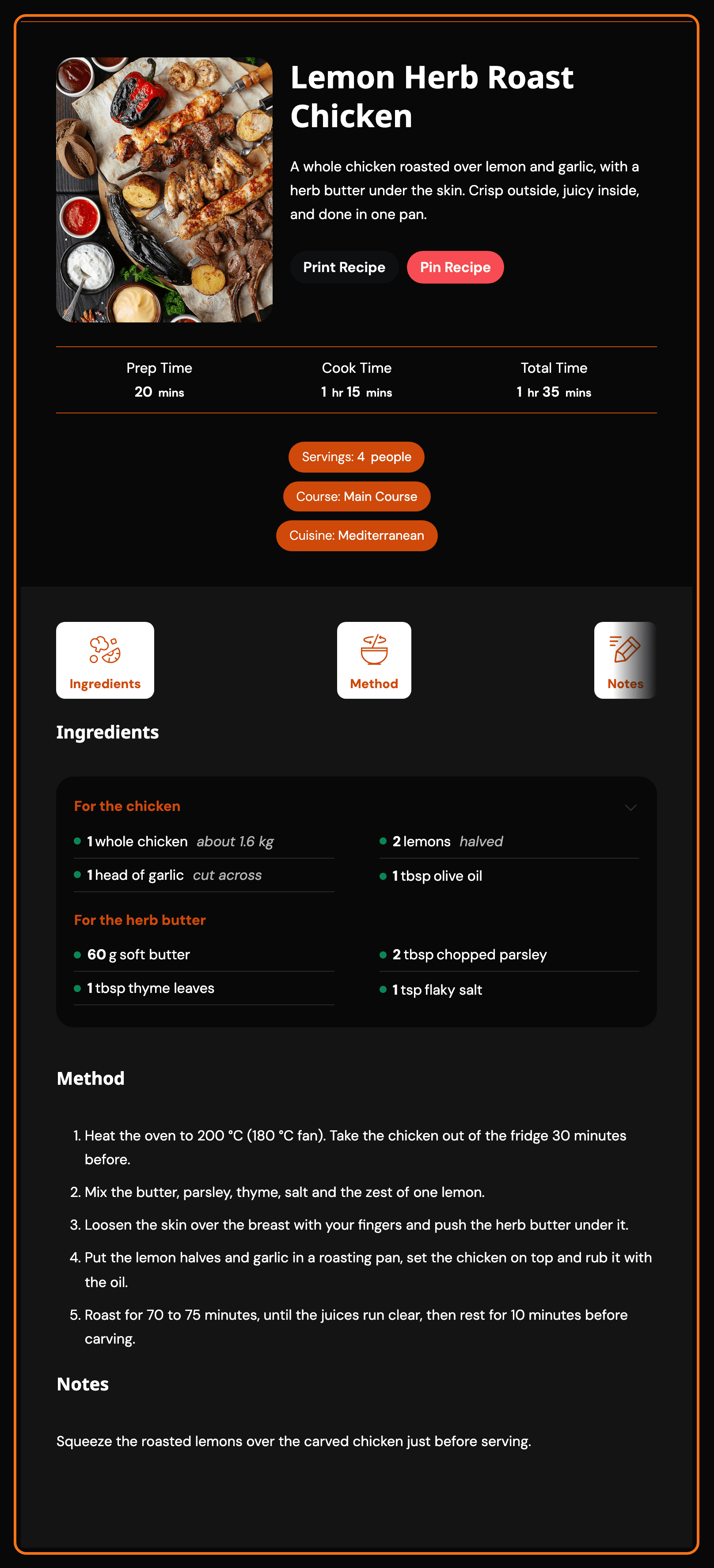
Use WP Recipe Maker's own design
Turn Load Styles off when you want the card exactly as WP Recipe Maker draws it:
- you designed your own card in WP Recipe Maker > Template Editor,
- or you want a template Foxiz does not restyle.
- Go to Theme Options > WP Recipe Maker.
- Turn Load Styles off.
- Click Save Changes.
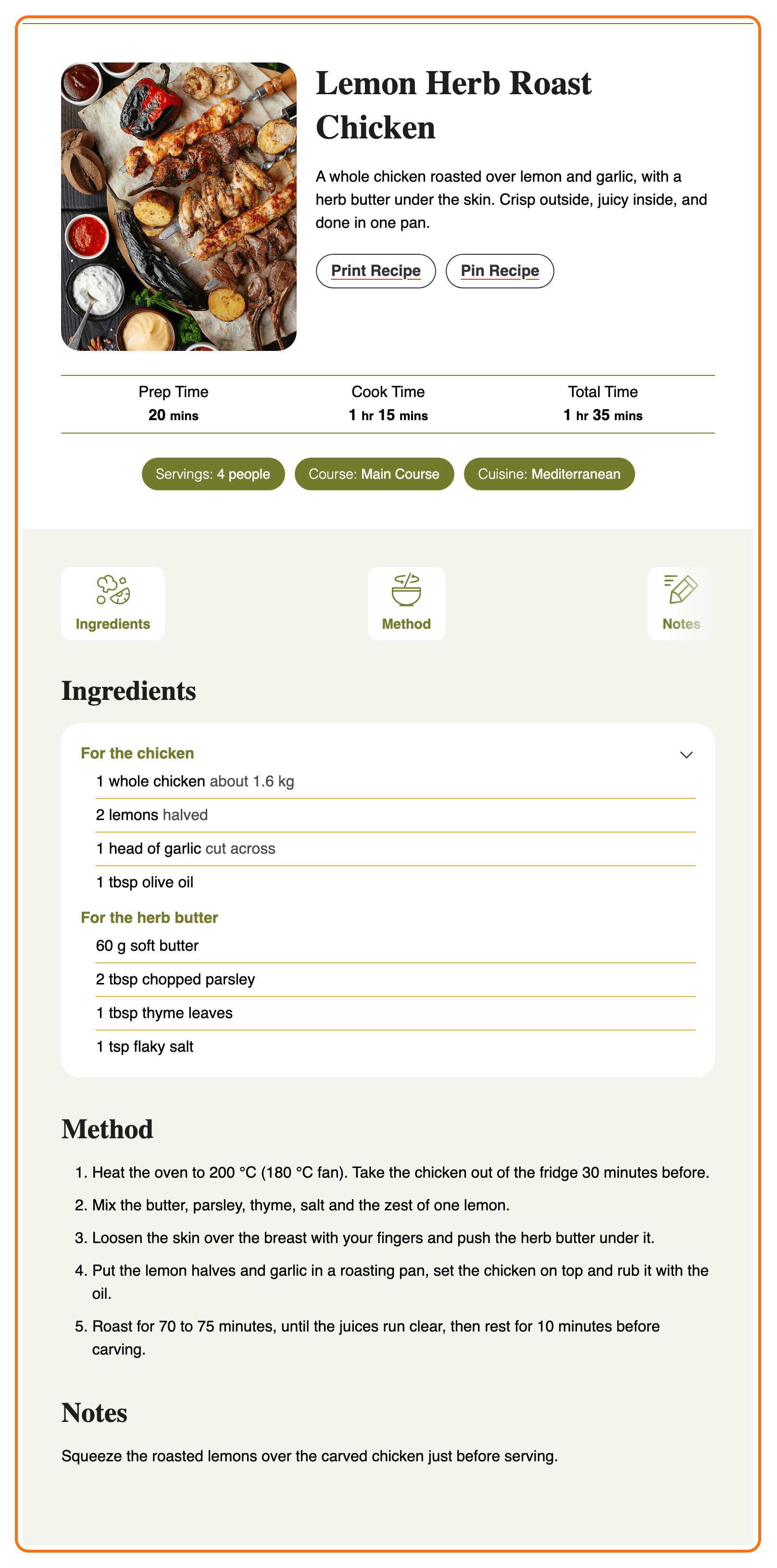
With it off, Foxiz loads none of its recipe styles: the card no longer takes your highlight colour or switches with dark mode. Every field of that tab is in WP Recipe Maker.
Did this answer your question?