Color Options
Theme Options > Global Colors sets the colours the theme uses across the site: links, buttons, the page background, and a handful of single elements such as review stars and the dark mode switcher. This page walks its sections in the order the panel shows them.
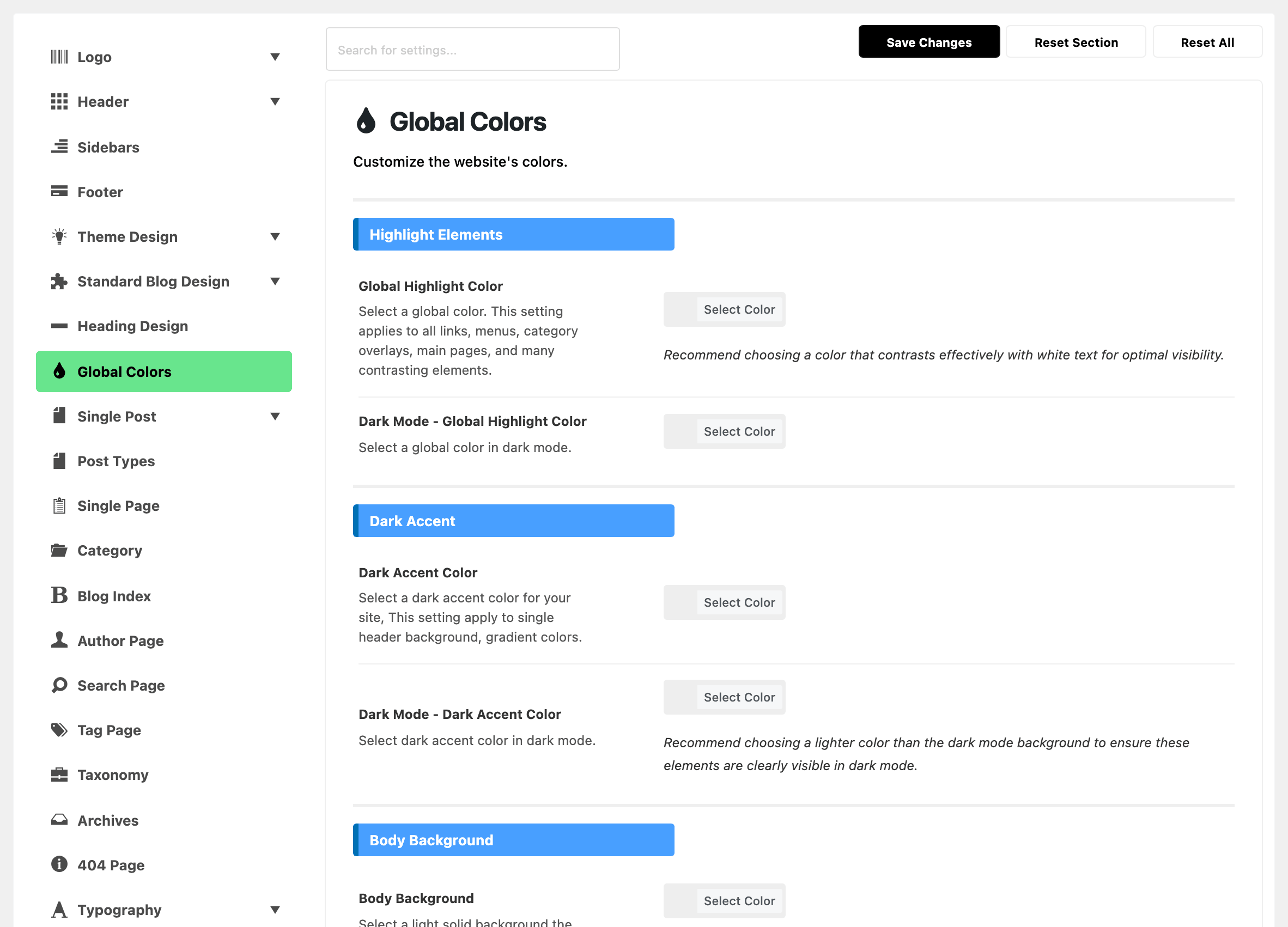
The panel holds 34 colour fields in 13 sections:
- The first five sections colour the whole site: Highlight Elements, Dark Accent, Body Background, Button and Mode Switcher.
- The other eight each colour one element, from the bookmark icon to the border of a search box.
Before you start
Three rules hold for every field on this panel.
A blank field uses the theme's own colour. No field has a default in the panel itself. Leave it blank and the theme's stylesheet value stands, so the defaults below are what you see on the site, not what the field shows.
Dark mode fields only work once dark mode is on. Eleven fields are named Dark Mode - followed by the field above them.
- The light field colours the site in light mode.
- The Dark Mode - twin colours it in dark mode.
- A blank twin means dark mode keeps the light colour.
The twins are always in the panel, but none of them shows on the site until Dark Mode at Theme Options > Dark Mode is off its default Disable Dark Mode. Set that first, or you will be filling in fields whose effect you cannot see. How to enable the dark mode feature covers the choices.
Type a six digit hex. The theme builds lighter versions of some colours by adding two characters to whatever you typed.
e6is added to Global Highlight Color, Hover - Primary Color and Bookmark Hover Color for their 90% versions.e6and00are both added to Dark Accent Color.
A three digit shorthand such as #f00, or an rgba() value, produces CSS that browsers drop. The element loses its colour, and nothing in the panel shows why.
Highlight Elements
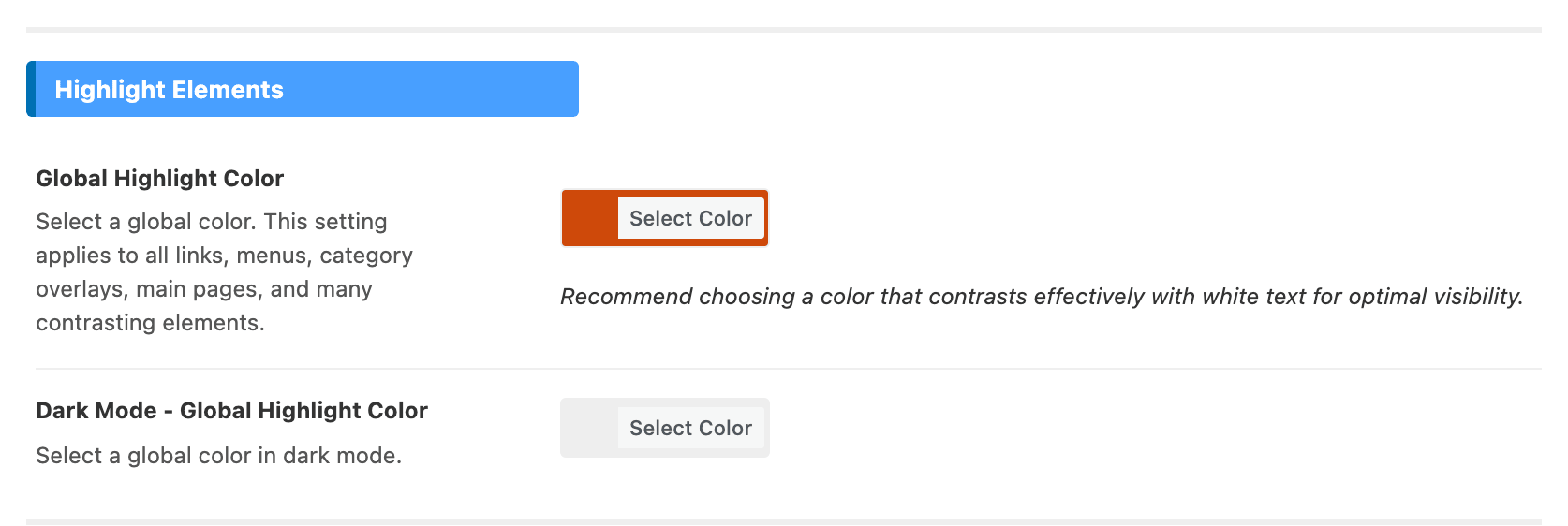
Set this one first. It reaches more of the site than any other field.
- Global Highlight Color colours links, menus, category overlays and most contrasting elements. Its default is
#ff184e, the Foxiz red. - Dark Mode - Global Highlight Color is the same colour in dark mode. Left blank, dark mode reuses the light value.
Pick a colour that white text reads against. The theme writes white text on it in several places.

Dark Accent
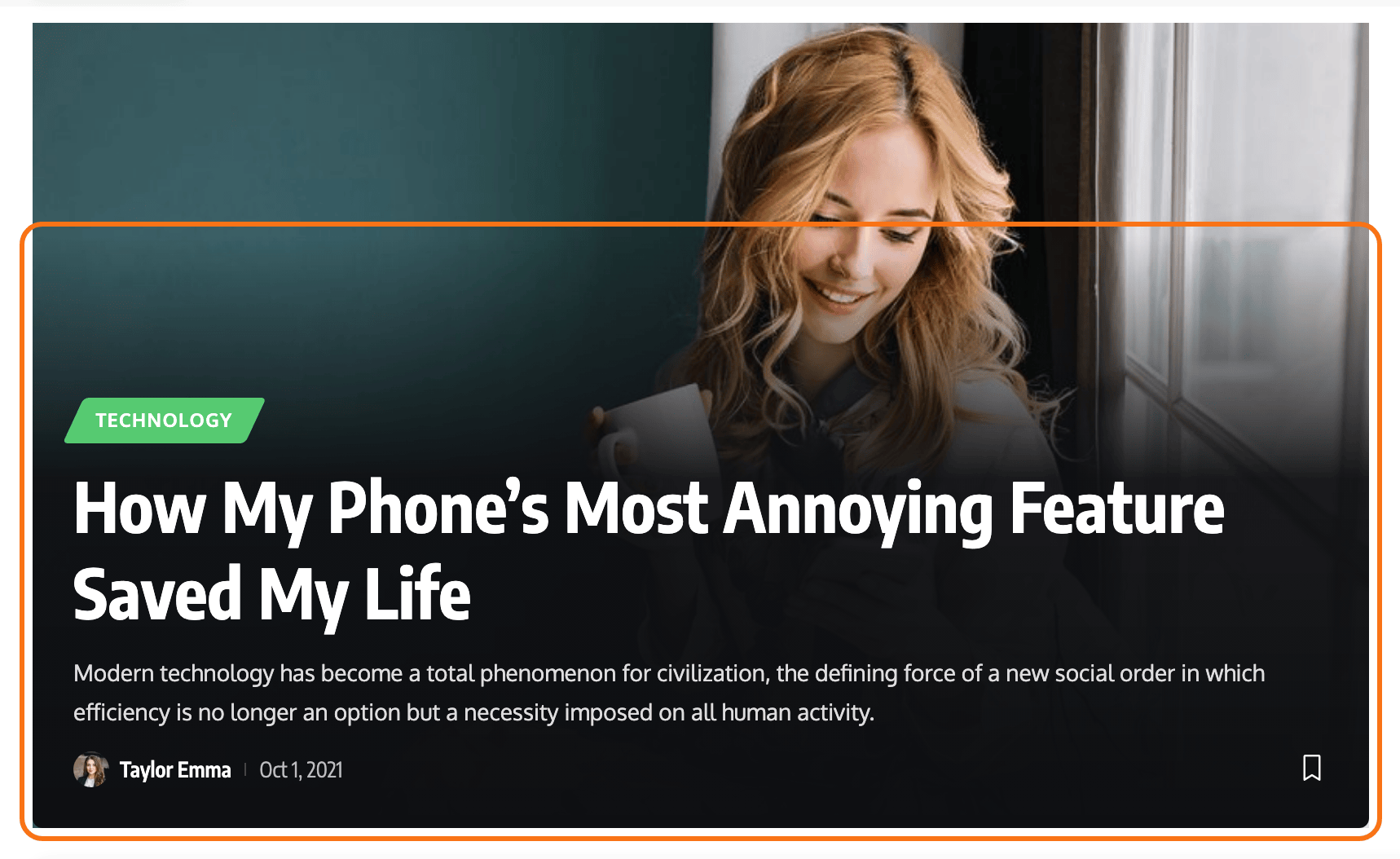
- Dark Accent Color colours the single post header background and the dark gradient that fades up behind the title on post cards with the title over the image. Its default is
#191c20. - Dark Mode - Dark Accent Color is the same in dark mode, where the default is
#0e0f12. Choose a colour lighter than your dark background, or these elements disappear into it.
Body Background
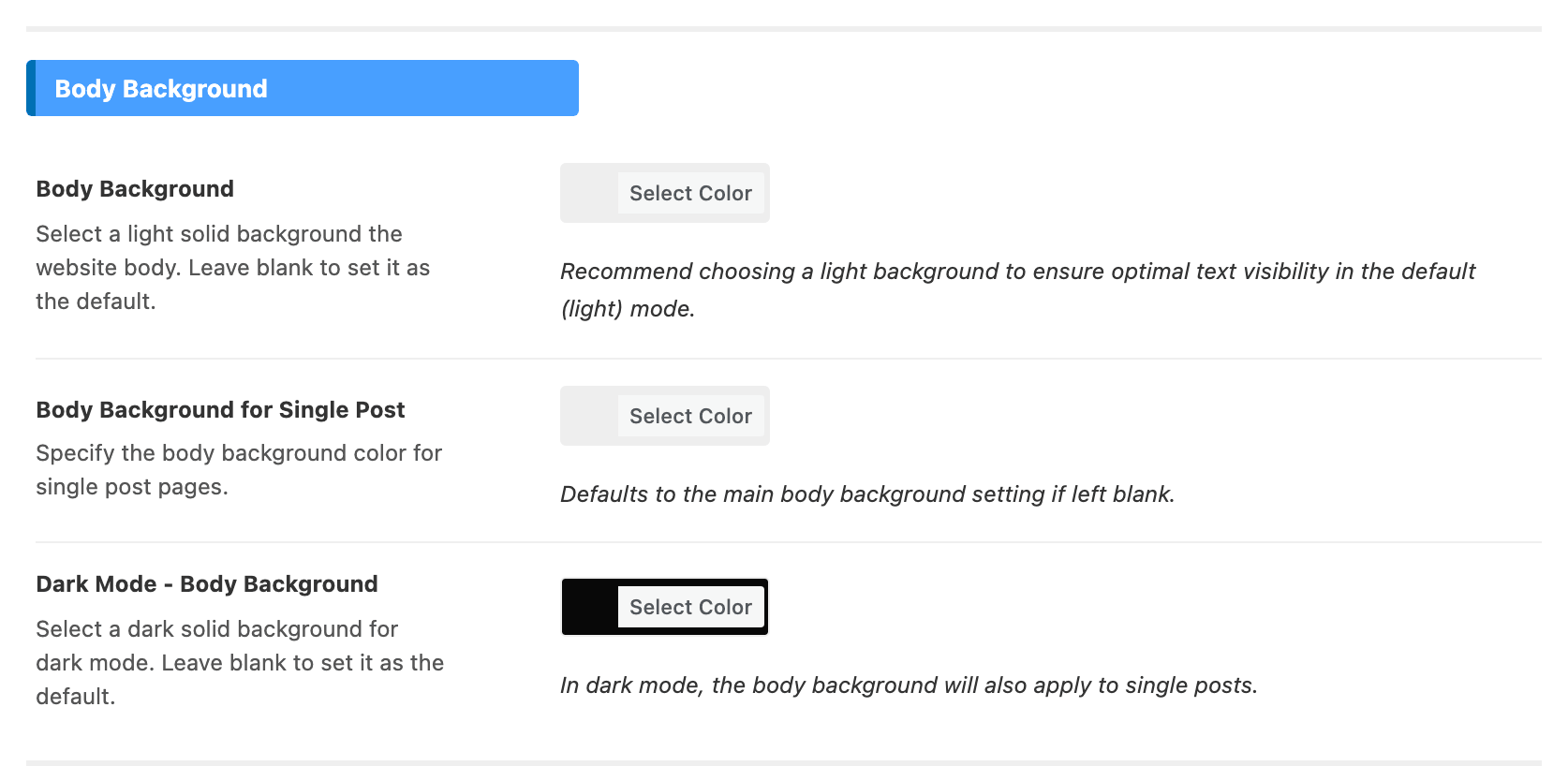
- Body Background is the page behind everything. Its default is
#fff. - Body Background for Single Post gives post pages a different background. Left blank, it uses Body Background.
- Dark Mode - Body Background is the page in dark mode. Its default is
#191c20.
In dark mode one background covers single posts too, so Body Background for Single Post has no dark mode twin.
Button
Use this section when you want, for example, a light button with dark text.
- Primary Color (Background) is the button background. Left blank, it uses Global Highlight Color.
- Accent Color (Text) is the button text. Left blank, it is white.
- Hover - Primary Color is the background on hover.
- Hover - Accent Color is the text on hover.
All four apply to every button on the site, in light and dark mode alike. There is no dark mode twin here, so check that your button colours read well on both backgrounds.
Mode Switcher
Six fields for the sun and moon switcher that lets a reader change mode. All six are empty by default, which leaves the switcher on the theme's colours.
The sun, shown while the site is in light mode:
- Light Switcher - Icon Color colours the sun icon.
- Light Switcher - Icon Background is the circle behind it.
- Light Switcher - Slide Background is the track the icon slides along.
The moon, shown while the site is in dark mode:
- Dark Switcher - Icon Color colours the moon icon.
- Dark Switcher - Icon Background is the circle behind it.
- Dark Switcher - Slide Background is the track.

Why a switcher colour does nothing
Two settings at Theme Options > Dark Mode decide whether these fields show:
- Dark Mode must be on Light/Dark Switchable. That is the only choice that draws the switcher. On Dark Mode Only or Based on Browser the site changes mode with no control for the reader to press, so none of the six has anything to colour.
- Switcher Style on Minimalistic drops all four background fields: both Icon Background fields and both Slide Background fields. Only the two icon colours apply.
Bookmark Hovering
- Bookmark Hover Color colours the bookmark icon when the pointer is over it. Its default is
#62b088. - Dark Mode - Bookmark Hover Color is the same in dark mode.
Review Stars
- Background Color is the background of the review star icon. Its default is
#ffc300. - Icon Color is the star itself. Its default is white.
- Dark Mode - Background Color and Dark Mode - Icon Color are the same two in dark mode.
Sponsor Label
- Sponsor Label Color colours the label on sponsored posts. Left blank, it uses Global Highlight Color.
- Dark Mode - Sponsor Label Color is the same in dark mode.
Popular Counter
- Popular Counter Color colours the big ranking numbers.
- Dark Mode - Popular Counter Color is the same in dark mode.
These two are the only fields on the panel that accept transparency, and the panel recommends using it: pick the colour, then lower its transparency (alpha) control so the number sits faintly behind the post. Left blank, the number uses the text colour at 15% opacity.

Live Blogging
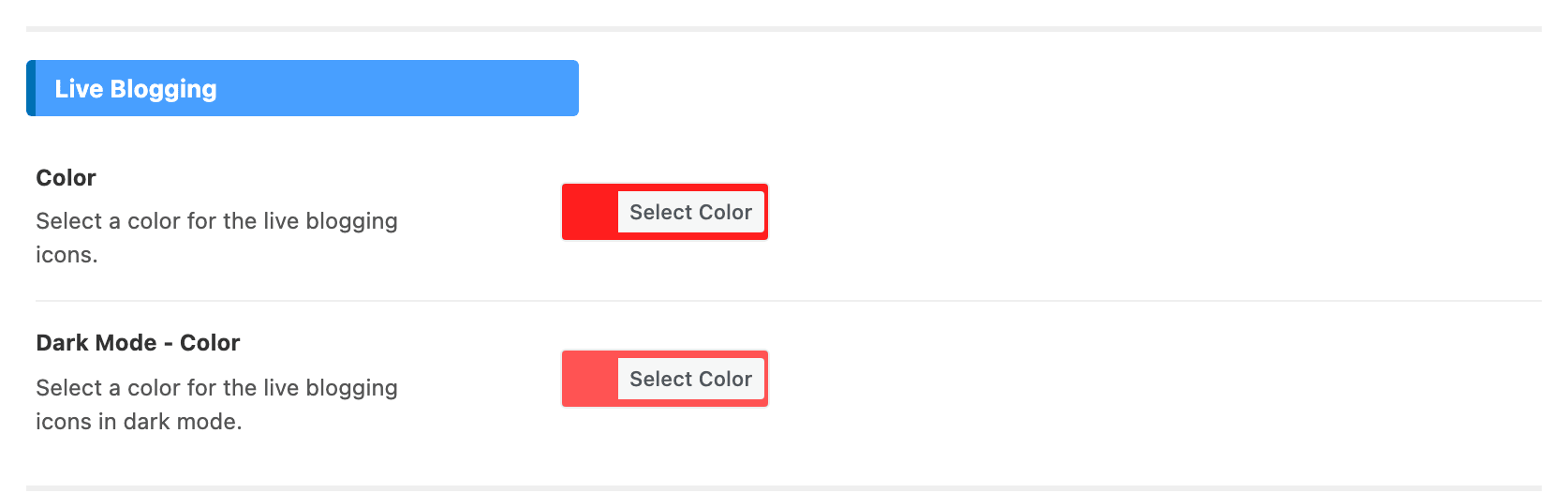
- Color colours the live blogging icons.
- Dark Mode - Color is the same in dark mode.
TOC, Left Shares & Inline Related
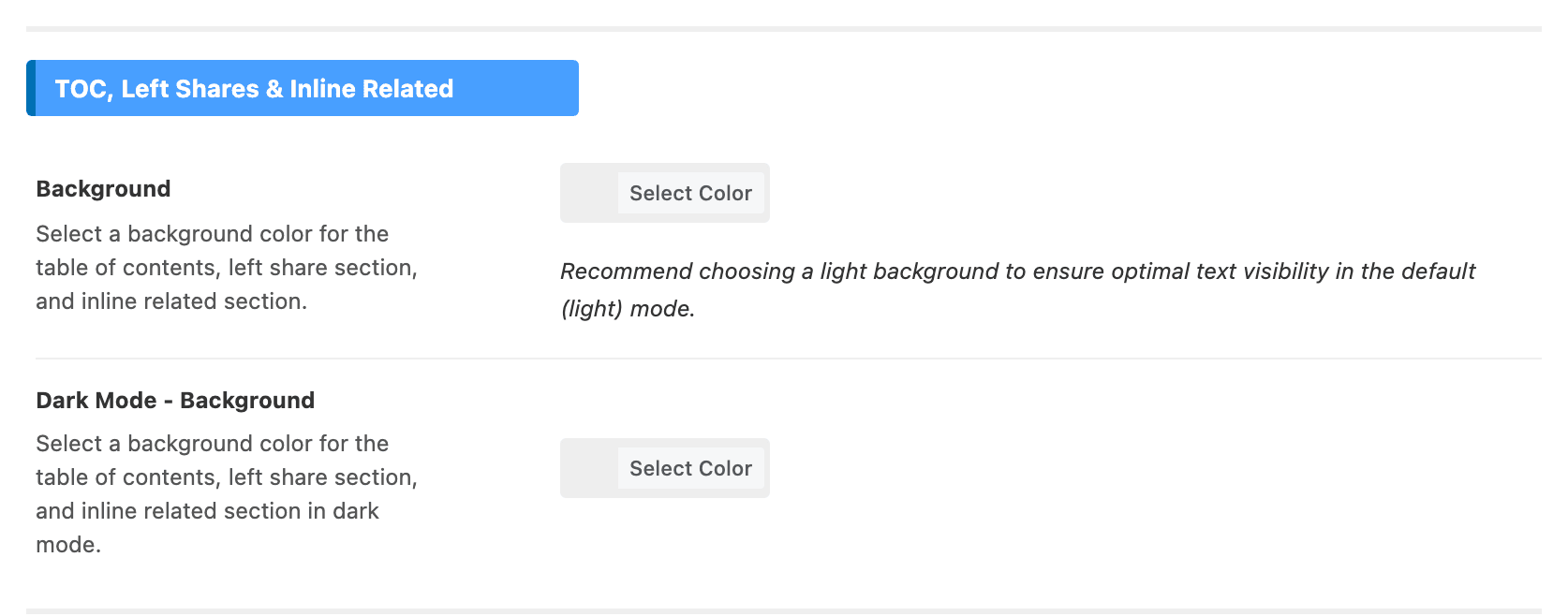
- Background is one colour shared by three boxes: the table of contents, the fixed left share bar and the inline related box. Changing it moves all three.
- Dark Mode - Background is the same in dark mode.
Verified Tick Color
- Color colours the tick beside an author name.
- Dark Mode - Color is the same in dark mode.
Input Focus Border
- Focus Border Color is the border of an input field while someone types in it.
It only shows once Theme Design > Input Style is on Gray Border or Dark Border. The default Gray Background style gives the field no border to colour. If the focus colour seems to do nothing, change Input Style first.
Colours set somewhere else
Three kinds of colour people look for here and do not find:
- Category label colours are at Theme Design > Entry Category, in its Global Category Colors section. A single category can override them from Posts > Categories > Edit.
- Heading colours are at Theme Options > Heading Design (Every Setting in the Heading Design Panel), where Primary Heading Color and Accent Heading Color sit with their dark mode twins.
- Font colours sit with each font: every font field in Theme Options > Typography carries its own colour, beside the family and the size.
If a colour does not change
Save the panel and every change is live on the next page load, on every page at once. If one element still shows the old colour:
- An Elementor block has its own colour. A colour set on a block's Style tab wins for that block. Clear it to hand the element back to this panel.
- A cache is serving the old page. These colours travel inside the page's own stylesheet, so a caching plugin or CDN shows the old ones until you clear it.
Did this answer your question?