Creating Products List and Products Shortcode
[products] is a WooCommerce shortcode: paste it into a post, a page or a widget and it shows a list of your products. WooCommerce has to be active. Foxiz styles the list with its own product cards.
Which to use:
- On an Elementor page, such as your homepage, use the Foxiz - Grid Products block instead. It is easier, and it also sets the columns on tablet and mobile. See How to use the Foxiz Product Block in Elementor.
- Everywhere else (a post, a widget, a block editor page), use the shortcode.
![What [products limit="4" on_sale="true"] prints on a page, outlined in orange: four products on sale as Foxiz product cards, three to a row and the fourth below, each with its sale label, category, name, and the struck through regular price beside the sale price](/docs/assets/images/products-shortcode-on-sale@2x-0bc782cf9f571983cf46da7edc95b029.png)
The shop shortcode to use
[products limit="4" columns="4" orderby="popularity" class="tablet-columns-2" on_sale="true" ]
What each part does, and what happens if you leave it out:
limit="4"is how many products to show. Leave it out and the list shows every product that matches.columns="4"is how many products sit in a row. Leave it out and Foxiz uses 3.orderby="popularity"sets the order: best sellers first. Other useful values:date(newest first),price(cheapest first),title,ratingandrand(random). Addorder="DESC"ororder="ASC"to turn the order around. Leaveorderbyout and the list follows Default product sorting, in Appearance > Customize > WooCommerce > Product Catalog.class="tablet-columns-2"shows two products to a row on tablets. See Responsive Columns below. Leave it out and tablets usecolumns.on_sale="true"shows only products that are on sale. Leave it out and every product can show.
columns takes 2 to 7. At 8 or more, Foxiz has no layout for it and shows one product per row.
Shortcodes to copy
Change the numbers and the category slug to suit your shop.
| What you want | Shortcode |
|---|---|
| Your newest products | [products limit="4" orderby="date"] |
| Best sellers | [products limit="4" best_selling="true"] |
| Products on sale | [products limit="4" on_sale="true"] (three to a row, as in the first picture; add columns="4" for one row of four) |
| Highest rated | [products limit="4" top_rated="true"] |
| One category | [products limit="8" category="watches"] |
| Products you pick | [products ids="12,34,56"] |
| A full shop with page numbers | [products limit="12" columns="4" paginate="true"] |
Notes on those:
best_sellingandtop_ratedset their own order, so anorderbybeside them is ignored. Use only one ofon_sale,best_sellingandtop_ratedat a time.categorytakes the category's slug, the last part of its address. Find it under Products > Categories, in the Slug column. Separate several with commas.idstakes product IDs. Hover a product in Products > All Products: its ID shows under the name, as ID: 12.paginate="true"adds page numbers under the list.- Best sellers need orders: on a new shop with no sales, the order means nothing yet.
Other WooCommerce shortcodes
[products] covers most lists. A few others are handy:
[product_page id="12"]: one product's whole page, with pictures, price and Add to cart, inside a post or page.[add_to_cart id="12"]: just the price and an Add to cart button, for a buy button inside a review. It comes with a grey border; addstyle=""to remove it.[product_categories]: your product categories as tiles, each with its picture.[woocommerce_cart],[woocommerce_checkout]and[woocommerce_my_account]: the cart, checkout and account pages. WooCommerce already put these pages in place on install, so you rarely need them.
Every shortcode and attribute is in WooCommerce's own guide: WooCommerce shortcodes.
How to add this shortcode to a post or a block editor page
- Open the post or page.
- Click the + button and search Shortcode.
- Add the Shortcode block and paste your shortcode into it.
- Click Save or Update.
Use the Shortcode block, not WooCommerce's own product blocks such as Product Collection. Only the shortcode gets the Foxiz product card; WooCommerce's blocks keep their own look.
![A Shortcode block in the block editor holding [products limit="4" on_sale="true"]](/docs/assets/images/editor-shortcode-block-products@2x-3b5eb2667a8ae3a9876bcf31d5e1b3b8.png)
In a sidebar or footer, use a Text widget the same way: it runs shortcodes.
How to add this shortcode to Homepage
On an Elementor page, the Foxiz - Grid Products block is the easier way. To paste the shortcode instead:
-
Navigate to Pages > All Pages.
-
Select a page you would like to edit or add new page, click on the "Edit with Elementor" link.
-
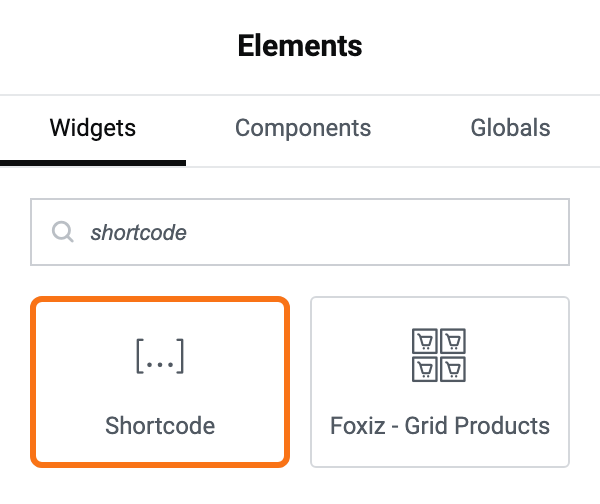
The Elementor editor opens. In the search box at the top of the left panel, type shortcode. Pick Elementor's own Shortcode widget, in the General group.
-
Drag it onto the page.
-
Paste your shortcode into Enter your shortcode. The grey
[gallery ...]text there is only an example; it disappears when you paste.![The Shortcode widget's Content tab in Elementor, with [products limit="4" on_sale="true"] pasted into Enter your shortcode, outlined in orange](/docs/assets/images/elementor-shortcode-widget-products@2x-3f568e3648d90ed831580aa9525d02c5.png)
-
Click on the "Publish" button.
Responsive Columns
To control columns on tablet: add a class to the shortcode, such as:
[products limit="4" columns="4" class="tablet-columns-2"]
The 2 is the number of products per row on tablets (768 to 1024 pixels wide). Use any number from 2 to 7.
Leave the class out and tablets use columns. There is no class for one per row.
To control columns on mobile: the shortcode has no option for it. Use the Foxiz - Grid Products block instead and set Columns on Mobile to 1 or 2, the only two the theme supports.
On phones, the Shop page shows each product as a wide card, picture beside the text. That is Mobile List Layout, in Theme Options > WooCommerce > General, on by default. It changes the Shop, category and archive pages only, not a shortcode list.
Did this answer your question?