How to use the Foxiz Product Block in Elementor
The Foxiz - Grid Products block shows WooCommerce products on an Elementor page. You tell it which products with a WooCommerce shortcode, and set the columns with the block's own settings. WooCommerce has to be active for the block to show anything.

The shop shortcode to use
[products limit="5" orderby="popularity"]
This shows five products, best sellers first. Copy it for now. The next section adds the block, and its step 5 pastes this into the WooCommerce Shortcodes field, in Content > Query Settings, over the [products limit="4"] a new block already holds.
Leave columns, class and paginate out: this block ignores them. Columns are set on the Layout tab instead.
More ready-made shortcodes (newest, on sale, one category) are in Shortcodes to copy. Every option is in WooCommerce's guide: WooCommerce shortcodes.
How to add this shortcode to Homepage
To add this shortcode to your homepage, follow these steps:
-
Navigate to Pages > All Pages.
-
Select a page you would like to edit or add a new page, and click on the "Edit with Elementor" link.

-
The Elementor editor opens. In the search box at the top of the left panel, type Grid Products.
product,shopandwoocommercefind it too.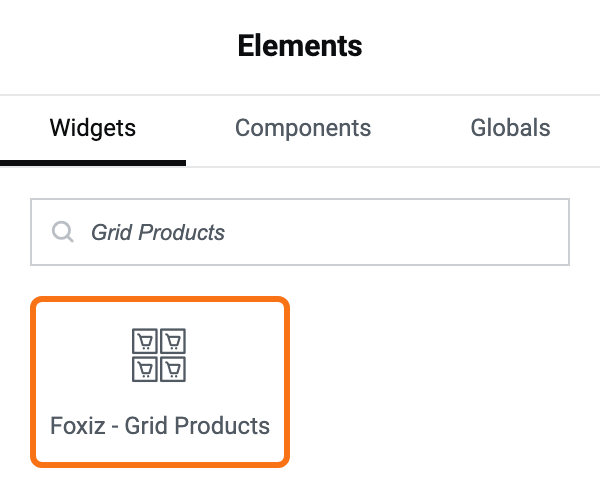
-
Drag Foxiz - Grid Products onto the page.
-
Paste your shortcode into the WooCommerce Shortcodes field, over the
[products limit="4"]that is already there.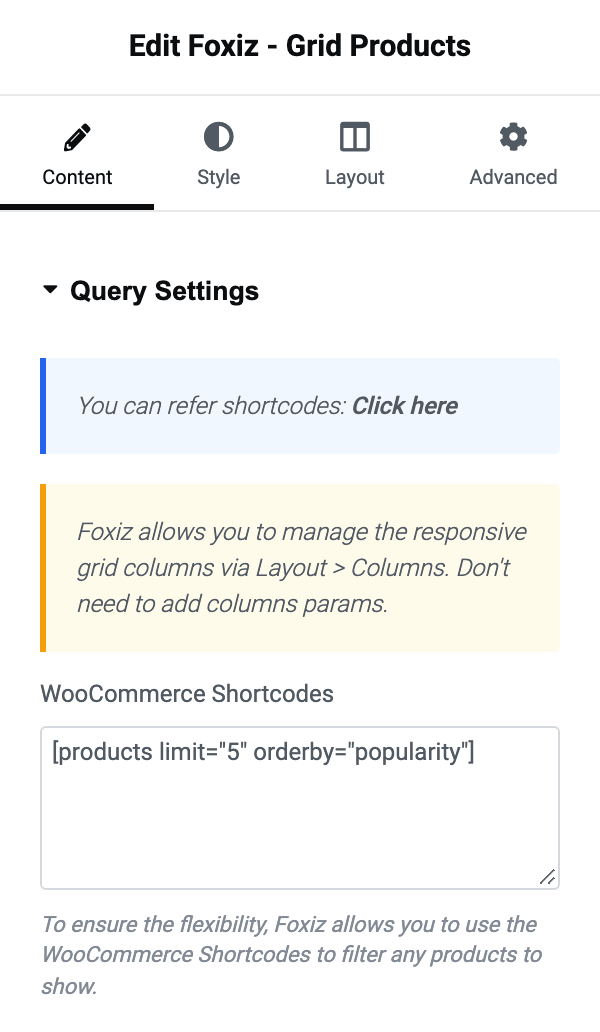
-
Click on the "Publish" button.
Responsive Columns
-
In the Elementor editor, click the block you would like to edit.
-
Select the Layout tab.
-
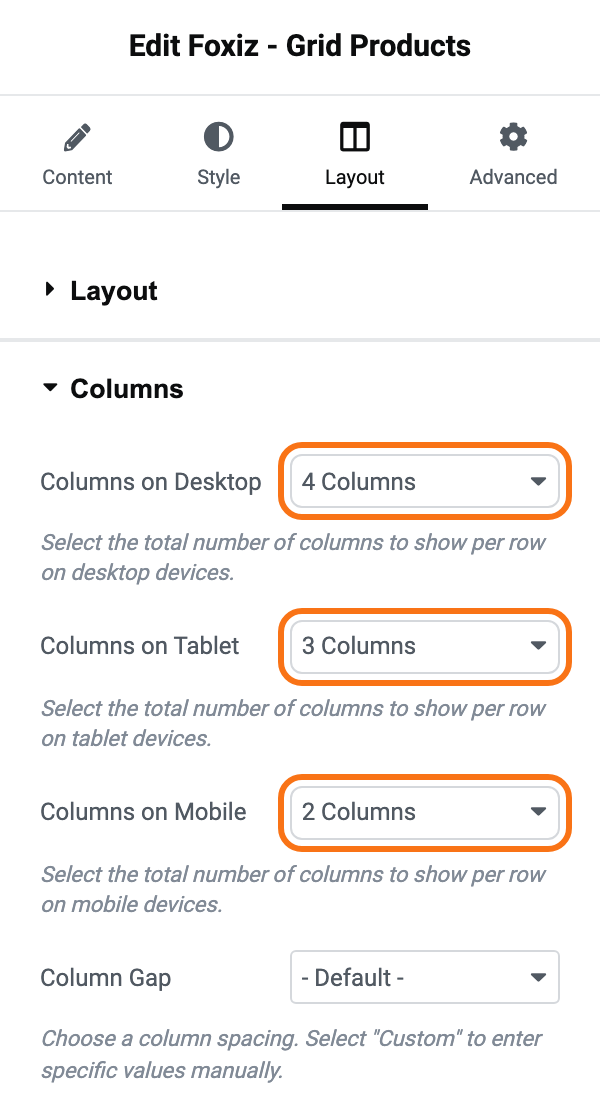
Set Columns on Desktop, Columns on Tablet and Columns on Mobile. Desktop and tablet go up to 7, mobile up to 2. For most shops, 4, 3 and 2.
-
Leave Column Gap as it is, unless you want more or less space between products. Then pick Custom Value and type a number in 1/2 Custom Gap Value, per device. As the name says, it is half the gap: 10 gives 20 pixels between two products.
Responsive Layout
-
In the Elementor editor, click the block you would like to edit.
-
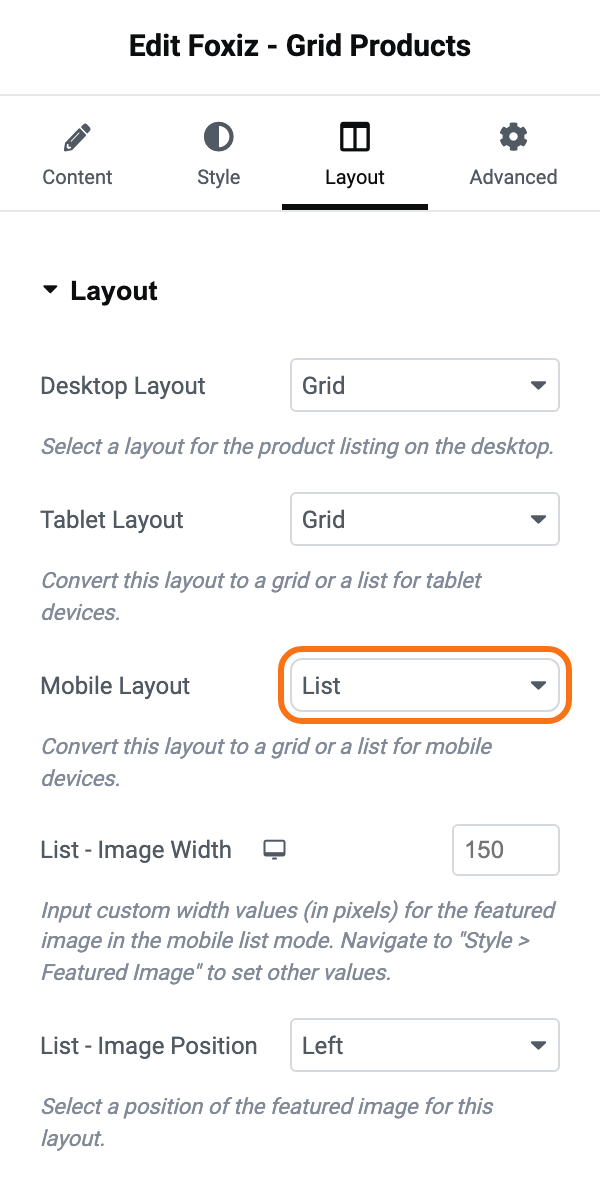
Select the Layout tab > Layout > Mobile Layout.
-
Pick Grid (the default) or List (the picture beside the text). Desktop Layout and Tablet Layout are in the same section. For most shops, keep Grid.
List adds two fields: List - Image Width and List - Image Position.

Tablet/Mobile Horizontal Scroll
-
In the Elementor editor, click the block you would like to edit.
-
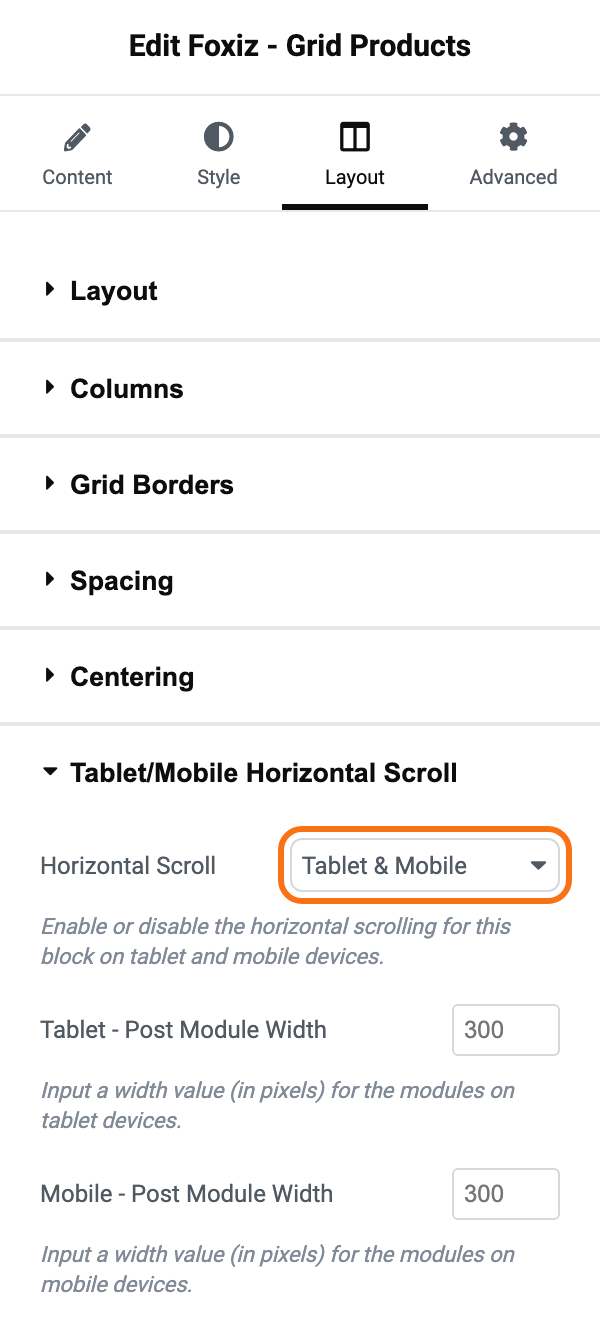
Select the Layout tab > Tablet/Mobile Horizontal Scroll > Horizontal Scroll.
-
Pick the devices where the row scrolls sideways instead of wrapping: Tablet & Mobile, Tablet Only or Mobile Only. - Disable - is the default.
Tablet - Post Module Width and Mobile - Post Module Width set each product's width in pixels. Left blank, a product takes 40% of the screen on tablet and 70% on mobile, so the next one peeks in.

Add Offset
Foxiz adds an offset option to WooCommerce's shortcode. [products limit="4" offset="4"] skips the first four products and shows the next four: two rows on one page, with no product shown twice.
It works on a plain [products] only, not together with on_sale, best_selling or top_rated, even though the field's grey example pairs on_sale with offset.

Did this answer your question?