How to Add Products
Each product is a page of its own, with a name, a price and pictures. Add a few before you build any product list: a list with no products shows nothing.
Create product categories first
Categories group your products, such as Watches and Straps. Foxiz prints a product's categories above its name on every product card, so a product left without one shows Uncategorized there.
- Go to Products > Categories.
- Type a Name, then click Add new category.
You can also tick or add a category while you edit a product (step 6 below).
Add a product
-
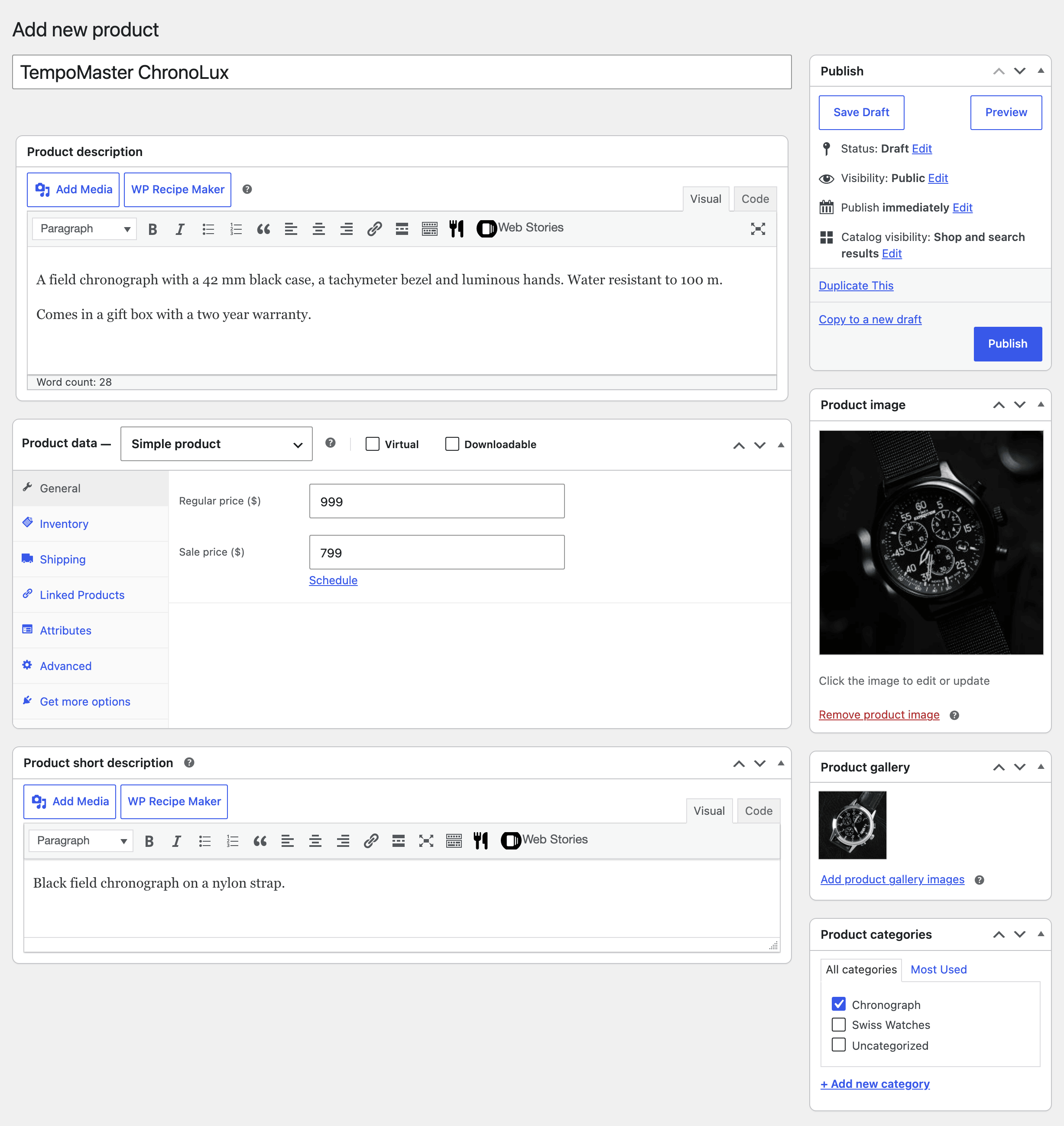
Go to Products > Add new product.
The screen is the classic editor, not the block editor: WooCommerce uses it for every product.
-
Type the name in Product name.
-
In the large box under it, write the full description. Shoppers read it in the Description tab on the product page.
-
Scroll to Product data. Leave the type on Simple product, the usual choice for one item with one price. In the General tab:
- Regular price: the normal price. Type the number only; the currency symbol comes from your settings.
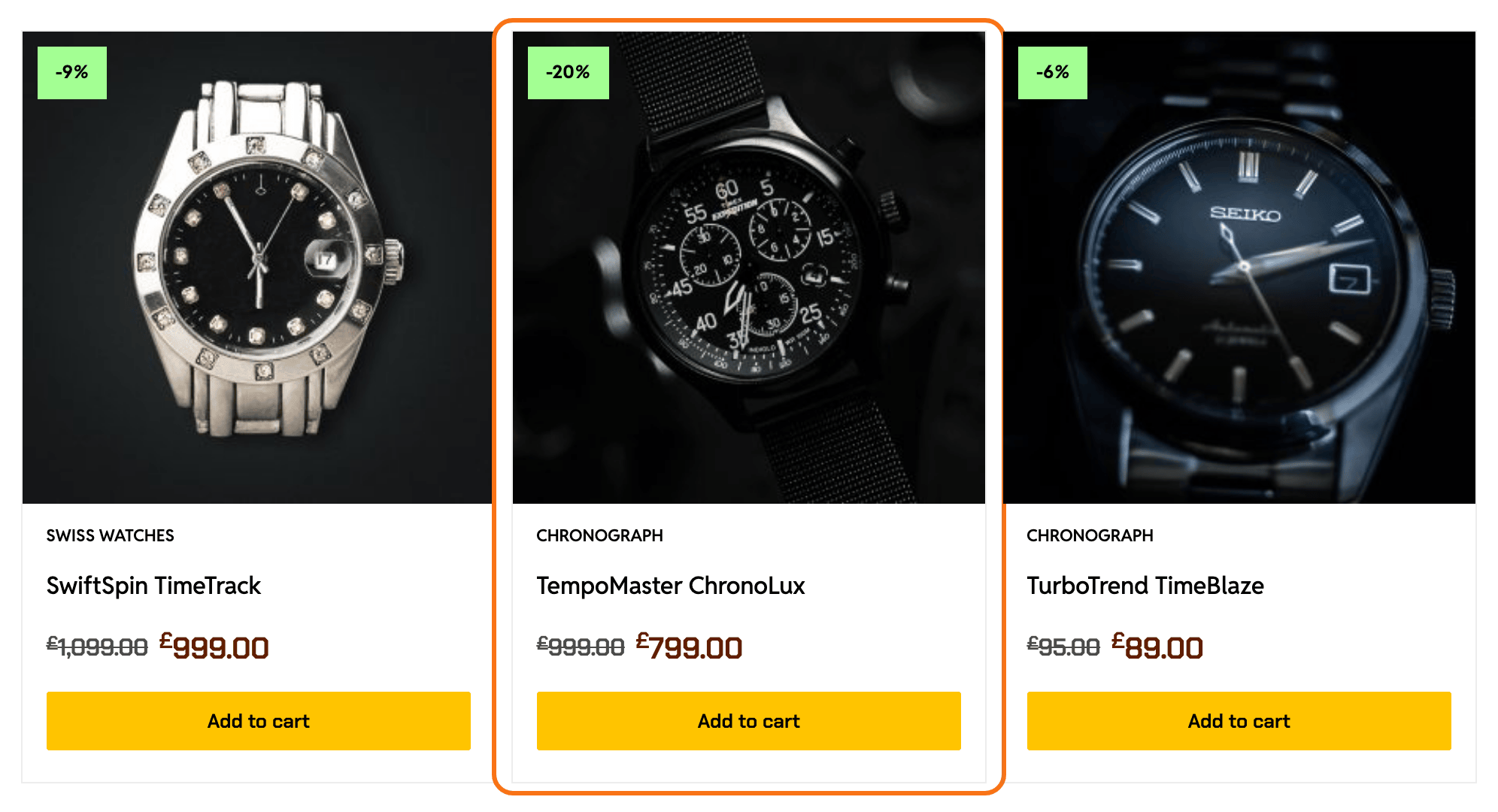
- Sale price: optional. Fill it to put the product on sale. Foxiz then shows a label such as -20% on the image and strikes through the regular price.
- Schedule, beside Sale price, sets dates for the sale to start and end.
-
Scroll to Product short description and write one or two sentences. They show beside the product picture, above the Add to cart button.
-
On the right, under Product categories, tick a category.
-
Under Product image, click Set product image and choose the main picture. This is the picture on the product card.
-
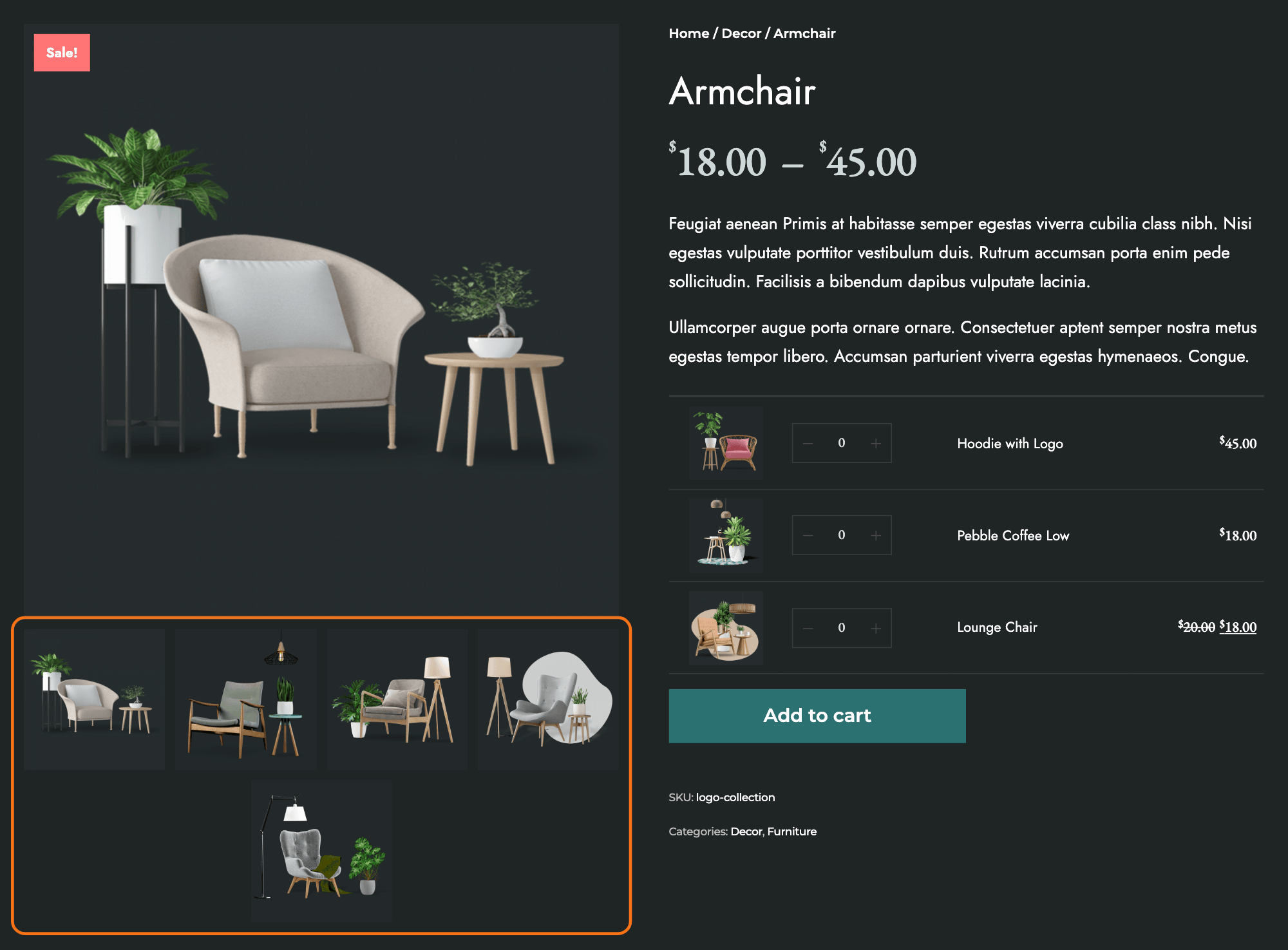
Under Product gallery, click Add product gallery images to add more pictures for the product page.
-
Click Publish.
The product now shows on the Shop page and in its category.
Pictures that fit
Use square pictures of the same size for every product, at least 800 pixels wide. Product cards line up in rows, and pictures of mixed shapes make the rows uneven. Foxiz asks WordPress for a 300 pixel wide card image and a 760 pixel wide product page image, so 800 is enough for both.
The other Product data tabs
You can leave these for later:
- Inventory: SKU (your stock code) and stock tracking. Tick Stock management to count stock; the product shows as out of stock at zero.
- Shipping: weight and size, for shipping rates.
- Linked Products: Upsells and Cross-sells, products you suggest with this one.
- Attributes: details like size and colour. With Variable product as the type, they become choices the shopper picks.
Selling another shop's product for a commission? Pick External/Affiliate product as the type: the General tab then asks for a Product URL and the Button text.
For everything else on this screen, see WooCommerce's guide: Adding and managing products.
Your products are in? Open the store to visitors now: switch WooCommerce from Coming soon to Live, as shown in 8. Open the store to visitors.
Next, show your products on a page: How to use the Foxiz Product Block in Elementor or Creating Products List and Products Shortcode.
Did this answer your question?