How to Set Up a Shop with Foxiz
Foxiz sells nothing by itself. The shop comes from WooCommerce, a free plugin: it holds your products, the cart, the checkout and the customer accounts. Foxiz gives that shop its look and adds ways to put products on your own pages.
Who does what
WooCommerce:
- products, prices, stock and product categories,
- the Shop page that lists every product, and a page for each product,
- the Cart, Checkout and My account pages,
- payments, shipping, taxes and orders.
Foxiz:
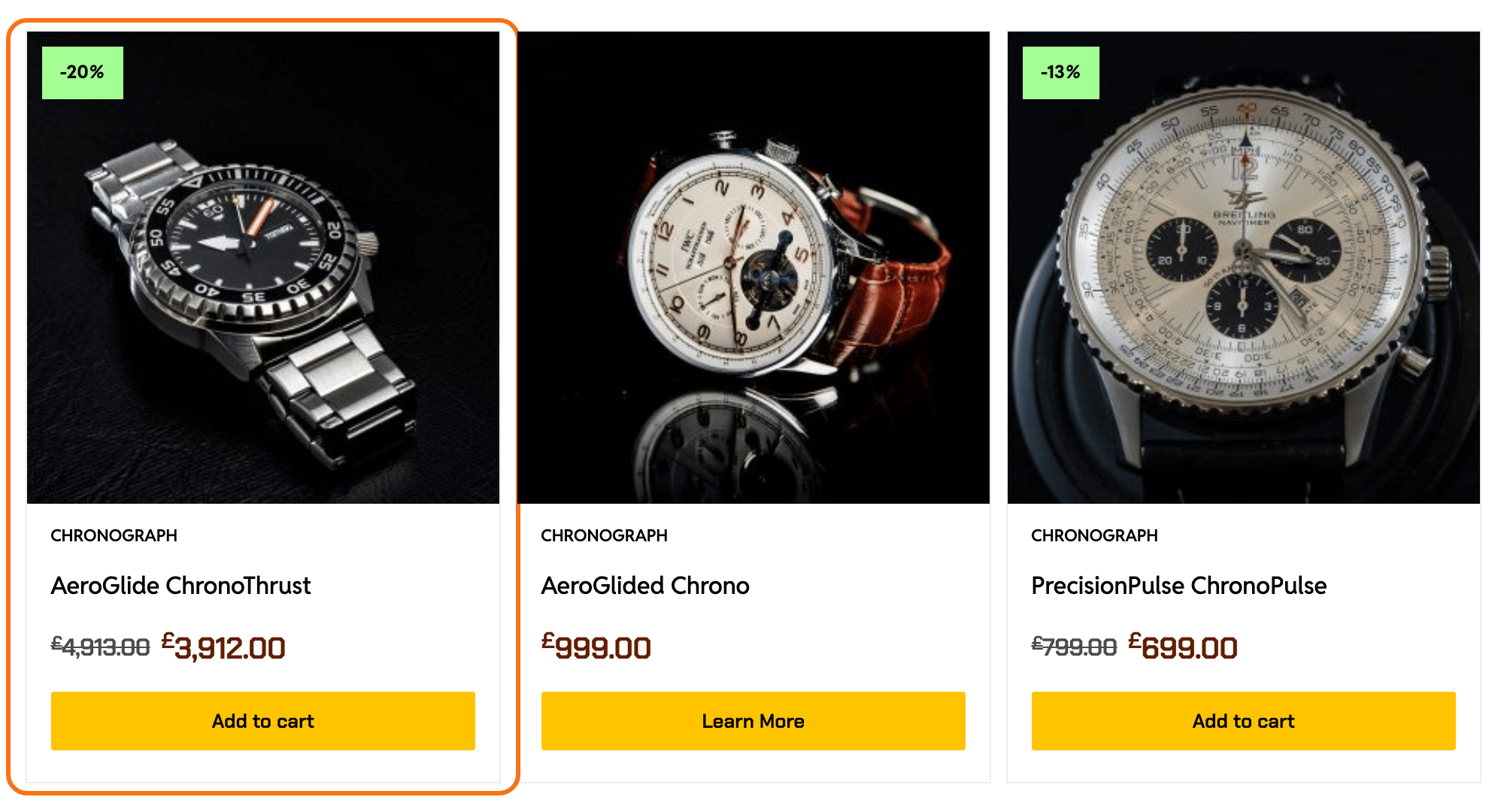
- the product card: sale label as a percentage, categories above the name, price, and an Add to cart button,
- its own styles for the shop, the product page, the cart and the checkout, in place of WooCommerce's,
- a "Product added to cart!" popup with a View Cart button,
- a cart icon for the header,
- the Foxiz - Grid Products block, to show products on any Elementor page,
- Theme Options > WooCommerce, for colours, buttons, the shop sidebar and the product page.
Those Foxiz parts appear only while WooCommerce is active. Until then, their settings show a "Woocommerce Plugin is missing!" notice.
Set it up in this order
- Install WooCommerce. It also creates the Shop, Cart, Checkout and My account pages.
- Set up WooCommerce for your shop: address, currency, payments, then the Foxiz shop layout and the cart icon. The store stays in Coming soon mode, hidden from visitors, while you work.
- Add products: a name, a price, a picture and a category for each. Then open the store to visitors.
- Show products on your pages. Pick one way:
- On an Elementor page, use the block: How to use the Foxiz Product Block in Elementor.
- Anywhere else (a post, a widget, a block editor page), use a WooCommerce shortcode: Creating Products List and Products Shortcode.
- Build a custom shop page: a landing page with banners and product rows, like the Chronograph demo's.
For most sites, follow the steps in that order. Each one needs the one before it: no product shows until a product exists, and none exists until WooCommerce is active.
Importing a Foxiz demo that sells things (Chronograph, Coffee House, Book Shop and others list WooCommerce as a recommended plugin) gives you a styled shop to start from. Install WooCommerce first, then import. See Demo Importer.
The settings, if you need them later
- WooCommerce: every field of Theme Options > WooCommerce.
- Mini Cart: the cart icon in the header.
Did this answer your question?