How to Build a Custom Shop Page
WooCommerce's Shop page is a plain list of every product. A custom shop page is a landing page you design yourself: a banner, a row of bestsellers, a row of products on sale, and anything else you like around them. The Chronograph demo's shop is one.

Before you start, you need WooCommerce active, a few products, and Elementor. See How to Set Up a Shop with Foxiz.
A new page, not the Shop page
Build this on a new page. Leave WooCommerce's Shop page as it is.
WooCommerce draws the Shop page with its own product list, so an Elementor design on it never shows. Elementor knows this: the Shop page has no Edit with Elementor button.
The Chronograph demo does the same: its designed page is at /chronograph-shop/, and WooCommerce's full list stays at /shop/. Your menu can link to both, such as Shop for the designed page and All products for the list.
To put a banner above WooCommerce's own Shop page instead, build the banner as a Ruby Template (a section you design once in Elementor) and paste its shortcode into Theme Options > WooCommerce > Shop & Archives > Header Template Shortcode. It shows above the product list on the Shop page only.
Create the page
- Go to Pages > Add Page.
- Type a title, such as Shop Home, and click Publish.
- Click Edit with Elementor.
The page uses your site header and footer, so the cart icon and menu appear on it. The steps for containers, columns and dragging blocks are in How to Build Your Homepage with Elementor Builder; this page only says which block goes where.
The sections, top to bottom
Each section is one container with one or two blocks in it. Search the block's name at the top of the Elementor panel.
1. A banner
Block: Foxiz - Call to Action.
- Heading: the product or collection you want to push, such as "Breitling Navitimer 1884 Timeless Elegance".
- Description: one sentence on why.
- Choose Image, under Image: a wide product photo.
- Primary Button, under Buttons: a Label such as Shop now and, as its Link, the product page or the category page.
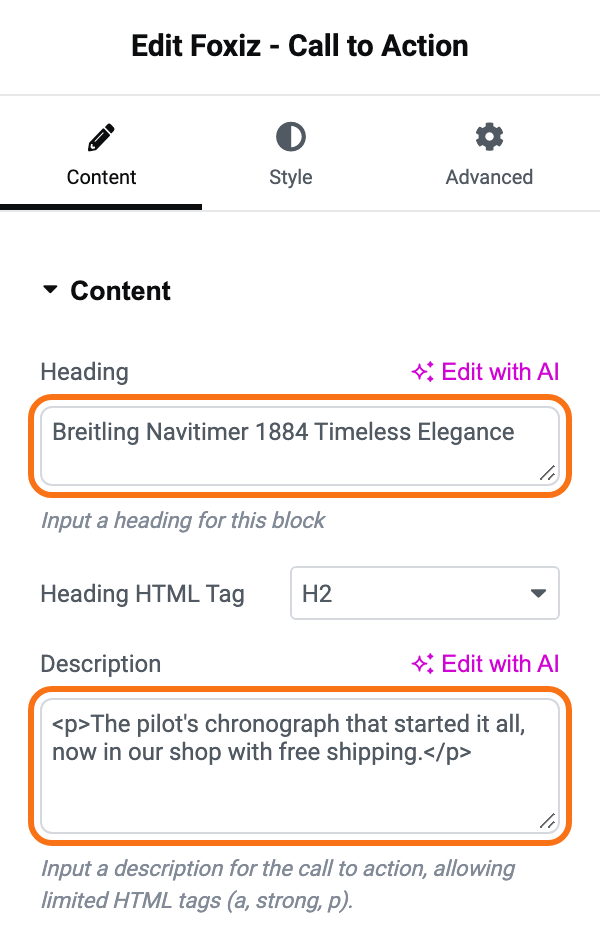
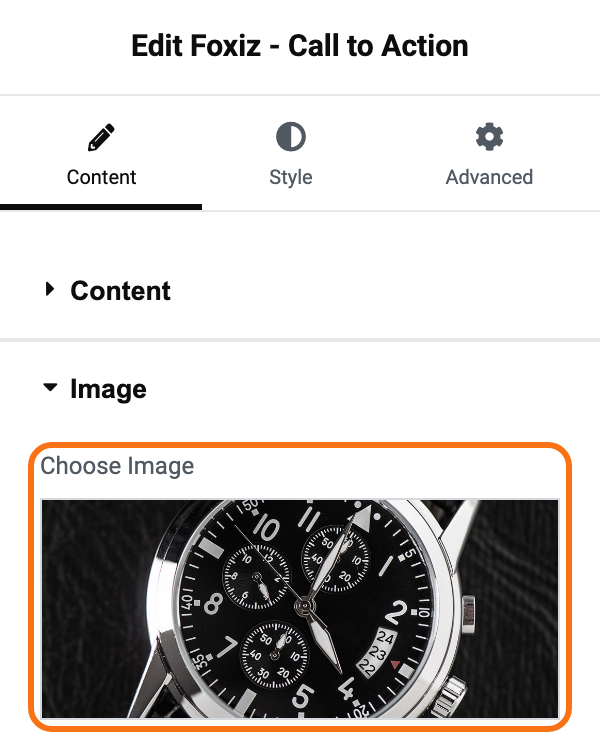
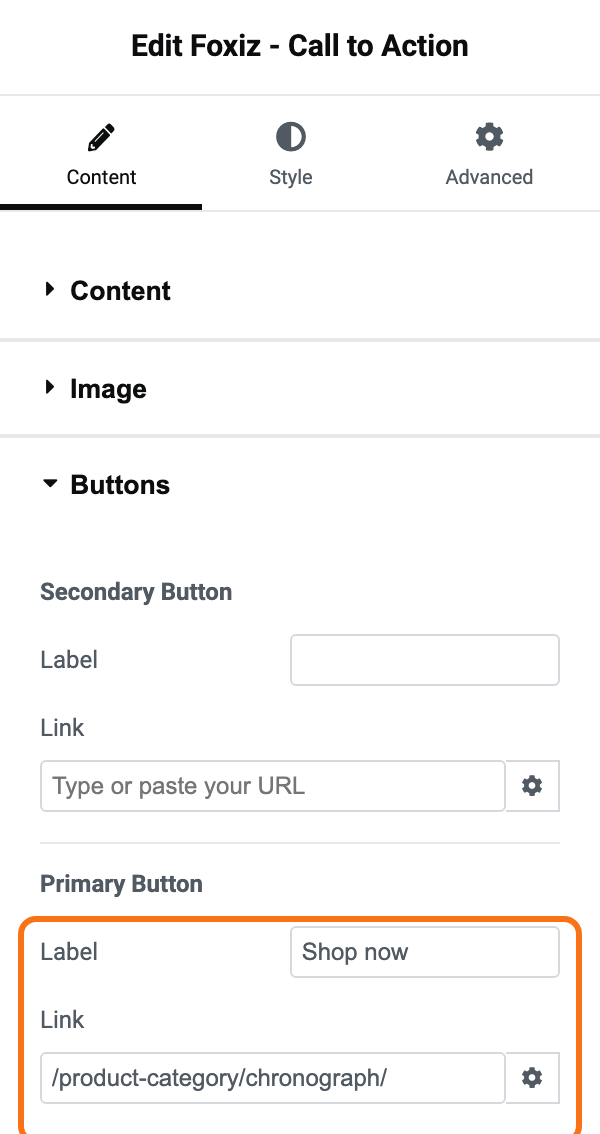
Every setting is in The Foxiz Call to Action Block in Elementor.
2. A bestsellers row
Two blocks in one container:
-
Foxiz - Heading, with Heading "Our Bestsellers" and a short Tagline under it.
-
Foxiz - Grid Products, under it. In WooCommerce Shortcodes, replace what is there with:
[products limit="3" best_selling="true"]Then, on the Layout tab, set Columns on Desktop to 3 Columns, as the demo does.
![The Query Settings section of Foxiz - Grid Products with [products limit="3" best_selling="true"] in WooCommerce Shortcodes, outlined in orange](/docs/assets/images/products-shortcode-bestsellers@2x-86a49cf8797f109462fc524ca414ff6b.png)
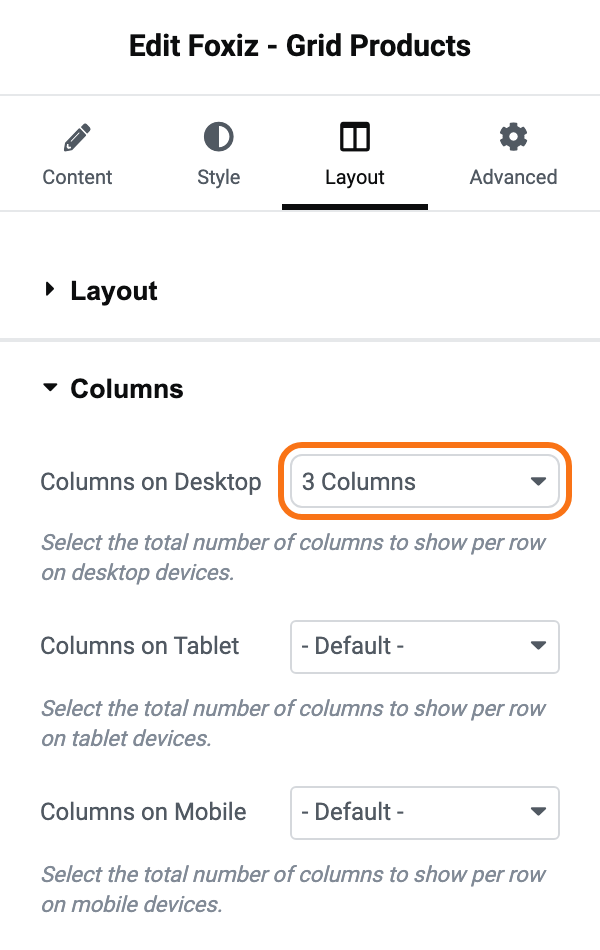
best_selling="true" puts the products that sold most first. A new shop has no sales yet, so the order is arbitrary until orders come in.
3. A second banner
Another Foxiz - Call to Action, this time about your shop rather than a product: your story, your guarantee, why buy here. The demo's reads "Heritage Craftsmanship".
4. An on sale row
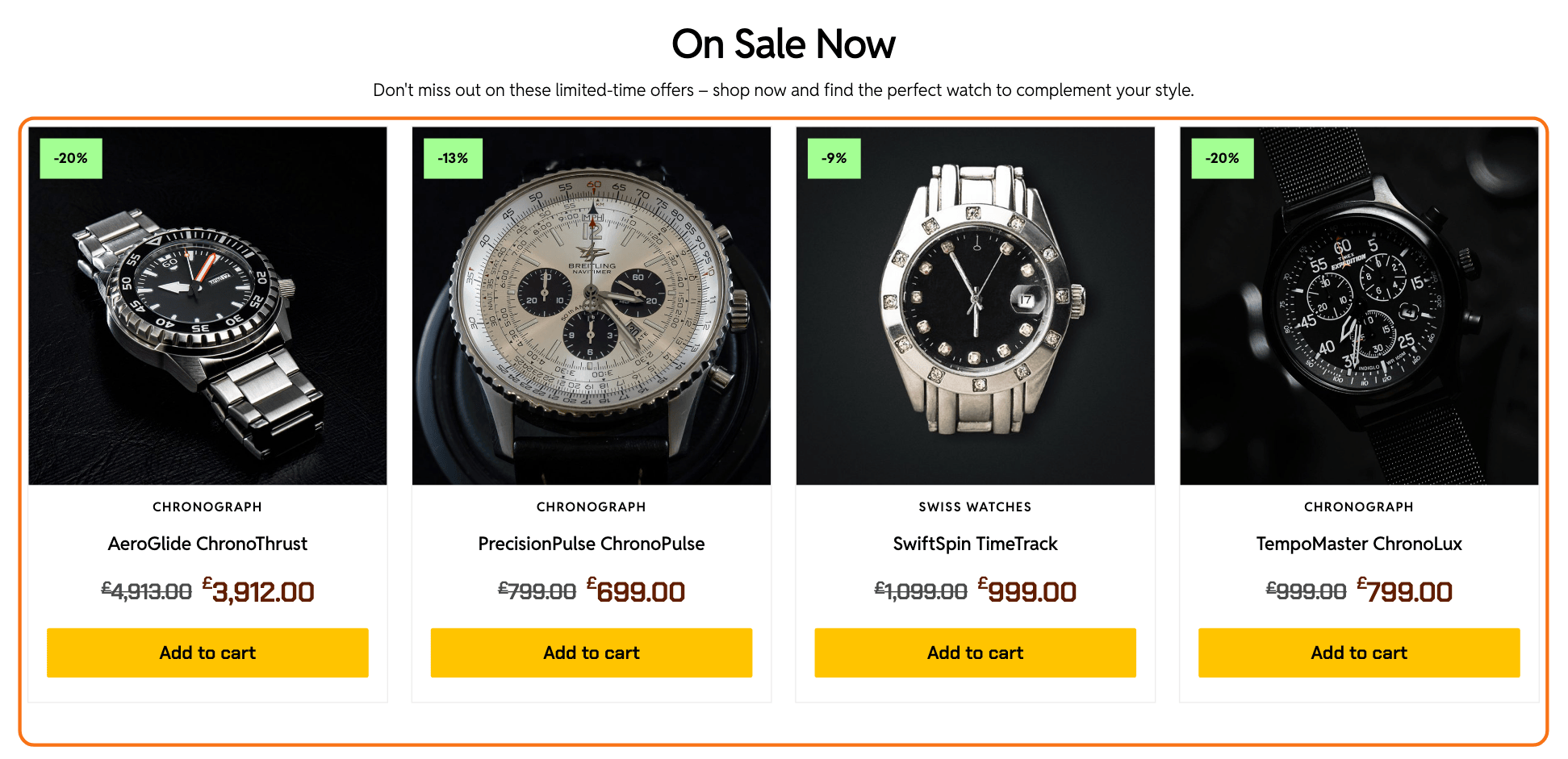
Again Foxiz - Heading ("On Sale Now") and Foxiz - Grid Products, with:
[products limit="4" on_sale="true"]
and Columns on Desktop on 4 Columns. Only products with a Sale price show.
5. Latest stories
A shop on a magazine theme can show its articles too. Foxiz - Heading ("Latest Stories") and Foxiz - Flex Grid 2, with Number of Posts on 3. Pick a Category Filter to show only your buying guides or reviews.
6. Trust boxes
Three of Elementor's own Icon Box blocks side by side, each with an icon, a short title and one line: "Authorized retailer", "Customer service", "Fast shipping and easy returns". They answer what a first-time buyer worries about.

7. A newsletter box
Foxiz - FW Newsletter 2, with a Heading, a Description, and your sign-up form in Form Shortcode. It expects a Mailchimp for WordPress form. See MC4WP Form Structure.

Click Publish.
Make it the shop in your menu
- Go to Appearance > Menus.
- Under Pages, tick your new page and click Add to Menu.
- Rename it Shop in its Navigation Label if you like.
- Click Save Menu.
For most shops, link the designed page as Shop in the main menu, and keep WooCommerce's list a click away, from a button on a banner or a menu item such as All products.
If a product row is empty
- No products at all? The row needs published products. See How to Add Products.
- The on sale row is empty? No product has a Sale price.
- The row shows the wrong number of columns? Columns come from Columns on Desktop on the Layout tab. A
columnsin the shortcode is ignored by this block. offsetdoes nothing? It only works on a plain[products], not together withon_sale,best_sellingortop_rated.
Did this answer your question?