How to Install WooCommerce
WooCommerce is free, on wordpress.org. You install it like any plugin, answer a short setup wizard, and it creates the pages a shop needs.
Install and activate
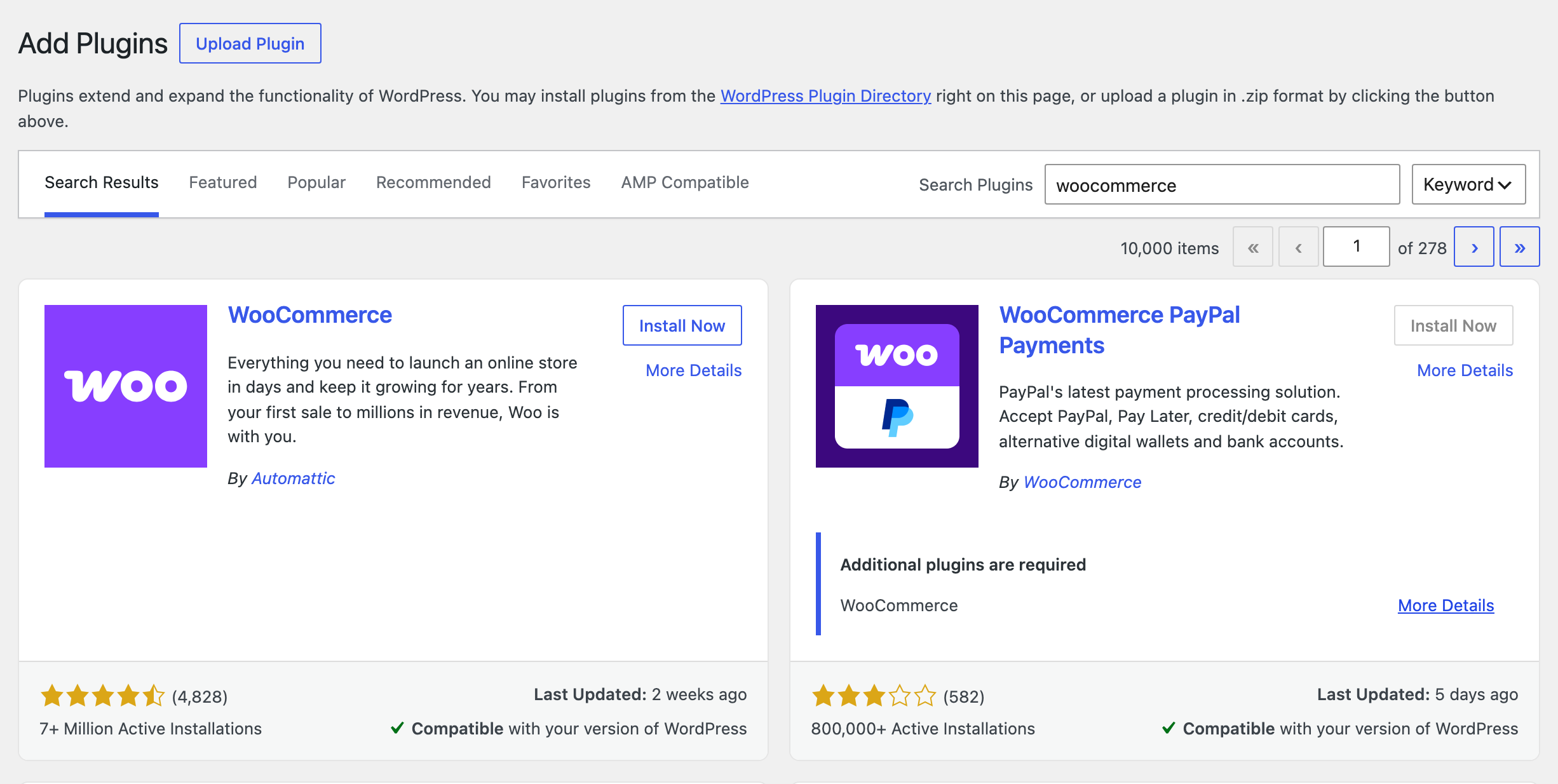
- Go to Plugins > Add Plugin.
- Type WooCommerce in Search Plugins.
- On the WooCommerce card by Automattic, click Install Now, then Activate.
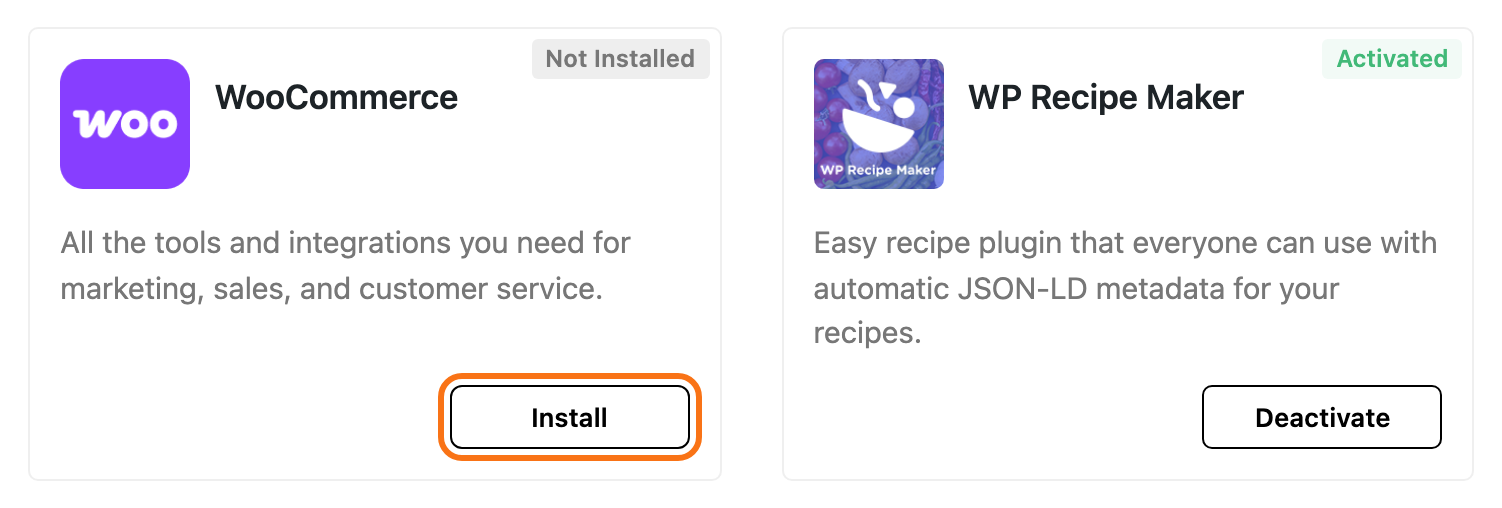
You can also install it from Foxiz > Dashboard, where it is listed under Recommended Plugins with an Install button, then Activate.
The setup wizard
Right after activation, WooCommerce opens its setup wizard. Until you finish or skip it, WooCommerce > Home keeps sending you back to it.
The screens, in order:
-
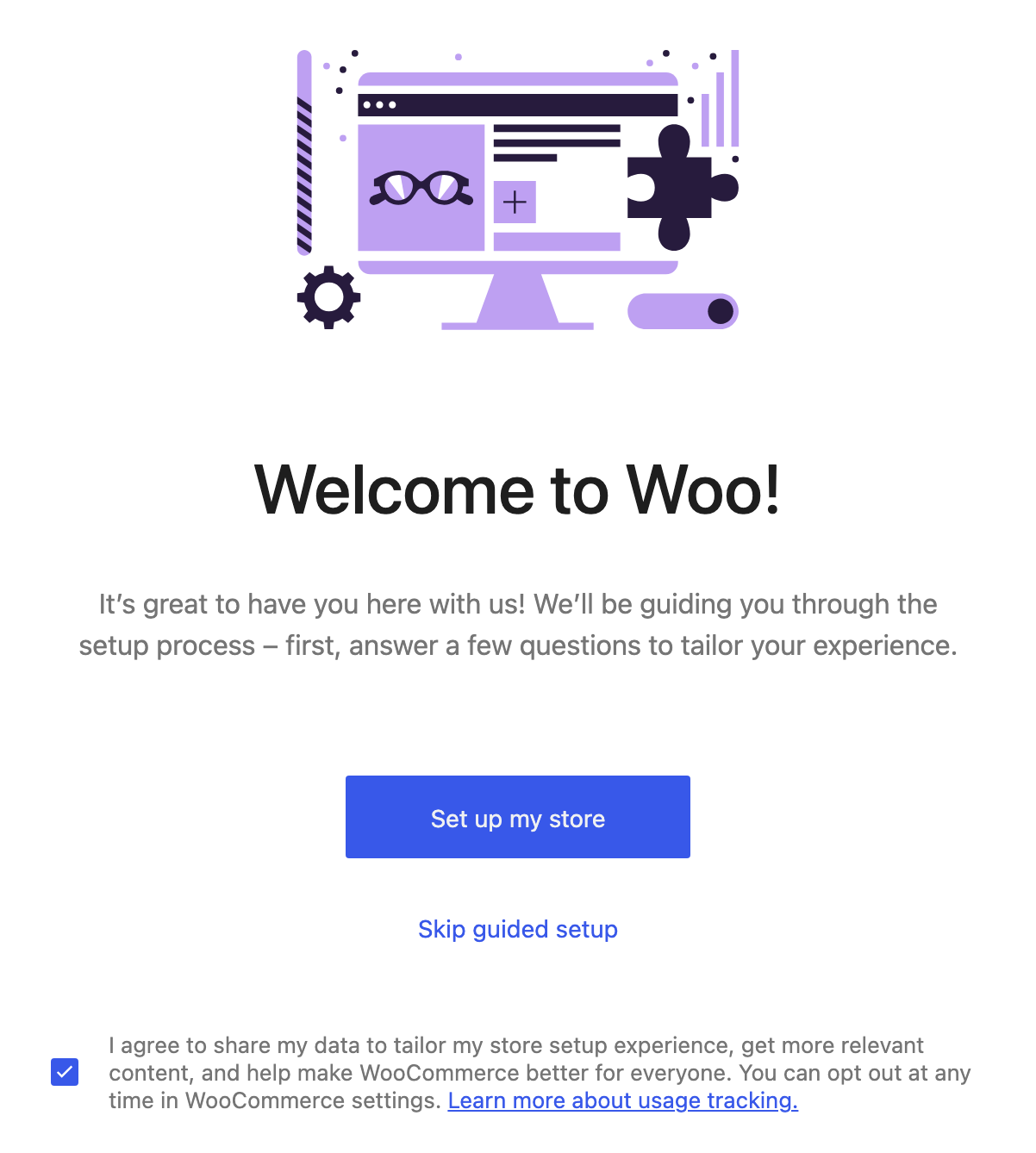
Welcome to Woo! Click Set up my store.
-
Which one of these best describes you? Pick the one that fits, such as I'm just starting my business.
-
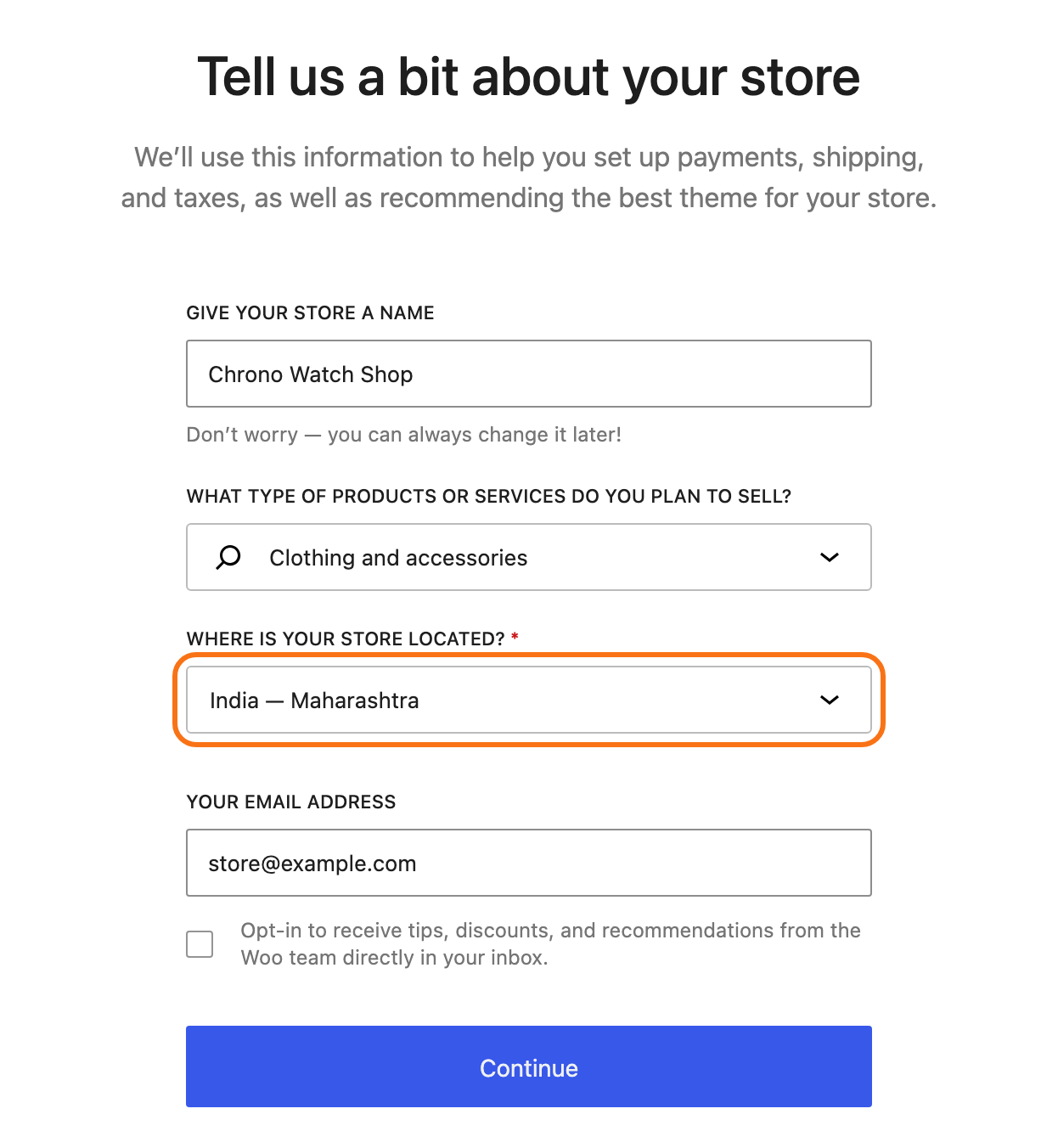
Tell us a bit about your store. Give the store a name, pick an industry, and set Where is your store located?. That last one is the answer that matters: it sets your store's country, and the currency and tax suggestions follow from it. The wizard fills it in from where you are browsing; if the shop is based elsewhere, pick its country, and the notice "It looks like you're located in ..." that appears can be ignored. Click Continue.
-
Get a boost with our free features. These are extra plugins. Click Skip this step unless you know you want one.
For most sites, answer the location question carefully and skip the rest. Everything the wizard asks can be changed later in WooCommerce > Settings.
Skip guided setup, on the first screen, still asks one question, Where is your business located?, then sends you to the store with Go to my store.
The pages it creates
On a first install, WooCommerce adds five pages under Pages:
- Shop: the list of every product. WooCommerce fills it; leave it empty.
- Cart: holds the Cart block.
- Checkout: holds the Checkout block.
- My account: the customer's orders, addresses and password.
- Refund and Returns Policy: a draft for you to finish and publish.
If a page with the same name already exists, WooCommerce uses it instead of making a second one.
Do not build the Shop page in Elementor. WooCommerce draws that page with its own product list and ignores what you put on it. For a designed shop page, make a new page: see How to Build a Custom Shop Page.
What changes in Foxiz
With WooCommerce active, these Foxiz settings fill in where they showed a "plugin is missing" notice:
- Theme Options > WooCommerce,
- Theme Options > Header > Mini Cart,
- Theme Options > Typography > WooCommerce.
Did this answer your question?