How to Set Up WooCommerce for Your Shop
A new store needs a few WooCommerce settings before it can sell, and a few Foxiz settings to look the way you want. This page goes through both, in the order you will meet them.
1. Store address and currency
- Go to WooCommerce > Settings. The General tab opens.
- Under Store Address, fill in your address. Tax and shipping rates use it.
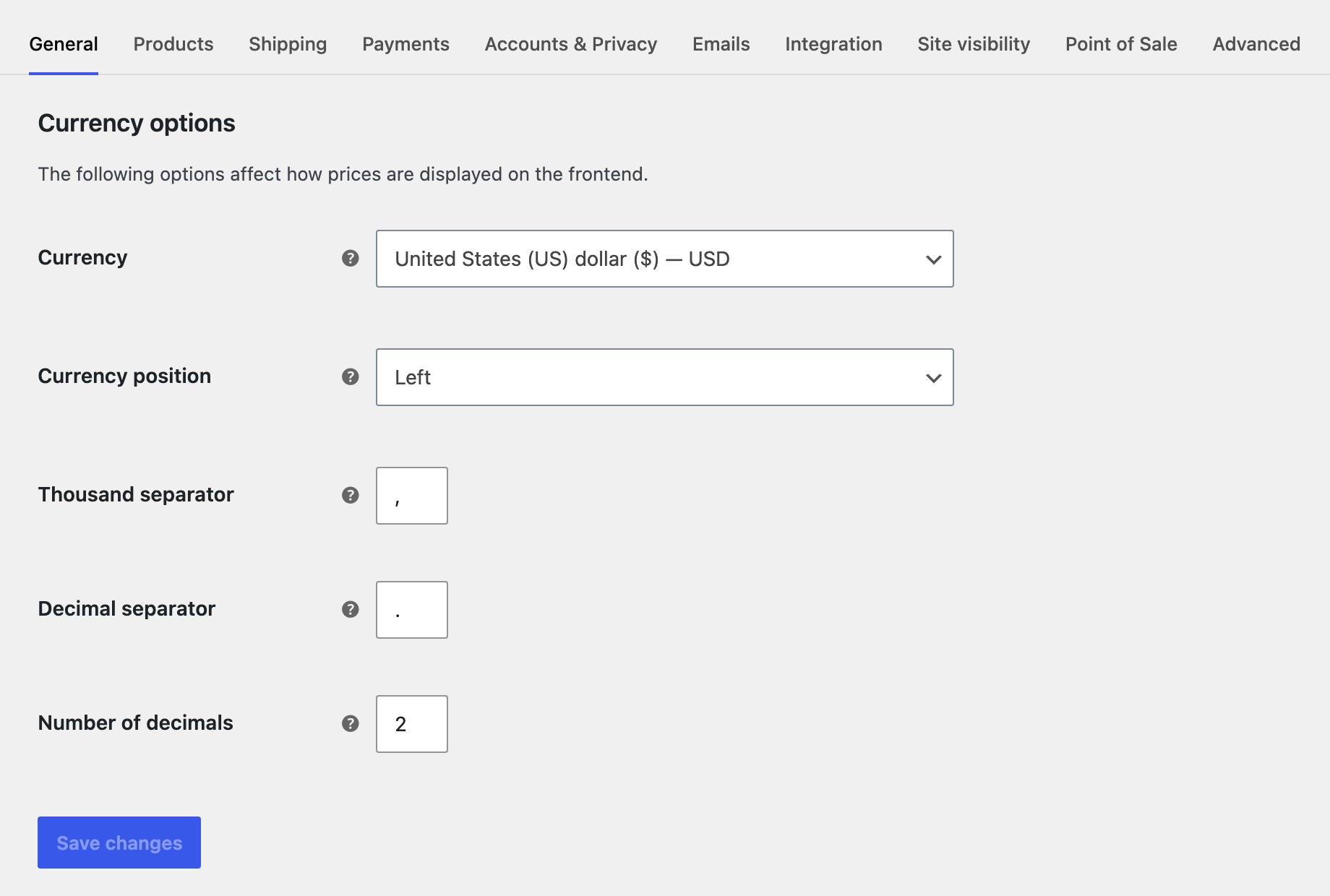
- Under Currency options, set:
- Currency: the currency your prices are in. It starts on US dollar.
- Currency position: where the symbol goes. Left gives £99.00, Right with space gives 99.00 €.
- Thousand separator, Decimal separator and Number of decimals: how prices are written, such as 1,299.00 or 1.299,00.
- Click Save changes.
Selling location(s) and Shipping location(s), in the same tab, start on every country. Leave them unless you only sell to some countries.
2. Payments
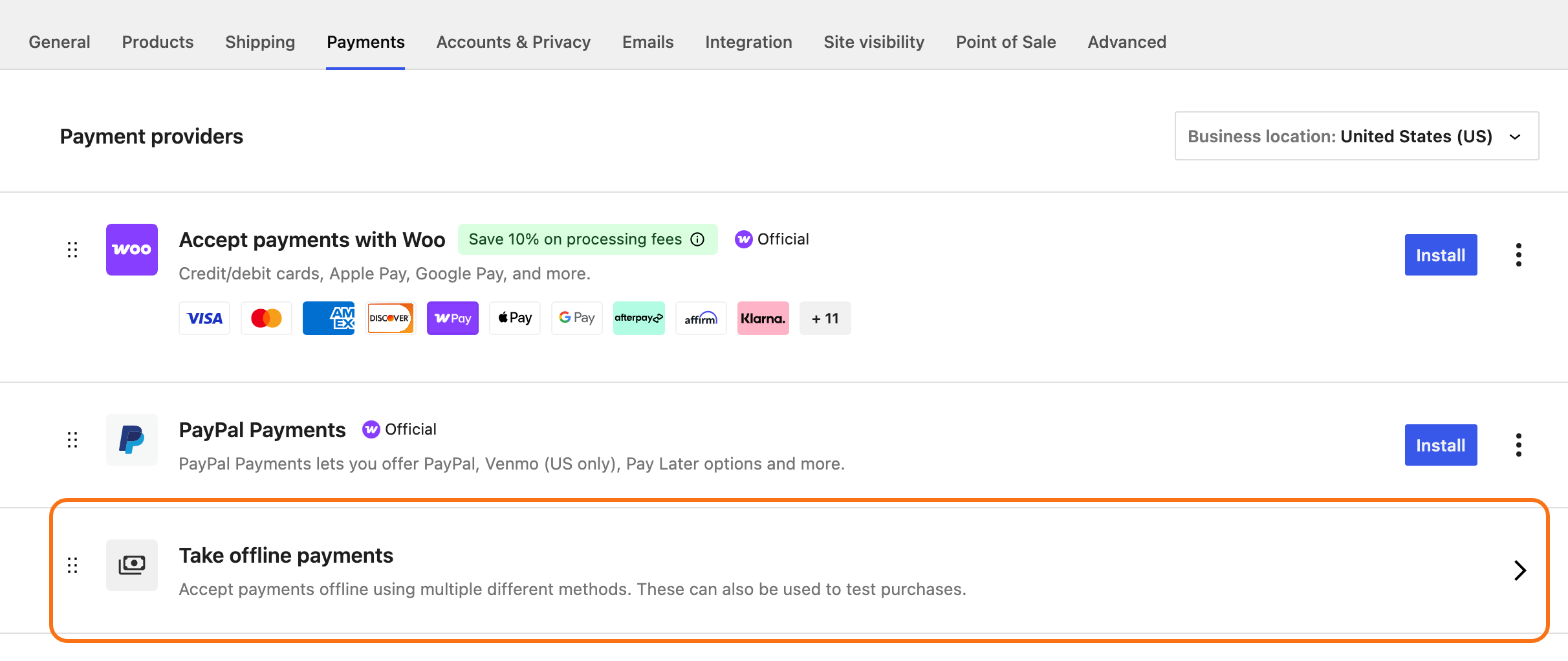
Nothing takes money until you turn a payment method on. WooCommerce > Settings > Payments lists them. The three offline ones sit under the Take offline payments row near the bottom: Direct bank transfer, Check payments and Cash on delivery. All three are off at the start.
Card payments (Stripe, PayPal and others) are set up with the provider. Follow WooCommerce's own guide: WooCommerce payments documentation.
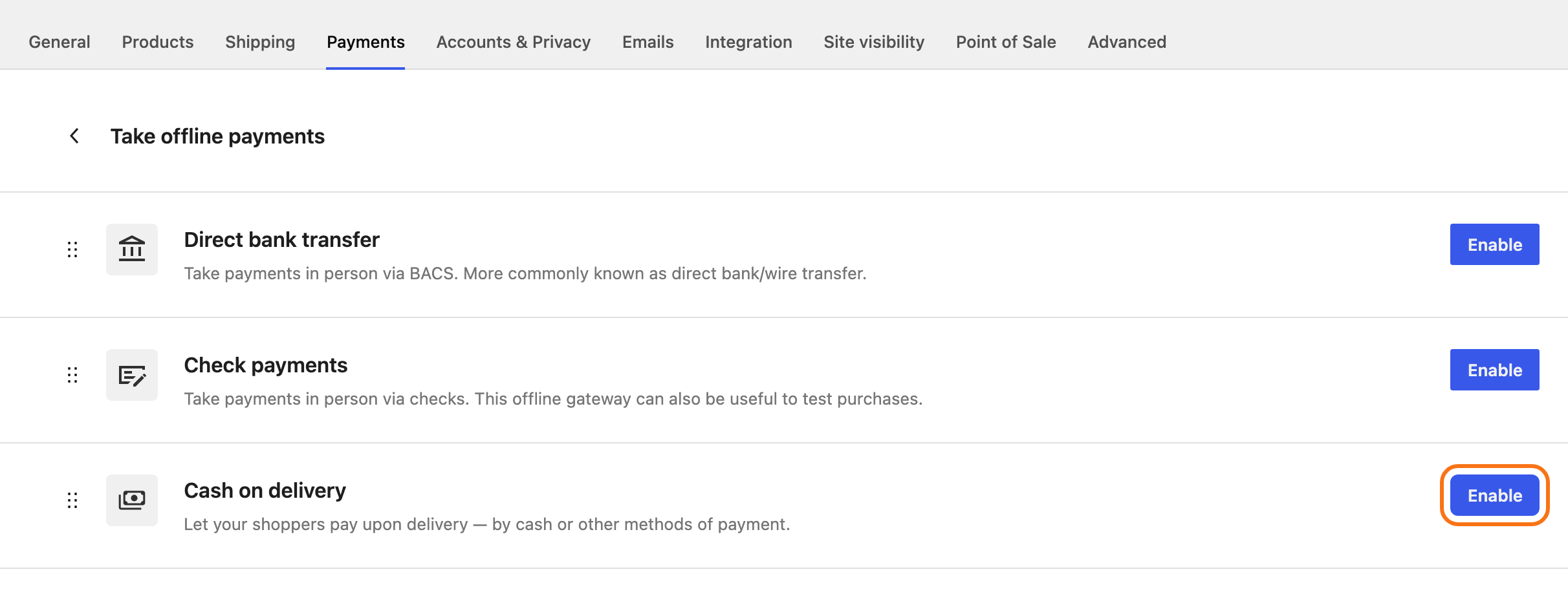
To test your shop before real customers do, turn on Cash on delivery: you can then place a test order without a card.
- On WooCommerce > Settings > Payments, click Take offline payments.
- Click Enable next to Cash on delivery. The button turns to Manage once the method is on.
3. Coming soon mode
A new WooCommerce store starts in Coming soon mode. You see the shop because you are signed in as the owner; visitors see "Great things are on the horizon" in place of your shop, product, category and cart pages. The rest of your site shows as normal.

If a friend says your shop "isn't there" while you can see it, this is the reason.
For most shops, leave it on while you set up and add products: nobody sees a half finished shop. Switch it to Live once your products are in, as the last step: see 8. Open the store to visitors.
4. The Shop page
WooCommerce lists all your products on the Shop page it created. Check it is set: WooCommerce > Settings > Products, under Shop pages, Shop page should read Shop.
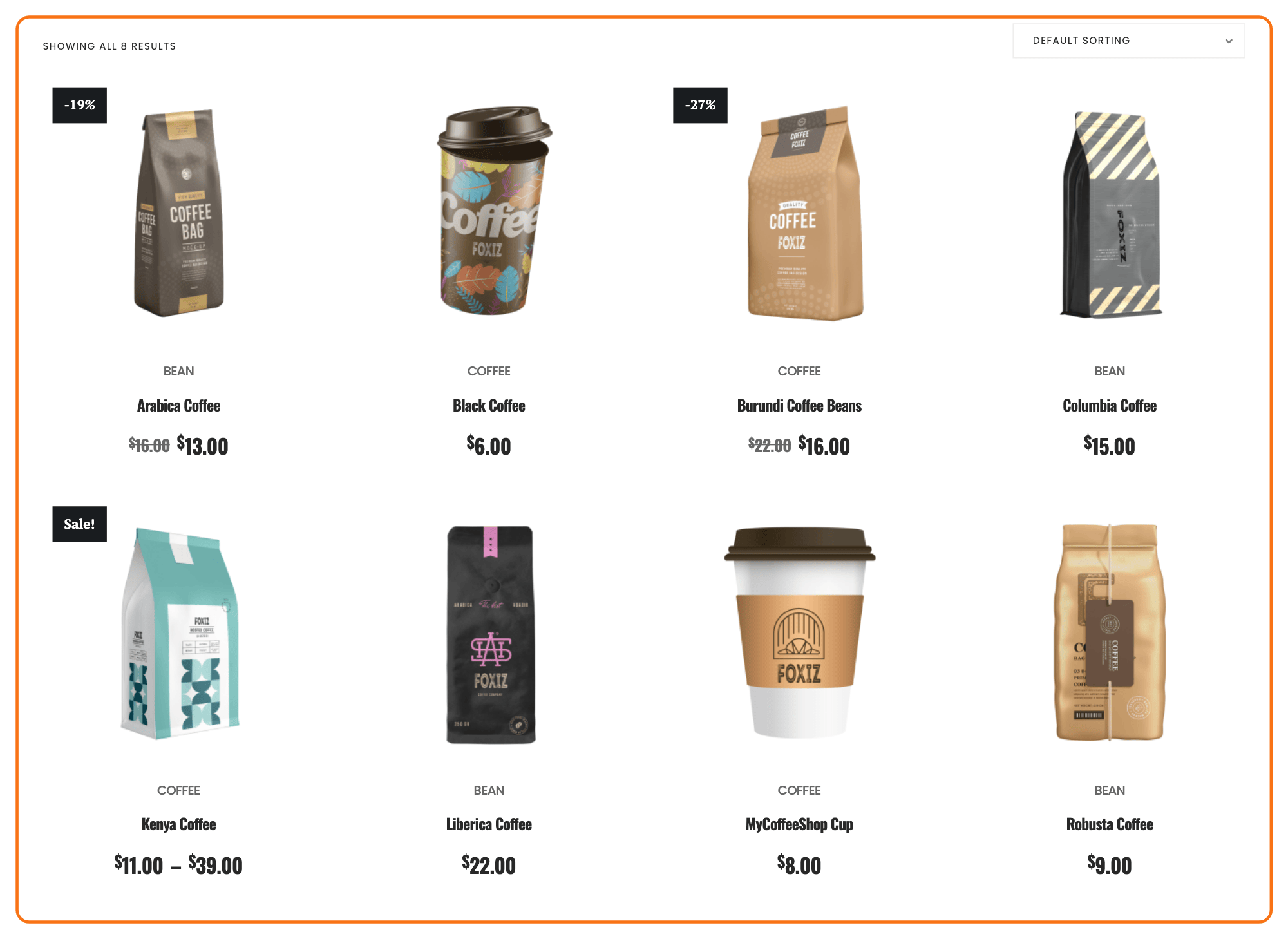
On that page Foxiz shows, from top to bottom:
- your site header,
- WooCommerce's breadcrumb, then the page title,
- the result count and the sort dropdown,
- the products, four to a row, then page numbers.
5. The Foxiz shop layout
Go to Theme Options > WooCommerce > Shop & Archives. The three fields most shops change:
- Shop Sidebar Position: No Sidebar (the default) shows four products to a row. Left or Right adds a sidebar and shows three. For most shops, keep No Sidebar until you have widgets worth showing, such as product categories or a price filter.
- Shop Sidebar Name: which widget area that sidebar shows. Fill it in Appearance > Widgets.
- Products per Page: how many products the Shop page shows before page 2. Left empty, it is 16 without a sidebar and 12 with one. This is the only place to change it: Foxiz hides WooCommerce's own rows and columns settings.
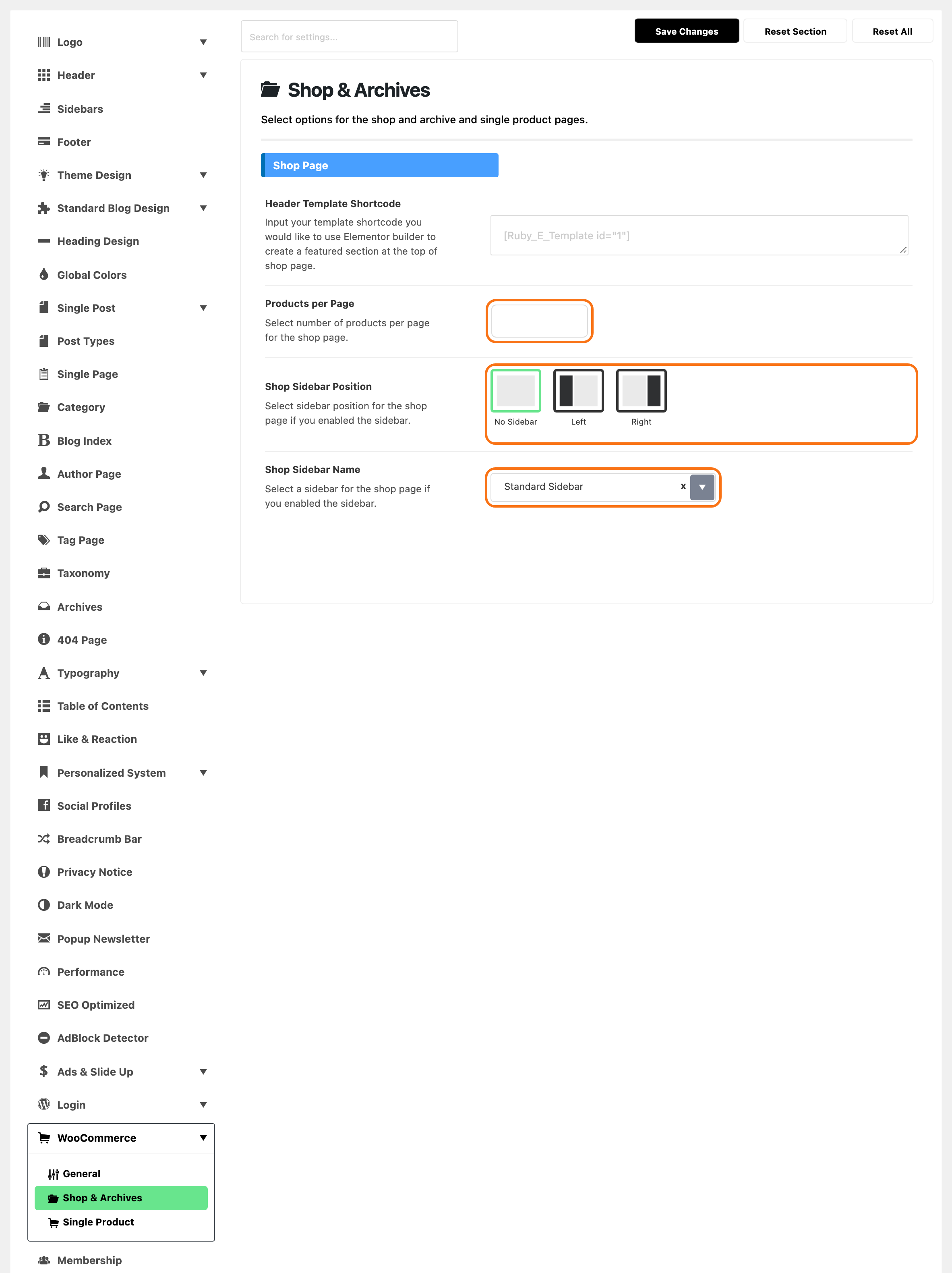
Click Save Changes.
Product category pages have their own sidebar fields in the same tab. Their number of products comes from Theme Options > Taxonomy > Posts per Page, not from the Products per Page field beside them: see WooCommerce.
The card colours, the button style and the product page settings are in the same panel; every field is explained in WooCommerce.
6. The cart icon in the header
Shoppers expect a cart icon at the top right. Foxiz has one, off by default.
- Go to Theme Options > Header > Mini Cart.
- Turn on Header Mini Cart for the desktop header, and Mobile Header - Mini Cart for phones.
- Click Save Changes.
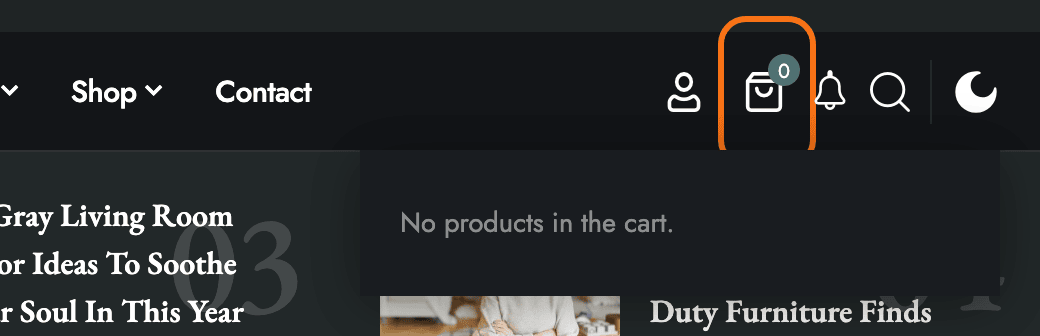
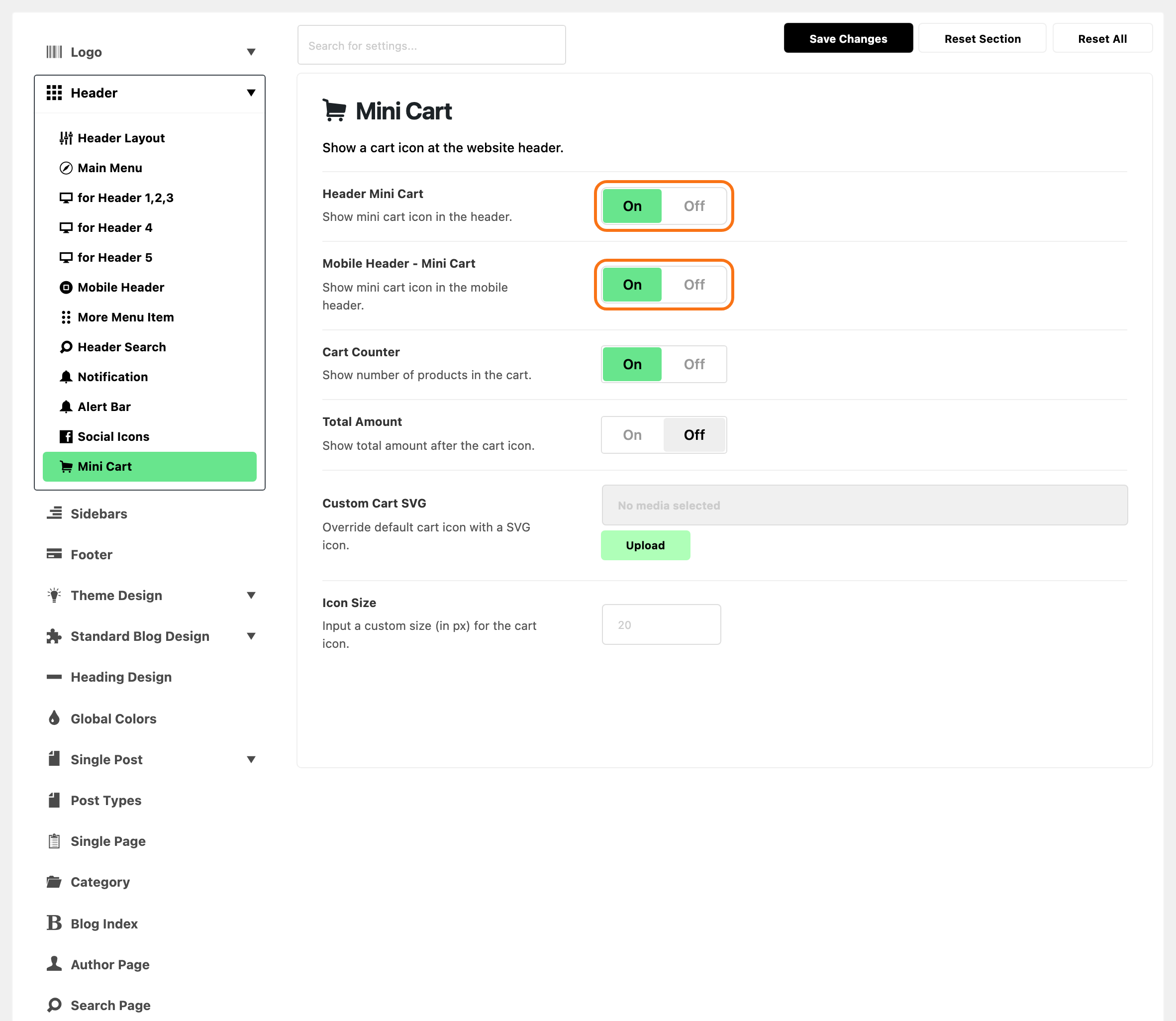
If your header is a header template built in Elementor, add the Foxiz - Mini Cart block to the template instead, and still turn Header Mini Cart on: without it, the number on the icon only updates when the page reloads. Imported a demo? It has one when Theme Options > Header > Header Layout > Header Layout reads Use Ruby Template. The other fields are in Mini Cart.
7. Add the shop to your menu
Go to Appearance > Menus, tick Shop under Pages, click Add to Menu, then Save Menu. Add Cart and My account the same way if your header has no cart icon or sign in button.
8. Open the store to visitors
Do this once your products are in (How to Add Products). Until then, visitors see the Coming soon page described in section 3.
- Go to WooCommerce > Settings > Site visibility.
- Choose Live.
- Click Save changes.
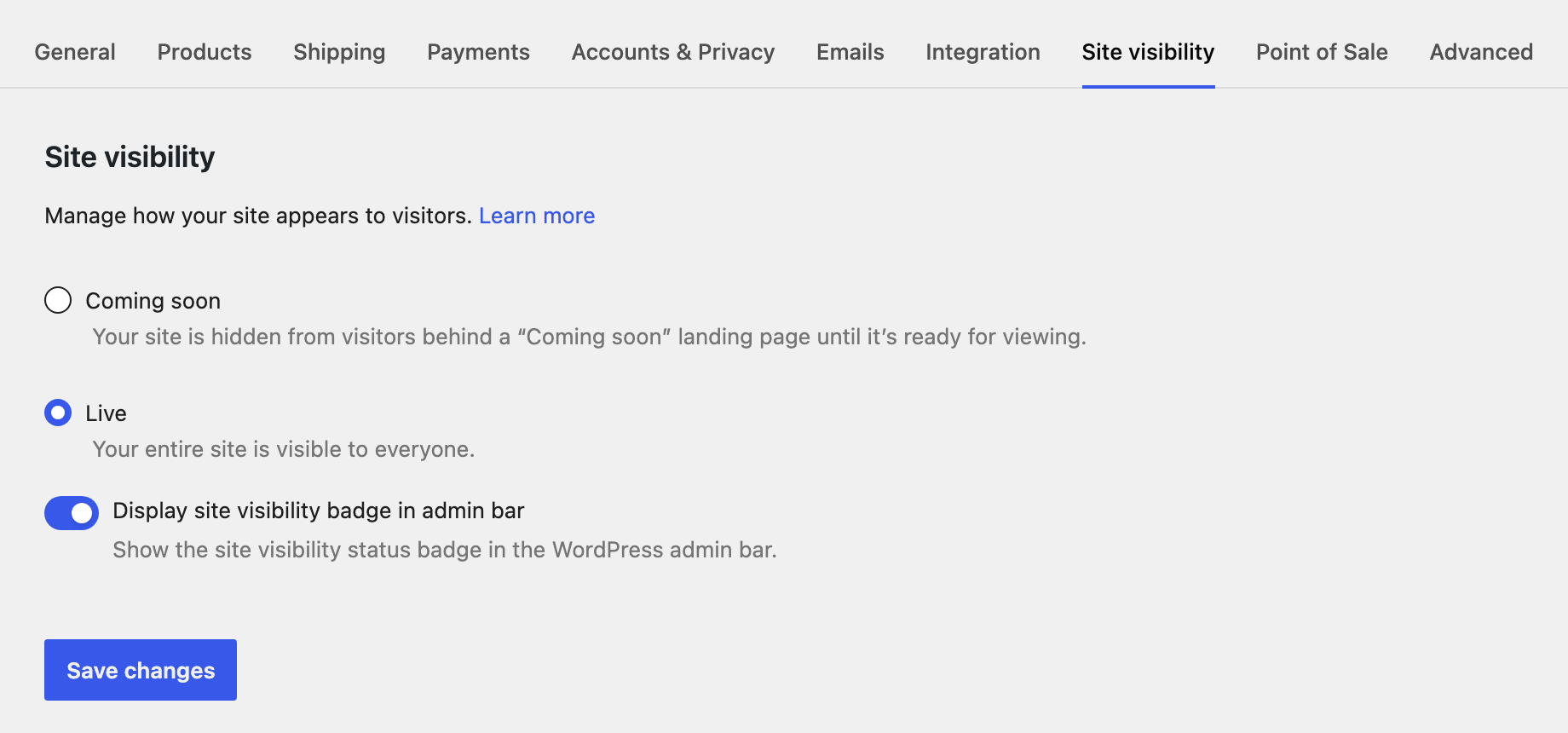
Open your shop in a private window to check that visitors now see it.
Next: How to Add Products, then come back to section 8.
Did this answer your question?