How to Add Adverts to the Footer Slide Up
You can create an Elementor template and then assign it into the Footer slide up.
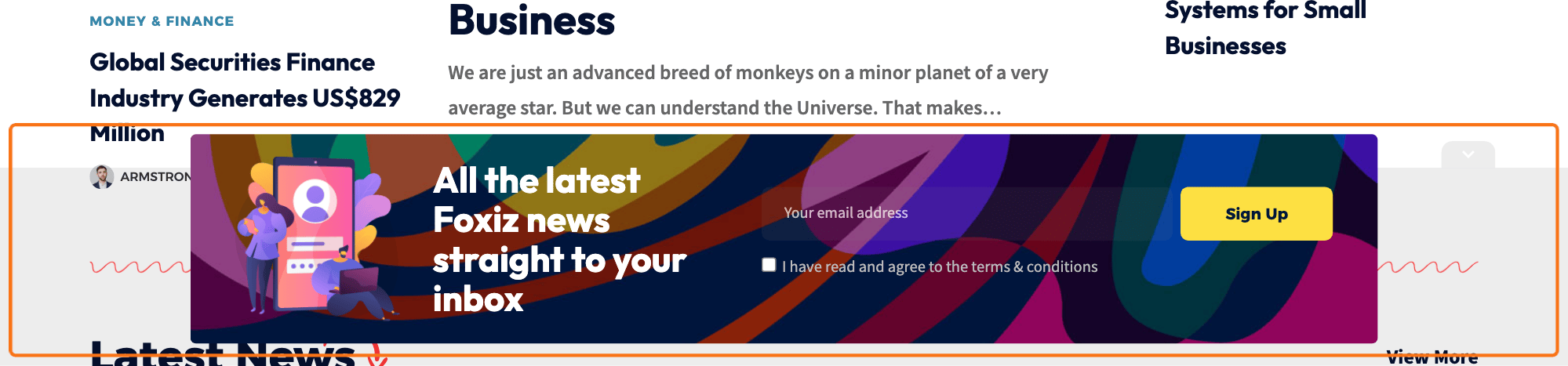
Assign a template to the slide up
To get started, please follow the steps below:
-
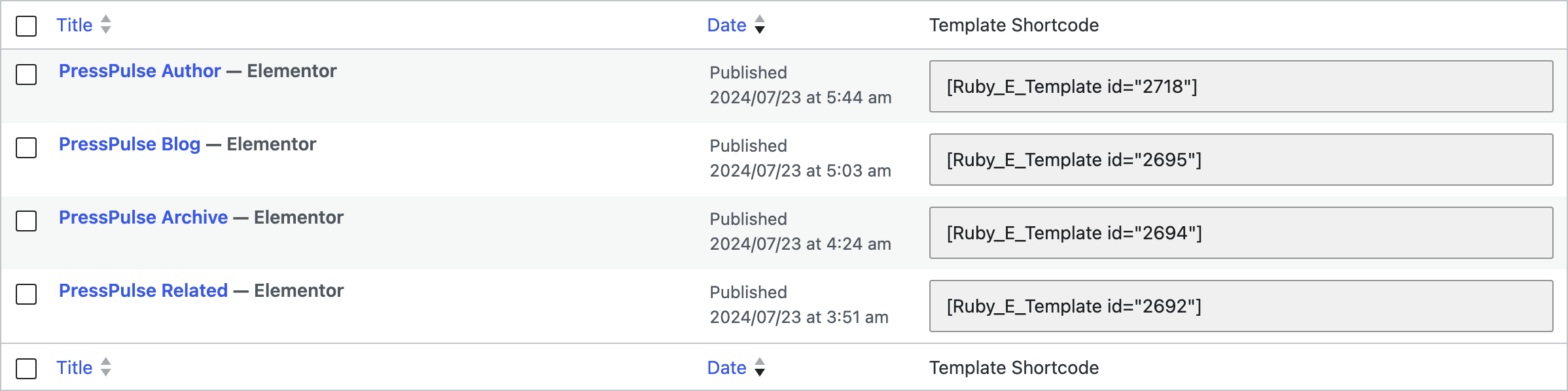
Create your template at Dashboard > Ruby Templates > Add New Template. To create a template, you can refer to this documentation: Ruby Templates
-
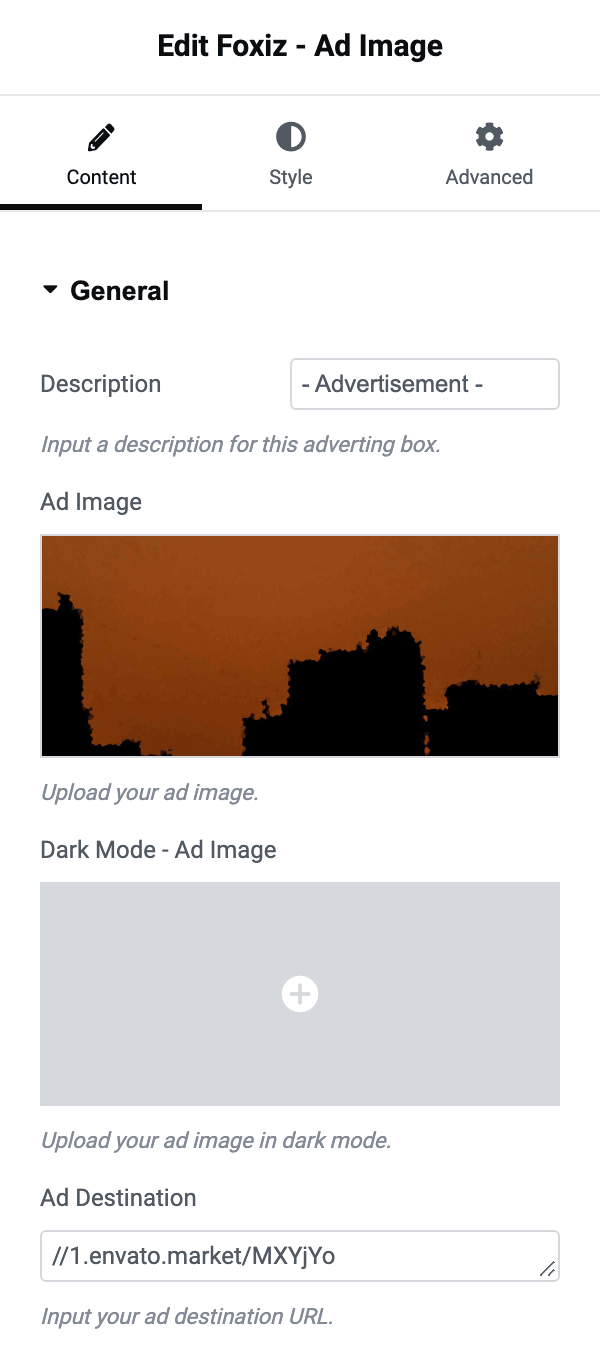
Add an ad block to the template and publish it. For the ad blocks, you can refer to this documentation: Adding Adverts to the Elementor page
-
Copy the template's shortcode from the Template Shortcode column of Ruby Templates > All Templates.
-
Navigate to Theme Options > Ads & Slide Up > Footer Slide Up
-
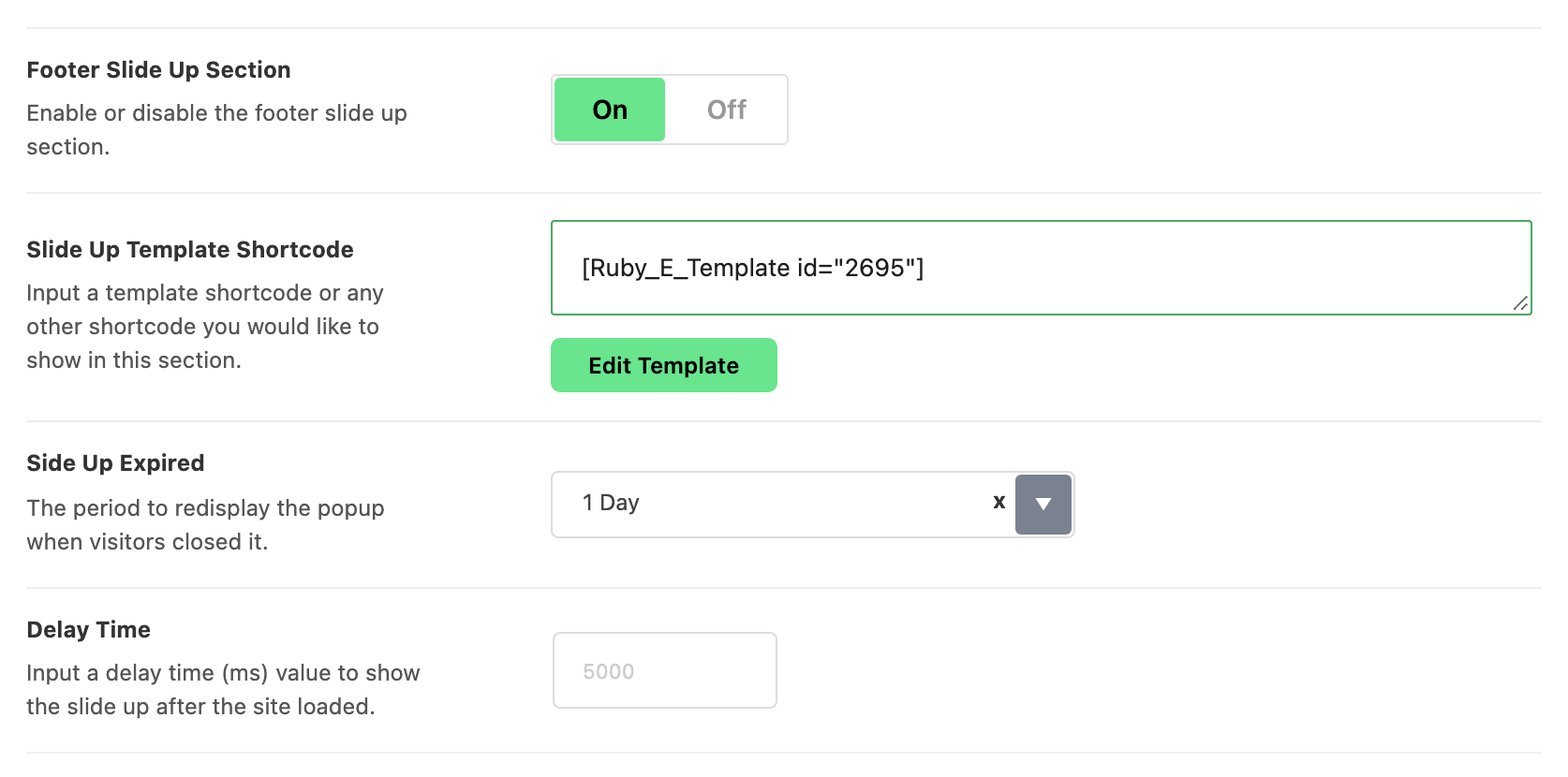
Click to enable Footer Slide Up Section option. It is off by default, and every other field in the section stays hidden until it is on.
-
Input a ruby template shortcode into Slide Up Template Shortcode input. The field takes any shortcode, not only a template: the placeholder shows the template form,
[Ruby_E_Template id="1"]. With this field empty nothing renders, whatever the switch says. -
Save your changes.
Choose how often it appears
Two more fields decide how often a reader meets the panel, and both are easy to miss because they only appear once the switch is on.
Side Up Expired is how long the panel stays closed after a visitor closes it, and its default is 1 Day. The choices:
- Keep it closed for a while: 1 Day up to 1 Month. The choices are one, two or three days, one, two or three weeks, or one month.
- Bring it back on every page load: Always Display.
Delay Time is how long after the page loads the panel slides up, in milliseconds. The field is empty by default and the theme then uses 2000, which is two seconds, even though the placeholder in the box reads 5000. Type a value if you want anything other than two seconds.
Set the slide up colours
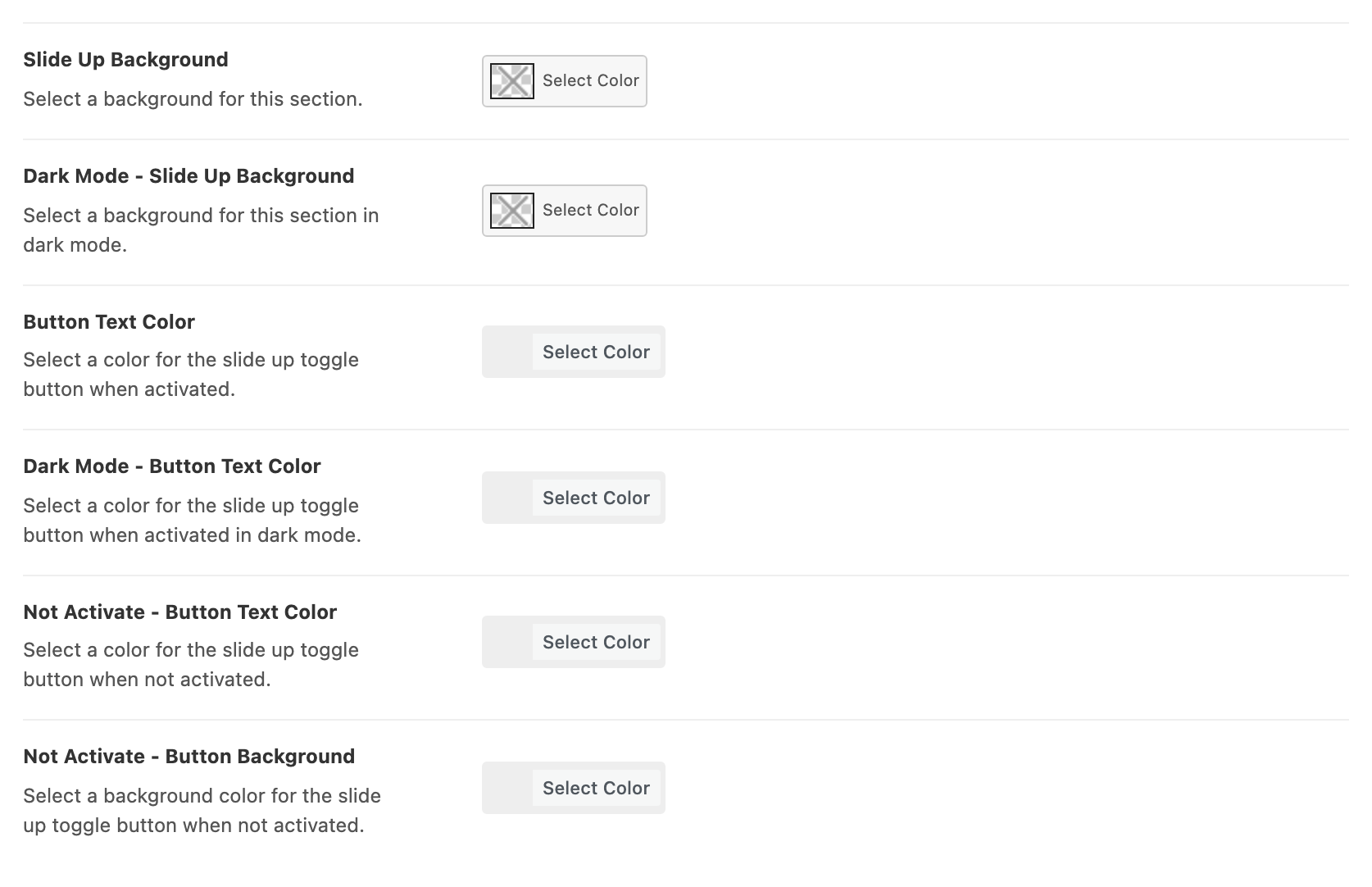
There are six colour fields under them:
- The panel itself: Slide Up Background, and Dark Mode - Slide Up Background for dark mode.
- The toggle arrow while the panel is open: Button Text Color, and Dark Mode - Button Text Color for dark mode.
- The same arrow while the panel is closed: Not Activate - Button Text Color and Not Activate - Button Background. These two have no dark mode version. That closed state is the one visitors see most, since the panel hides itself after they dismiss it.
The slide up is not drawn on AMP pages.
The whole panel, slot by slot, is in Every Setting in the Ads & Slide Up Panel.
Did this answer your question?