How to Add Adverts to AMP Pages
An AMP page is built to a stricter specification than the rest of your site, and an ordinary ad script cannot run on one. So every Foxiz advert you configured elsewhere is skipped there, and AMP gets its own fields instead. They are in two subsections of Theme Options > AMP: AMP Auto Ads and AMP Ads.
Both subsections need the AMP plugin active. Without it the panel opens with a warning instead of working settings, and nothing you save there reaches a visitor. AMP: setting up and testing AMP for WordPress covers getting that far.
Decide first which of the two you want, because they are alternatives. Auto ads let Google place adverts across your AMP pages from one snippet. The five unit slots put an advert exactly where you say. The panel's own notice puts it plainly: leave the AMP auto ads field blank if you would rather use the unit slots.
For most sites, auto ads are the easier start: one code in one field, and you are done. Use the unit slots only if you want each advert in a fixed place, and expect to create one AdSense ad unit per slot.
AMP auto ads
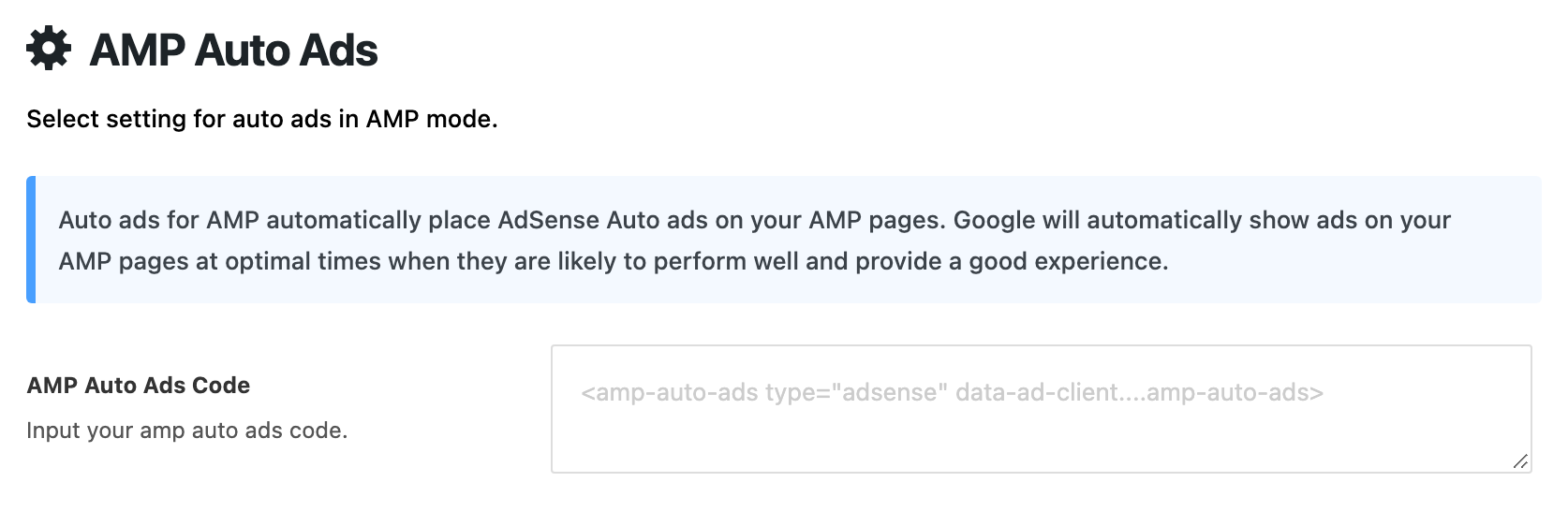
- Navigate to Theme Options > AMP > AMP Auto Ads.
- Paste the AMP version of your Auto ads code into AMP Auto Ads Code. It is not the same snippet as the one for normal pages: the placeholder shows the shape, an
amp-auto-adstag carrying your publisher identifier. - Save your changes.
With a code in that field, the five unit slots below stop drawing, in the same way auto ads suppress hand placed units on a normal page. Theme Options > Ads & Slide Up > Adsense - Auto Ads > Allow Other Ads Placement lifts that on AMP pages as well as ordinary ones.
The field for normal pages, Auto Adsense Ads Code, is never used on an AMP page, so filling one is not filling the other. Sites that serve both need both.
The five AMP advert slots
Theme Options > AMP > AMP Ads holds five, each a group with the same five fields:
- Header Ad draws right below the AMP header, at the top of the page.
- Footer Ad draws at the top of the footer.
- Top Single Content Ad draws above the body of a single post, taking the place the Single Content - Top Area widgets hold on a normal page.
- Bottom Single Content Ad does the same below the post body, in place of the Single Content - Bottom Area widgets.
- Inline Single Content Ad drops an advert into the body of the post after a paragraph count, and it replaces all three of the normal inline slots: an AMP page gets this one and no other.
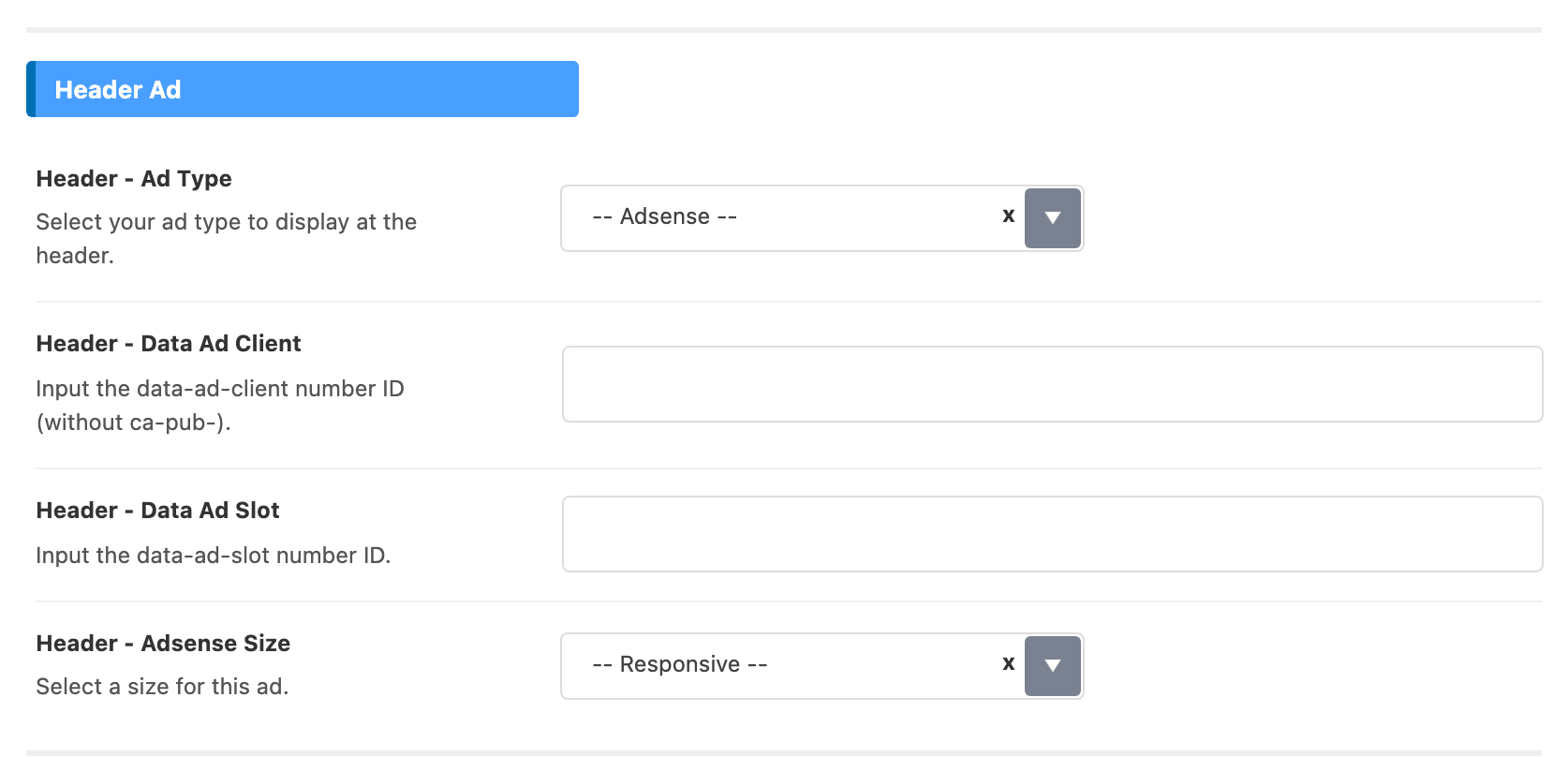
Each group's fields are prefixed with the slot's name, so the header group reads Header - Ad Type and the footer group Footer - Ad Type, down to Inline - Ad Type. Taking the header group as the example:
-
Header - Ad Type offers -- Adsense -- and AMP Custom Script Ad, and its default is -- Adsense --.
-
Header - Data Ad Client takes the digits of your AdSense publisher identifier, without the
ca-pub-in front. Foxiz adds that part back for you. -
Header - Data Ad Slot takes the slot number of the unit, from the same AdSense unit screen.
Both numbers are in the code AdSense shows for an ad unit: the client is the digits after
ca-pub-indata-ad-client="ca-pub-...", and the slot is the number indata-ad-slot="...". -
Header - Adsense Size offers -- Responsive -- and Fixed Height (90px), with -- Responsive -- as the default. Responsive lets the unit fill the width it is given; the fixed option pins it to 90 pixels tall, which suits a leaderboard under a header.
-
Header - AMP Custom Ad Script replaces all three AdSense fields when the type is AMP Custom Script Ad. It takes the AMP flavoured tag your network gave you, and it is printed as you pasted it.
On the -- Adsense -- type both Header - Data Ad Client and Header - Data Ad Slot have to be filled. With either one empty the slot draws nothing, and there is no message to say so.
The other four groups work exactly the same way, with the same choices and the same defaults. Each one only shows its AdSense fields on -- Adsense -- and its script field on AMP Custom Script Ad, so switch the type first if a field you are looking for is missing. Their labels, in the order the panel shows them:
- Footer Ad: Footer - Ad Type, Footer - Data Ad Client, Footer - Data Ad Slot, Footer - Adsense Size and Footer - AMP Custom Ad Script.
- Top Single Content Ad: Top - Ad Type, Top - Data Ad Client, Top - Data Ad Slot, Top - Adsense Size and Top - AMP Custom Ad Script.
- Bottom Single Content Ad: Bottom - Ad Type, Bottom - Data Ad Client, Bottom - Data Ad Slot, Bottom - Adsense Size and Bottom - AMP Custom Ad Script.
- Inline Single Content Ad: Inline - Ad Type, Inline - Data Ad Client, Inline - Data Ad Slot, Inline - Adsense Size and Inline - AMP Custom Ad Script. Under them sits Display Positions, described below.
Each slot is filled on its own. A unit you put in the header group does not appear in the footer or the post body; give each slot you want its own client and slot numbers, or its own script.
The inline group has one field the other four do not. Display Positions is the paragraph count the advert is placed after. Its default is 4, and several positions are allowed, separated by commas. It is a separate setting from the paragraph counts in Ads & Slide Up, so an AMP reader can meet the advert in a different place from everybody else.
The 404 page rule covers AMP too: no advert is drawn there unless Theme Options > 404 Page > Ads Disabled > Ads on 404 Page is set to Enable.
Test with the AMP version of a post rather than the normal one. Adverts that work on your desktop site tell you nothing about the AMP copy, because none of those slots are the ones AMP reads.
Did this answer your question?