Your Site Social Profiles

To set up the social icons in the header, sidebar and footer, follow the steps below:
-
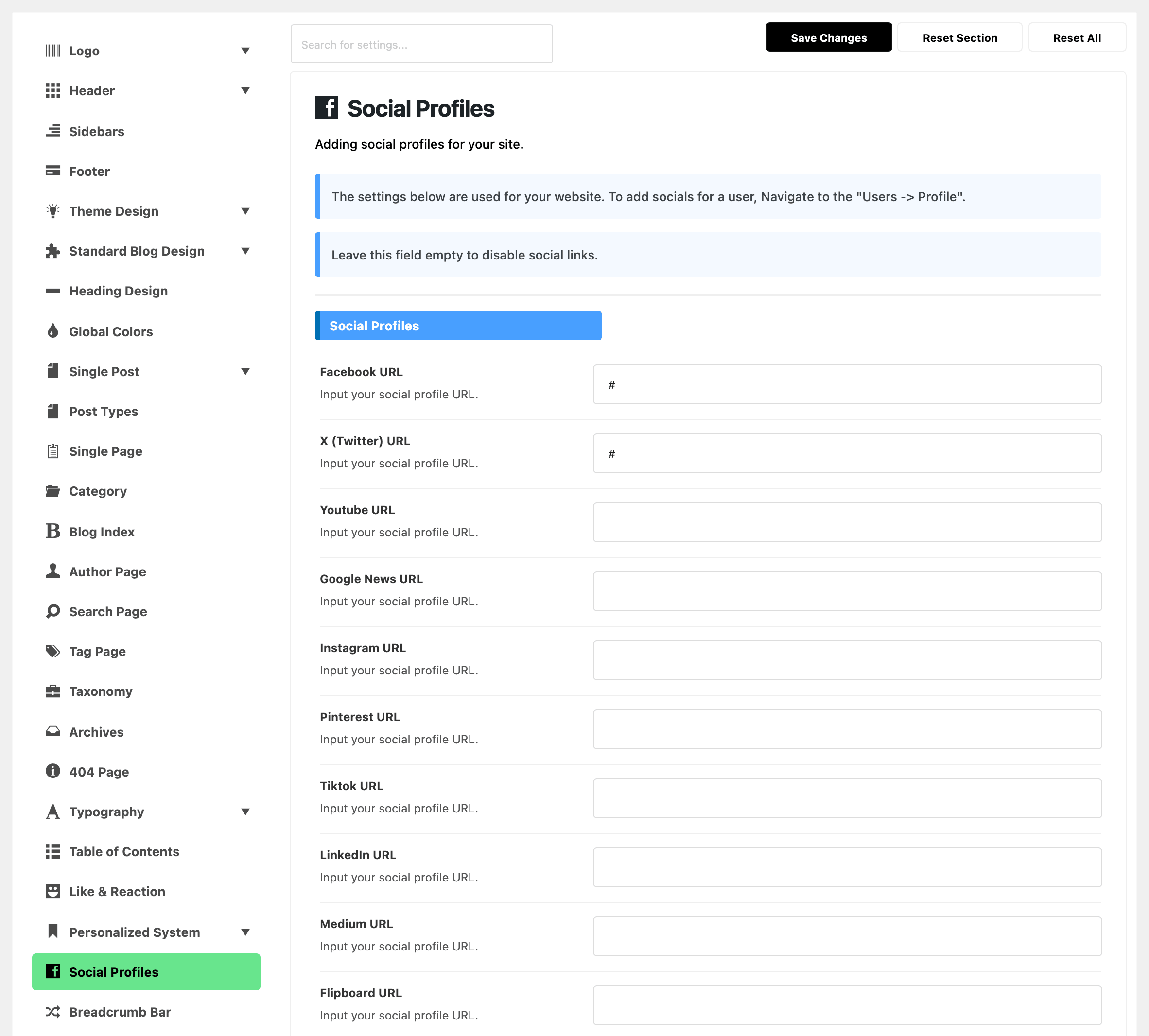
Navigate to Theme Options > Social Profiles
-
Find a network you use and paste in the full address of your page there. There are 38 networks in the Social Profiles section, from Facebook URL at the top down to Rss URL at the bottom. Bluesky is the only one whose label leaves the word URL off; it takes a profile address like the rest.
Each field is labelled with the network's name and the word URL. In the panel's order, top to bottom, the first are Facebook, X (Twitter), Youtube, Google News, Instagram, Pinterest, Tiktok and LinkedIn. Next are Medium, Flipboard, Twitch, Steam, Tumblr, Discord, Skype, Snapchat and Quora. Then Spotify, Apple Podcasts, Google Podcasts, Stitcher, Myspace, Bloglovin, Digg, Dribbble and Flickr. Then Soundcloud, Vimeo, Reddit, VKontakte, Telegram, Whatsapp and Truth Social. Last come Paypal, Patreon Donation, Threads, Bluesky and Rss.
Fill only the ones you use.
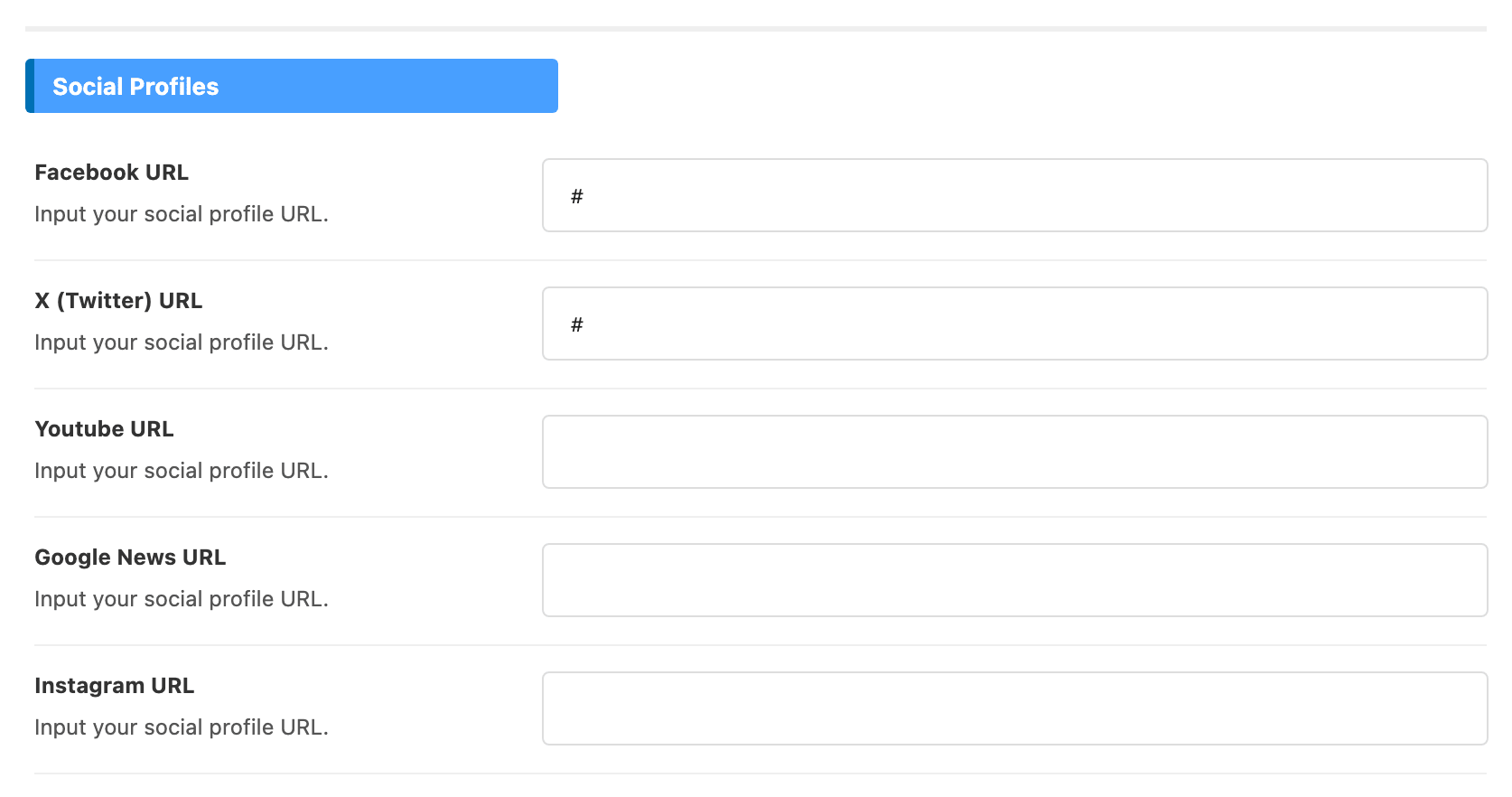
An empty field means that icon is not shown anywhere.
The icons come out in a fixed order set by the theme, which is close to the panel's order but not driven by it, and not by the order you filled the fields in. There is no control for the order.
Fill the panel in even on a site that hides the icons. The same addresses, custom ones included, are published as your site's social profiles in its structured data, where the # placeholder is left out.
Facebook URL and X (Twitter) URL have # in them by default rather than being empty.
That is why a fresh site shows those two icons linking to nothing. Put your real address in, or clear the field entirely to remove the icon.
Filling this panel in does not put icons anywhere on its own. It is the address book; each place that draws icons has its own switch:
-
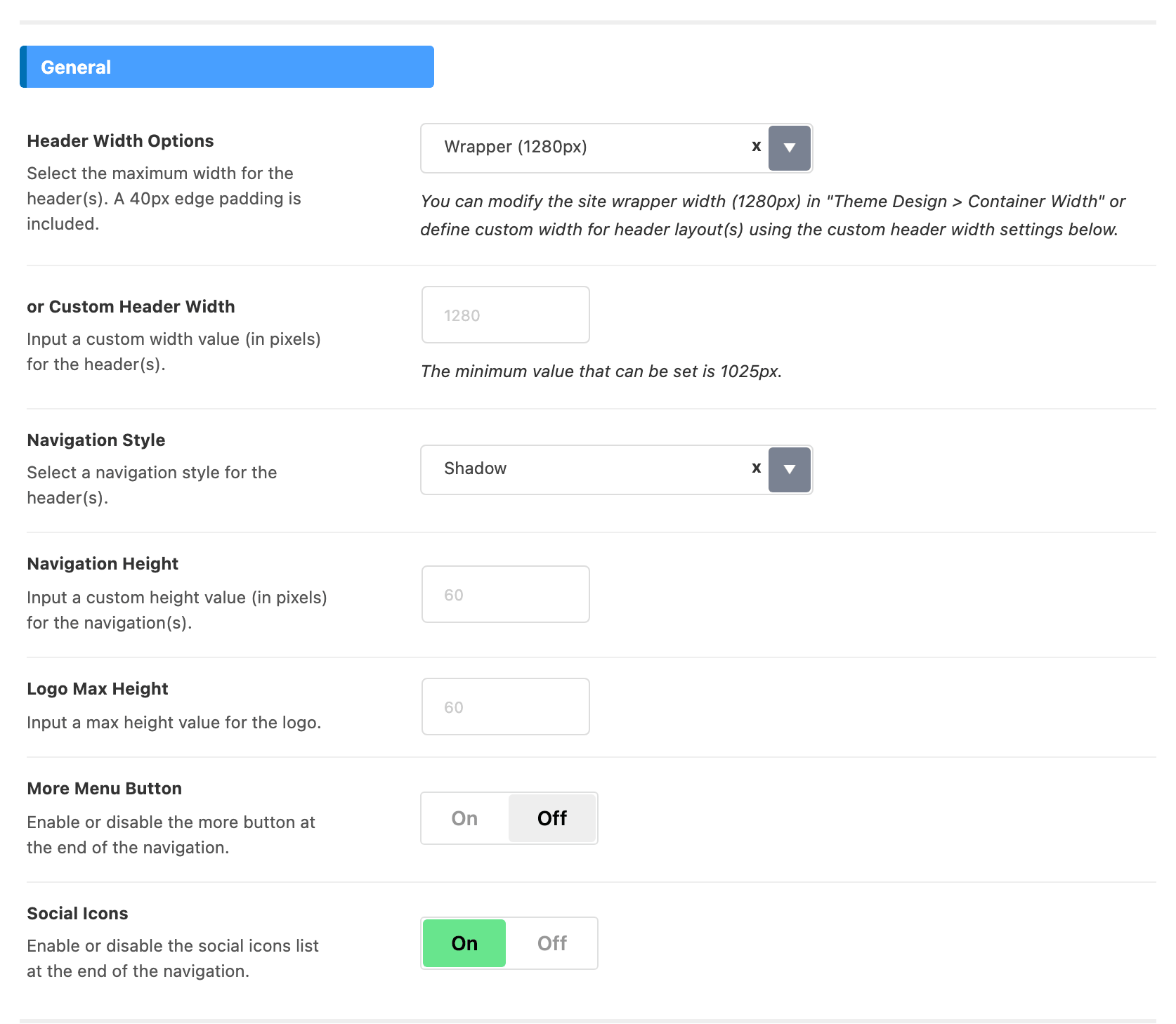
The header, per header style, at Theme Options > Header > for Header 1,2,3 (and the Header 4 and Header 5 sections), switch Social Icons, on by default.
-
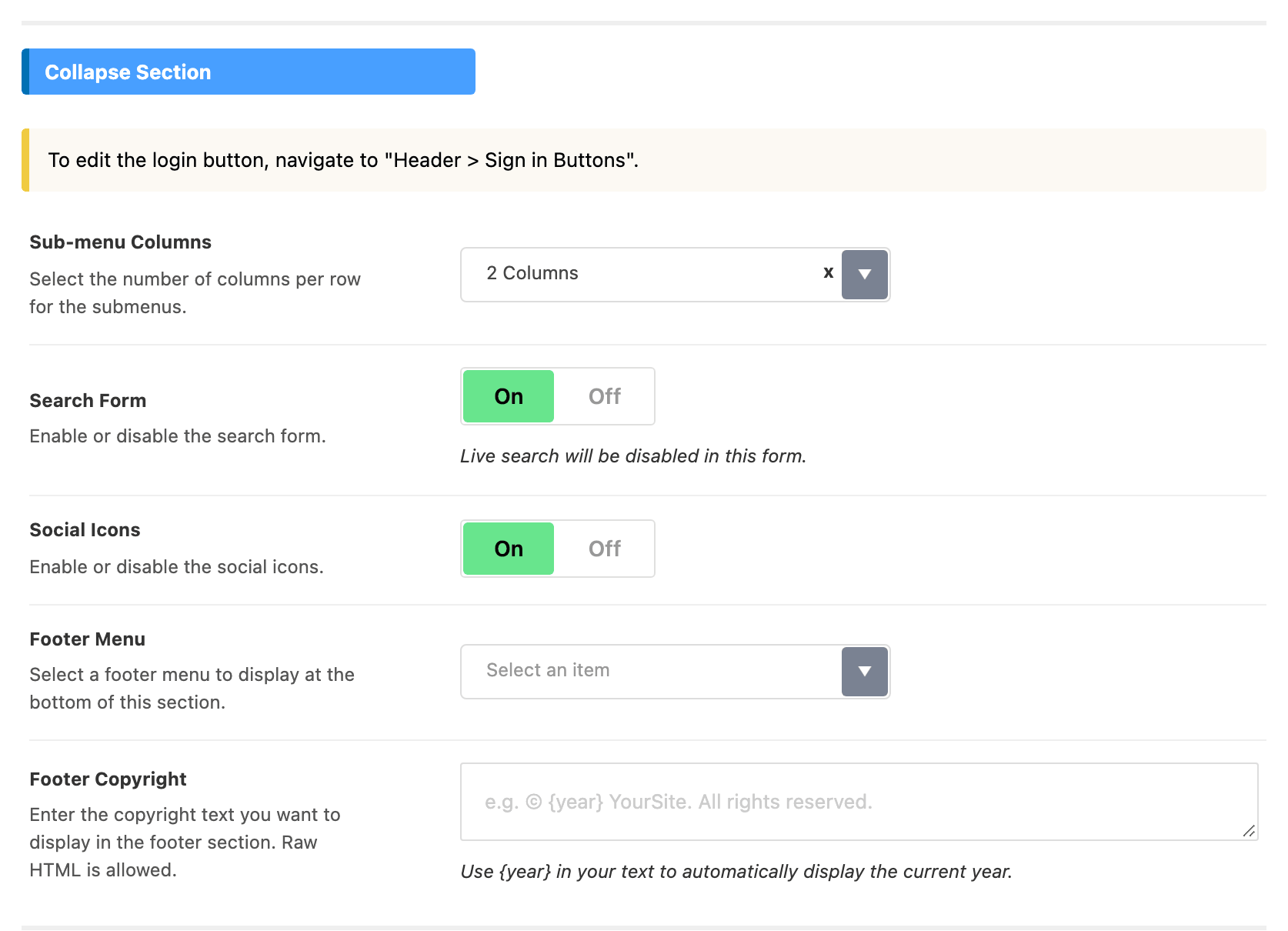
The mobile header, at Theme Options > Header > Mobile Header, switch Social Icons, on by default.
-
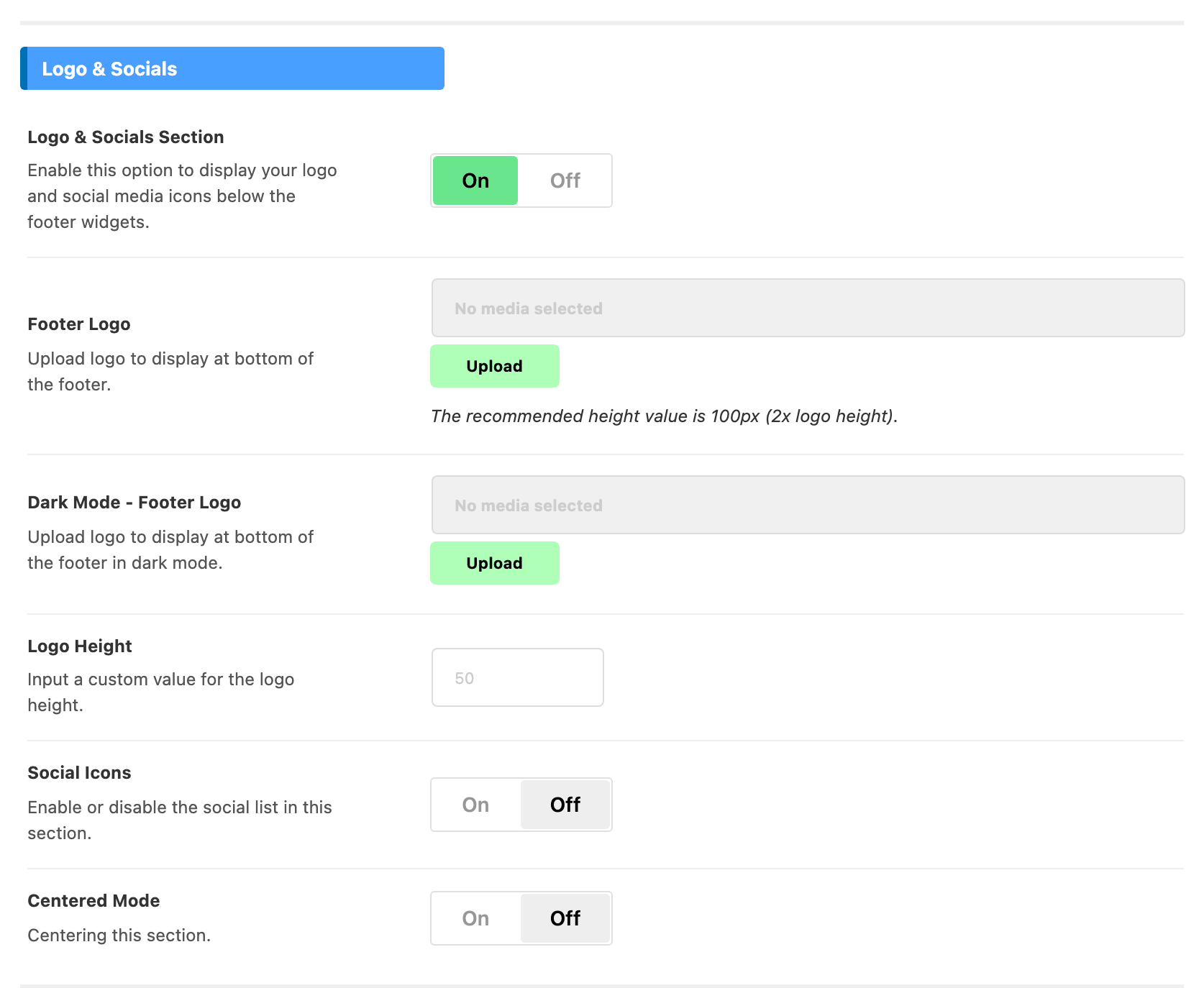
The footer, at Theme Options > Footer, switch Social Icons, off by default and only visible once Logo & Socials Section is on.
-
The sidebar, by adding the Foxiz - Widget Social Icons/About widget to a sidebar. The widget uses these addresses while its Social Profiles Source is on Theme Options, its default. Set it to Use Custom and its own URL fields win, for that widget only; see Social profiles don't work for in sidebars? below.
Icon size in the header is set once, at Theme Options > Header > Social Icons, with Icon Size in pixels.
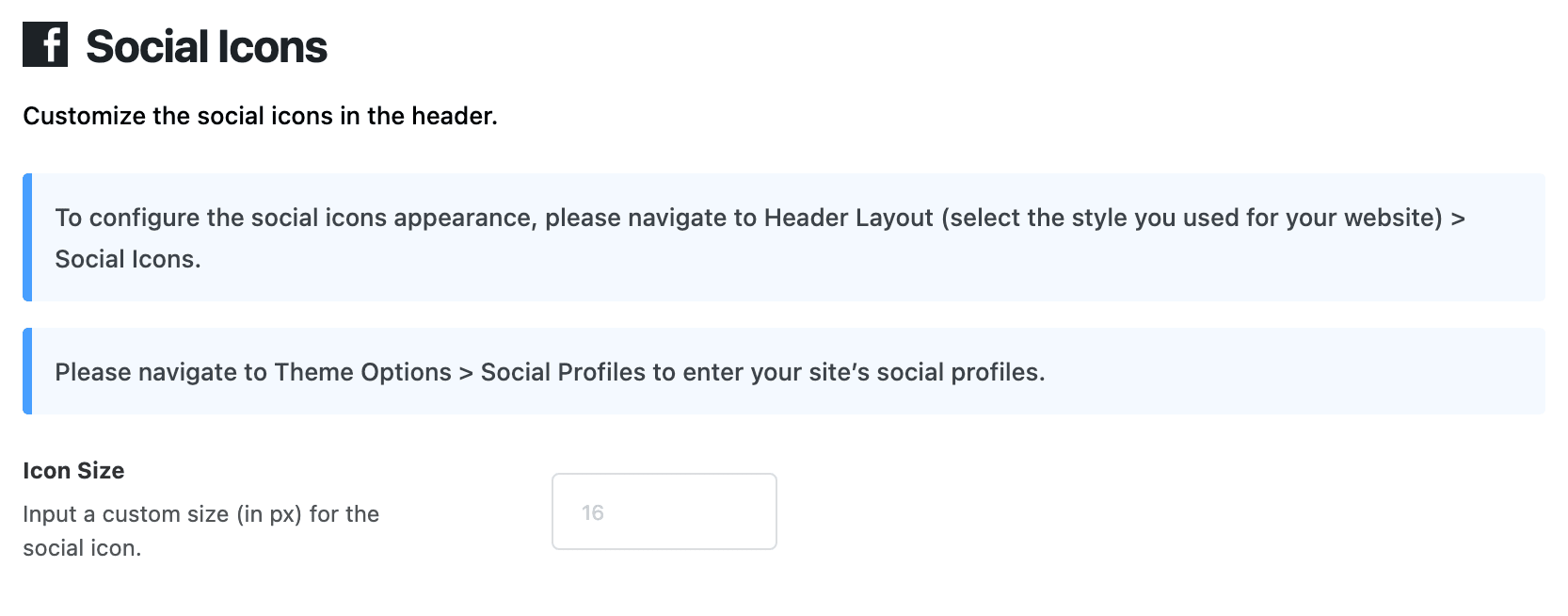
These are your site's profiles. A single author's profiles are separate and live on their own WordPress user, at Users > Profile.
How to create your own socials
If a network you use is not among the 38, add it as a custom social. There is room for three.
- Navigate to Theme Options > Social Profiles
- Refer to the "Custom Social 1" section, at the bottom of the panel under the 38 built in networks.
- Fill in its fields, described below. Custom Social 2 and Custom Social 3 below it take a second and a third network.
Each of the three takes four fields:
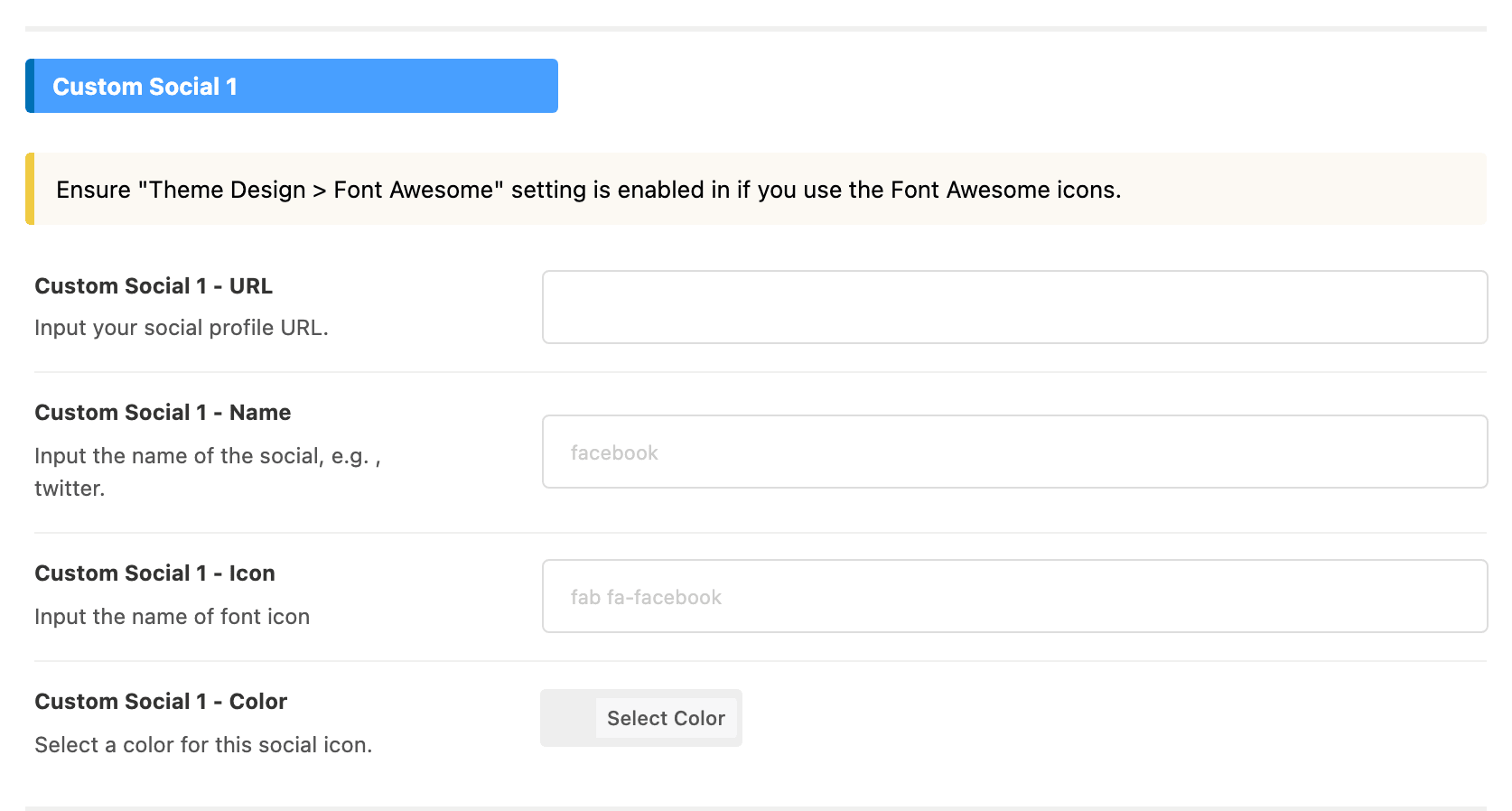
- Custom Social 1 - URL, the address the icon links to. Leave it empty and the icon is not drawn.
- Custom Social 1 - Name, the network's name, for example
Mastodon. Readers see it as the icon's tooltip. - Custom Social 1 - Icon, the icon class name, for example
fab fa-mastodon. - Custom Social 1 - Color, a colour picker for this icon. Pick a colour and this icon is drawn in it. Leave it empty and the icon takes the colour of the text around it, as the built in icons do: recolour that text in Global Colors or in the header and footer settings.
Custom Social 2 and Custom Social 3 sit below it with the same four fields each.
Custom icons come after all the built in ones, in the order 1, 2, 3.
An icon appears only once Custom Social 1 - URL and Custom Social 1 - Name both have something in them. Fill in one without the other and nothing is drawn, with no warning in the panel.
A Font Awesome class name only draws an icon when Font Awesome is being loaded, and it is a switch: Theme Options > Theme Design > Font Awesome. Without it the icon is a blank space with a working link.
Social profiles don't work for in sidebars?
The "Foxiz - Widget Social Icons/About" widget has its own social URL fields, and they replace the Theme Options addresses only when you ask it to. Its Social Profiles Source setting is set to Theme Options by default, and while it stays there the widget's own URL fields are ignored. Switch it to Use Custom and the widget reads its own fields instead.
That is worth checking first when a sidebar shows the wrong icons: a widget left on Theme Options cannot be the reason, and a widget switched to Use Custom with empty fields shows nothing at all.
To edit, follow the steps below:
-
Navigate to Appearance > Widgets
-
Find the "Foxiz - Widget Social Icons/About" widget in the sidebar it was added to.
-
Open the widget settings and then edit links to what you need. Set Social Profiles Source to Use Custom first, or the links you type will not be used.
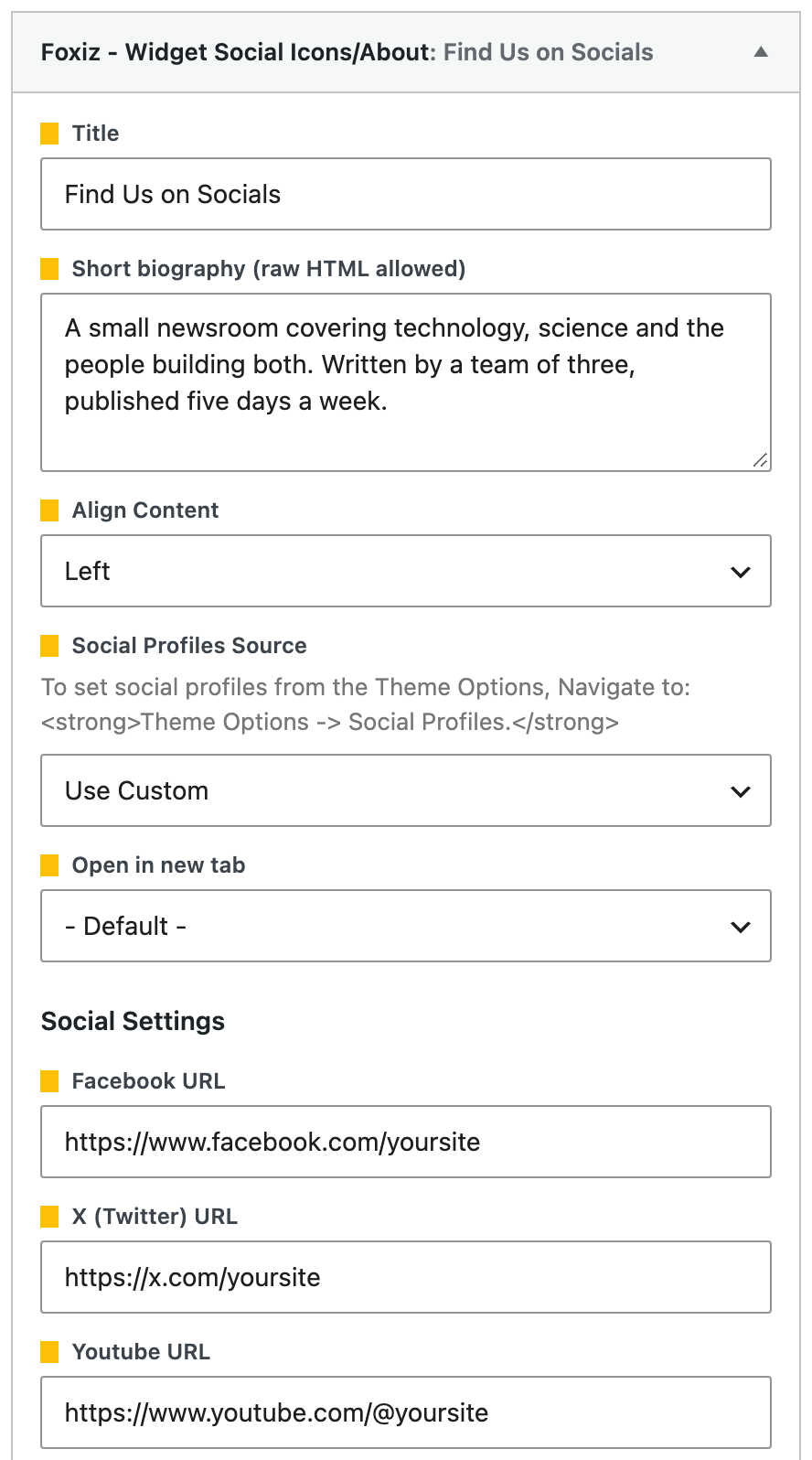
The widget also has an Align Content setting, Left or Center, which lines up the widget's content inside the sidebar.
Its Open in new tab setting decides where the icons' links open: - Default - in the same tab, New Tab in a new one, which keeps your page open behind the network.
Did this answer your question?