There Has Been a Critical Error on This Website
Your site shows There has been a critical error on this website, or just a blank white page. A theme or plugin stopped PHP with an error, so WordPress stopped drawing the page. The cause is almost always one of these:
- a plugin you just installed or updated;
- Foxiz updated, but Foxiz Core not updated with it;
- a PHP version older than Foxiz needs;
- not enough memory on the server.
Your posts and settings are safe. The error stops pages from loading. It does not delete anything.
1. Use the recovery email, if you got one
WordPress emails the site's admin address when this happens. The subject reads [Your site name] Your Site is Experiencing a Technical Issue, and the email names the plugin or theme that failed and holds a recovery mode link.
- Click the link in the email and log in.
- Go to Plugins > Installed Plugins. The plugin that failed sits under Paused.
- Click Deactivate under it.
- Click Exit Recovery Mode in the admin bar and open your site.
The site works again without that plugin. Update it, look for a fix from its author, or replace it.
2. No email: turn plugins off over FTP
If the email never came, or the admin will not open either, turn the plugins off from the server.
- Connect with FTP or your host's file manager. What is FTP? and What is cPanel? show how.
- Open
wp-content, and rename thepluginsfolder toplugins-off. WordPress now finds no plugins and loads without them. - Open your site. If it loads, a plugin was the cause.
- Rename the folder back to
plugins. Then go to Plugins > Installed Plugins. Every plugin is now inactive. - Activate Foxiz Core first, because the theme needs it. Then activate the others one at a time, opening the site after each. The one that brings the error back is the cause. Leave it off.
3. Check the PHP version
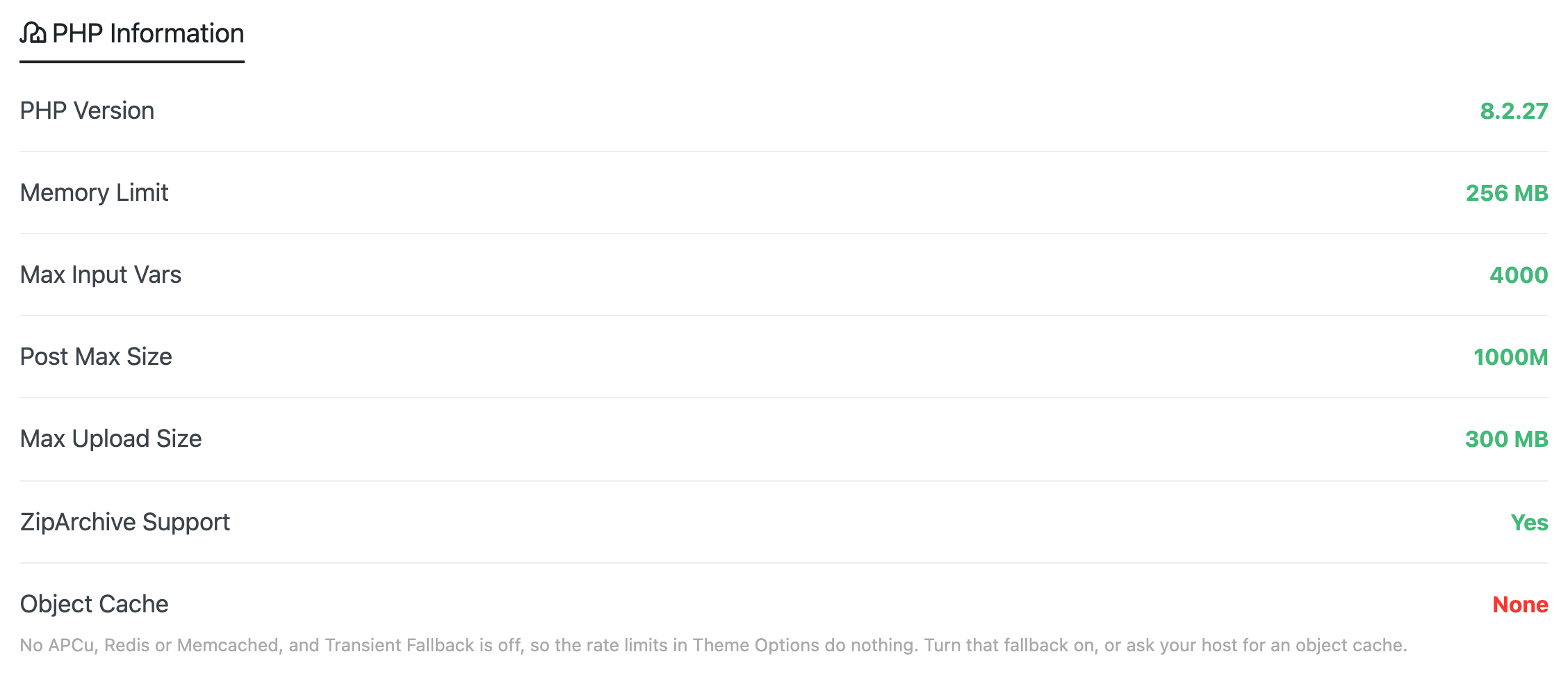
Foxiz needs PHP 8.0 or newer. Hosts sometimes leave an old site on PHP 7.4, and a theme update then stops on the first line it cannot read.
Open Foxiz > System Info. A PHP Version below 8.0 is shown in red. Raise it in your hosting control panel, or ask your host to. System Info explains the other values on that screen.
4. Update Foxiz Core with the theme
Foxiz and Foxiz Core are released together. A new theme with an old Foxiz Core, or the other way round, can stop with an error. Update both to the same version. See Ensure to Update the Foxiz Core Plugin After Theme Update.
5. Read the real error message
When nothing above found it, have WordPress write the error to a file.
-
Open
wp-config.phpin the site's root folder over FTP. -
Find
define( 'WP_DEBUG', false );and replace that line with these three:define( 'WP_DEBUG', true );define( 'WP_DEBUG_LOG', true );define( 'WP_DEBUG_DISPLAY', false ); -
Open the page that fails once more.
-
Open
wp-content/debug.log. The last lines name the file and line that failed. A path withplugins/some-plugin/in it points at that plugin. -
When you are done, set
WP_DEBUGback tofalse. Leaving it on fills the log and can show error text to visitors.
A line saying Allowed memory size of … bytes exhausted means the server ran out of memory. Raise memory_limit to 256M as shown in Configuring Server Settings.
Still stuck
Open a ticket and include:
- the last ten lines of
debug.log; - what you did just before the error (an update, a new plugin, a demo import);
- your PHP version from Foxiz > System Info.
Did this answer your question?