Updating the logo in Theme Options doesn't work
If you've updated the logo in theme options after importing the demo but it fails to display on the homepage, the problem likely stems from the demo utilizing a header builder.
The logo block in that header template has its own logo, which wins over Theme Options. Clear it or replace it there.
The block is Foxiz - Site Logo, and the rule it follows is simple: it uses its own Logo Image when one is set, and reads Theme Options > Logo > Default Logos > Main Logo only when that field is empty. So the fix is to empty it, not to leave it and hope.
To get started, follow the steps below:
-
Open Elementor Editor: on the front end, hover Edit with Elementor in the admin bar and click the header template listed there. Or go to Ruby Templates, hover over the header template and click Edit with Elementor.
-
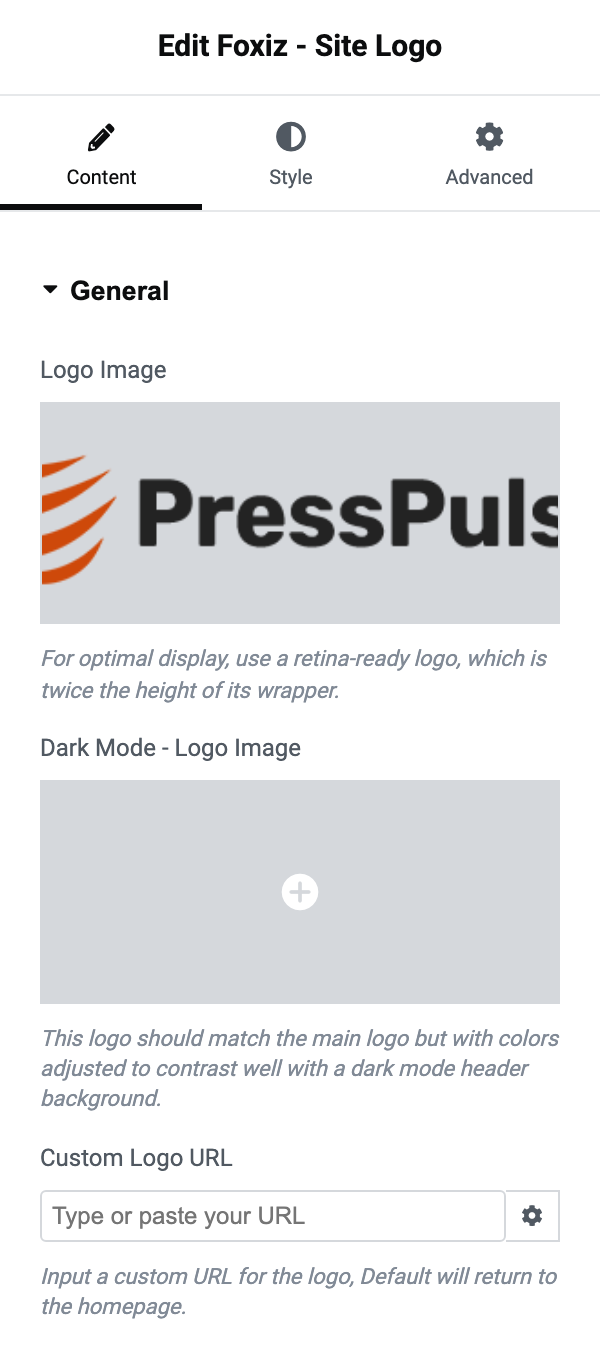
Locate and Select the Logo Block: Find and select the block or section that contains the logo in your website interface. In the Elementor panel it is called Foxiz - Site Logo, in the Foxiz Header widget category.
-
Remove Current Logo Settings: In the block's General section, clear Logo Image. Use the media control's own remove control; replacing the image with another one is the other valid outcome, but a non empty field always wins over Theme Options.
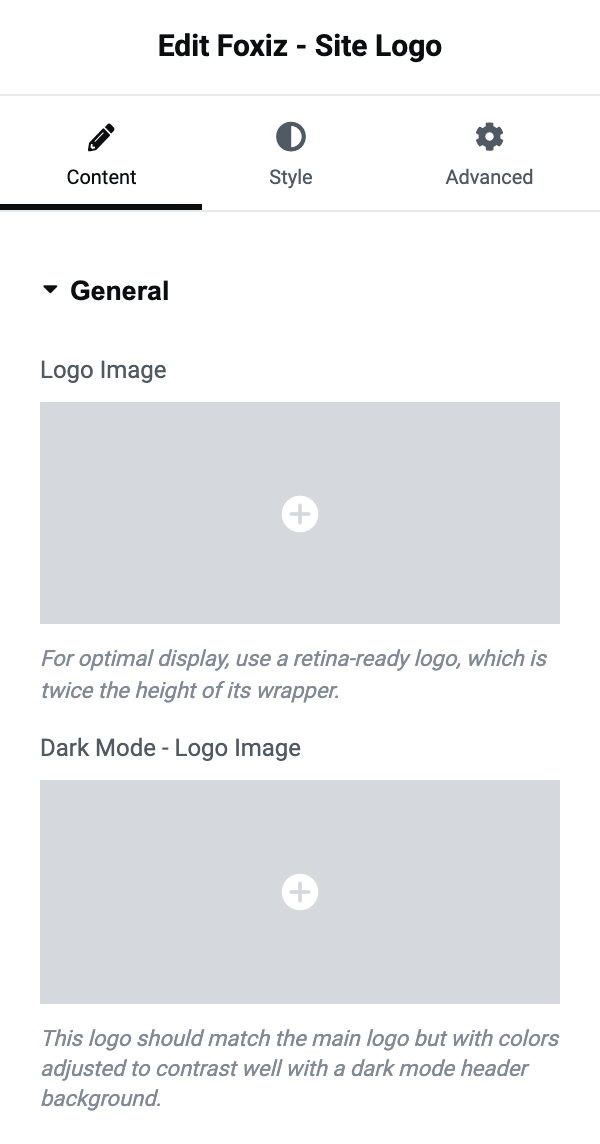
Clear Dark Mode - Logo Image in the same pass. The dark fallback is stricter than the light one: the block reads Dark Mode - Main Logo from Theme Options only when Logo Image was empty and Dark Mode - Logo Image is empty too. Empty just the dark field and it stays empty, because the block is still using its own light image.
-
Click Publish in Elementor to save the template.
-
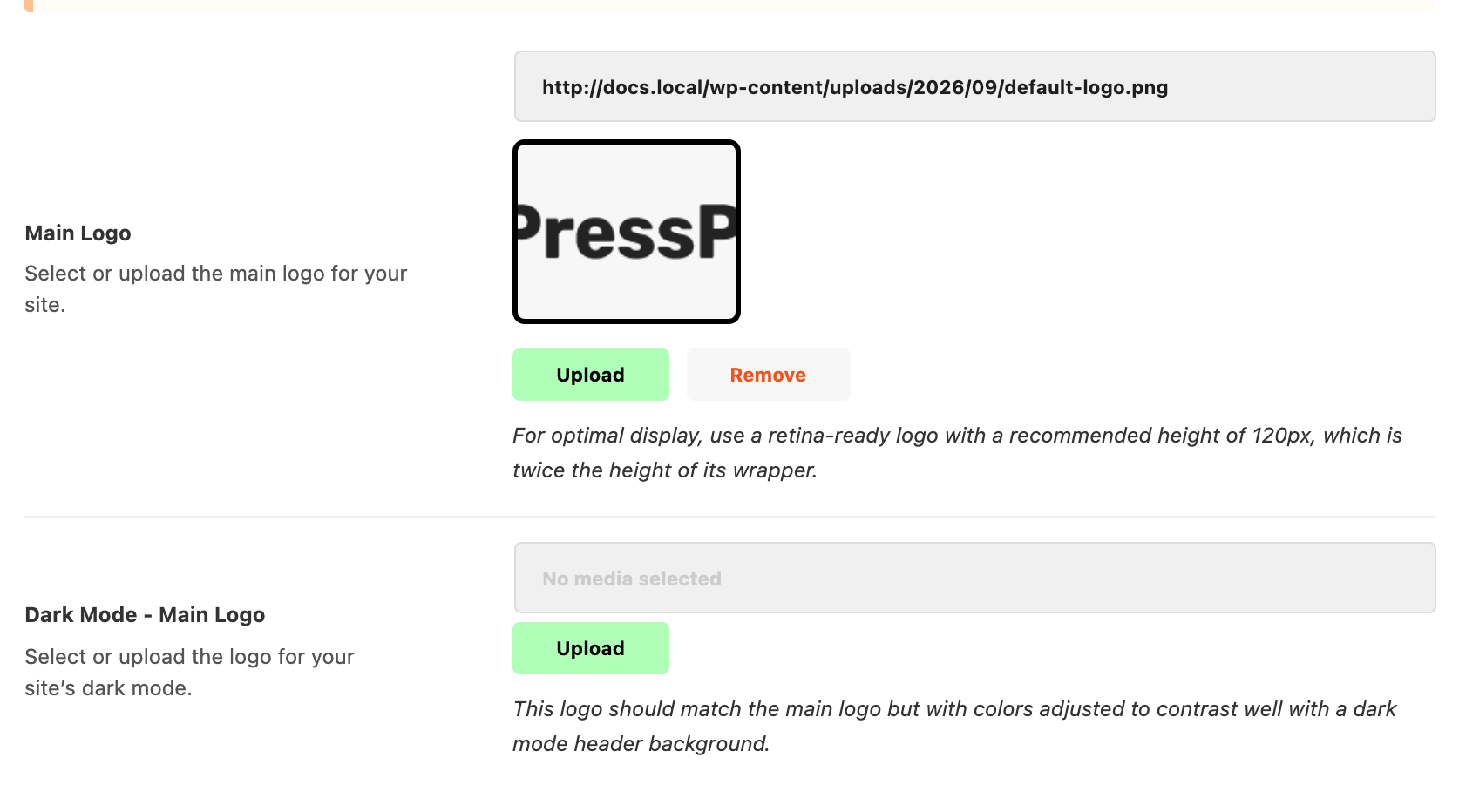
Open Theme Options: Navigate to Foxiz > Theme Options > Logo > Default Logos > Main Logo

-
Upload Your Logo. Use a retina file: the recommended height is 120px, twice the 60px it is drawn at.
-
Click "Save Changes". Afterward, please check your website to ensure that the logo has been changed correctly.
A demo usually comes with more than one template with a logo in it. Check the footer template as well, and any page template that has its own header section, because each Foxiz - Site Logo block carries its own copy of these fields. Hover Edit with Elementor in the admin bar on the front end and the submenu lists every template in play on the page you are looking at.
If the logo is still wrong after all this, it may not be the logo block at all. A logo that is correct on desktop and wrong on a phone comes from Theme Options > Logo > Mobile Logos > Mobile Logo, and one that is correct until you scroll comes from a transparent header falling back to the normal logo when the sticky bar engages.
Did this answer your question?