Header Layouts
Foxiz comes with 5 different header styles and layouts. Each with its own unique design: Layout 1 (Left Menu), Layout 2 (Right Menu), Layout 3 (Center Menu), Layout 4 (Border) and Layout 5 (Center Logo).
Here is how they differ:
-
Layout 1 (Left Menu): one bar, the menu right beside the logo.

-
Layout 2 (Right Menu): one bar, logo on the left and the menu pushed to the right.

-
Layout 3 (Center Menu): one bar, the menu centred between the logo and the icons.

-
Layout 4 (Border): two rows, the logo on its own row with the social icons and search on the right, the menu bar below it.

-
Layout 5 (Center Logo): two rows, the logo centred on the top row and the menu centred below it.

Not sure which to pick? Start with Layout 1 (Left Menu), the default. A one bar layout keeps the header short; pick Layout 4 (Border) or Layout 5 (Center Logo) when you want the logo on a row of its own above the menu.
You can set the header for the whole site, for a kind of page, or for one post, page or category. The narrowest setting wins, so set the whole site first in Global Options, then change only the places that should look different.
Global Options
To get started, navigate to Theme Options > Header > Header Layout > Header Layout
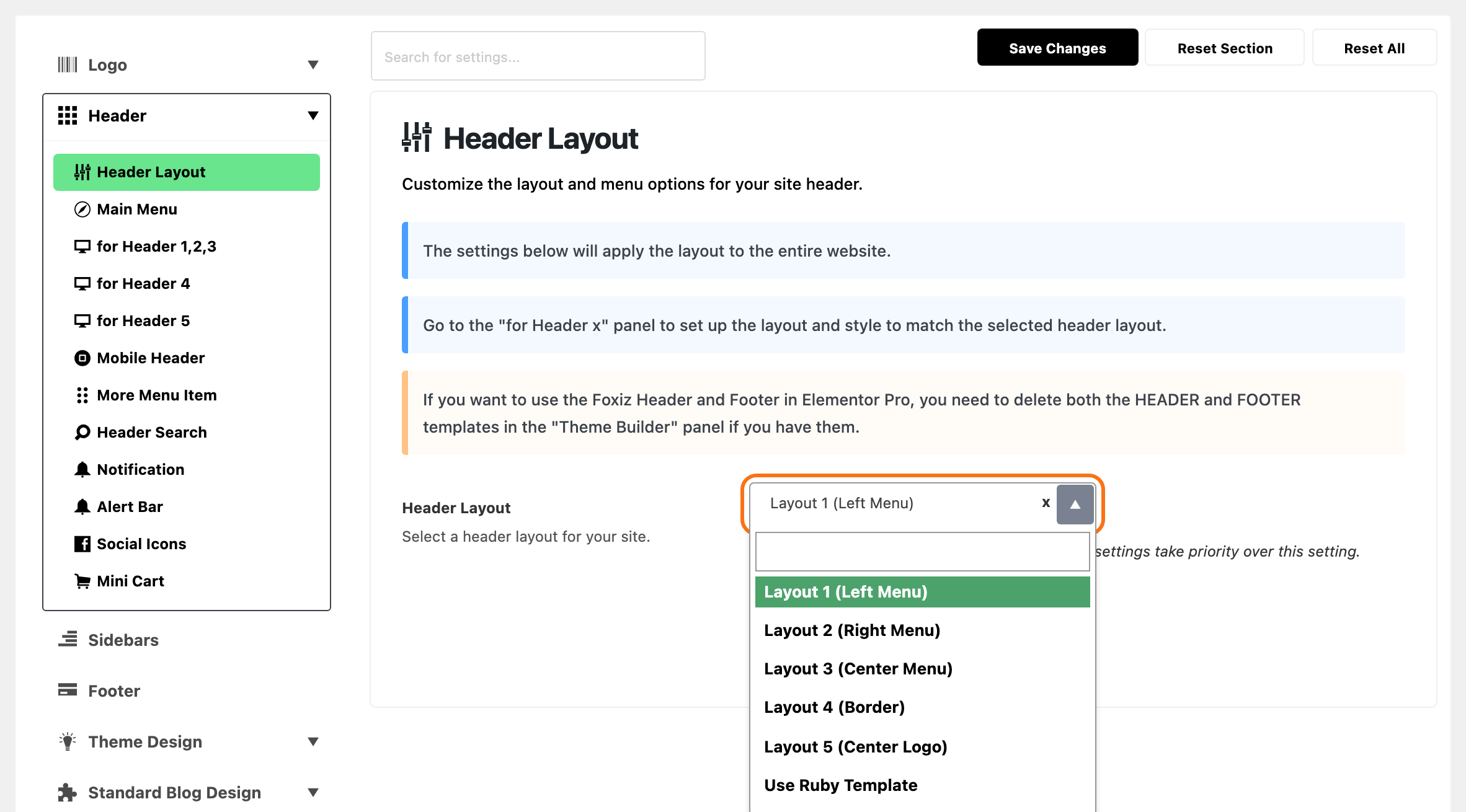
Its default is Layout 1 (Left Menu). The list here holds the five layouts plus Use Ruby Template, and nothing else: no - Default -, no transparent variants.
Choose Use Ruby Template and a Template Shortcode box appears directly underneath. It is hidden until then, so there is no point hunting for it first. Leave it empty after choosing Use Ruby Template and the site falls back to Layout 1.
Three transparent variants exist as well, Transparent - Layout 1, Transparent - Layout 2 and Transparent - Layout 3, and they are not in the global Header Layout list, which is why they are absent from the screen above. You can pick one in these places:
- Theme Options > Single Post > Site Header.
- Theme Options > Category, Blog Index and Search Page.
- Theme Options > Ruby Podcast > Show.
- One post, one page or one term, in its own settings.
Every section below sets the same thing at a different scope, and a Ruby Template shortcode beats a layout at the same scope. Foxiz uses the first of these that has a value:
- The single post or page's own settings.
- The term's.
- The Theme Options panel for that kind of page.
- The global setting.
Settings for Posts
To get started, navigate to Theme Options > Single Post > Site Header > Header Layout
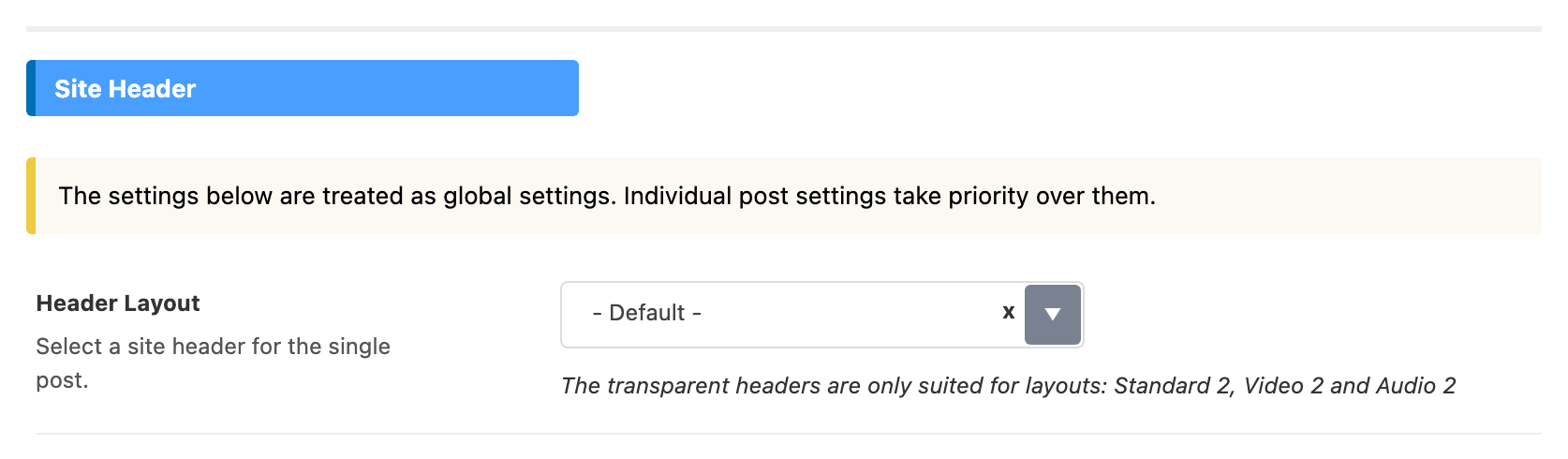
Its default is - Default -, which means "use the global setting". The transparent variants are in this list, and the panel warns they only suit the Standard 2, Video 2 and Audio 2 post layouts.
Below it, Template Shortcode takes a Ruby Template, used in place of the Header Layout you just set. The same group also holds a per format shortcode for video, audio and gallery posts, each of which beats this one for posts of that format.
The same panel opens with a Font Resizer group holding one switch, Reading Font Resizer. It adds an "Aa" button to the predefined headers, desktop and mobile, on single posts only. Each click makes the post's text 10% larger, then 20%, and the third click puts it back. It is on by default. A Ruby Template header needs the Foxiz - Font Resizer block instead.
Settings for Individual Post
You can configure each post on its own. These options override the global settings.
To get started, please follow the steps below:
-
Navigate to the post edit page
-
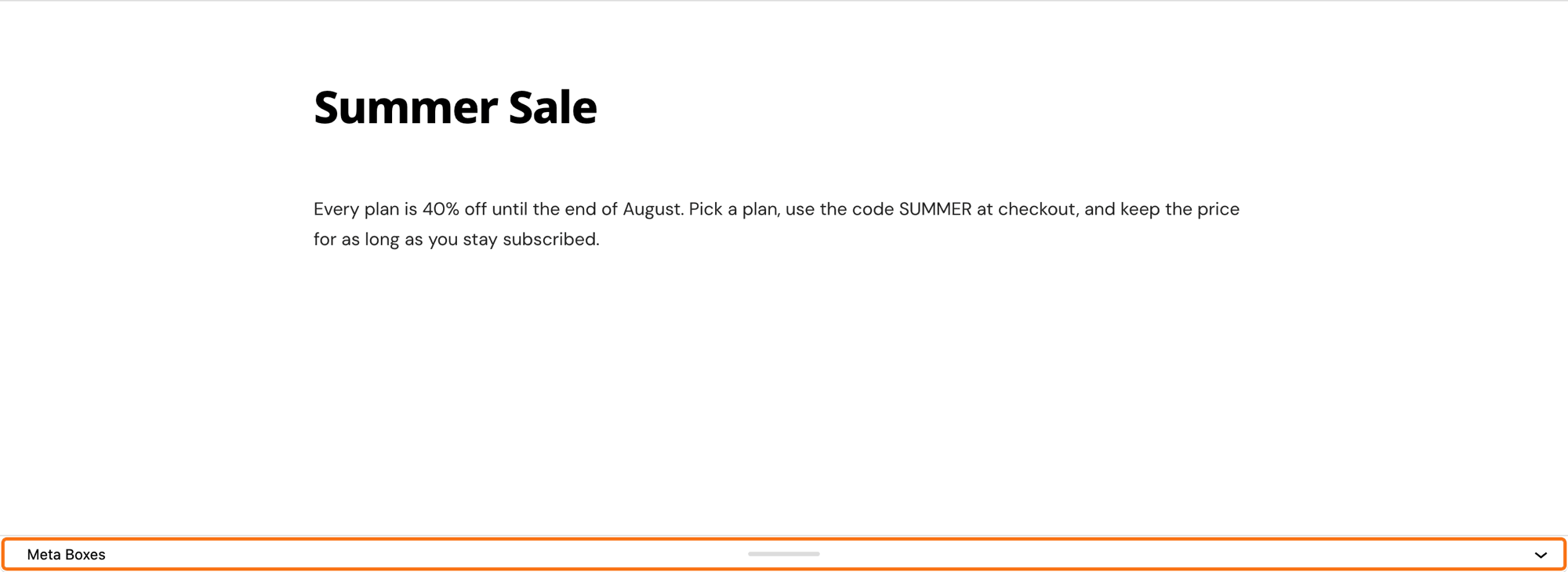
At the bottom of the editor, click the Meta Boxes bar to open it, and find the Single Post Settings panel.
-
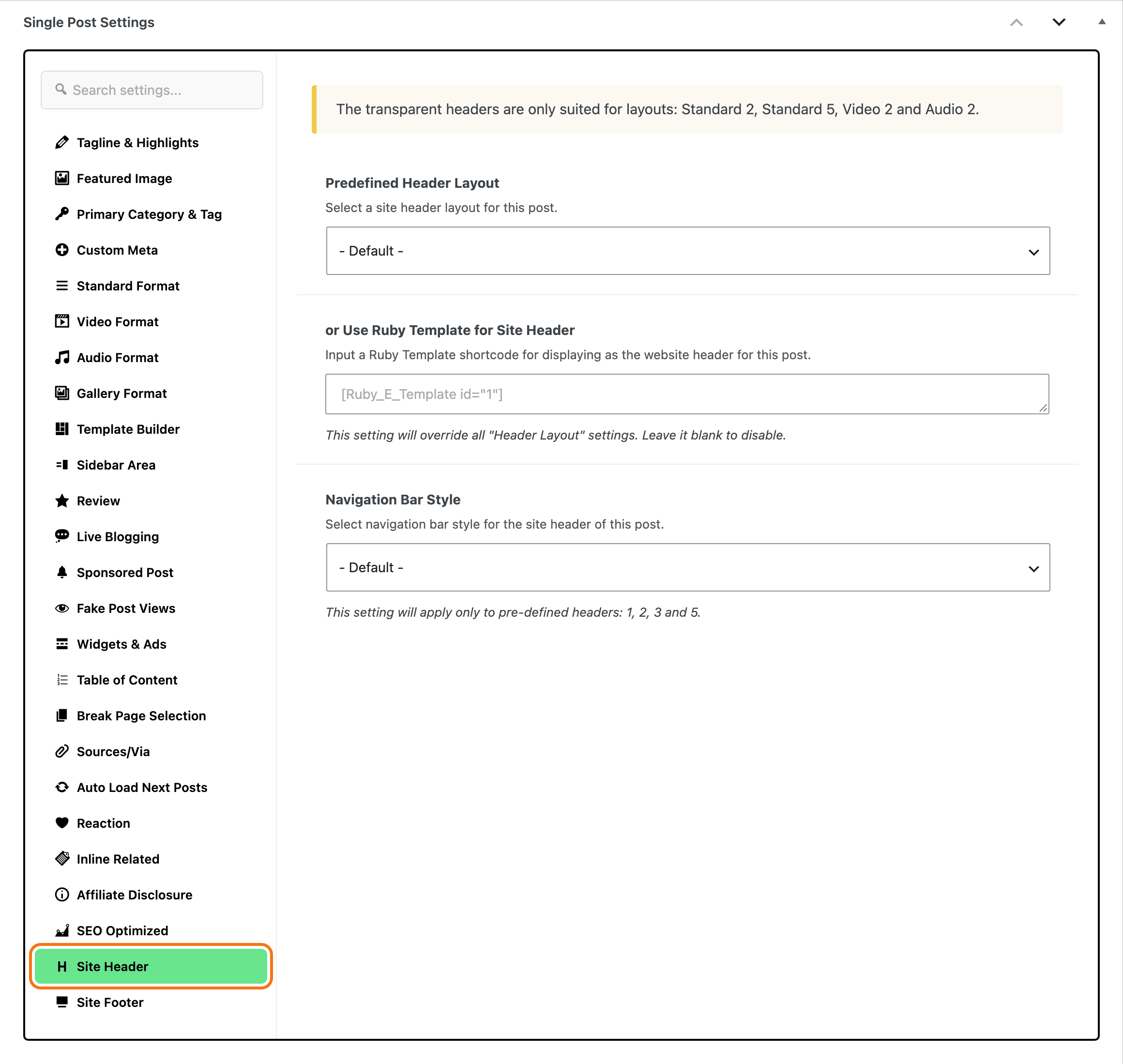
Select the Site Header tab then edit what you need. The layout dropdown is called Predefined Header Layout, and its default is - Default -. or Use Ruby Template for Site Header below it replaces whatever you chose there. Navigation Bar Style in the same tab only applies to predefined headers 1, 2, 3 and 5.
-
Save your changes.
A page has the same tab under Single Page Settings, with one extra field, or Use Ruby Template for Mobile Header, and two extra layout choices, No Header on Desktop, Mobile Header Only and No Header on Any Device. Those two are on the page box only.
Settings for Category Pages
To get started, navigate to Theme Options > Category
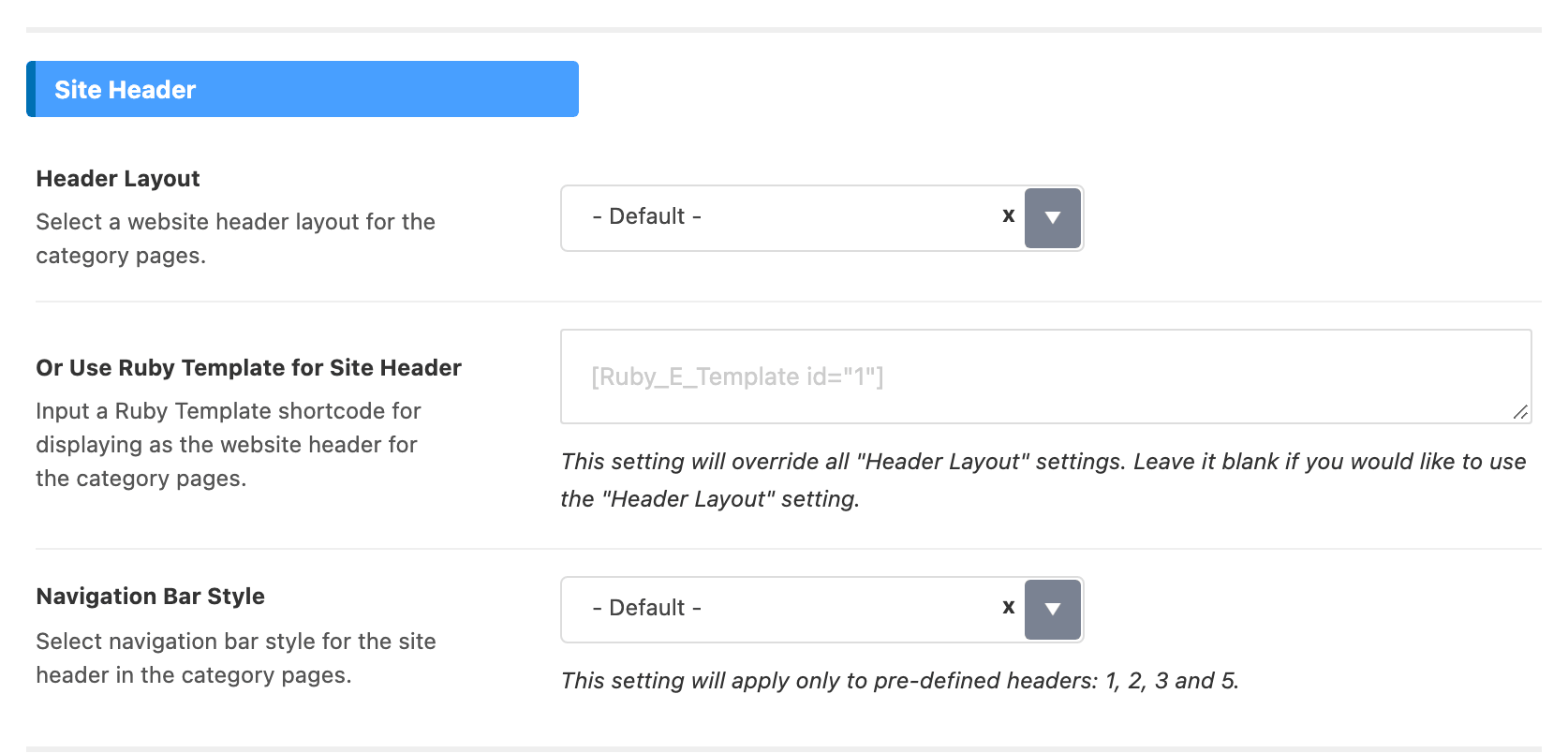
The controls sit in the Site Header group at the top of that panel, in this order:
- Header Layout. Its default is - Default -.
- Or Use Ruby Template for Site Header.
- Navigation Bar Style.
These settings apply to the category archive page only. They never change the header on the posts inside that category.
Settings for Individual Category Page
You can configure each category on its own. These options override the global settings.
To get started, follow the steps below:
-
Navigate to Posts > Categories page.
-
Hover over the category you want to change and click its Edit link to open the Edit Category screen.
-
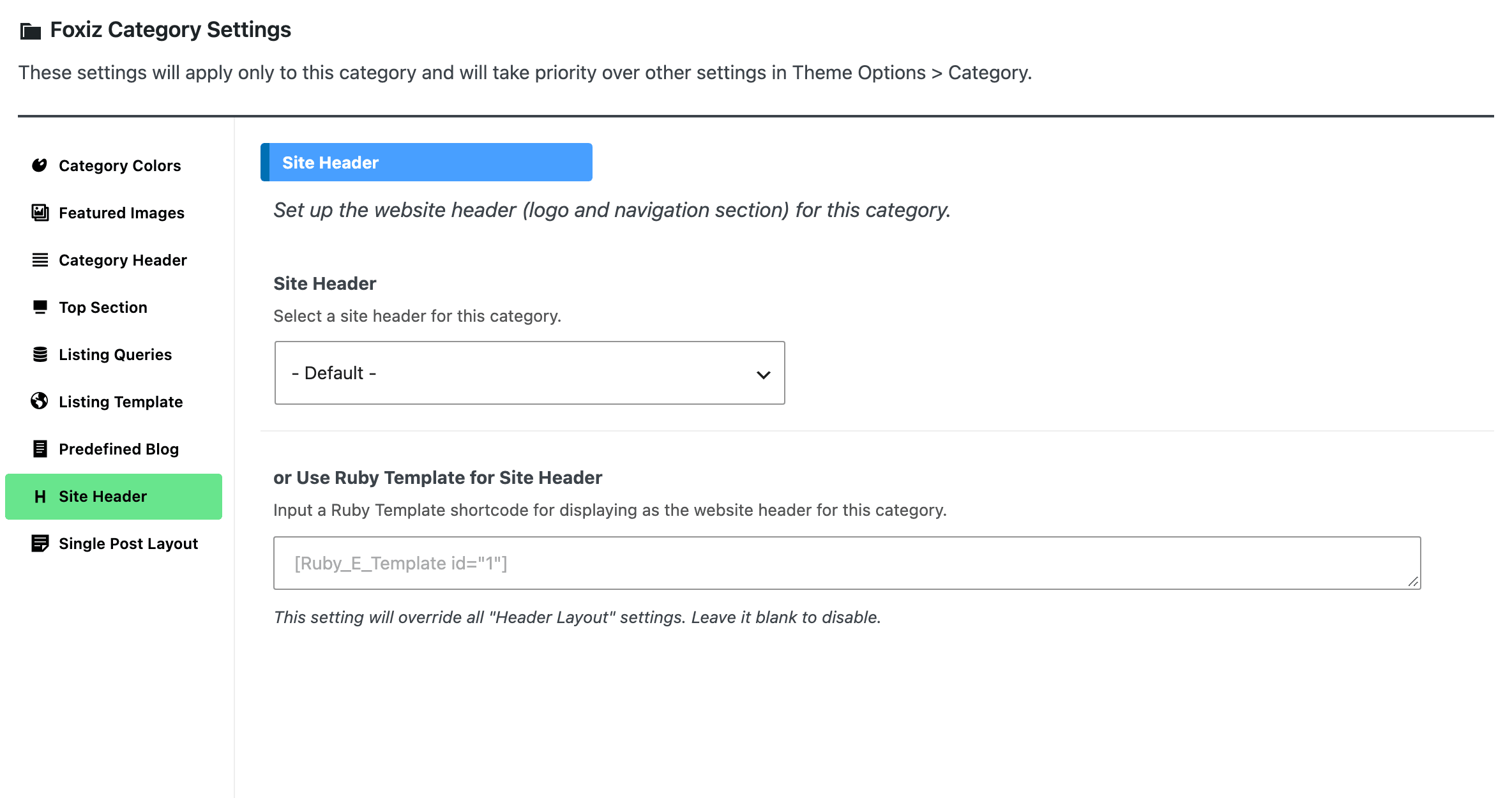
Scroll down to the bottom page to find the Foxiz Category Settings box and open its Site Header tab. The dropdown inside is called Site Header, and or Use Ruby Template for Site Header under it replaces it.
-
Click on the "Update" button to save your changes.
The same box has a Category Header tab, which is a different thing: it styles the heading area of the category page itself, not the site header above it.
Settings for Blog Index
To get started, navigate to Theme Options > Blog Index > Site Header > Header Layout
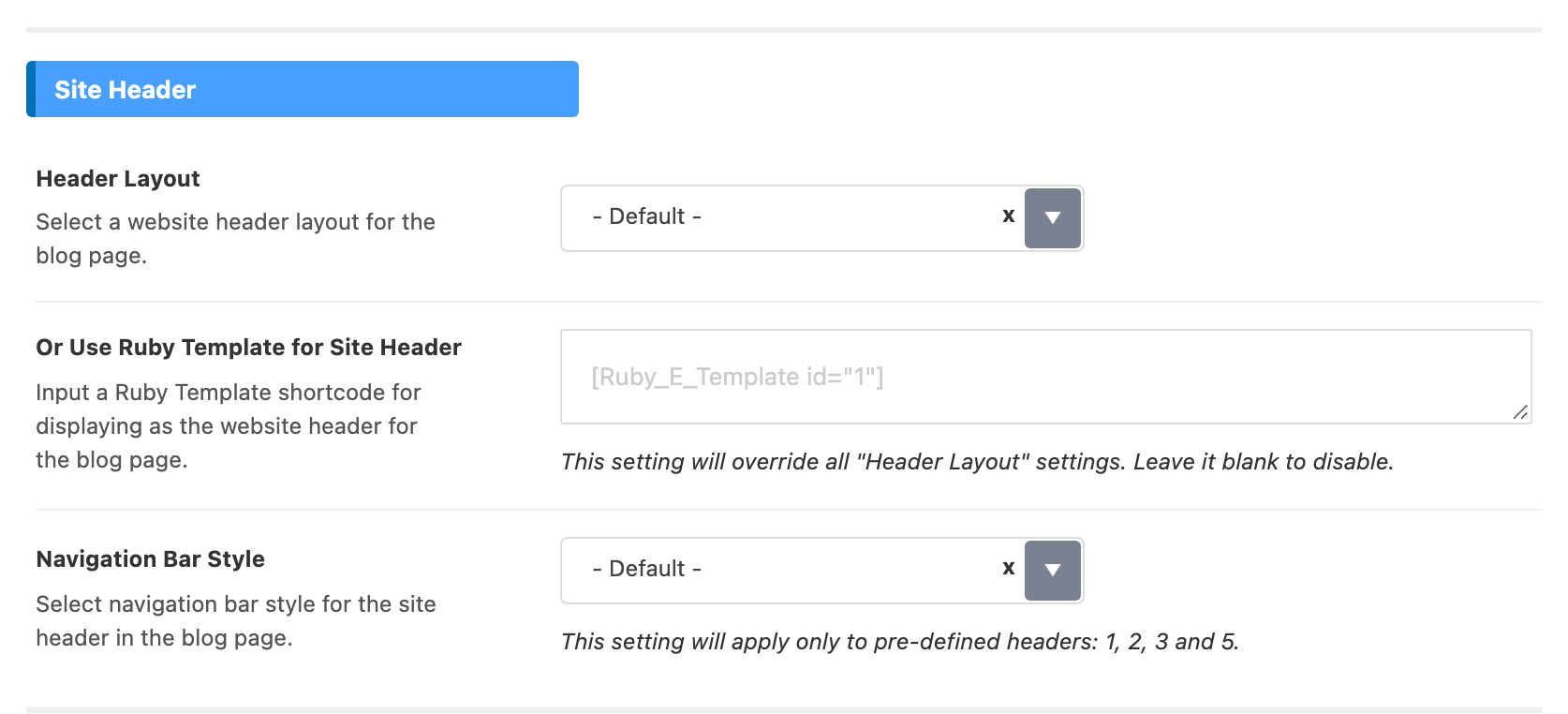
Blog Index is a panel of its own in the Theme Options sidebar. Older instructions put it under a Blog & Archive panel; there is no such panel now. Sitting beside Blog Index as separate top level panels are:
- Category, for every category page.
- Author Page, for the author pages.
- Search Page, for the search results page.
- Tag Page, for custom templates on tag pages. Without one, tag pages use the post listing layout from Archives.
- Archives, the overall settings for tags, taxonomies and other archives.
- 404 Page, for the error page.
Custom taxonomies registered by a plugin have no header setting in Theme Options. The Taxonomy panel styles their archive pages only. Each term's own Site Header decides its header, and an empty one falls back to Global Options.
Settings for Search Page
To get started, navigate to Theme Options > Search Page > Site Header > Header Layout
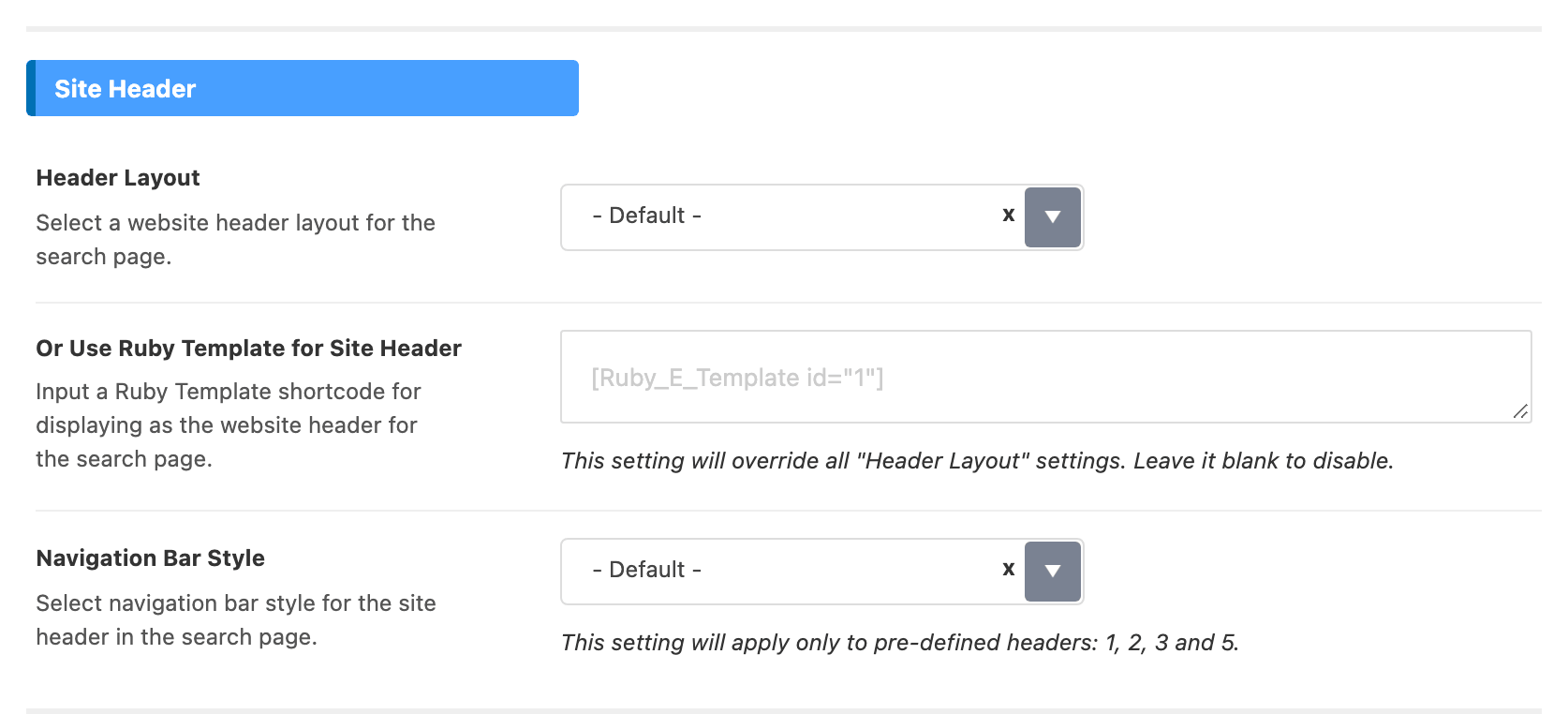
None of the screens above touches the mobile header. That has its own layout picker at Theme Options > Header > Mobile Header > General > Header Layout, and it is what a phone or tablet shows whichever desktop layout you chose here.
Did this answer your question?