Adding a Membership
The theme supports the Simple Membership plugin. This plugin lets you protect your posts and pages so only your members can view the protected content.
Foxiz does nothing about membership until that plugin is active. On a site without it there is no restriction box, no member label and no membership styling.
The same check governs the theme's own panel. Before the plugin is active, Foxiz > Theme Options > Membership holds a single warning telling you to install Simple WordPress Membership; the panel fills with settings only once the plugin is running.
You can refer the official documentation for further information.
Follow the steps below
-
Install and activate the Simple Membership plugin: https://wordpress.org/plugins/simple-membership/
-
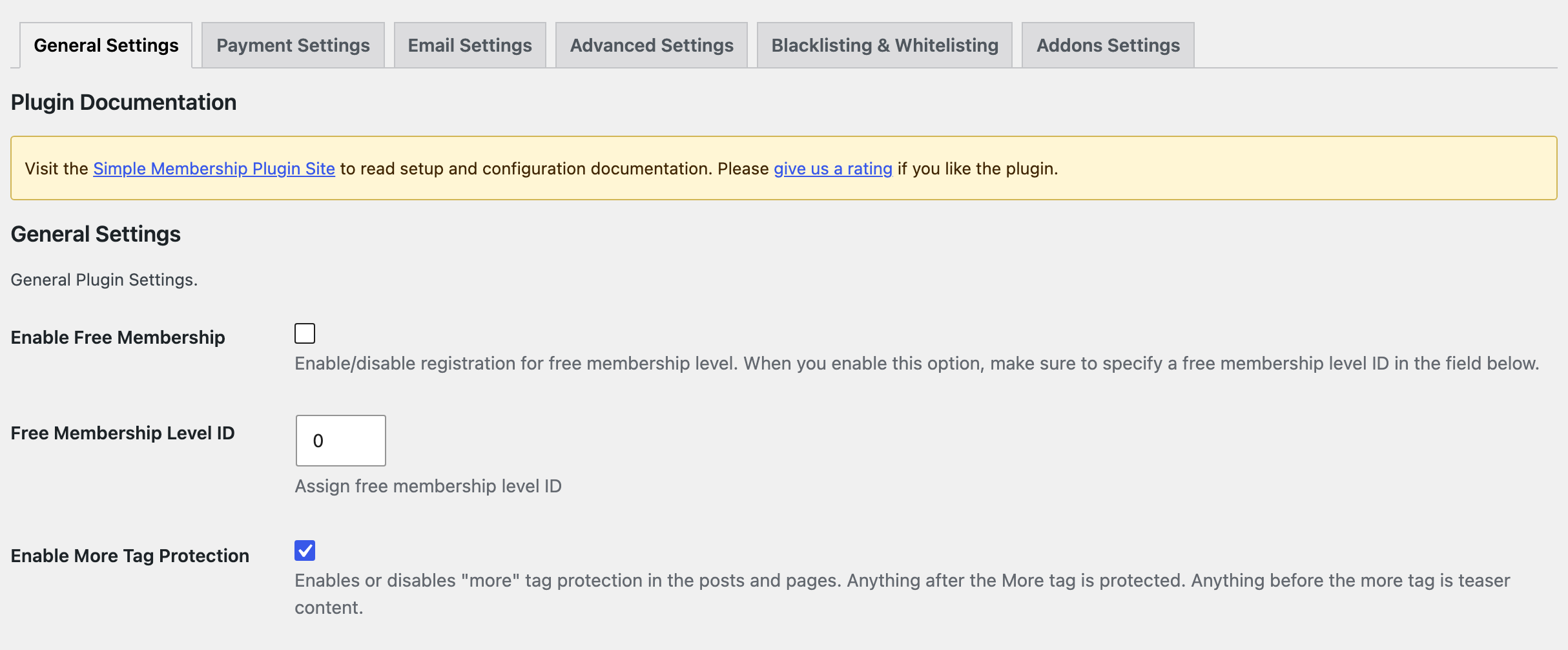
Navigate to Dashboard > WP Membership > Settings and open the General Settings tab.
-
Check Enable More Tag Protection.
This is the one Foxiz builds on. With it on, everything after a More tag in a protected post is replaced by a message, and Foxiz swaps that message for its own restriction box. Leave it off and the theme's box never appears on teaser content.
-
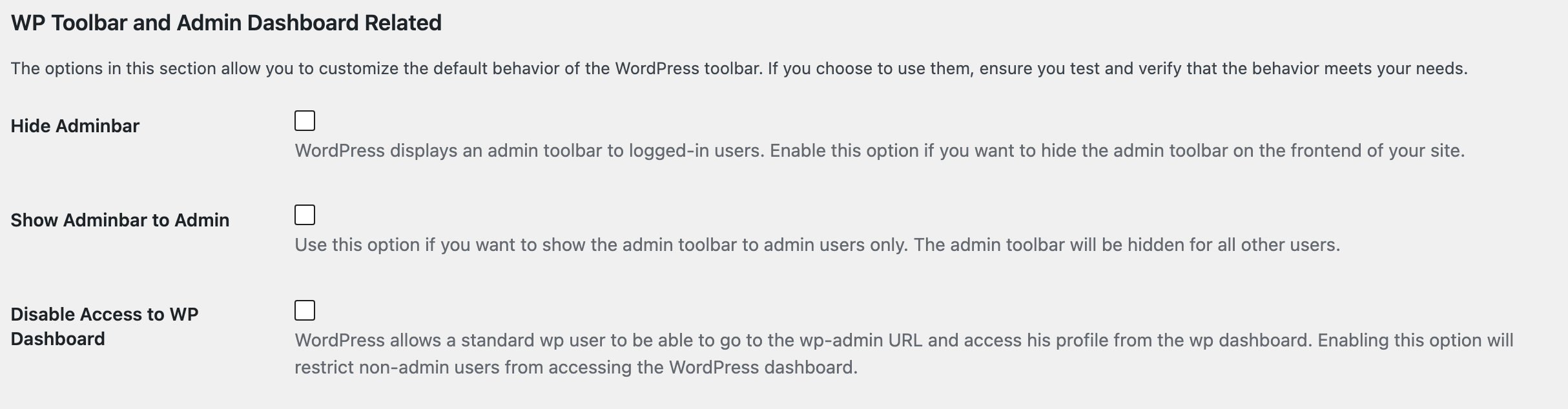
Open the Advanced Settings tab and find its WP Toolbar and Admin Dashboard Related section. Its three options keep members out of the WordPress admin and off the toolbar. Check the ones you want:
- Hide Adminbar hides the toolbar from logged in users on the front end.
- Show Adminbar to Admin hides it from everyone except administrators.
- Disable Access to WP Dashboard stops users who are not administrators from opening the dashboard.
-
Click Save Changes on each tab you changed. Each tab saves separately.
Once the plugin is active, the theme takes over three things on its own, with nothing to switch on:
-
It styles the plugin's forms and messages to match your site rather than leaving them on the plugin's defaults, right to left layouts included.
-
It replaces the plugin's six restriction messages with the boxes you design at Foxiz > Theme Options > Membership: one for visitors who are not logged in, one for members whose level is too low, and one for members whose account has expired.
-
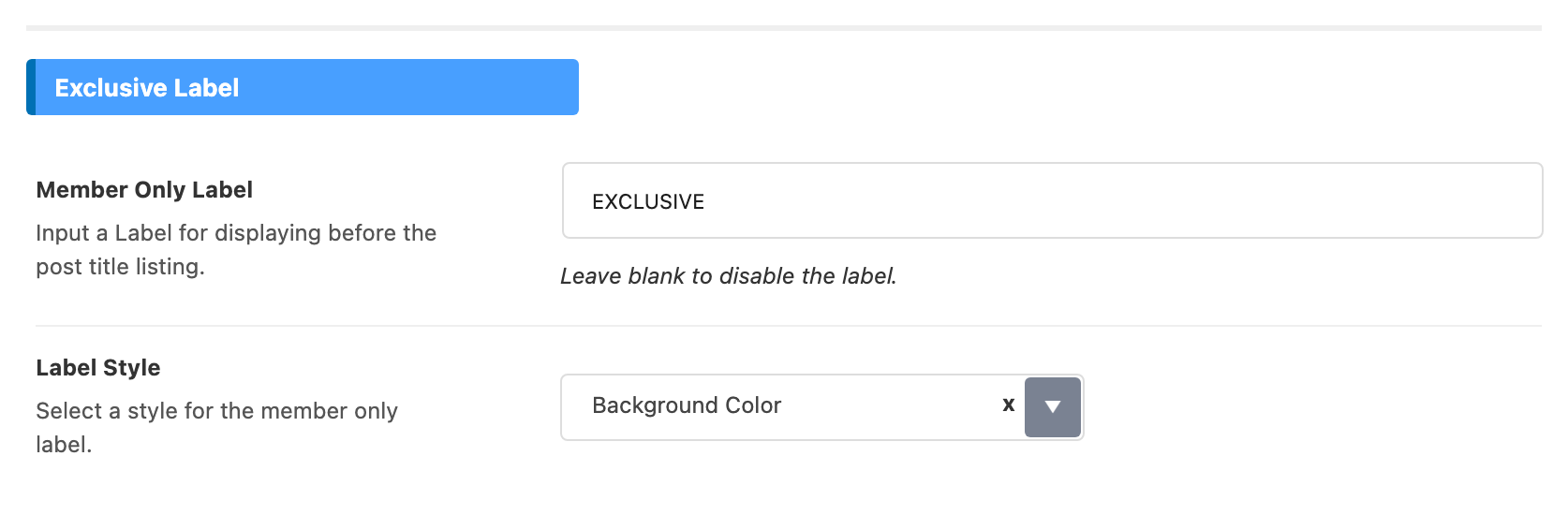
It marks protected posts in your listings with a label in front of the title, so a reader can see which articles are members only before clicking. The text reads EXCLUSIVE until you change it at Foxiz > Theme Options > Membership > Exclusive Label > Member Only Label, and clearing that field turns the label off entirely. Label Style beside it picks between Background Color, Border and Text with Color, and defaults to Background Color.

What to set up next
Membership takes a few articles, and each one needs the one before it. Work through them in this order:
- Adding Membership Levels: create the level a member joins, such as Premium.
- Creating the Required Pages and Forms: the plugin made its pages when you activated it, so only check they are there.
- How to Apply Protection to Posts and Pages?: lock the posts that are for members only.
- Creating Retriction Box With Membership Plugin: show a free teaser and write the text of the box that replaces the rest.
- Membership Payment: choose how members pay.
- How to Create a Subscription Button: make the payment button and copy its shortcode.
- Setup Your Plans: build the pricing page and paste the shortcode into each plan.
A free membership can stop after step 4. Back on the General Settings tab, check Enable Free Membership and type your level's number, from the ID column of Membership Levels, into Free Membership Level ID. Visitors then sign up on the plugin's registration page; without it, that page says "Free membership is disabled on this site."
Theme Options itself only appears under the Foxiz menu on a site with an active license. If the whole item is missing rather than just the Membership panel, activate the theme first.
Did this answer your question?