How to Create a Subscription Button
Simple Membership plugin allows you to create Subscription/Recurring payment buttons for membership payment.
Ensure you have the latest version of the Simple Membership Plugin installed and activated on your WordPress website. Also, ensure you have created a membership level to hook your payments to.
Before you start: connect Stripe
A Stripe button needs your Stripe account connected first. You do this once:
-
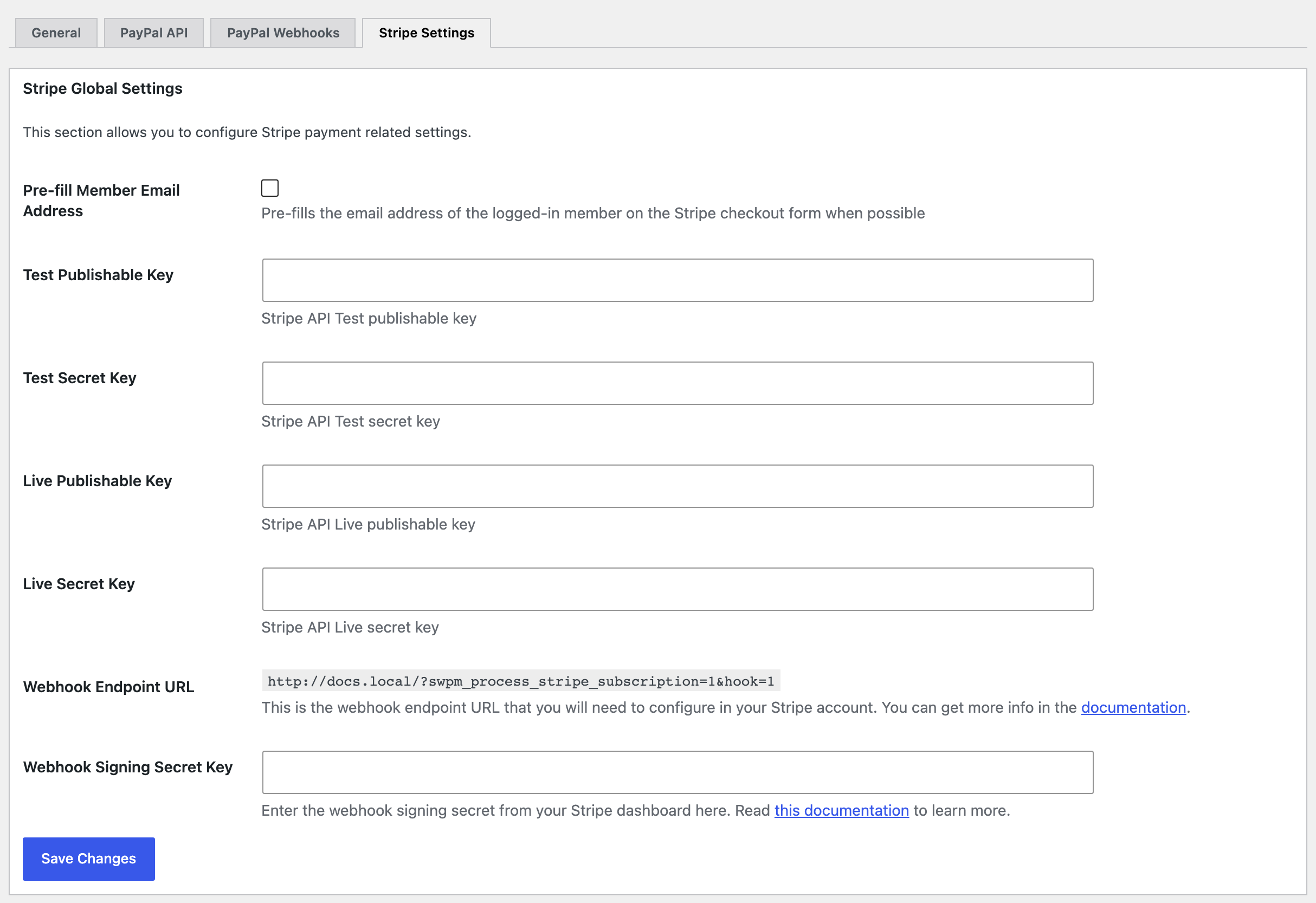
Go to WP Membership > Payments, open the Payment Settings tab and its Stripe Settings sub tab.
-
Paste your keys from your Stripe account:
- Test Publishable Key and Test Secret Key, for trying payments.
- Live Publishable Key and Live Secret Key, for real payments.
-
In your Stripe account, create a webhook with the address shown in Webhook Endpoint URL, then paste its signing secret into Webhook Signing Secret Key and click Save Changes. Without the secret, the plugin shows an error at the top of the admin as soon as you use a Stripe subscription.
To try a payment without charging a card, check Enable Sandbox or Test Mode on the General sub tab of Payment Settings. Uncheck it before you go live.
You can refer the official documentation for further information.
To get started, follow the steps below:
-
Navigate to Dashboard > WP Membership > Payments.
-
On that screen you will see a tab titled Create New Button.
-
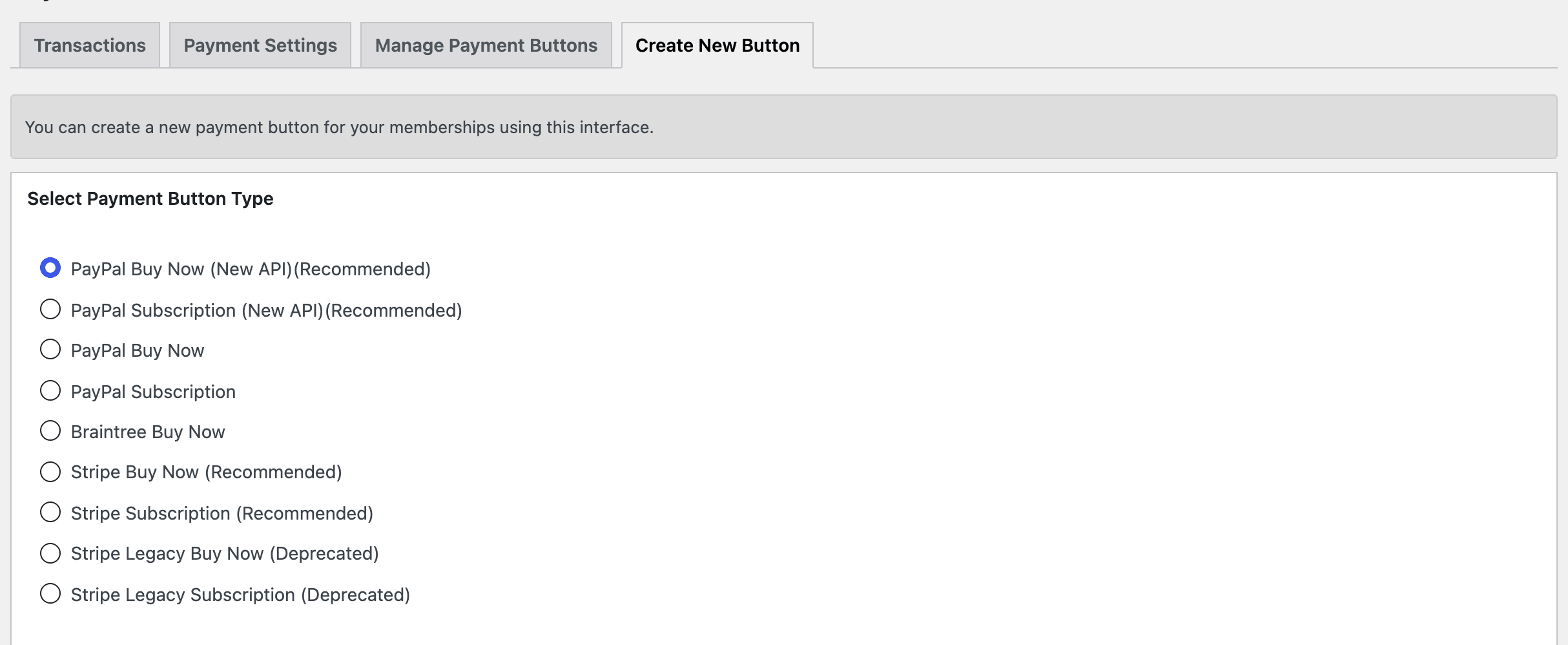
Once you click the Create New Button tab, choose Stripe Subscription (Recommended) under Select Payment Button Type.
-
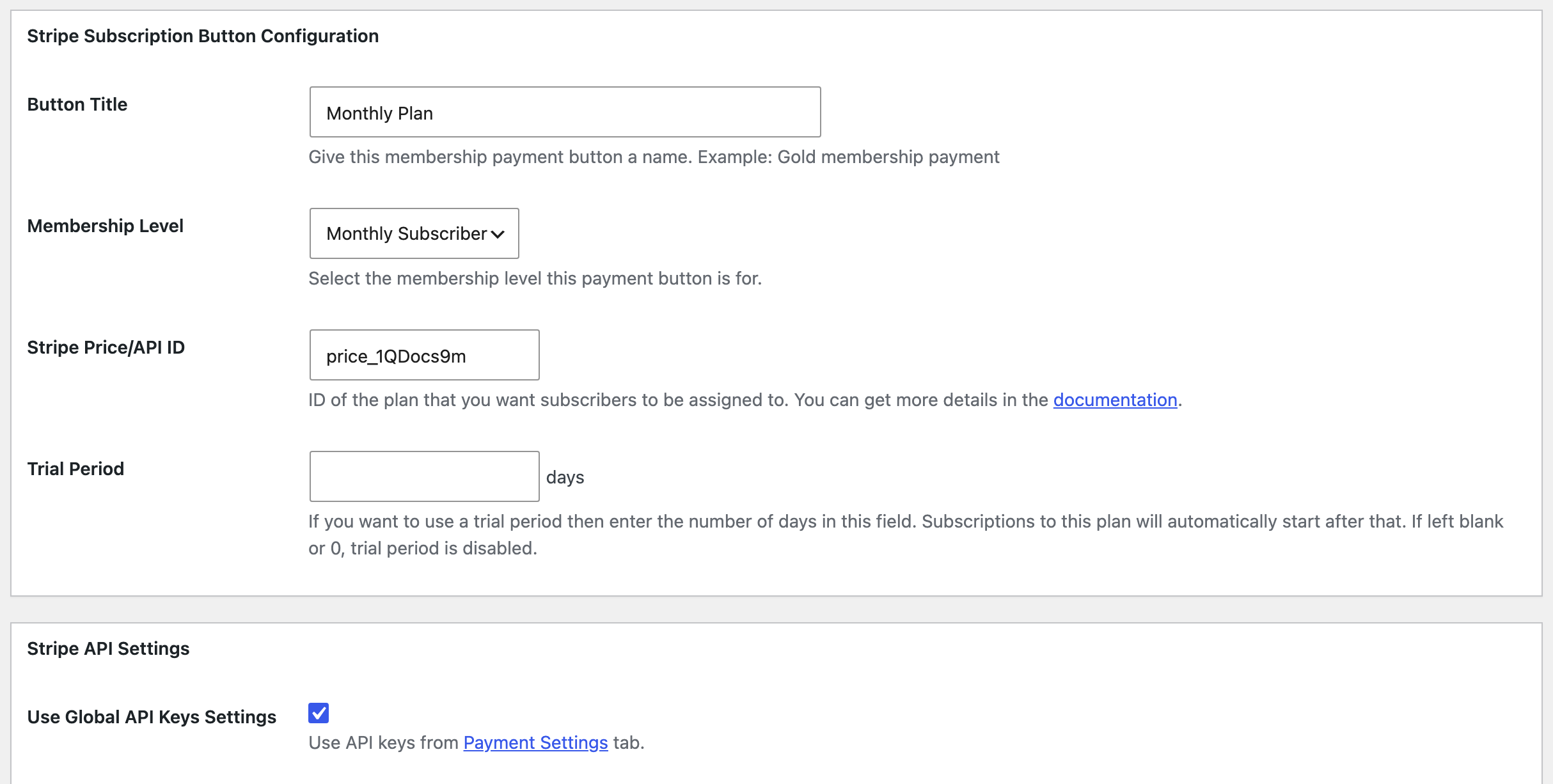
Click the Next button. You will need to give the button a Button Title and choose the Membership Level that this button is for.
The same screen asks for two more things:
- Stripe Price/API ID, required: the ID of the recurring price you created for this plan in your Stripe account. The form has no price or billing period of its own; both come from that Stripe price.
- Trial Period, optional: a number of free days before the first charge. Leave it blank for no trial.
Below them, Use Global API Keys Settings is checked by default, so the button uses the keys you saved in Stripe Settings. The Optional Details box can stay as it is.
-
Click Save Payment Data to save the changes.
-
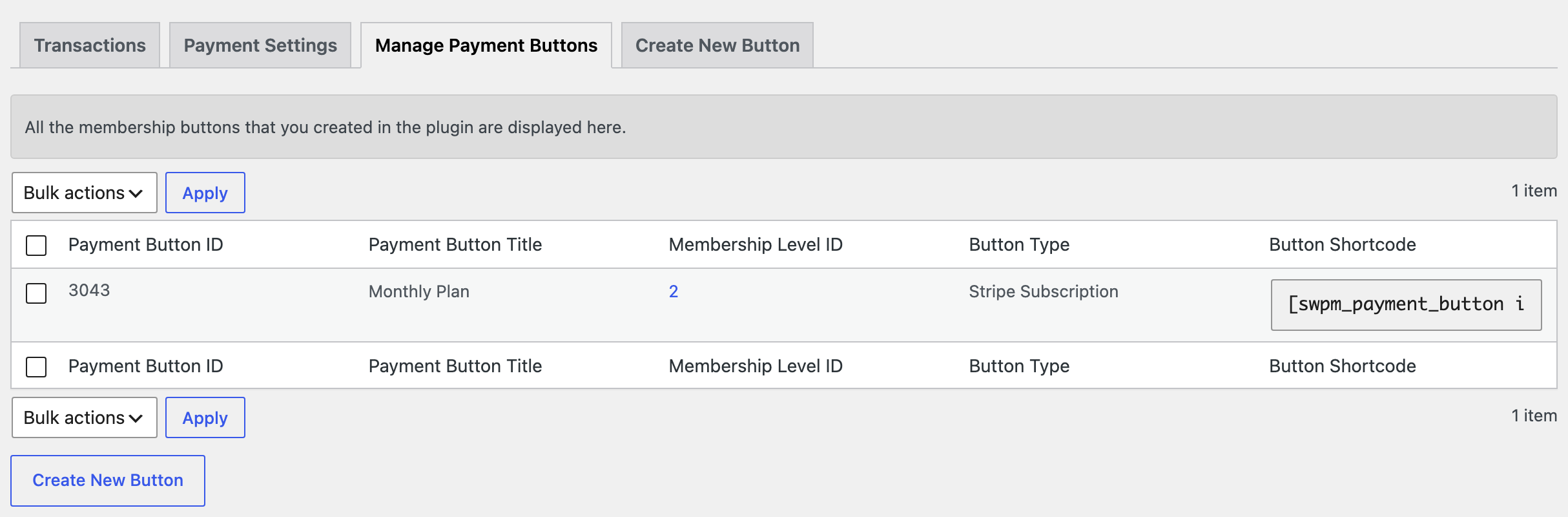
Open the Manage Payment Buttons tab and copy your button's shortcode from the Button Shortcode column.
-
Paste it into a plan block, as Setup Your Plans shows.
The theme does not care which kind of button you create. Whatever the plugin gives you comes out as a shortcode, and the shortcode is all Foxiz handles, so a PayPal, Braintree or older Stripe button from Membership Payment drops into the same place.
What you do with the button afterwards is paste its shortcode into the Foxiz - Plan Subscription block, in the field Membership Payment Button Shortcode. The block runs it where the plan's button goes, so the styling comes from your plan box and the checkout comes from the plugin. The field's own help text gives the format, including the optional label: [swpm_payment_button id=1 button_text="Buy Now"].
A plan that is free needs no button at all. Leave Membership Payment Button Shortcode empty and fill or Free Button instead, and the block prints a plain link to the plugin's registration page. Fill both and the shortcode wins; the free button is only read when the shortcode field is empty.
Did this answer your question?