Creating Retriction Box With Membership Plugin
You can easily create content restrictions with a simple membership plugin by using the “More Tag Protection” feature.
You can refer the official documentation for further information.
Show a short part of the content to draw the reader in
-
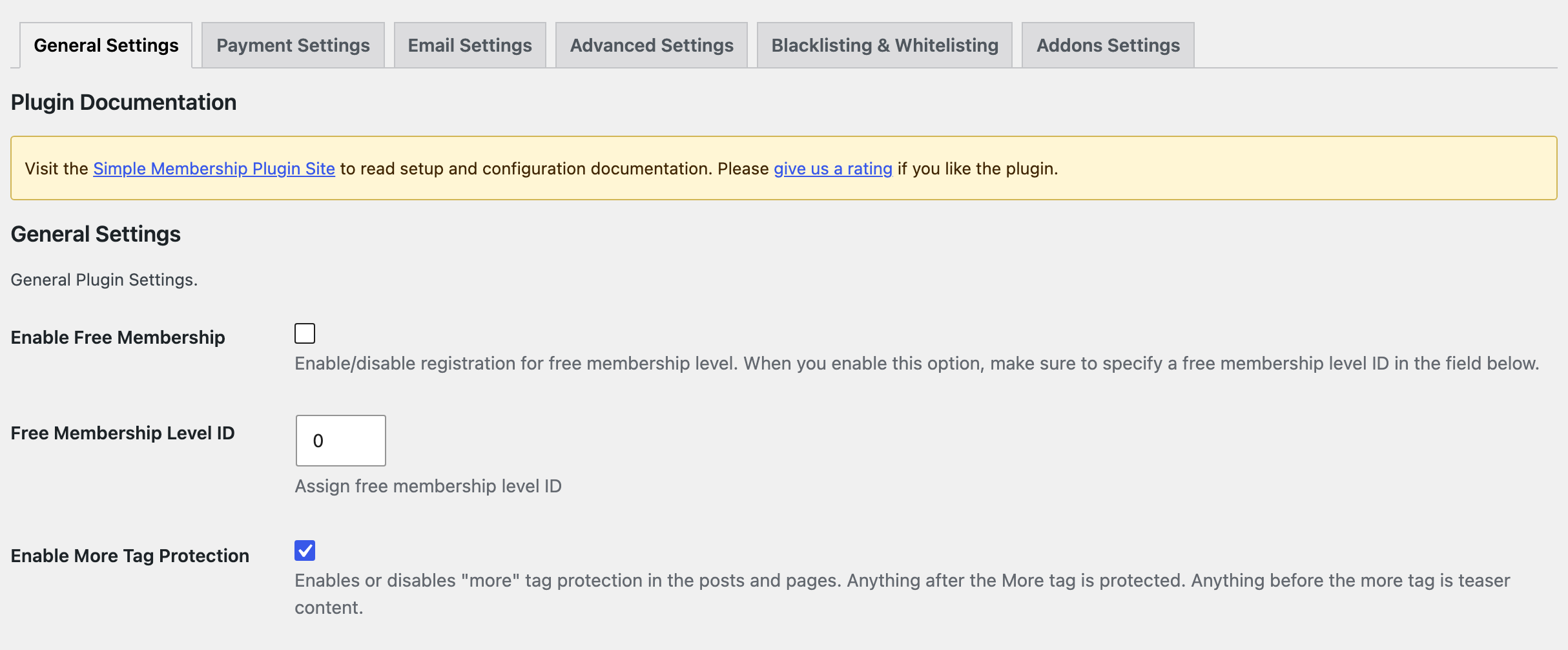
Navigate to Dashboard > WP Membership > Settings, open the General Settings tab and check Enable More Tag Protection.
-
Open a protected post in the editor and insert a More block where the free teaser should end. Everything above the block stays visible to every visitor; everything below it is protected.

-
Below is an example of what a more tag protected post looks like to your visitors:
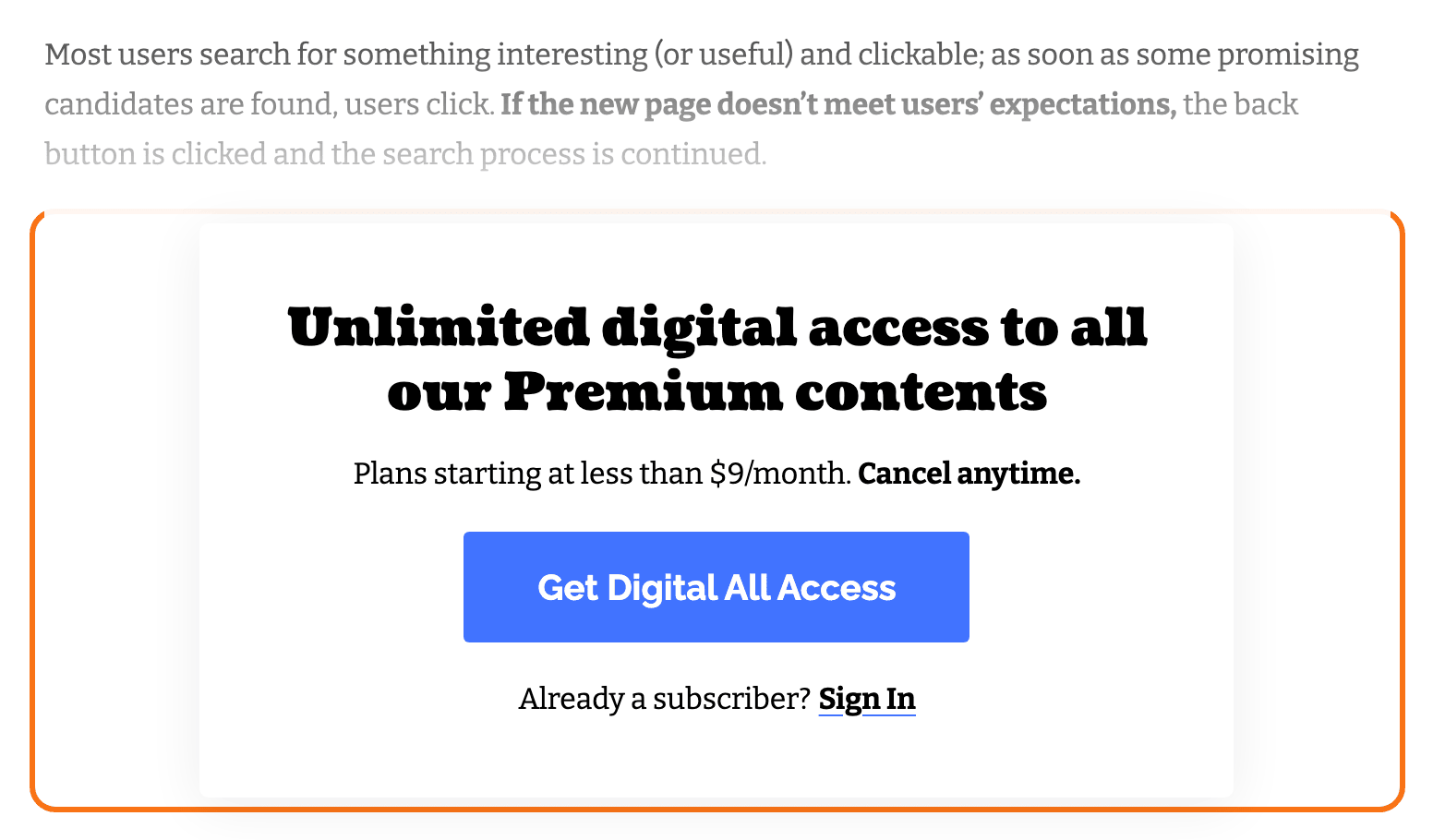
The box in that screenshot is the theme's, not the plugin's. Foxiz replaces the plugin's plain "not logged in" text with it, which is why the same box appears whether you cut the post with a More tag or protect the whole thing.
The box reads two URLs out of the plugin's own settings before it draws: the login page and the join us page.
If either is blank, visitors get the line "The login page or the join us page URL is missing in the settings configuration." where the box should be, and no theme setting can override that. Both are filled when the plugin is activated; if one is blank, see Creating the Required Pages and Forms for where to set it.
Change the text of the restriction box
These options will be applied to all content restrictions. To get started, navigate to Your Dashboard > Foxiz > Theme Options > Membership.
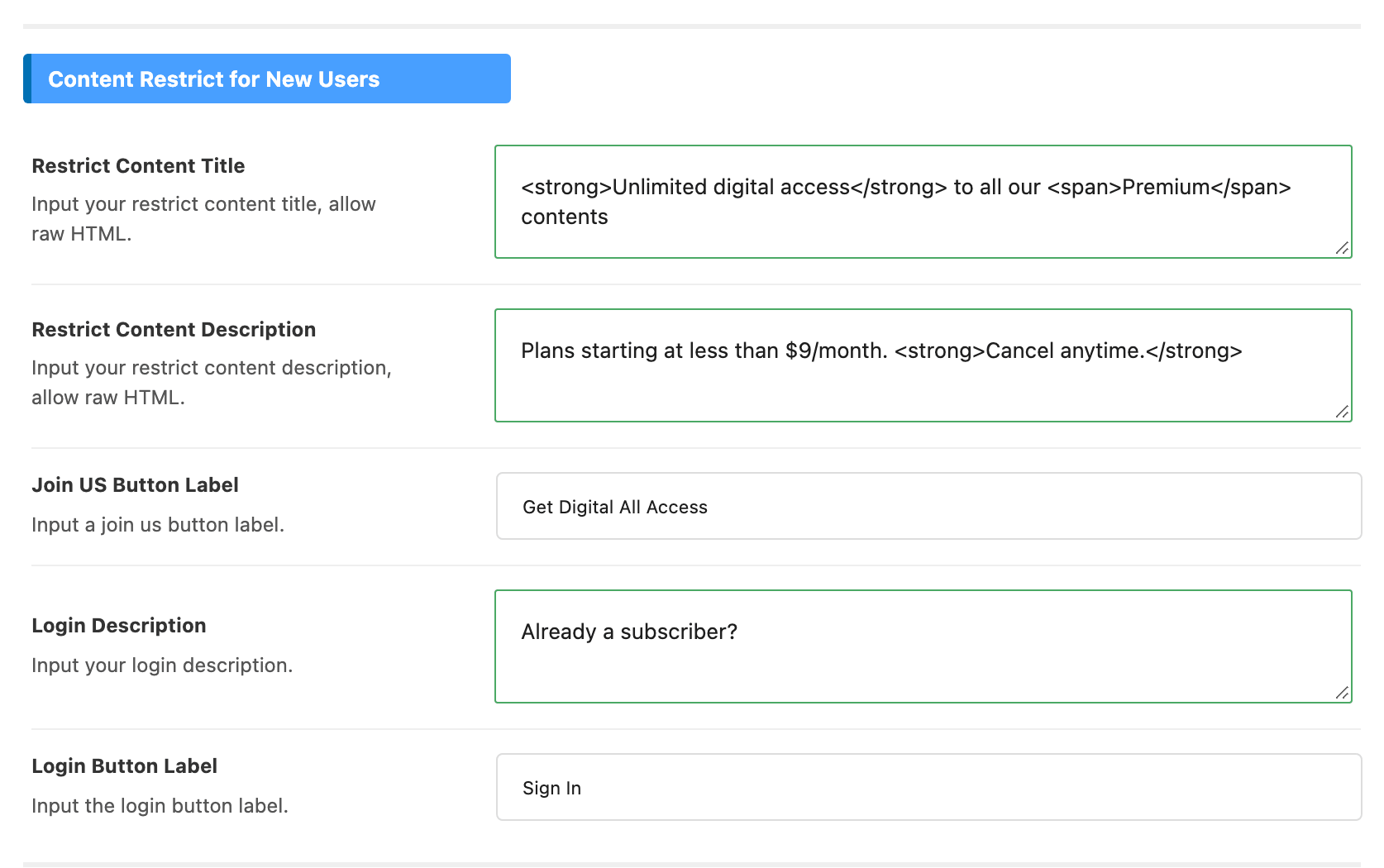
The panel is four sections. The first is the one in the screenshot above.
Content Restrict for New Users is the box a visitor who is not logged in sees. Five fields, with the default text of each:
- Restrict Content Title, "Unlimited digital access to all our Premium contents". Raw HTML is allowed, and the default value wraps part of the line in
<strong>and<span>to get the mixed weight heading. - Restrict Content Description, "Plans starting at less than $9/month. Cancel anytime." Raw HTML again.
- Join US Button Label, "Get Digital All Access". This is the main button, and it goes to the plugin's join us page.
- Login Description, "Already a subscriber?", the small line under the button.
- Login Button Label, "Sign In", the link beside it, pointing at the plugin's login page.
Content Restrict for Logged Users replaces that box for a member whose level does not cover this content. It has no buttons of its own beyond the join us button, and two fields: Upgrade Membership Title and Upgrade Membership Description.
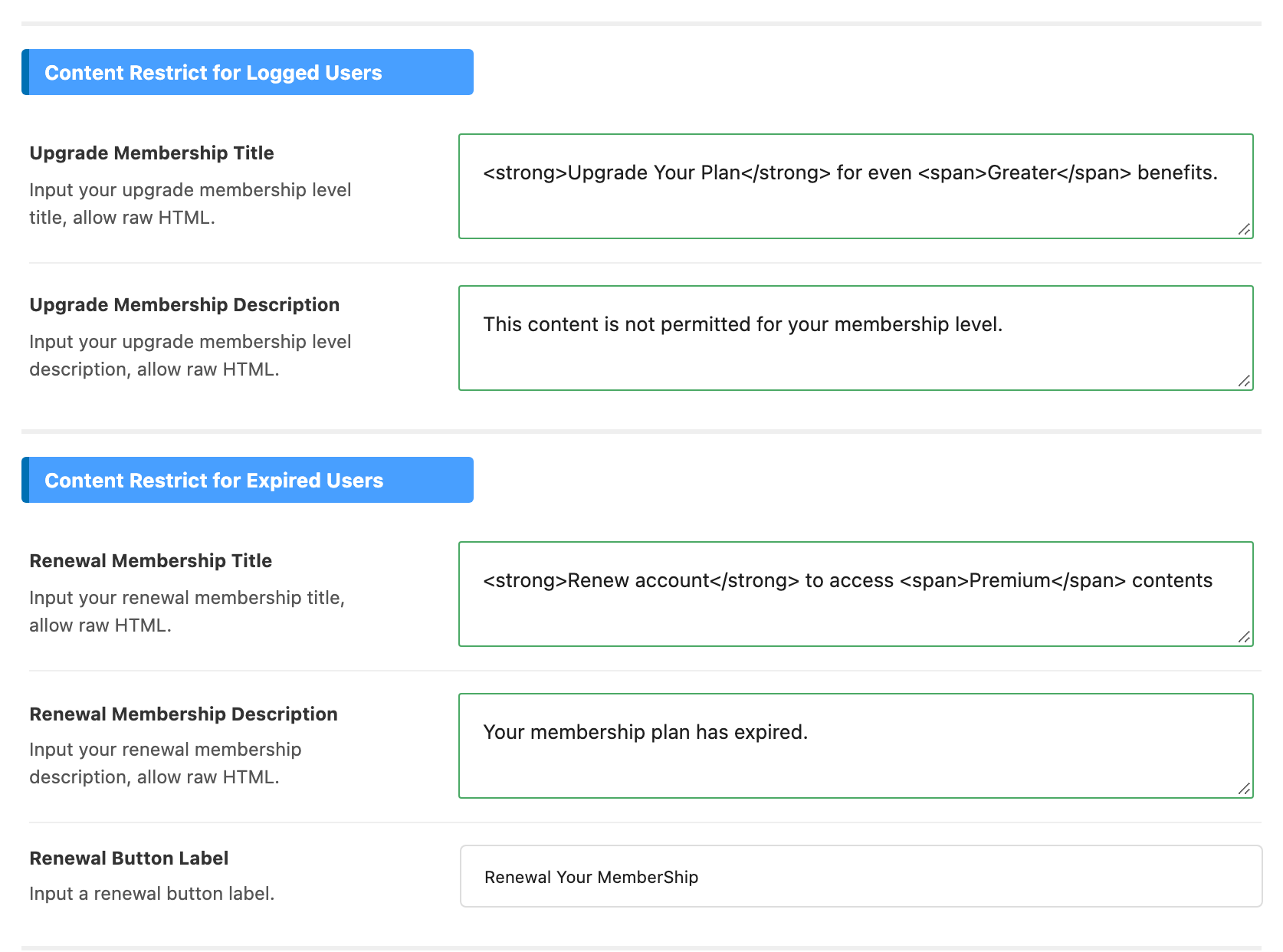
Content Restrict for Expired Users replaces it again for a member whose account has run out: Renewal Membership Title, Renewal Membership Description and Renewal Button Label.
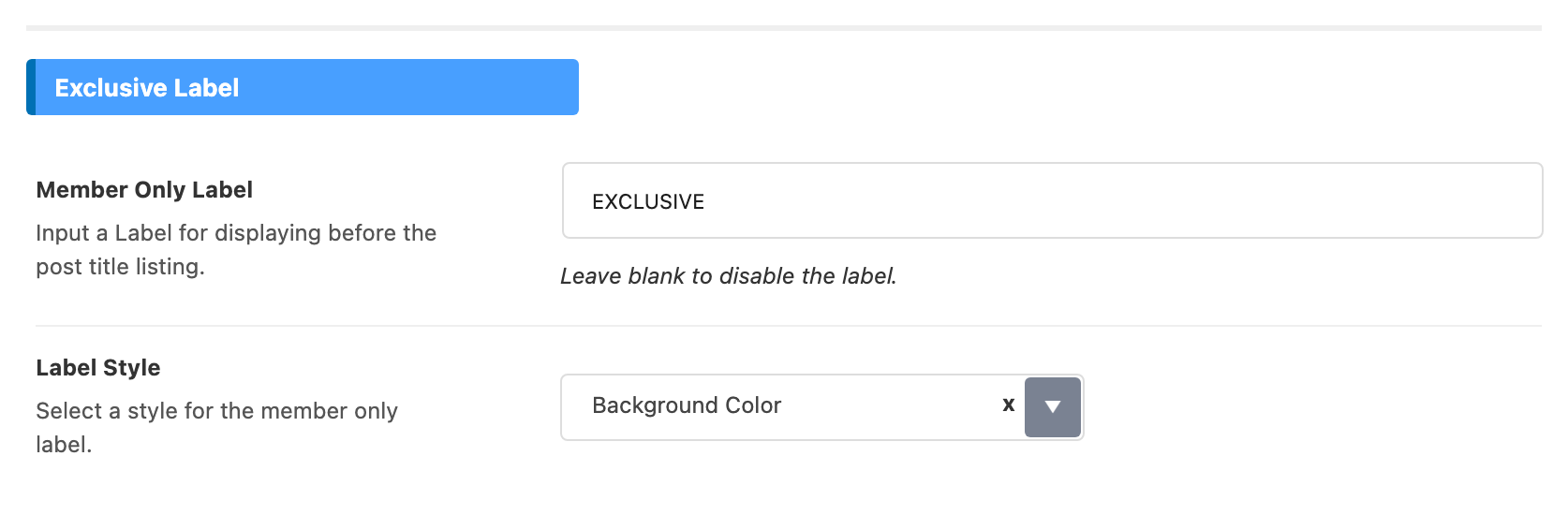
Exclusive Label is not part of the box at all. It is the word printed in front of a protected post's title in listings, EXCLUSIVE by default, with Label Style choosing between Background Color, Border and Text with Color. Empty the Member Only Label field to turn it off.
Every one of these fields is hidden until Simple Membership is active. Without it the Membership panel holds a single warning and nothing else, so a reader who sees no fields here has not finished Adding a Membership.
Did this answer your question?