Setup Your Plans
Ensure you have the latest version of the Simple Membership Plugin installed and activated on your WordPress website. Also, ensure you have created a membership level and Create a Subscription Button to hook your payments. Make the button first: each plan needs its shortcode.
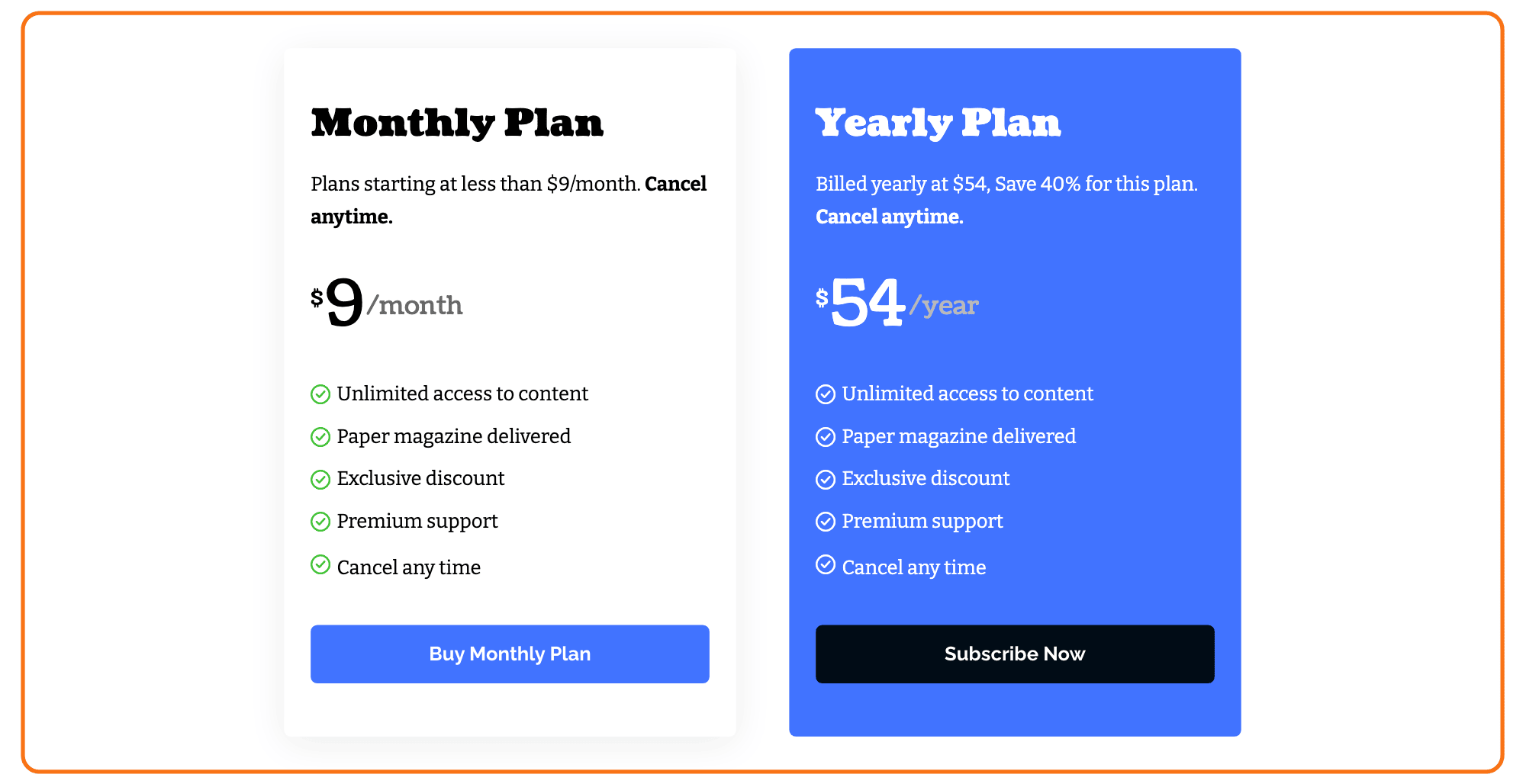
You can refer the official documentation for further information.
To get started, follow the steps below:
-
Navigate to Pages > All Pages.
-
Find the Join Us page and click its "Edit with Elementor" link. Build the plans there: it is the page the restriction box's main button sends visitors to, and the plugin made it for you. Elementor shows the plugin's starter text, with its line "Insert Payment Button For Your Paid Membership Levels Here", in a text block; delete that block once your plans are in place.
-
Elementor opens with its panel on the left. Search "Plan" blocks in the Elementor. The block you are looking for is Foxiz - Plan Subscription, and it also answers to the words paywall, membership and restricted in that search box.

-
After you search "Plan", you can drag and drop blocks inside. One block is one plan, so a three column pricing table is three blocks side by side. To put them side by side, add a container, open its Layout tab, set Direction to Row - horizontal, and drop one plan block into it for each plan.
-
Change your general settings and input "Membership Payment Button Shortcode"
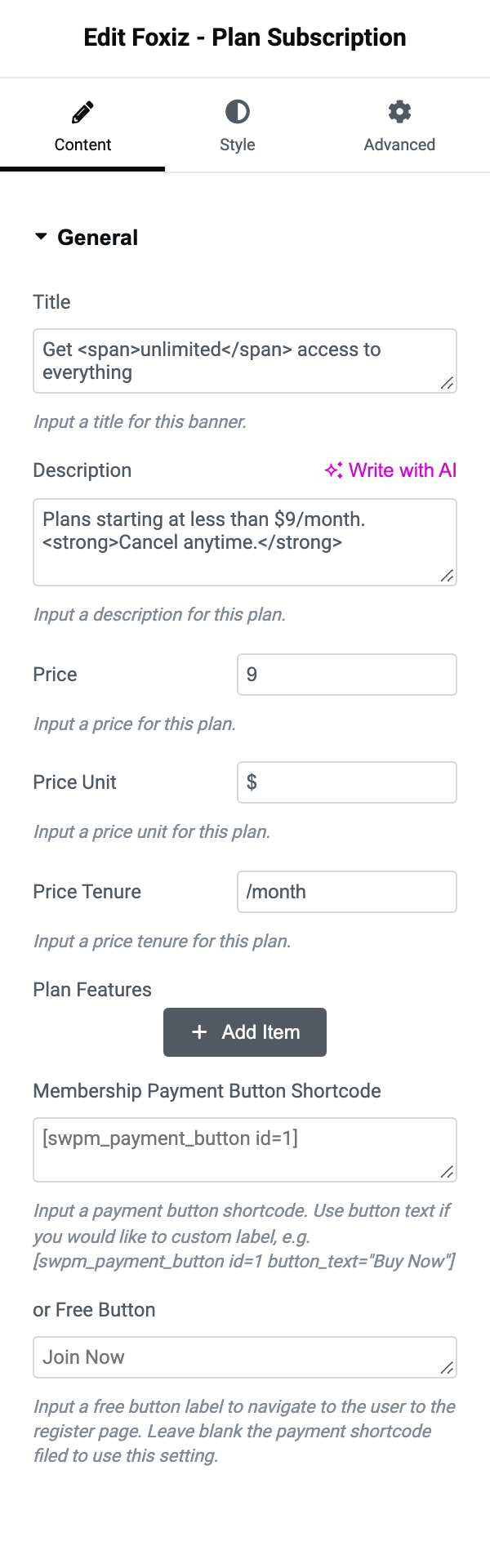
The General section holds every field that makes the plan read as a plan, and each one holds demo text by default that you will want to replace:
- Title, "Get unlimited access to everything".
- Description, "Plans starting at less than $9/month. Cancel anytime."
- Price, "9", with Price Unit "$" in front of it and Price Tenure "/month" after it. The three are printed as one line, and leaving Price empty drops the whole price line rather than printing a bare unit.
- Plan Features, a repeater with one Plan Feature line each. It is empty by default, so the feature list is blank until you add rows.
- Membership Payment Button Shortcode, the one from the second section below.
- or Free Button, a label used only when the shortcode field is empty. It renders a plain link to the membership plugin's registration page.
Leave both the shortcode and the free button empty and the plan draws with no button at all, which is the usual reason a finished looking plan does nothing when clicked.
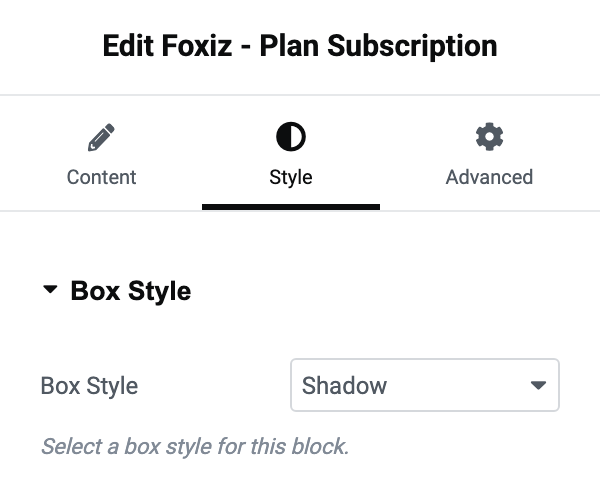
Under the Style tab, Box Style is what makes one plan stand out from its neighbours: Shadow, Border or Background, with Shadow as the default. Text Color Scheme beside it switches the whole box to Light Text for a dark background.
Copy the Membership Payment Button Shortcode
To get started, please follow the steps below:
-
Create a Subscription Button to hook your payments. Refer to this article.
-
Navigate to WP Membership > Payments and open the Manage Payment Buttons tab.
-
Copy your button's shortcode from the Button Shortcode column.
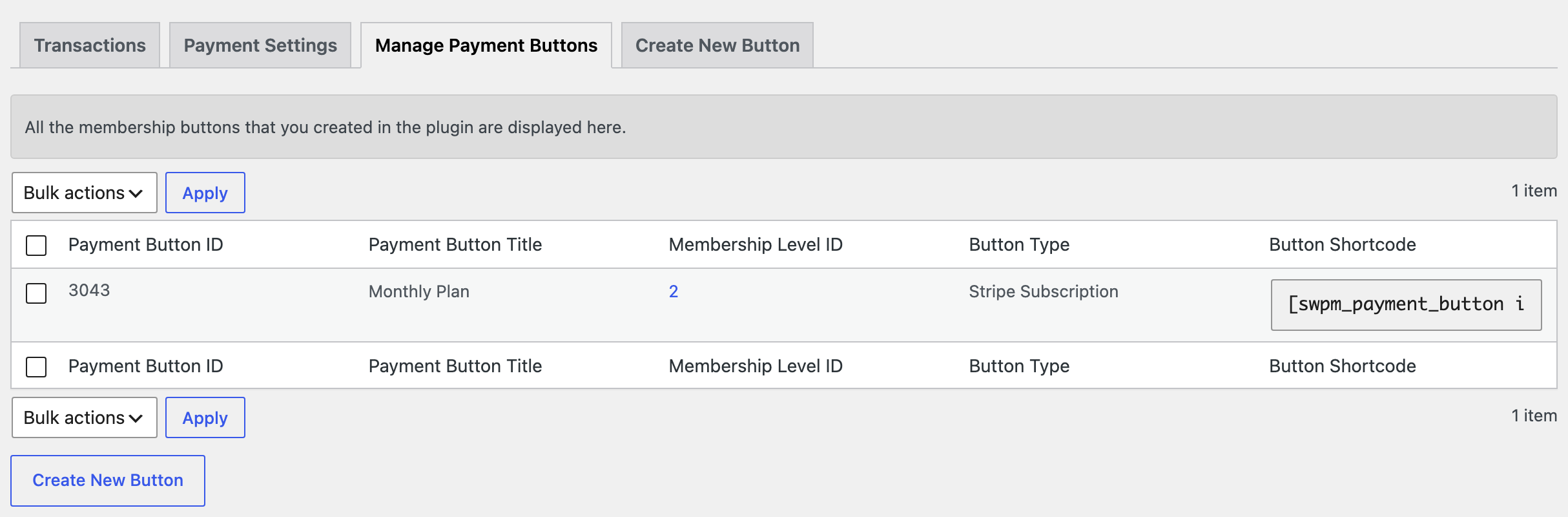
Paste it into Membership Payment Button Shortcode exactly as the plugin gives it to you. The block passes the whole field through WordPress shortcode processing, so extra attributes survive: the field's help text gives [swpm_payment_button id=1 button_text="Buy Now"] as the way to relabel the button without touching the plugin.
The button is the plugin's, so it only appears for a visitor the plugin decides should see it, and it styles itself from your plan box rather than from the plugin's defaults. If nothing renders where the button should be, check the shortcode on a plain page first: a shortcode that produces nothing on its own produces nothing here.
Did this answer your question?