Adding Membership Levels
Membership levels decide which content each member can and cannot see on your site.
When a visitor becomes a member, they are assigned to one of the levels you create, and they see the content that level covers.
You can refer the official documentation for further information.
Adding a New Membership Level
-
Navigate to Dashboard > WP Membership > Membership Levels.
-
Click the Add New button to add a new membership access level. It opens the Add Level tab.
-
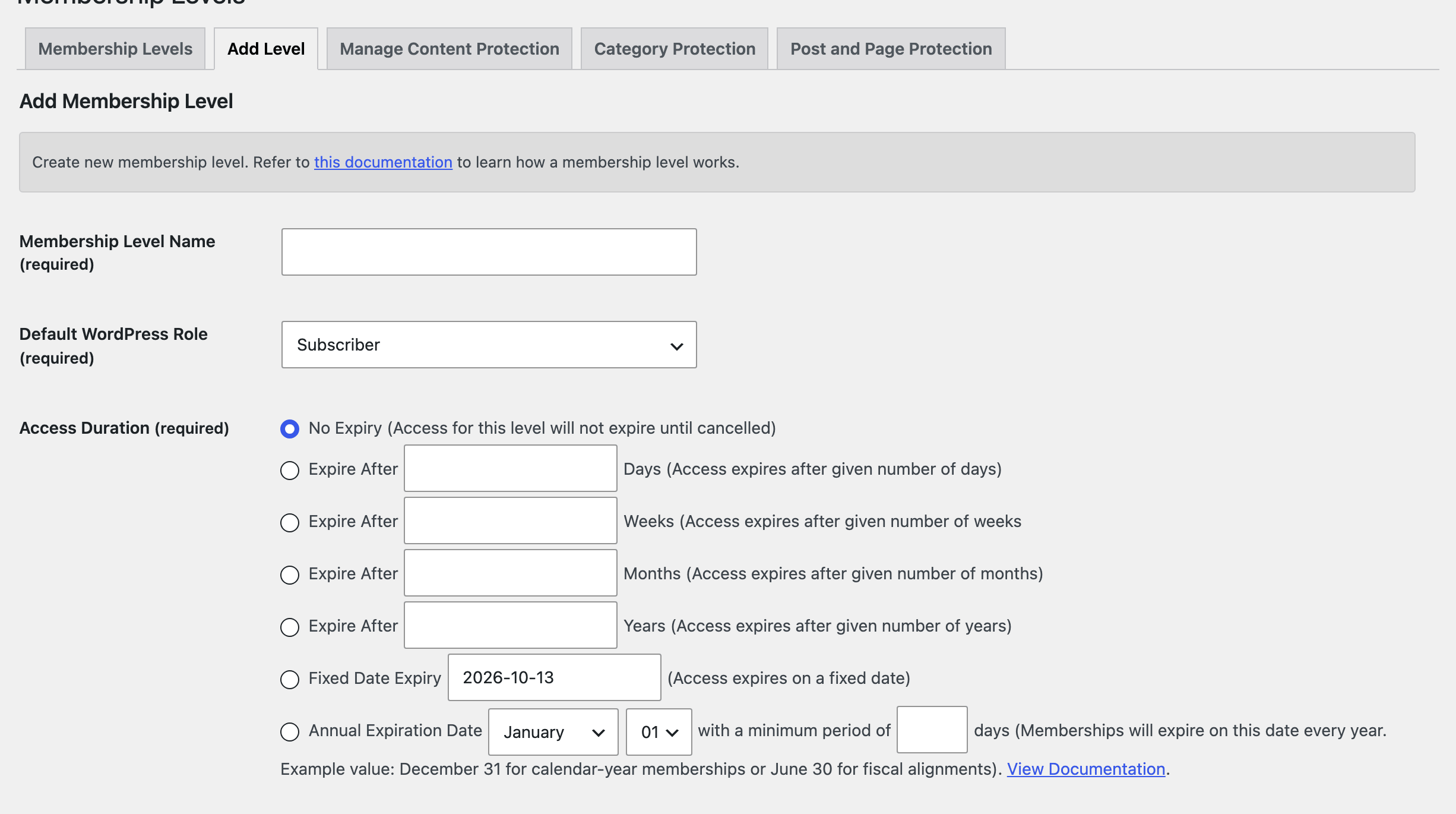
Fill in Membership Level Name and Access Duration, both required, then click Add New Membership Level. Default WordPress Role, also required, starts on Subscriber; keep it, so members cannot write or edit posts.
Which Access Duration to pick:
- A free or lifetime level: keep the default, No Expiry.
- A paid subscription: pick Expire After with the period your payment button bills, for example 1 Months for a monthly plan. Each payment restarts the period, so a paying member never runs out. A member who cancels keeps access to the end of the period they paid for, then gets the renewal box. On No Expiry, a cancelled subscription closes the account at once.
The two choices you just made are the two the theme reacts to, and each one has its own box at Foxiz > Theme Options > Membership.
What the level covers decides who sees the upgrade box. A member who reaches content their level does not include gets the Content Restrict for Logged Users box rather than the sign up box. Its two fields are Upgrade Membership Title, which by default reads "Upgrade Your Plan for even Greater benefits.", and Upgrade Membership Description, which by default reads "This content is not permitted for your membership level.". Both accept HTML, which is how the demo gives the title its two tone heading.
The access duration decides who sees the renewal box. Once a member's account has run out they get Content Restrict for Expired Users instead, built from Renewal Membership Title ("Renew account to access Premium contents"), Renewal Membership Description ("Your membership plan has expired.") and Renewal Button Label ("Renewal Your MemberShip").
Both boxes need a page URL from the plugin's own settings before they can draw.
The upgrade box uses the Join Us page, and prints "The login page or the join us page URL is missing in the settings configuration." on the front end when it is empty. The renewal box uses the Renewal page, falls back to the Join Us page when no renewal page is set, and prints "The renewal page or the URL is missing in the settings configuration." when both are empty.
The plugin fills Join Us Page URL itself when you activate it. You find it at WP Membership > Settings, General Settings tab, in the Pages Settings group. The renewal page is optional: Membership Renewal URL sits on the Advanced Settings tab. If a box shows the error line, see Creating the Required Pages and Forms.
Did this answer your question?