Editing Sidebars and Widgets
Widgets are the small blocks, such as a post list, an ad or your social links, that fill the sidebar, the footer and a few other areas. This page lists the places Foxiz lets you put them and how to add one.
What is a sidebar?
Sidebar is a special area used for site pages to show some widgets. It is useful when you need to display areas with the same elements on several pages (e.g. single pages, category pages).
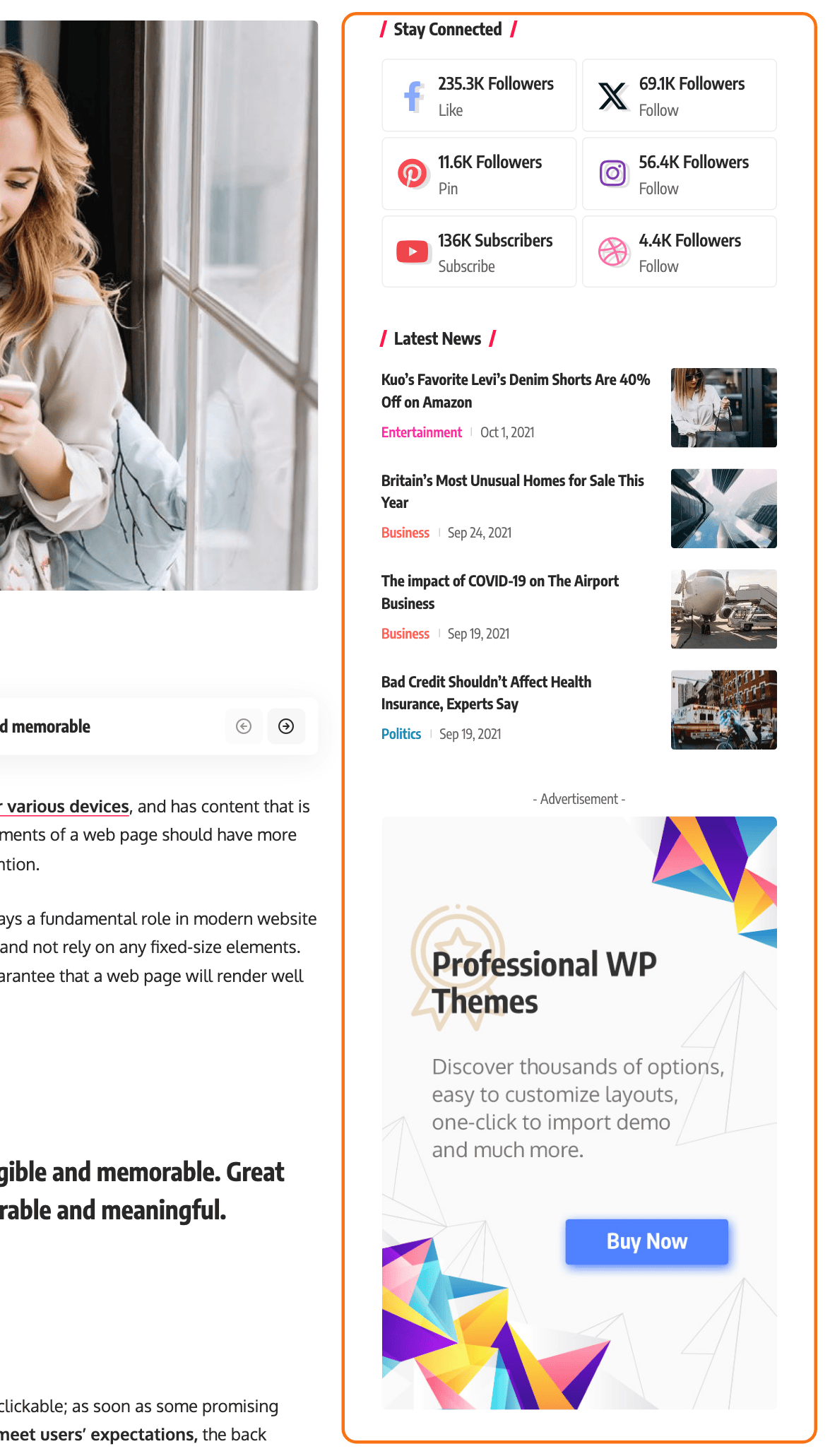
Foxiz provides some predefined Sidebar widget areas.
To get started, navigate to Your Dashboard > Appearance > Widgets.
The below is the list of the widget areas available in Foxiz theme:
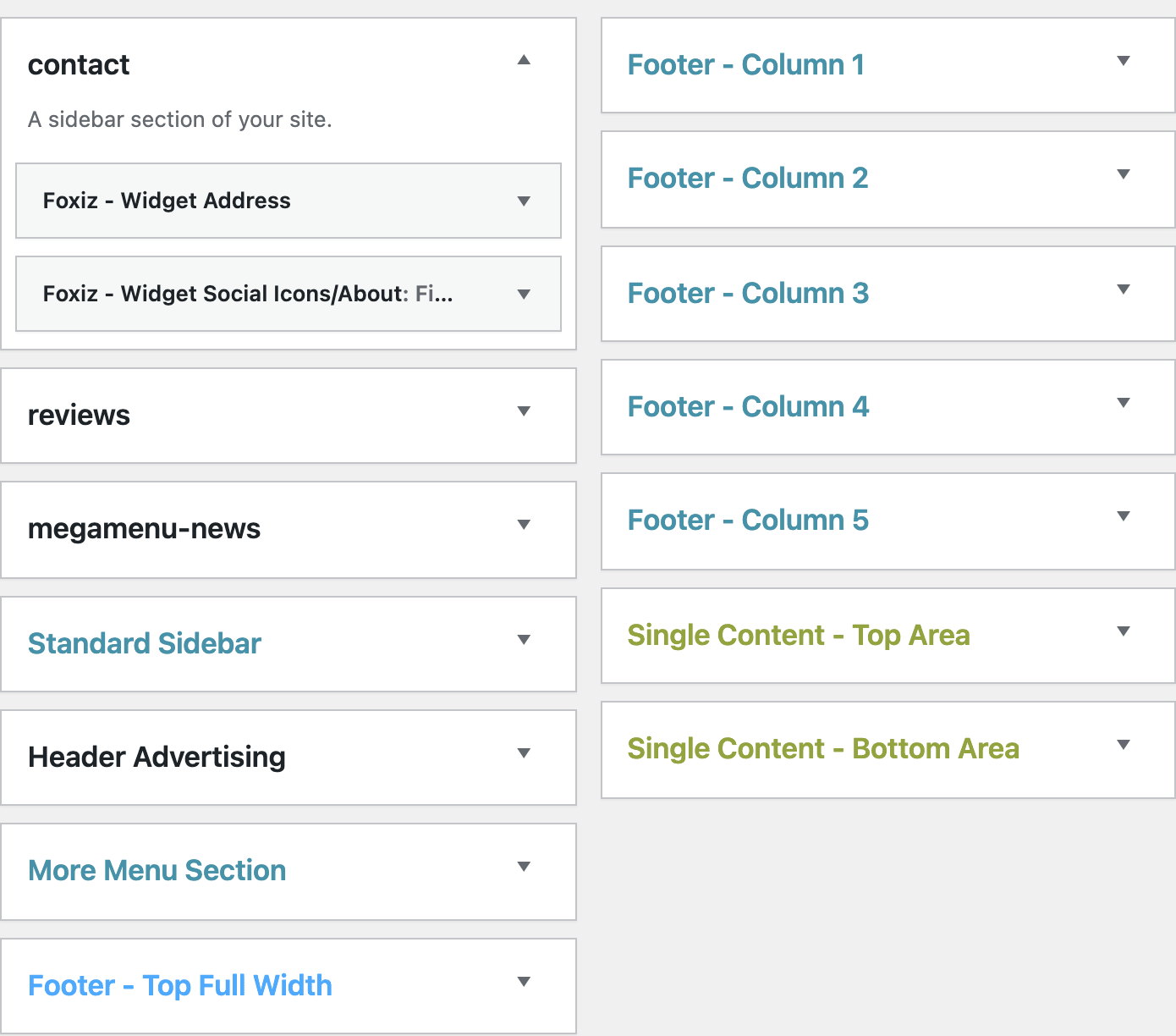
- Standard Sidebar: This is the default sidebar, the one every Assign a Sidebar dropdown starts on. Out of the box it shows at the right of single posts and the blog index. Pages, categories and archives show no sidebar until you set their Sidebar Position: see Assigning a sidebar to Posts & Pages.
- Header Advertising: widget ads below the website header, under the navigation. A single post can switch it off in Single Post Settings > Widgets & Ads > Header Advertising Widget Section.
- More Menu Section: this is the More menu button on the menu bar of your website. Each widget you drop in becomes one column of the dropdown.
- Footer - Top Full Width: this is the fullwidth area at the top of the footer. It is only visible if you add widgets.
- Footer - Column 1 to Footer - Column 5: those are footer columns.
- Single Content - Top Area: A section at the top of the single post content. Use it for an advert widget.
- Single Content - Bottom Area: A section at the bottom of the single post content. Use it for an advert widget or a related posts list. Both content areas are walked through in How to Add Widgets Before and After the Post Content.
Any sidebar you create under Theme Options > Sidebars > Unlimited Sidebars joins that list, named exactly as you typed it.
The six footer areas are registered from the saved Footer Layout, so the Widgets screen shows only the ones your layout uses:
- A three column footer: columns 1 to 3.
- A four column footer: columns 1 to 4.
- Either five column footer: columns 1 to 5.
- Use Ruby Template: none at all.
Set the layout at Theme Options > Footer > Widget Section before you fill the columns.
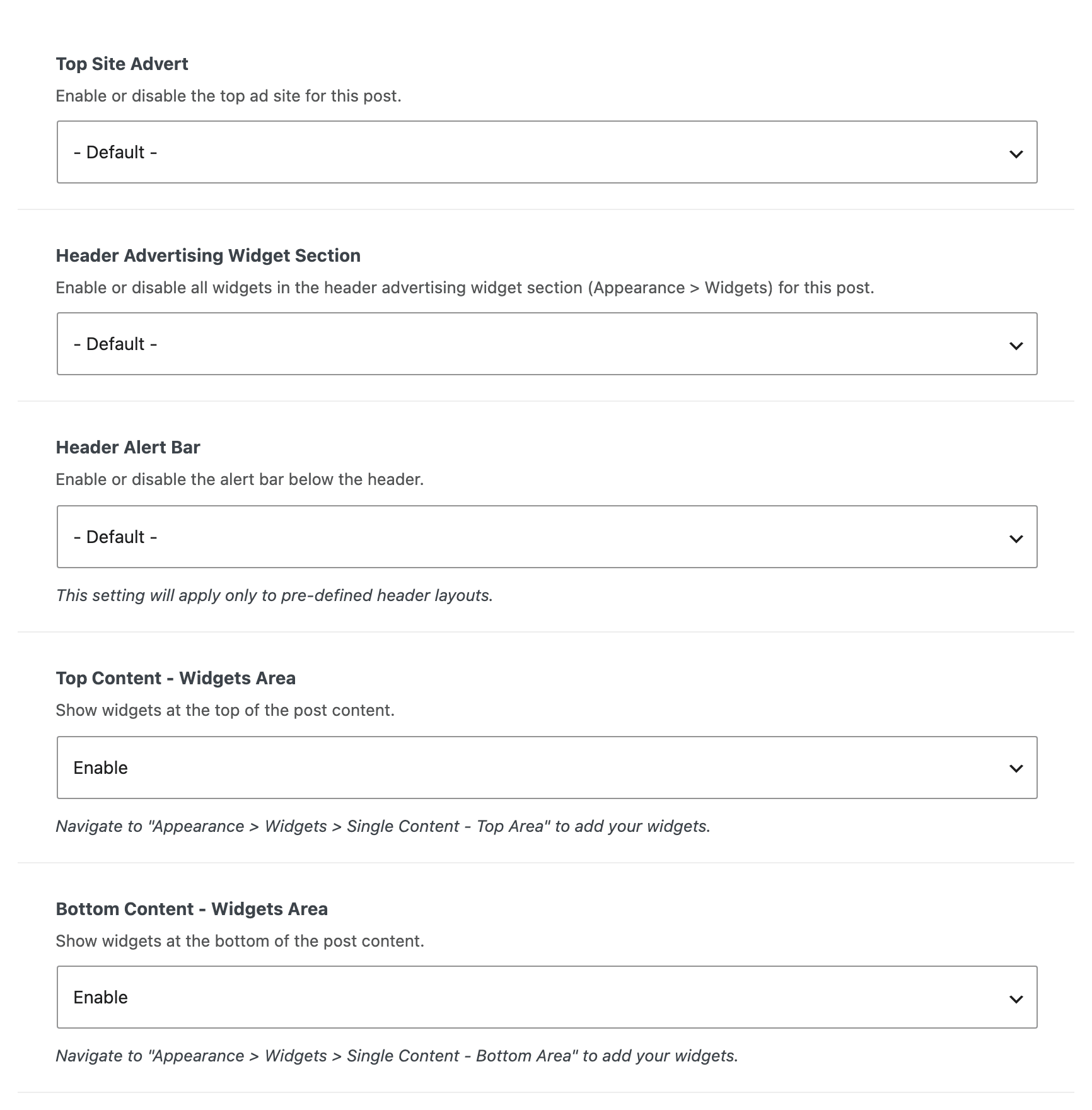
The two Single Content areas can also be switched off for one post, in Single Post Settings > Widgets & Ads, under Top Content - Widgets Area and Bottom Content - Widgets Area. Both are enabled by default.
How to add widgets to a sidebar?
To add widgets to a sidebar, following steps below:
-
Go to Appearance > Widgets.
-
Select a widget and then drag and drop it to the sidebar wherever you wish.
-
To customize the Widget features, click the down arrow in the upper right corner to expand the widget’s interface.
-
Click on the "Save" button to finish. While nothing has changed it reads Saved and is greyed out; it turns into Save as soon as you edit a field.
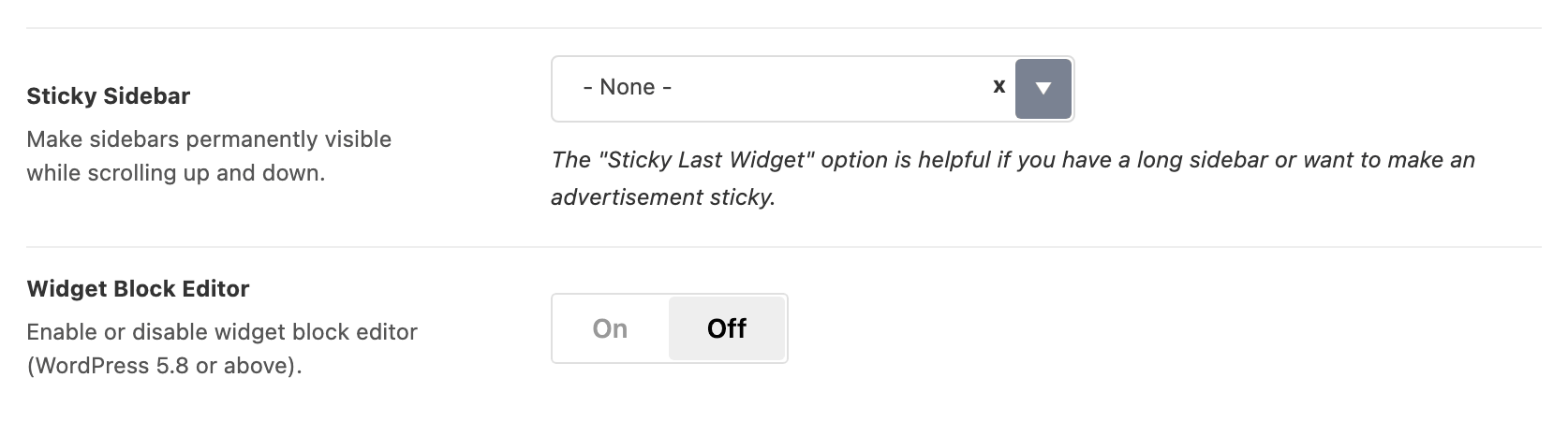
Those steps describe the classic drag and drop Widgets screen, and you get it because Foxiz turns the WordPress block widget editor off for you: Theme Options > Sidebars > Widget Block Editor is disabled by default. Switch it on and Appearance > Widgets becomes the block editor instead, where widgets are inserted as blocks rather than dragged, and the steps above no longer match the screen.
Foxiz's own widgets are the ones prefixed Foxiz - in the widget list. By what they are for:
- Posts and templates: Foxiz - Post Listing and Foxiz - Ruby Template.
- Ads and banners: Foxiz - Widget Banner, Foxiz - Widget Ad Image and Foxiz - Widget Ad Script.
- Social: Foxiz - Widget Instagram, Foxiz - Widget Flickr Grid, Foxiz - Widget Facebook, Foxiz - Widget Social Counter, Foxiz - Widget Social Icons/About and Foxiz - Youtube Subscribe.
- Site information: Foxiz - Widget Address and Foxiz - Widget Weather.
- The full width footer strip: Foxiz - Fw Instagram and Foxiz - FW Newsletter.
Every one of them comes from the Foxiz Core plugin, so they disappear from the list if that plugin is deactivated.
Nothing stops you dropping a WordPress core widget, or a plugin's, into any of these areas. The two Fw widgets are the only ones whose own description says they are for the full width sections, and the ad widgets work in either.
Creating a custom sidebar
If you want a specific widget area for specific posts or pages, see How to create a custom sidebar.
Did this answer your question?