Post Settings & Layouts
You can change how a single post looks in two places:
- Theme Options > Single Post sets the look of every post on the site.
- Single Post Settings, the box under the post editor, changes one post only.
When both set the same thing, the post's own setting wins. A field left on - Default - in the post box follows Theme Options.
So work in this order: set the look you want for all posts in Theme Options first. Then open the posts that should look different and change only those fields in their own box.
Global Options
These options apply to every post. Go to Foxiz > Theme Options > Single Post.
That panel opens twenty subsections, from Post Layout at the top to Site Header at the bottom. Five pages walk six of them field by field: Post Content Area, Tagline & Highlights, Affiliate Disclosure, Sticky Headline and Reading Indicator and Summarize with AI.
Individual Post Options
These settings apply only to the post you are editing.
- Navigate to Posts > All Posts and click Edit under the post's title.
- At the bottom of the editor, click the Meta Boxes bar to open it.
- Find the Single Post Settings box. Its twenty five tabs run down the left, from Tagline & Highlights to Site Footer.
- Open a tab and change only the fields this post needs. Most fields start on - Default -; leave the rest there, so they keep following Theme Options.
- Click Save, or Publish on a post that is not published yet.
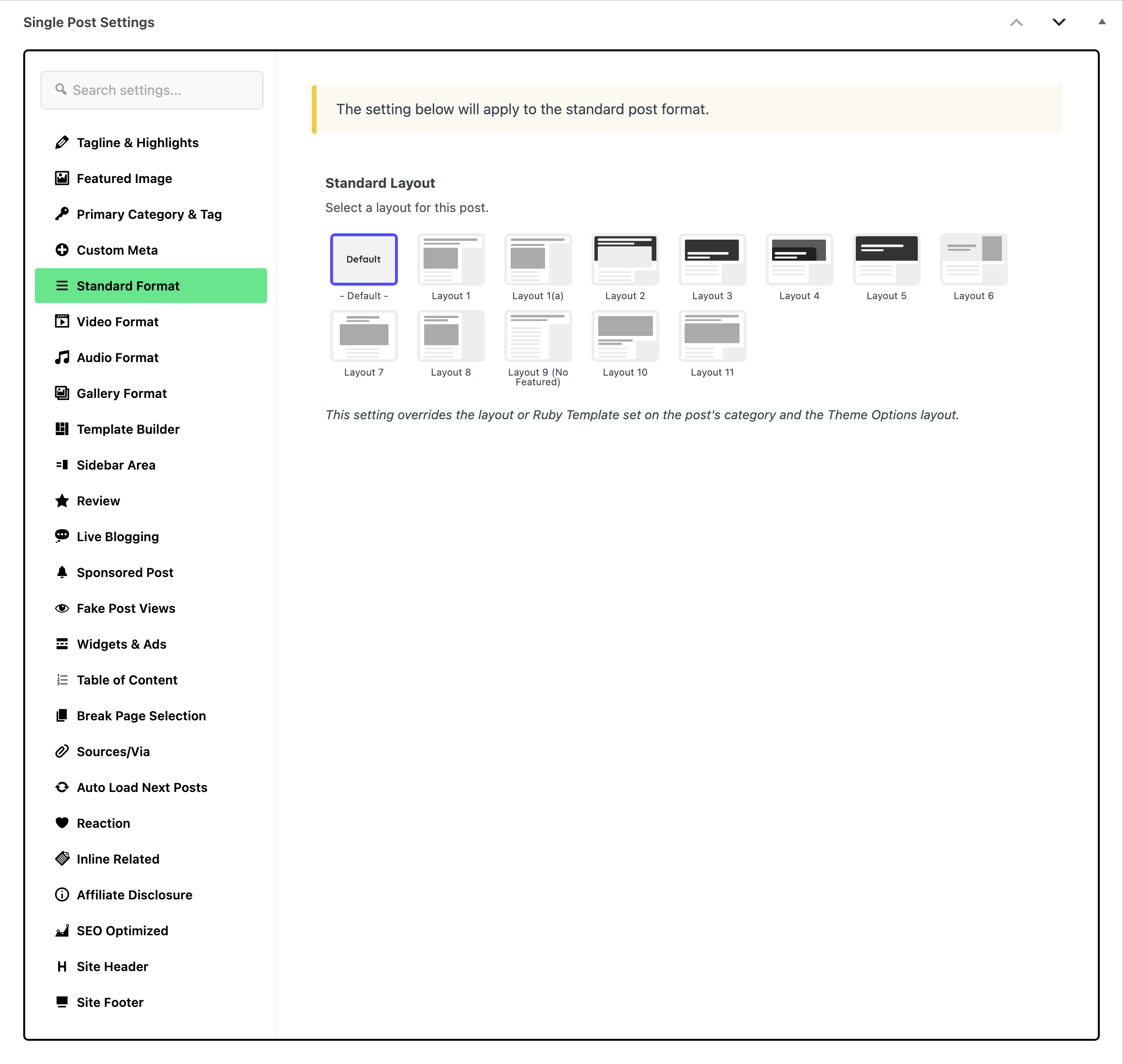
The layout can also come from a Ruby Template or the post's category. Foxiz uses the first of these that is set:
- The Template Builder tab: a Ruby Template set here takes priority over everything.
- The post's own layout: Standard Layout, or the layout field on the Video Format, Audio Format or Gallery Format tab.
- The post's primary category, or its first category when no primary is set, only while the post's layout is left on - Default -: its Use Ruby Template for Single Post Layout applies to every post format, and its Single Post Layout to standard format posts only.
- Theme Options > Single Post > Post Layout, when none of the above sets one.
The AI writing tools are not a tab in this box. On an activated site the editor sidebar holds a Foxiz AI box, and its Write with AI button opens the AI Assistant, which drafts titles, outlines, content, excerpts, taglines, meta descriptions, tags and categories for the post. The AI Assistant guide walks through it.
Editing a Post Layout
The theme supports many single layouts. To change it, follow the steps below:
-
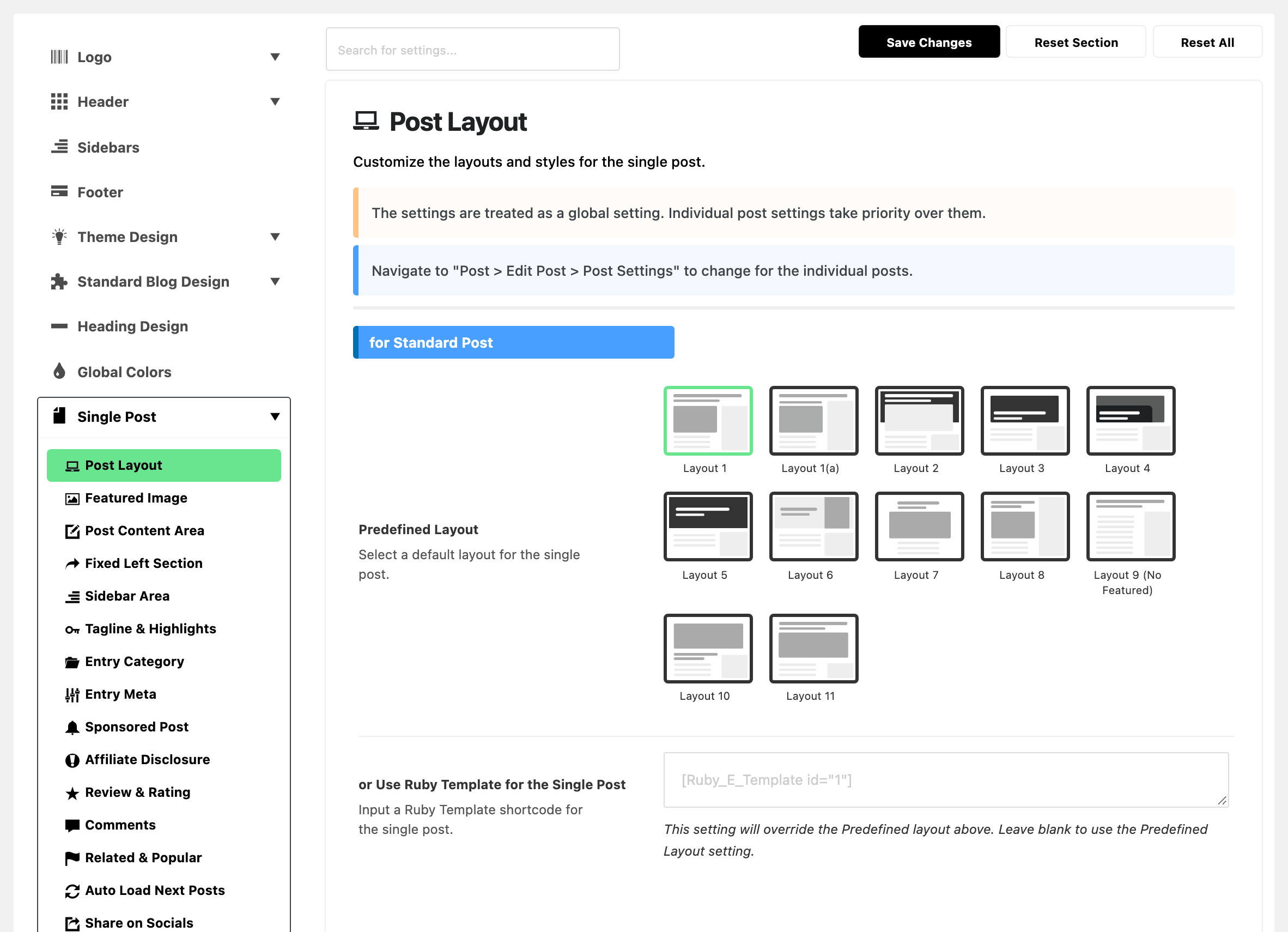
Global Options: Navigate to Theme Options > Single Post > Post Layout. Its first section is for Standard Post, holding Predefined Layout with twelve choices: Layout 1 to Layout 11, plus Layout 1(a), which is Layout 1 with the author and date bar moved out of the header, down into the content column above the featured image. Layout 9 (No Featured) shows no featured image. Its default is Layout 1. For most sites keep it: it suits any featured image. Use Layout 9 (No Featured) for posts without an image, and Layout 6 only for images that still look right cut to a tall upright shape. Video, audio and gallery posts have their own sections further down the same screen and do not use it.
-
Individual Post Options: Navigate to Posts > All Posts and click Edit under the post's title. In the Single Post Settings box, open the Standard Format tab and pick a layout in Standard Layout.
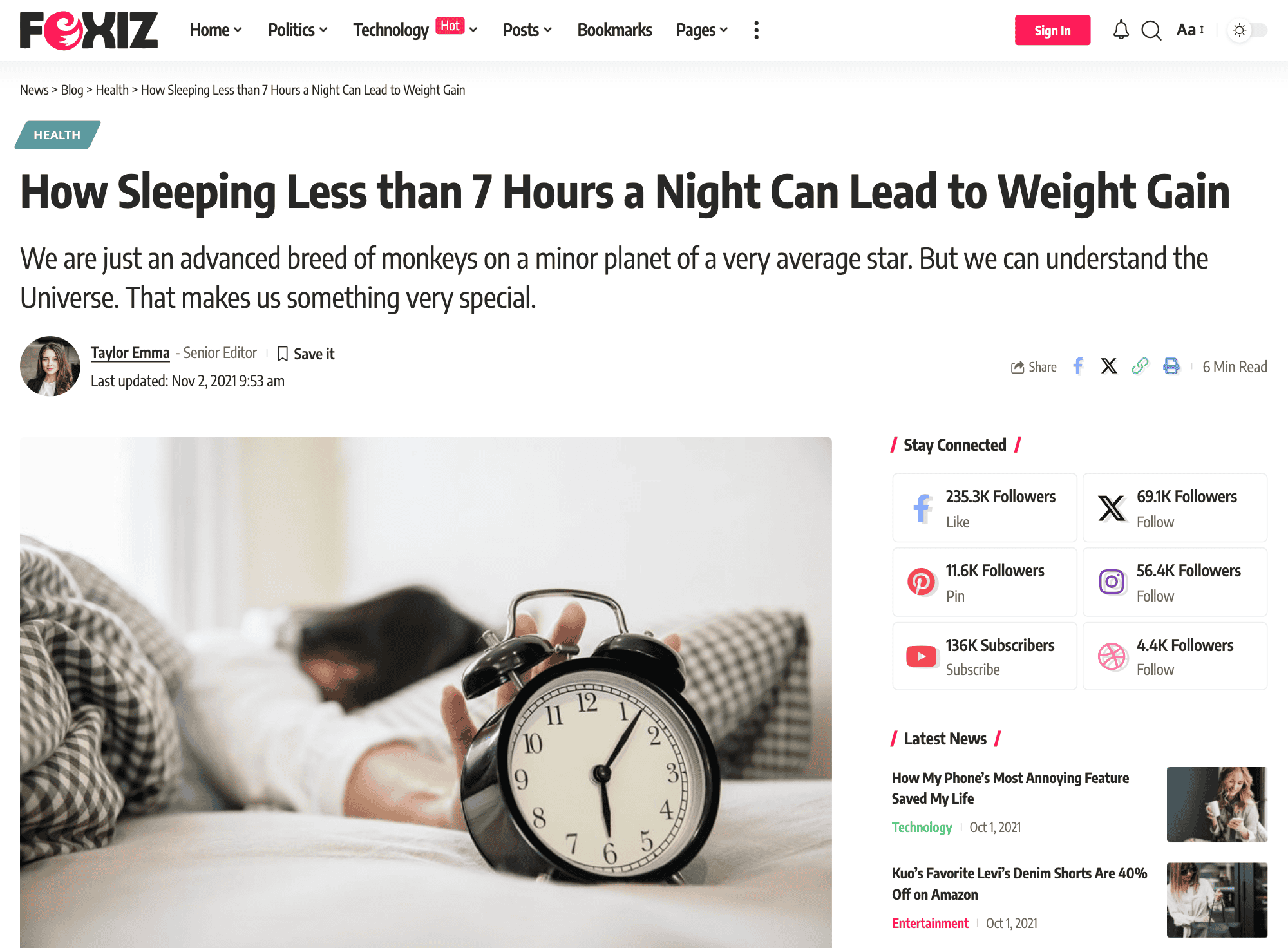
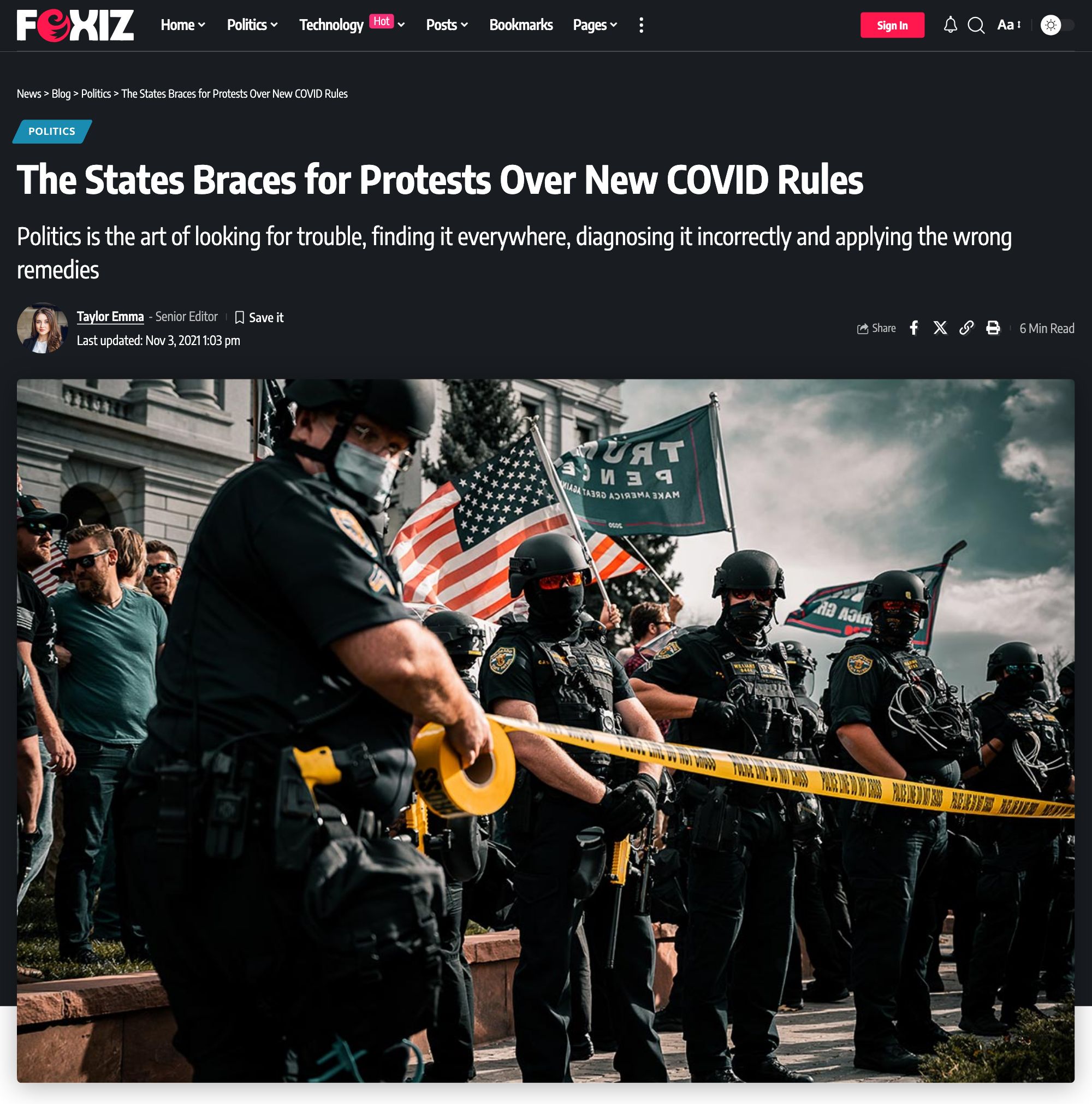
Four of the predefined layouts, as they look on the Default demo:
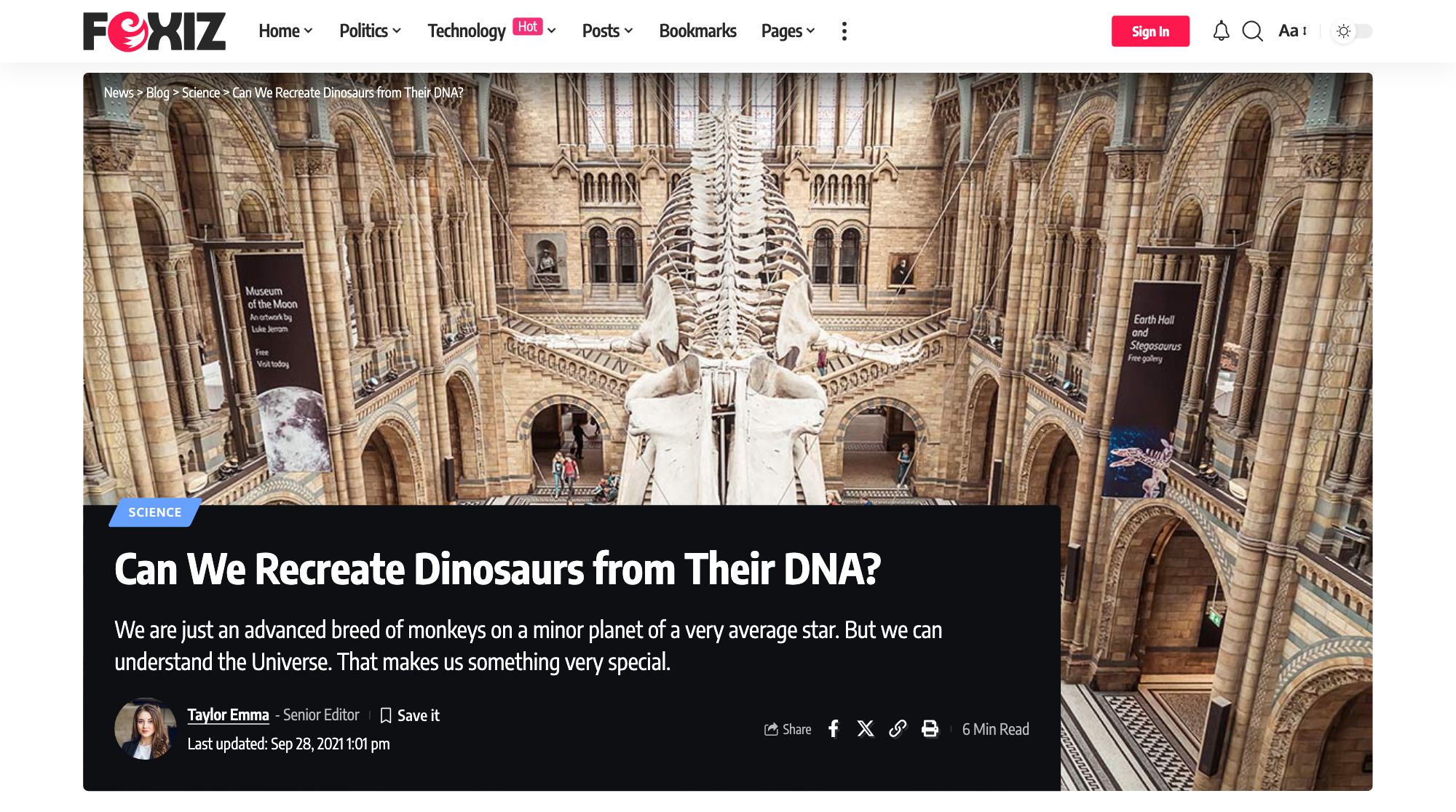
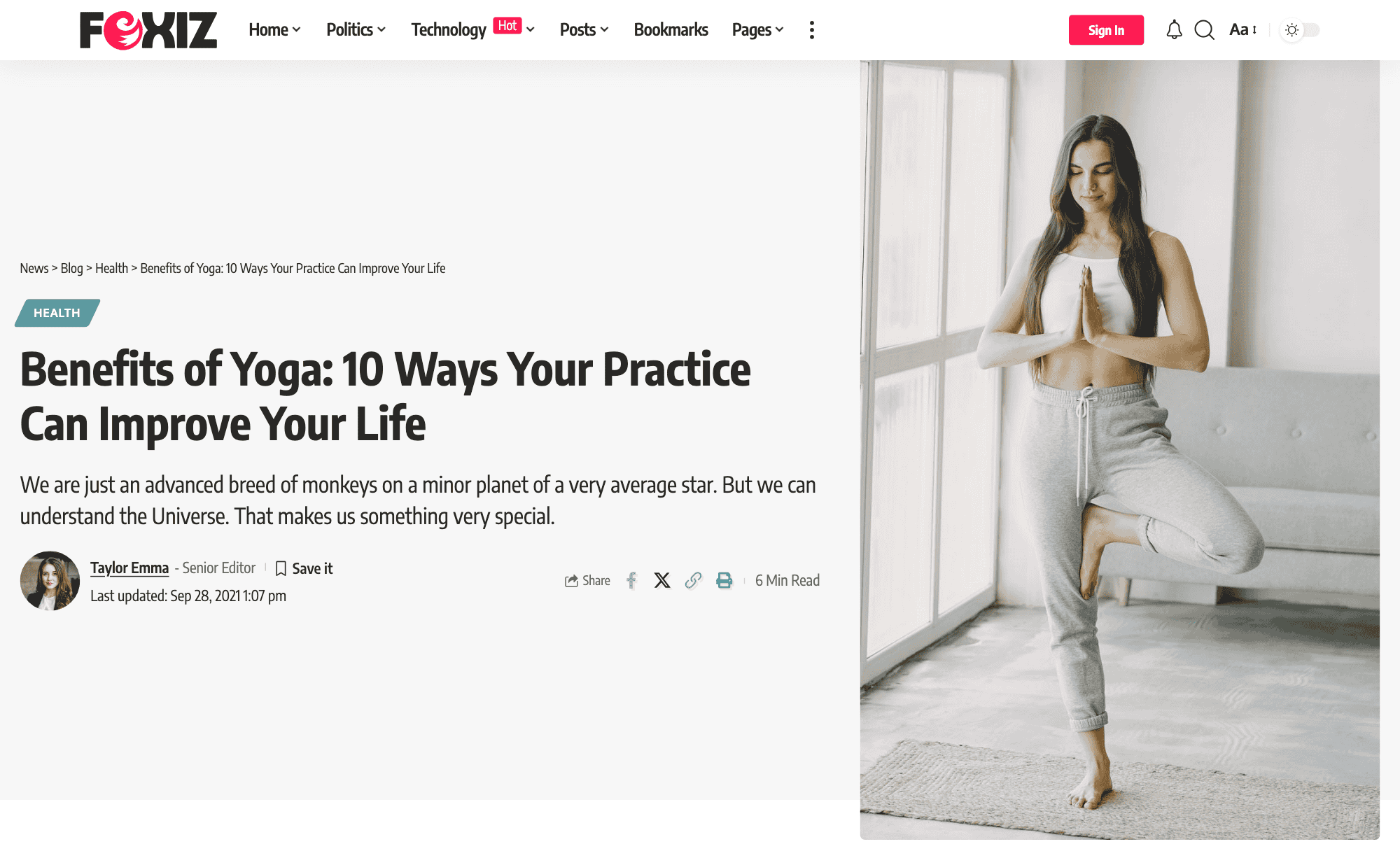
Below the four post format sections, the same Post Layout screen has two more groups. They apply to whichever predefined layout a post ends up with, and never to a layout built from a Ruby Template.
- Centering Header holds two switches, both off by default. Center Header centres the post title, the tagline under it and the category label above it. Center Entry Meta centres the meta bar with the author and date. If you centre the bar, the field suggests turning off Big Avatar and the last updated date at Single Post > Entry Meta, which is good advice: both sit beside the bar and pull it off centre.
- Featured Ratio sets the height of the featured image as a percentage of its width, for the three layouts that crop it. Type a number only.
- layout 6 - Featured Ratio is for Layout 6, whose image stands upright beside the headline. It is empty by default, which keeps the theme's tall crop of 150, meaning half again as tall as it is wide.
- Layout 10 - Featured Ratio and Layout 11 - Featured Ratio both default to 45, a wide banner a little under half as tall as it is wide. Clear the field and that layout shows the image at its original shape instead.
Look through the other subsections of Theme Options > Single Post too: almost everything else about how a post looks is set there.
Single Pagination
To split your post content into pages, insert a Page Break block in the block editor wherever a new page should start.
In the Classic editor, switch to the Code tab (called Text in older WordPress) and then enter the following code to wherever you want to break the content into a new page:
<!--nextpage-->
The Page Break block writes that same code for you. Either way the post gains the numbered pagination links Foxiz draws under the content.
Foxiz adds something on top of the numbers. The Break Page Selection tab of Single Post Settings takes one heading per page, in order, and turns the pagination into a named list instead of page numbers. Its rows have to match the page breaks one for one.
Infinite Next Posts
To set up the load next article feature, navigate to Theme Options > Single Post > Auto Load Next Posts.
The switch there, also called Auto Load Next Posts, is off by default. The eight settings under it stay on screen either way, because one post can switch the feature on or off for itself through the Auto Load Next Posts tab of Single Post Settings. See How to Enable or Disable Auto Load Next Posts Feature on Single Post Page.
Did this answer your question?