Single Post Adverts
The theme has two widget areas for adverts in a single post: at the top and the bottom of the post content.
There is a third place, and it is the one most people are looking for: three inline slots that drop an ad into the article after a paragraph you choose. For an ad inside the article, jump to Inside Content.
Single Content - Top Area
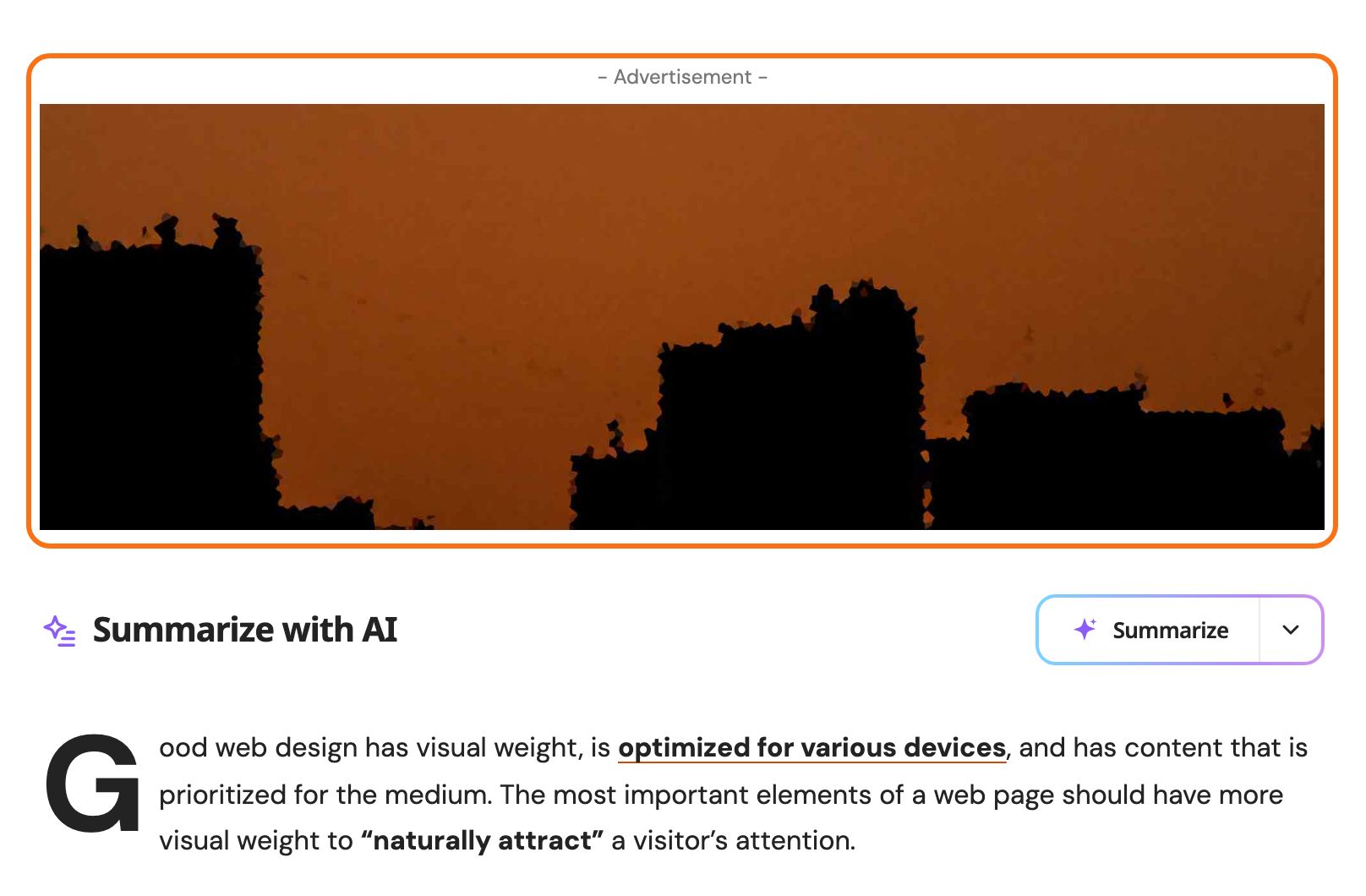
Widget Ad Image
-
Navigate to Appearance > Widgets.
-
Open the Single Content - Top Area. The theme describes it as "The section at the top of the single post content. It usually uses to display adverts".
-
Drag and drop Foxiz - Widget Ad Image into this section
-
Add your advert and save the change.
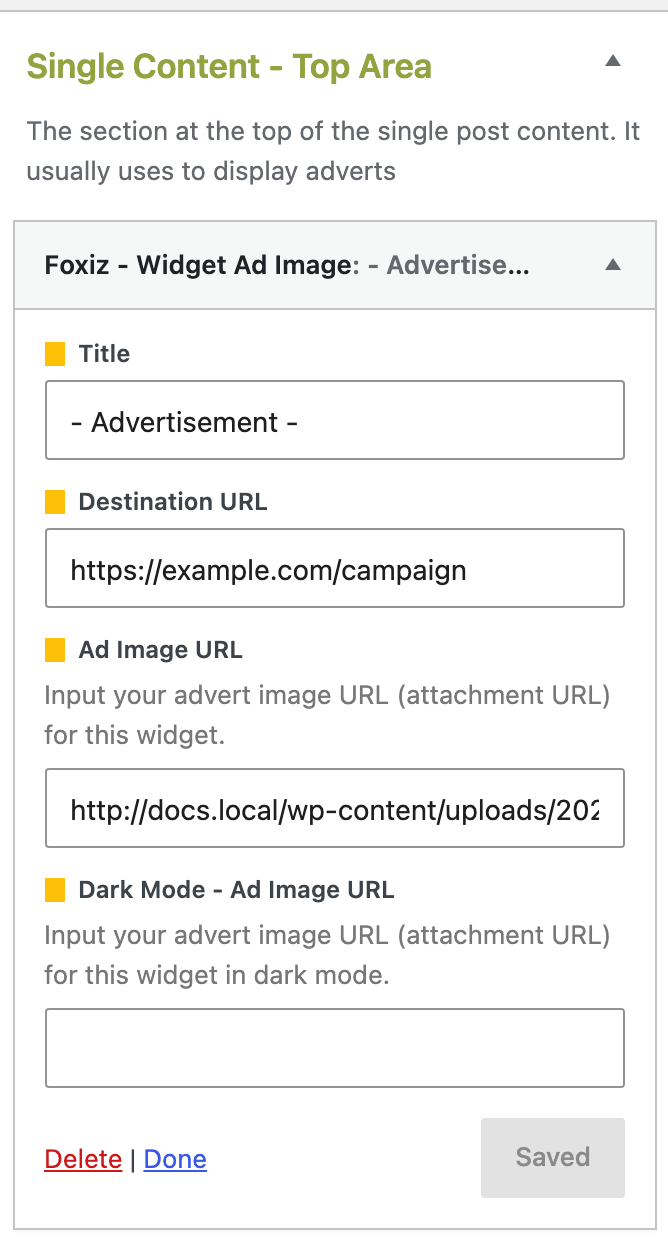
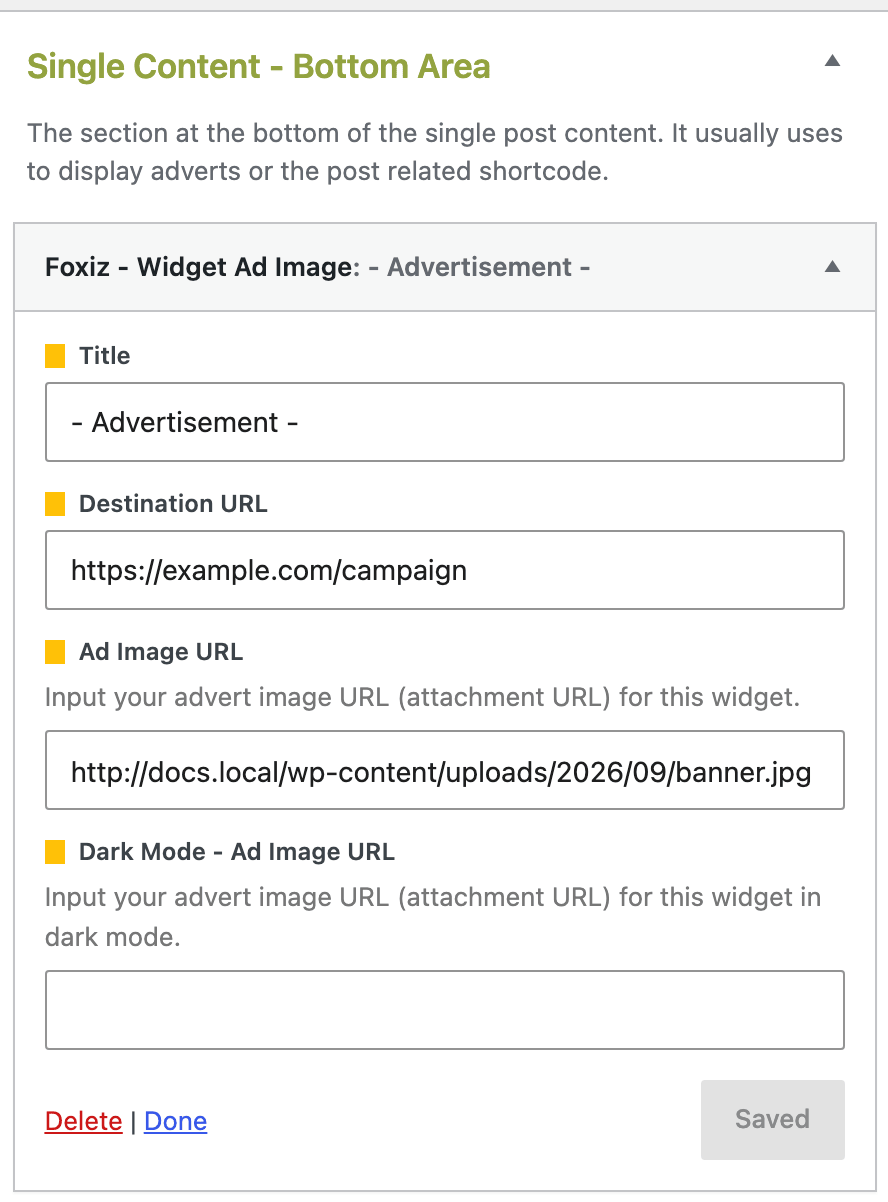
The widget's fields are Title, which defaults to "- Advertisement -", Destination URL, Ad Image URL and Dark Mode - Ad Image URL. The two image fields are text boxes wanting the URL of an image already in your media library, not upload buttons. The same two widgets work the same way in every area below; The Foxiz Ad Widgets explains each field.
Widget Ad Script
-
Navigate to Appearance > Widgets.
-
Open the Single Content - Top Area
-
Drag and drop Foxiz - Widget Ad Script into this section
-
Add your advert and save the change.
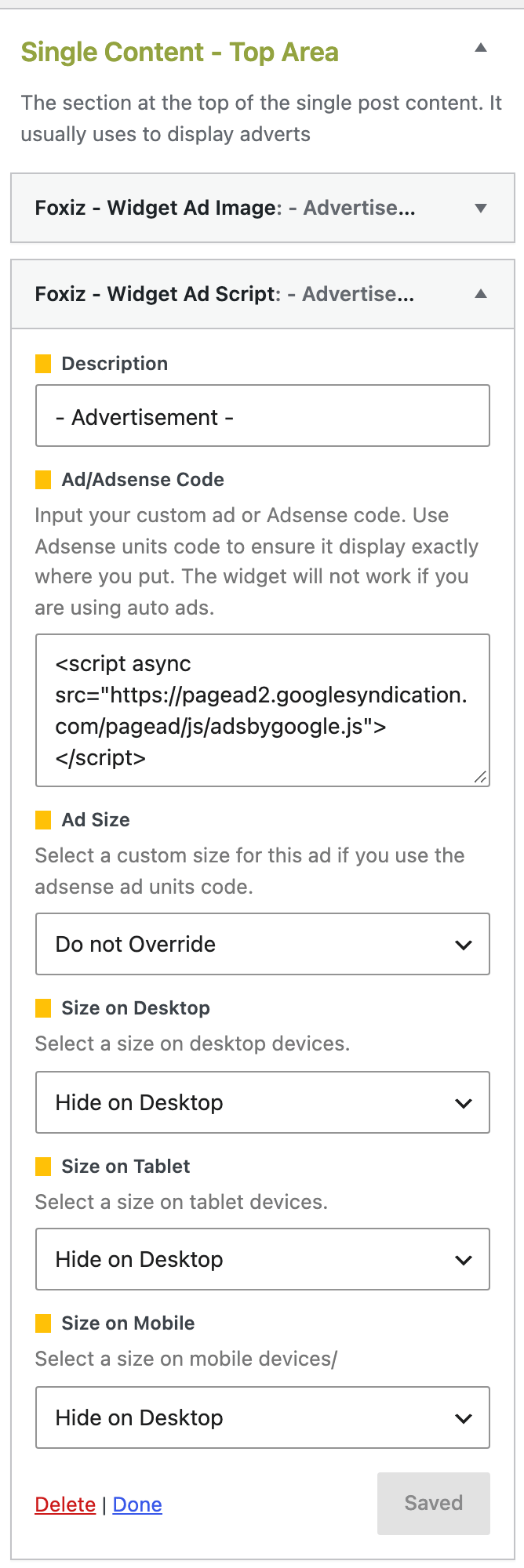
Its fields are Description, Ad/Adsense Code, Ad Size and the three device sizes. The widget's own help text warns that it will not work if you are using auto ads, and that is accurate: an Auto Ads code suppresses every other AdSense unit unless Theme Options > Ads & Slide Up > Adsense - Auto Ads > Allow Other Ads Placement is on.
Bottom Content Advert Spot
Widget Ad Image
-
Navigate to Appearance > Widgets.
-
Open the Single Content - Bottom Area
-
Drag and drop Foxiz - Widget Ad Image into this section
-
Add your advert and save the change.
Widget Ad Script
-
Navigate to Appearance > Widgets.
-
Open the Single Content - Bottom Area
-
Drag and drop Foxiz - Widget Ad Script into this section
-
Add your advert and save the change.
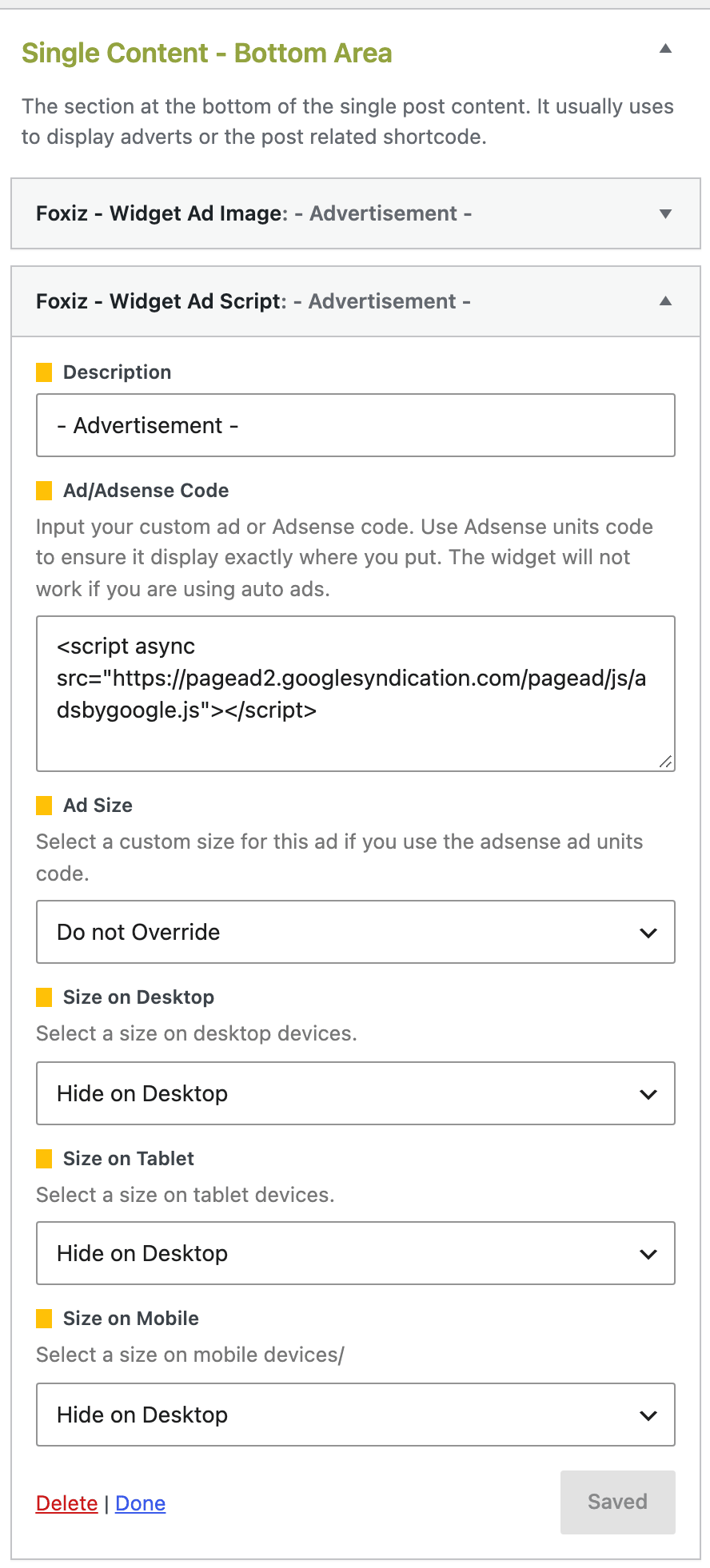
Both areas take any widget, so the same two spots will hold a related posts shortcode or a newsletter form just as happily: see How to Add Widgets Before and After the Post Content. The theme's own description of the bottom area says as much.
Inside Content
The theme does this itself now, and you do not need a plugin for it. Theme Options > Ads & Slide Up > Inline Single Content holds three independent ad slots that are placed inside the post content after a number of paragraphs you choose.
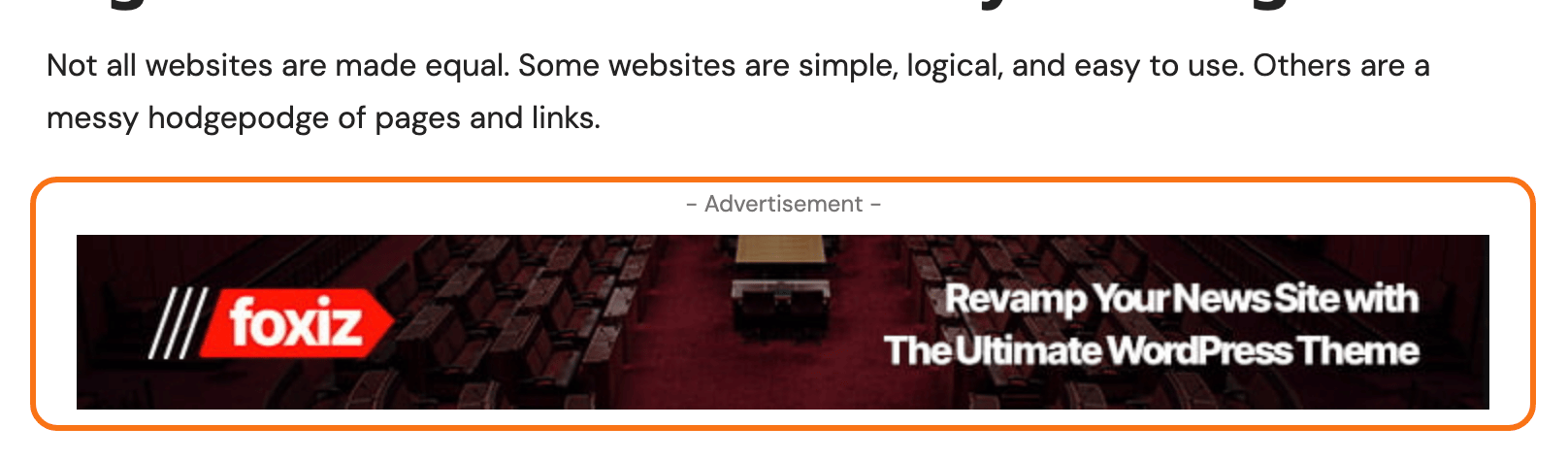
Two places decide whether an inline ad shows:
- Theme Options > Ads & Slide Up > Inline Single Content sets the three slots for every post.
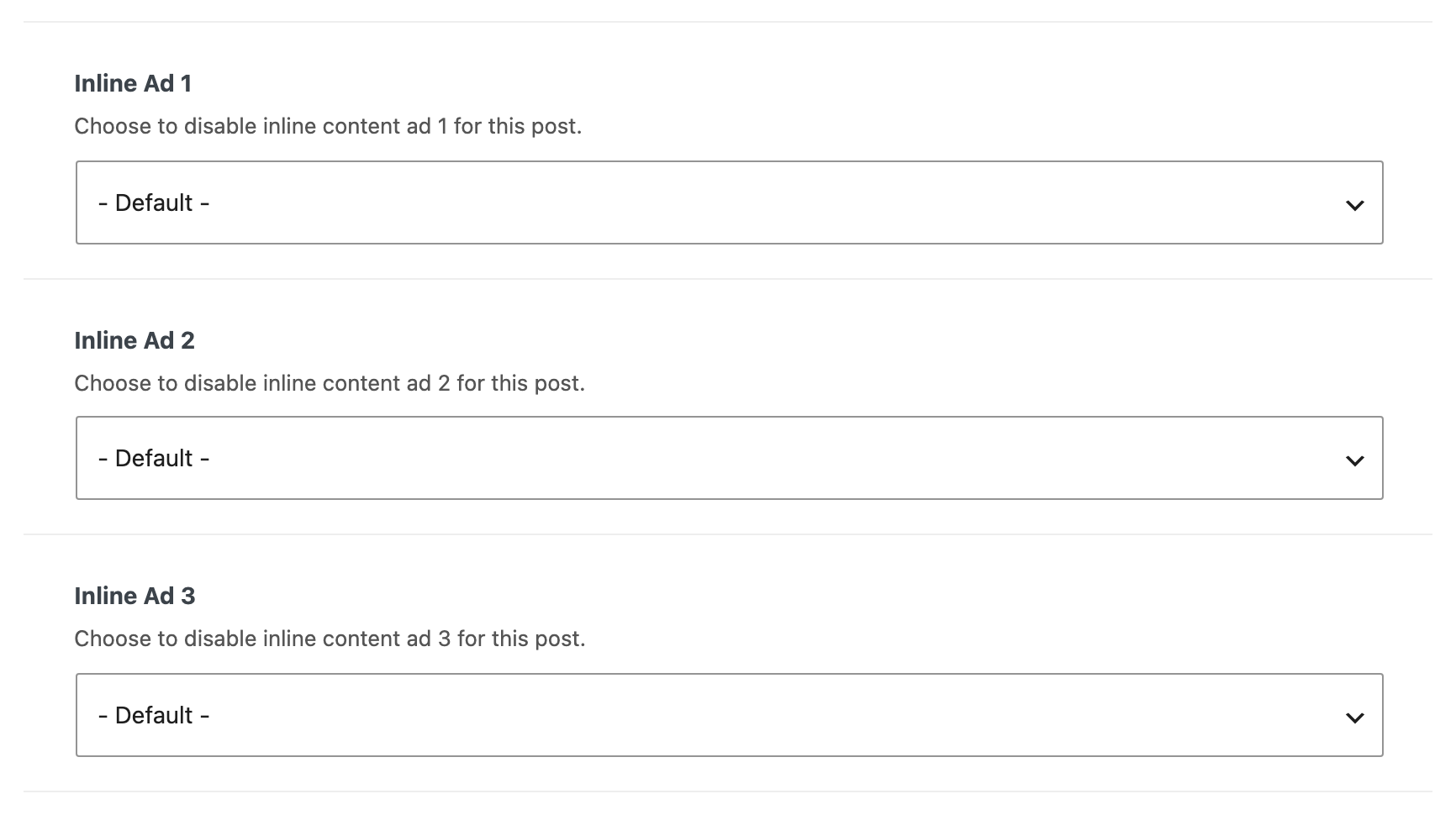
- Inline Ad 1, Inline Ad 2 and Inline Ad 3, in one post's Single Post Settings, switch a slot off for that post.
Disable on the post wins, and - Default - follows Theme Options. A post cannot add a slot that Theme Options leaves empty, so set the slots up here first and switch them off only on the posts that should not carry them.
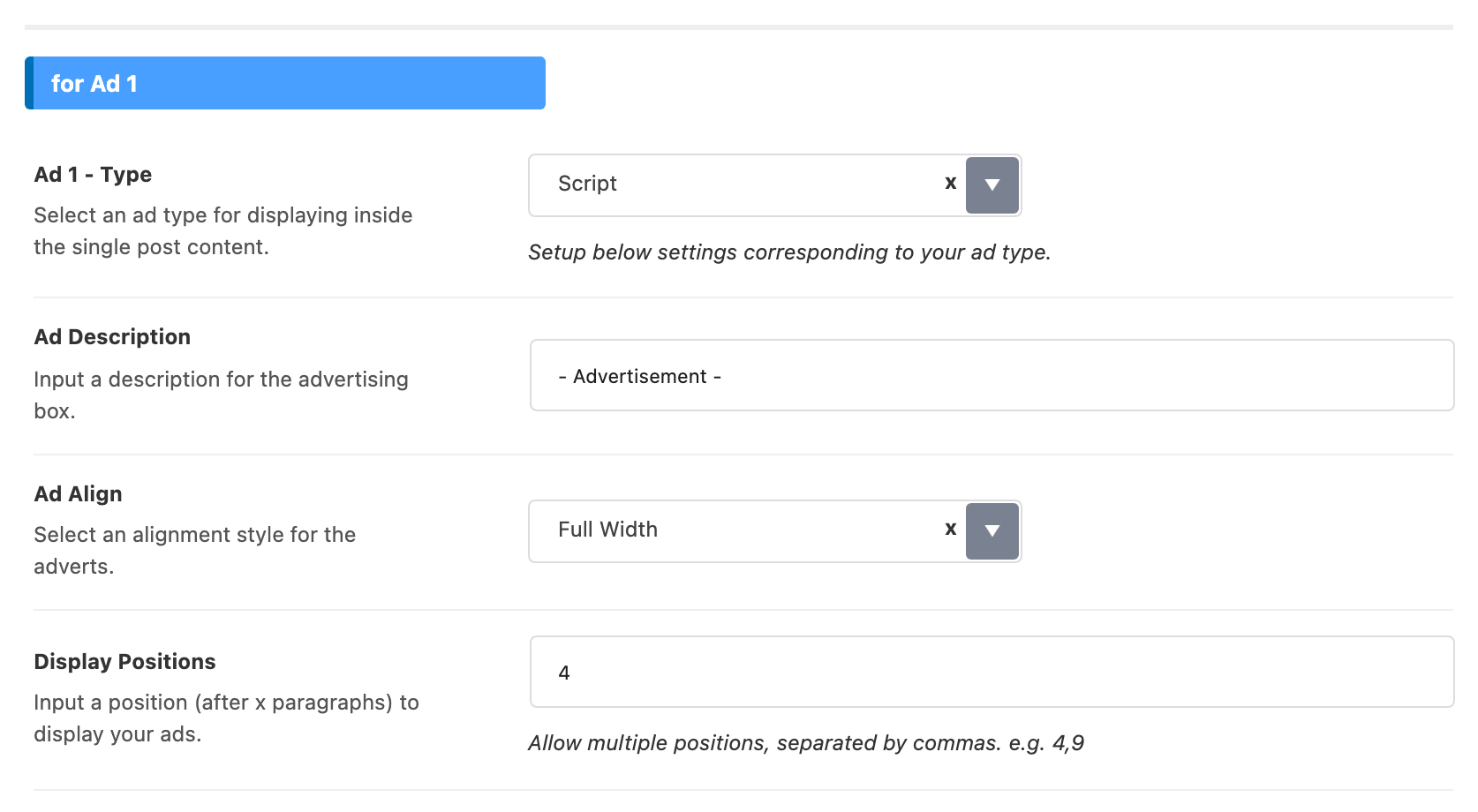
Each slot is set up the same way, under the section headings for Ad 1, for Ad 2 and for Ad 3:
-
Ad 1 - Type picks Script or Image, and its default is Script.
-
Ad Description is the small line printed above the ad, and its default is "- Advertisement -". Empty it and no line is printed.
-
Ad Align is Full Width, Float Left or Float Right, with Full Width as the default. The floats let the text wrap around a smaller ad.
-
Display Positions is where it goes: a paragraph count, and more than one is allowed separated by commas, as in
4,9. By default, Ad 1 is set to 4, Ad 2 to 9 and Ad 3 to 12, so out of the box the three slots are spread through a long article. -
Then fill in either Script - Ad/Adsense Code with its three device sizes, or Image - Ad, Image - Dark Mode Ad, Image - Ad Destination and Image - Max Width, depending on the type you chose.
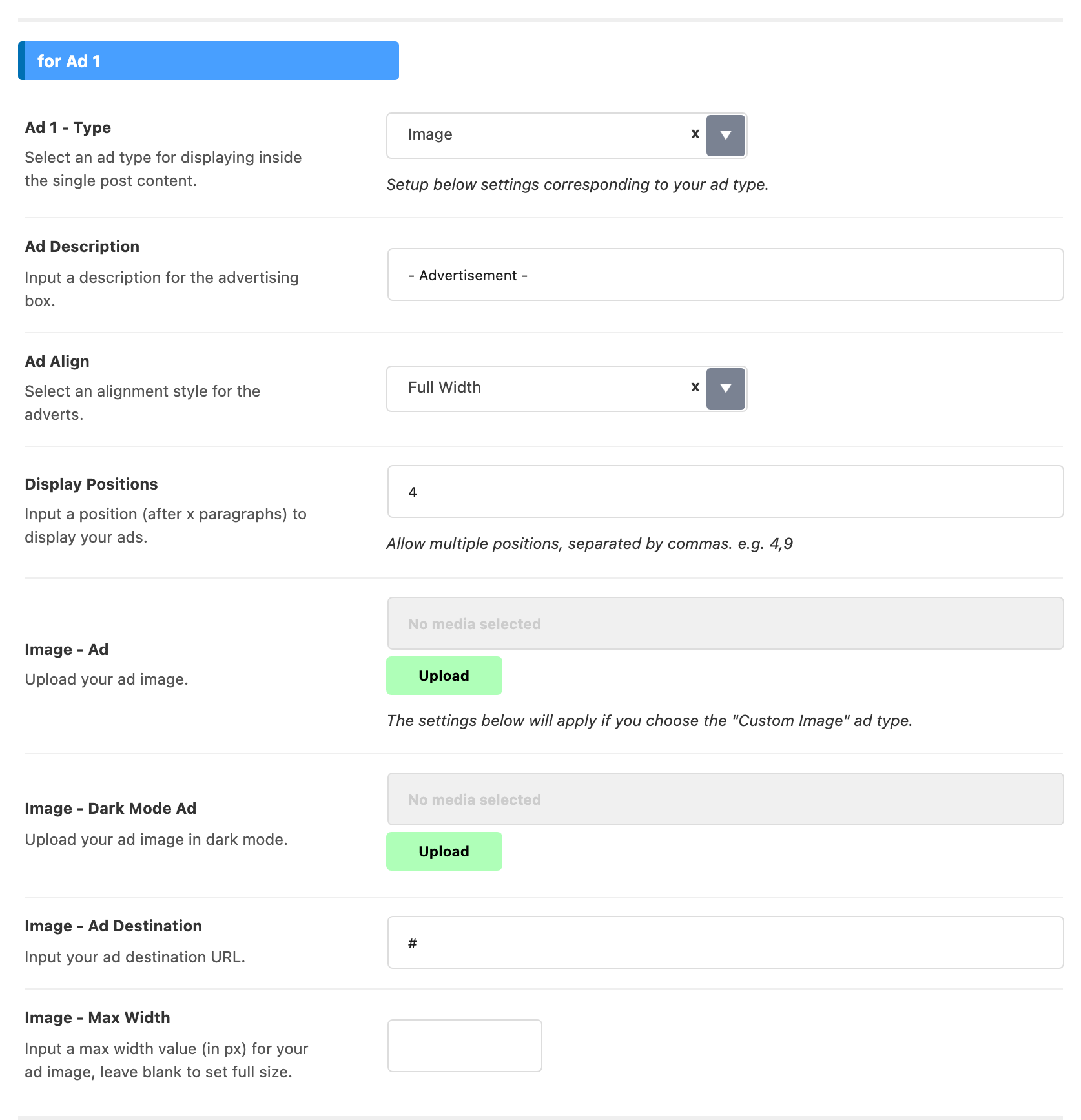
A slot with an empty code and an empty image is skipped, and so is a slot whose Display Positions you have cleared. That is how you use one or two of the three.
Inline ads are for single posts only, so pages do not get them. A single podcast gets them only while Theme Options > Ruby Podcast > General > Inline Content Ads Supported is on, which it is by default. That is what the panel's own warning is pointing at.
One post can opt out. Single Post Settings > Widgets & Ads carries Inline Ad 1, Inline Ad 2 and Inline Ad 3, each offering - Default - and Disable.
If you need placements the three slots cannot reach, a dedicated ads plugin such as AdSense Plugin WP QUADS still works alongside the theme.
You can also use the HTML or text widget to add your adverts.
The whole panel, slot by slot, is in Every Setting in the Ads & Slide Up Panel.
Did this answer your question?