How to add adverts to the Header
The theme has two advert spots in the header, at the top of your website.
They are set up in different screens. The one above the header is the Top Site section of the theme options, described below. The one below the navigation is a widget area called Header Advertising, which takes any widget, including the two Foxiz ad widgets. The theme options panel points there itself.
To fill the spot below the navigation:
-
Navigate to Appearance > Widgets.
-
Open the Header Advertising area.
-
Drag Foxiz - Widget Ad Image or Foxiz - Widget Ad Script into it, fill it in, and click Save.
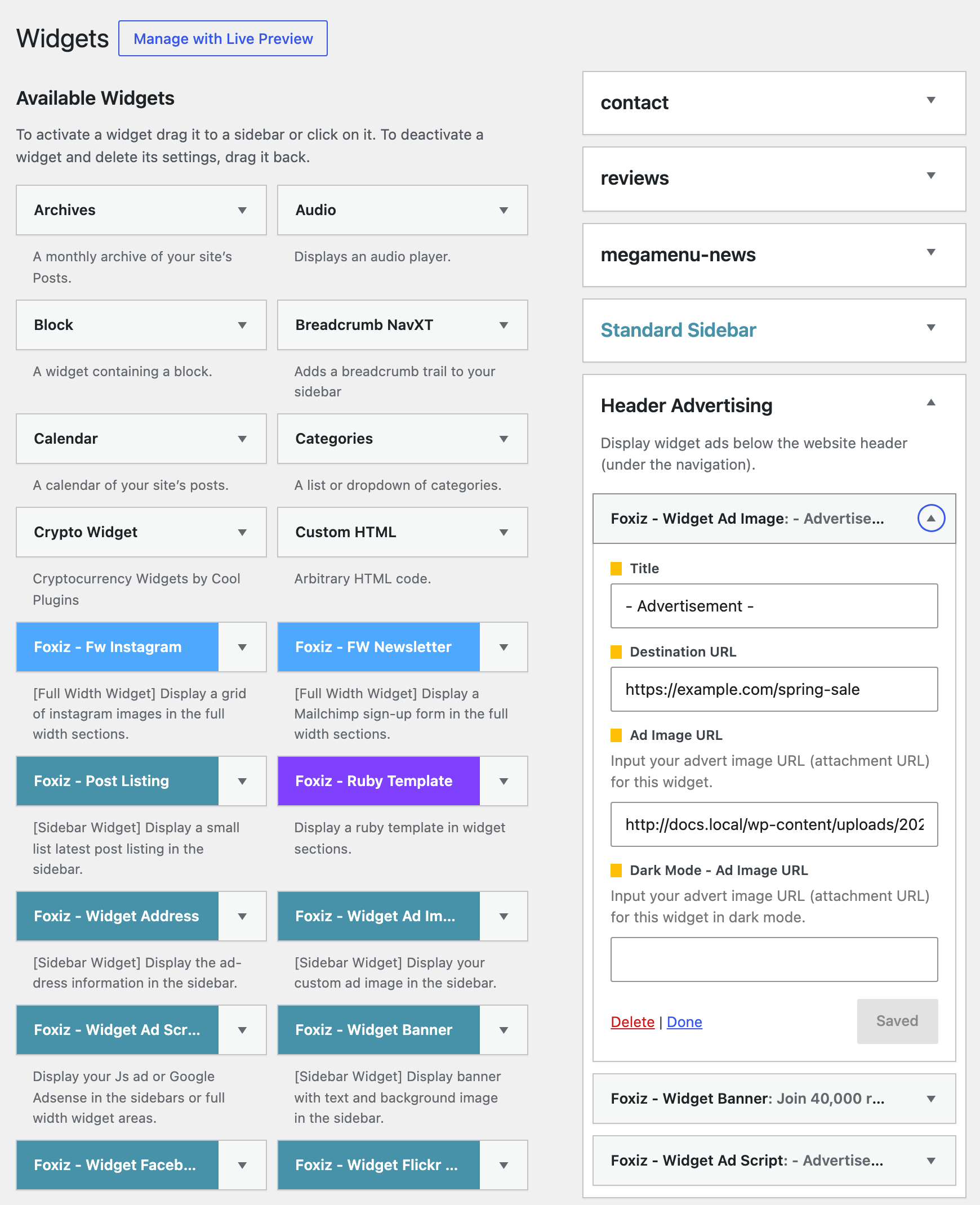
Both spots show on every page. One post or page can switch either of them off, but not on; the note near the end of this article says where.
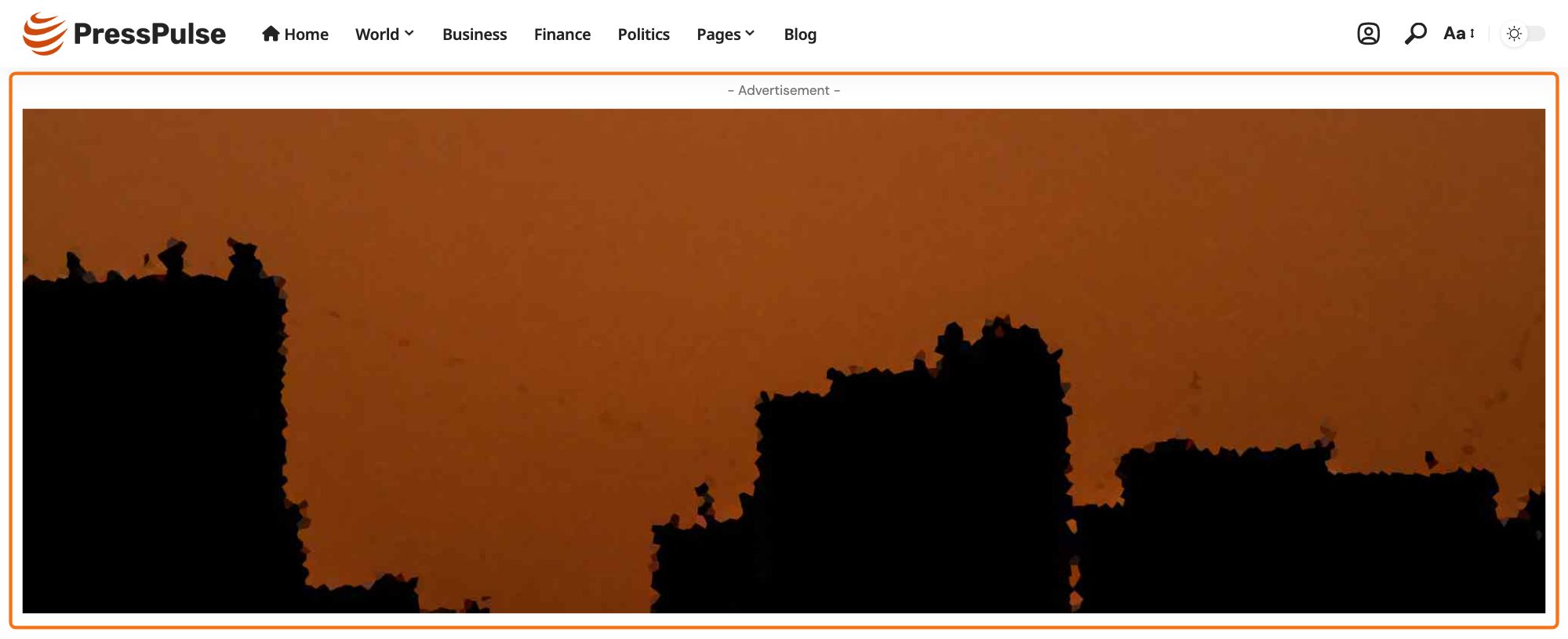
Top Site Advert Spot
This is the advert spot that will display at the top of your website, on every page. To add it, follow the steps below:
-
Navigate to Theme Options > Ads & Slide Up > Top Site > Ad Type
-
Select an ad type for displaying at the top of the website. The two values are Script and Custom Image, and its default is Script. Your choice decides which of the two sections below it becomes visible: Ad Script or Ad Image.

-
Add your advert and save changes.

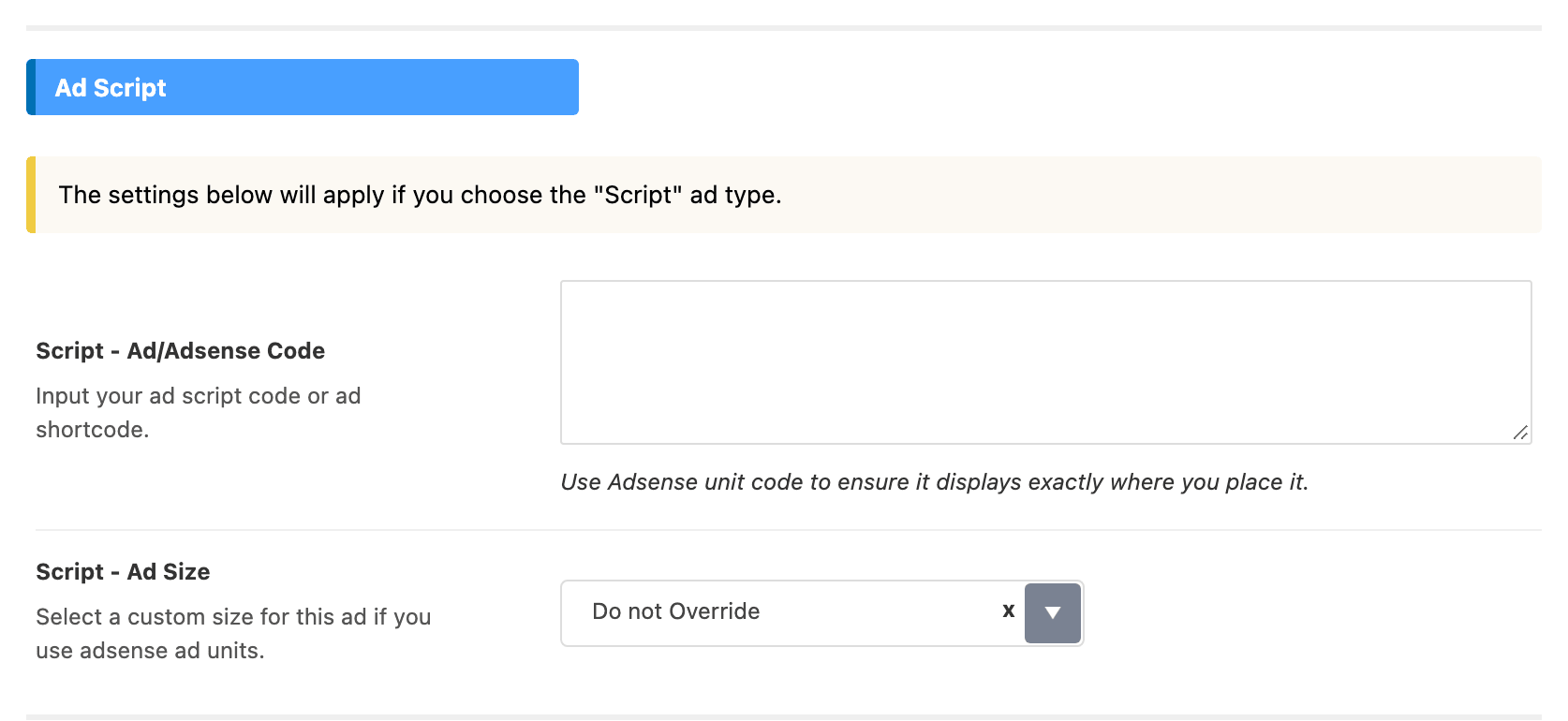
On Script the fields are:
- Script - Ad/Adsense Code: your ad code.
- Script - Ad Size: the switch for the three size controls under it. Leave it on Do not Override, the default, for a responsive AdSense unit: AdSense then sizes the ad itself. Pick Custom Size Below only to pin a fixed size per device.
- Script - Size on Desktop, Script - Size on Tablet and Script - Size on Mobile: one size per device.
The sizes are only applied to a recognised AdSense unit code.
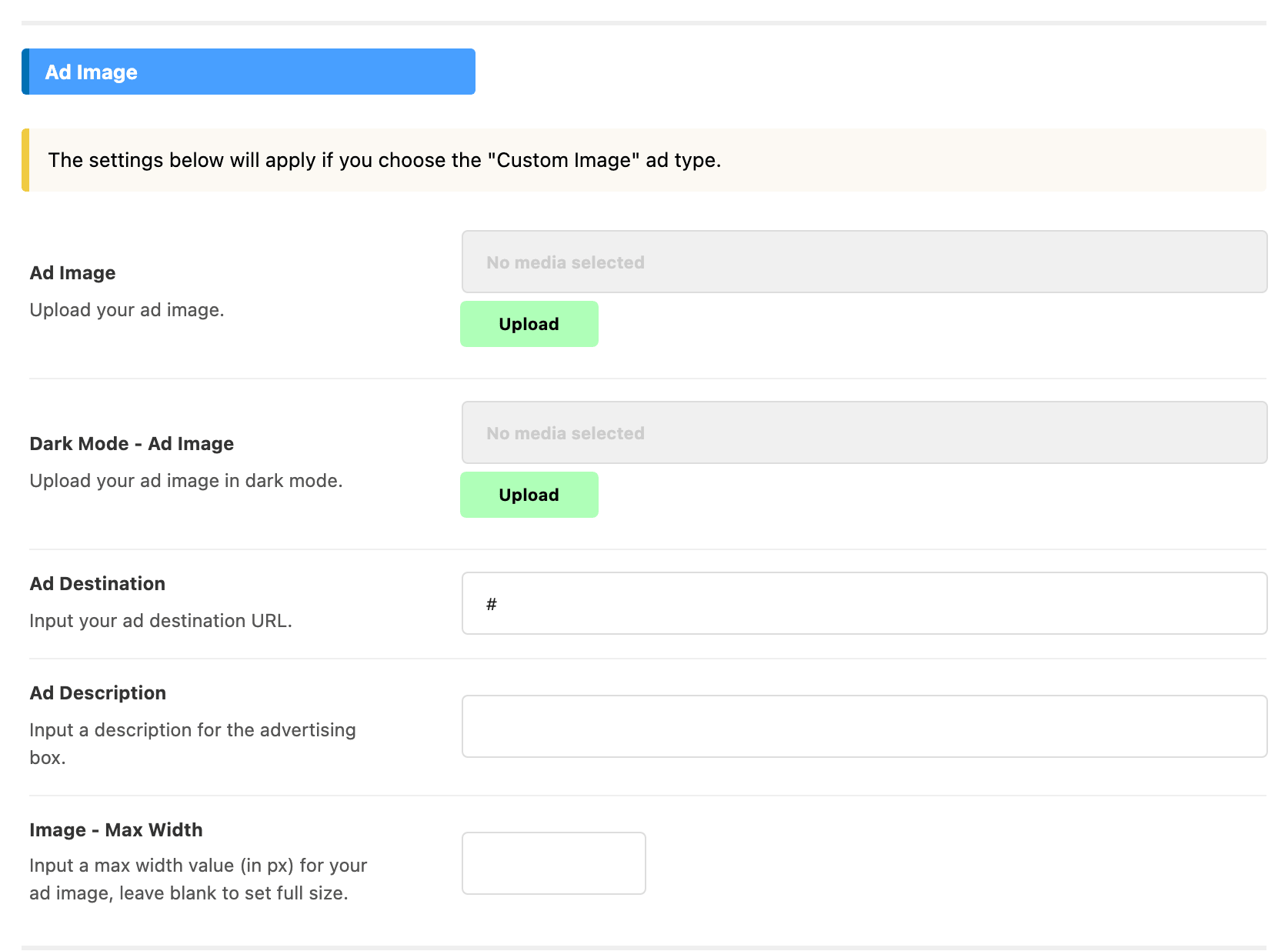
On Custom Image they are:
- Ad Image: the banner.
- Dark Mode - Ad Image: the banner for readers in dark mode.
- Ad Destination: where the banner links. It arrives holding
#. - Ad Description: the small line printed above the image.
- Image - Max Width: the banner's maximum width in pixels. Blank means full size.
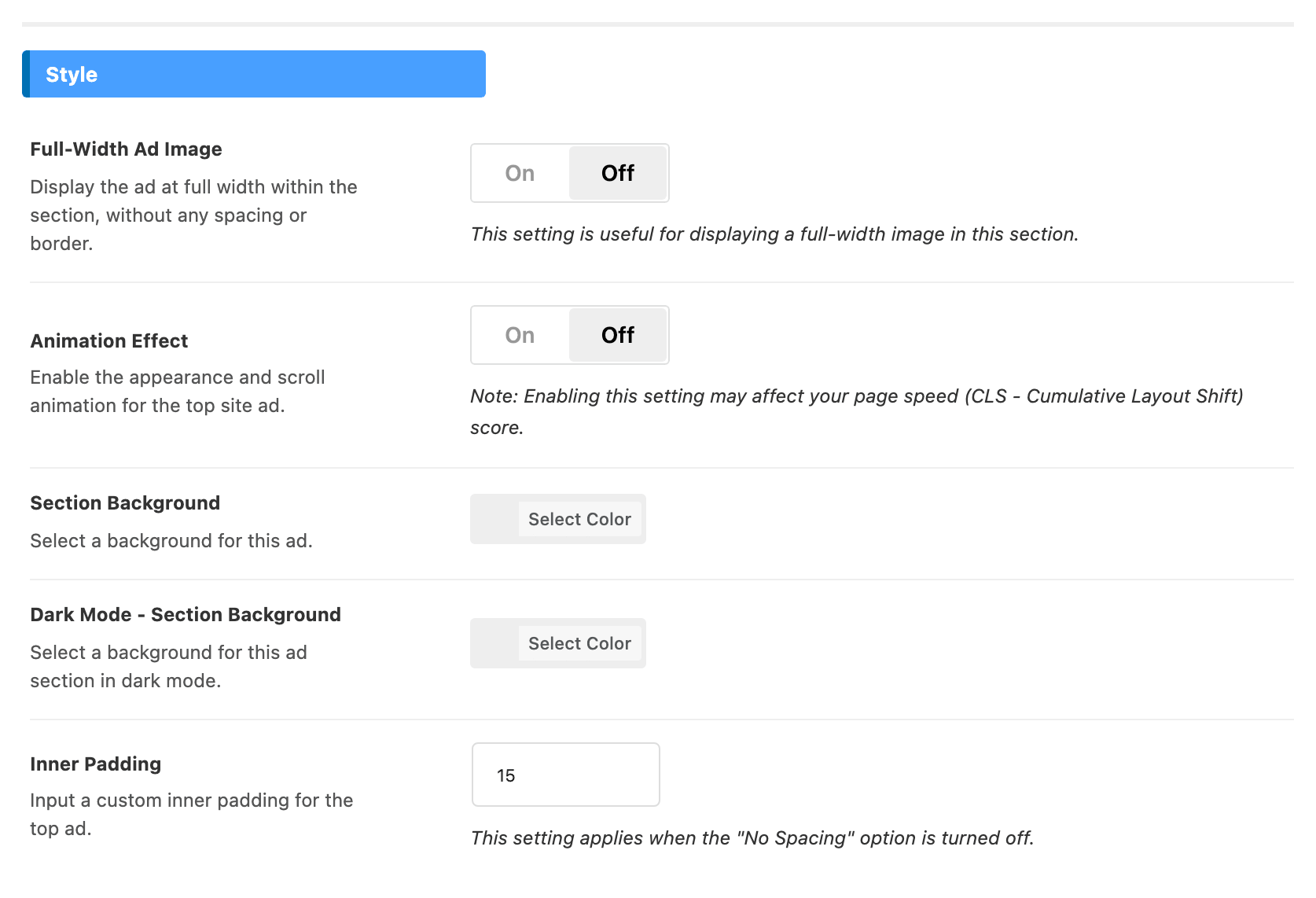
The Style section below applies to either type:
- Full-Width Ad Image removes the spacing and border around the spot. It is off by default.
- Animation Effect adds the appearance and scroll animation. It is off by default.
- Section Background and Dark Mode - Section Background colour the strip behind the spot.
- Inner Padding is the space around the advert inside that strip.
The spot draws only when there is something in it: with both Script - Ad/Adsense Code and Ad Image empty, nothing is printed, whatever the type is set to.
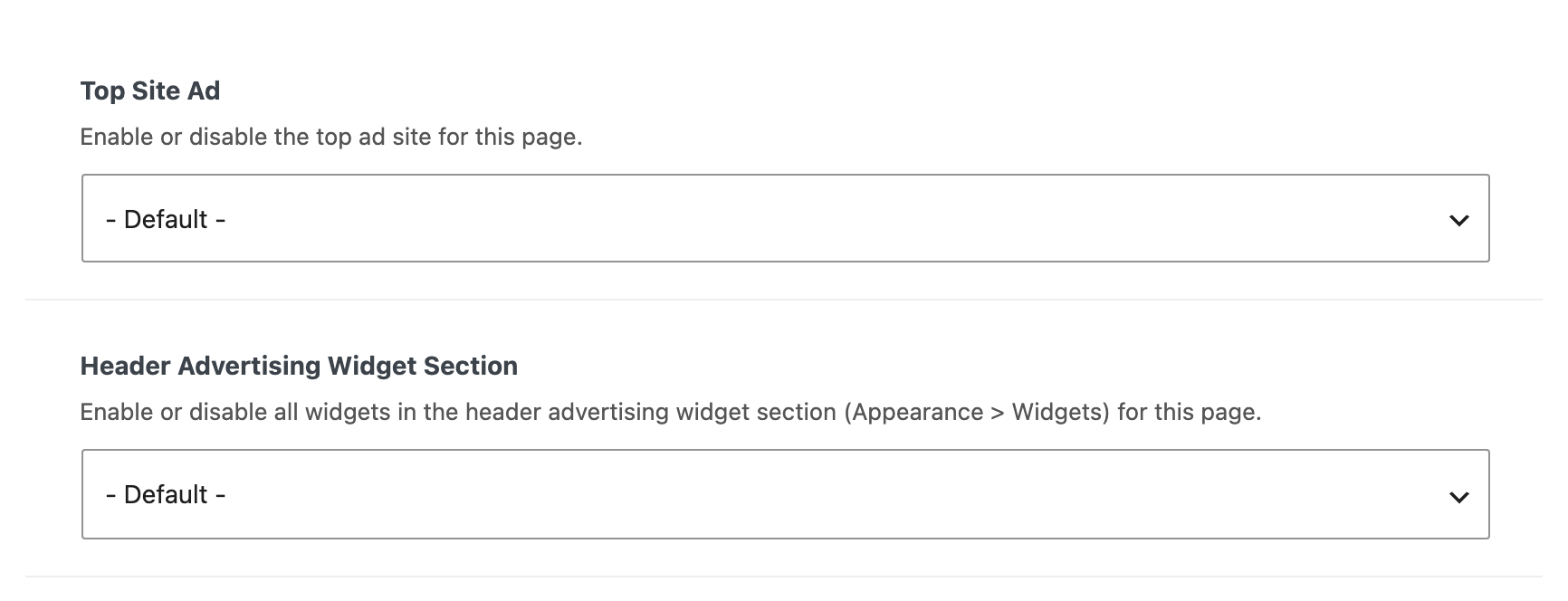
Either spot can be turned off for one post or page:
- On a post: Single Post Settings > Widgets & Ads offers Top Site Advert and Header Advertising Widget Section.
- On a page: Single Page Settings > Ads offers the same two, where the first is called Top Site Ad.
Each offers - Default - and Disable, so a post can suppress the spot but cannot switch it on where the global setting is empty.
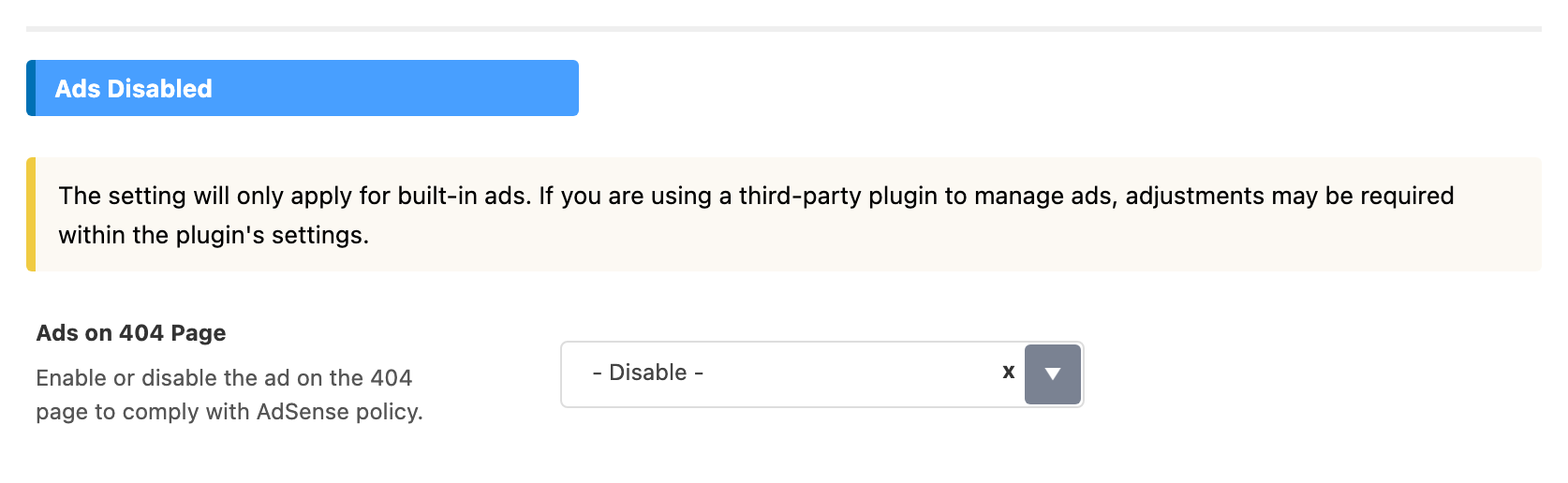
On the 404 page the theme holds most ads back, to stay inside AdSense policy, and the switch is Theme Options > 404 Page > Ads Disabled > Ads on 404 Page, which defaults to - Disable -. It covers the Header Advertising widget area and a Script top ad. A Custom Image top ad is built by a different function that makes no such check, so it still appears on the 404 page. Use the Script type, or remove the image, if that matters to you.
The whole panel, slot by slot, is in Every Setting in the Ads & Slide Up Panel.
Did this answer your question?