Adding Adverts to the Elementor page
The theme comes with advertising blocks that let you add your adverts to a page built with “Elementor”.

Add an ad block to the page
To get started, follow the steps below:
-
Navigate to Pages > All Pages.
-
Select a page you would like to edit, click on the “Edit with Elementor” link.
-
Elementor opens with its panel on the left. Search "Foxiz - Ad" blocks in the Elementor. Two blocks answer to that search, Foxiz - Ad Image and Foxiz - Ad Script, and both sit in the Foxiz - Element category if you would rather scroll than search.

-
After you search Ad-block, you can drag and drop blocks inside.
-
Input your advert code for "Foxiz - Ad Script" block, upload your advert image for "Foxiz - Ad Image" block.
Which one to use: Foxiz - Ad Image for a banner a sponsor sent you as a picture, with a link to their site. Foxiz - Ad Script for AdSense or any ad network that gives you code to paste.
-
Click on “Publish” to save your changes.
What each block asks for
The two blocks carry different fields.
Foxiz - Ad Image takes an image and, optionally, a link. Its General section has Description, which defaults to "- Advertisement -" and prints above the image, Ad Image, Dark Mode - Ad Image for readers browsing in dark mode, and Ad Destination, the URL the image links to. Leave Ad Destination empty and the image renders unlinked.
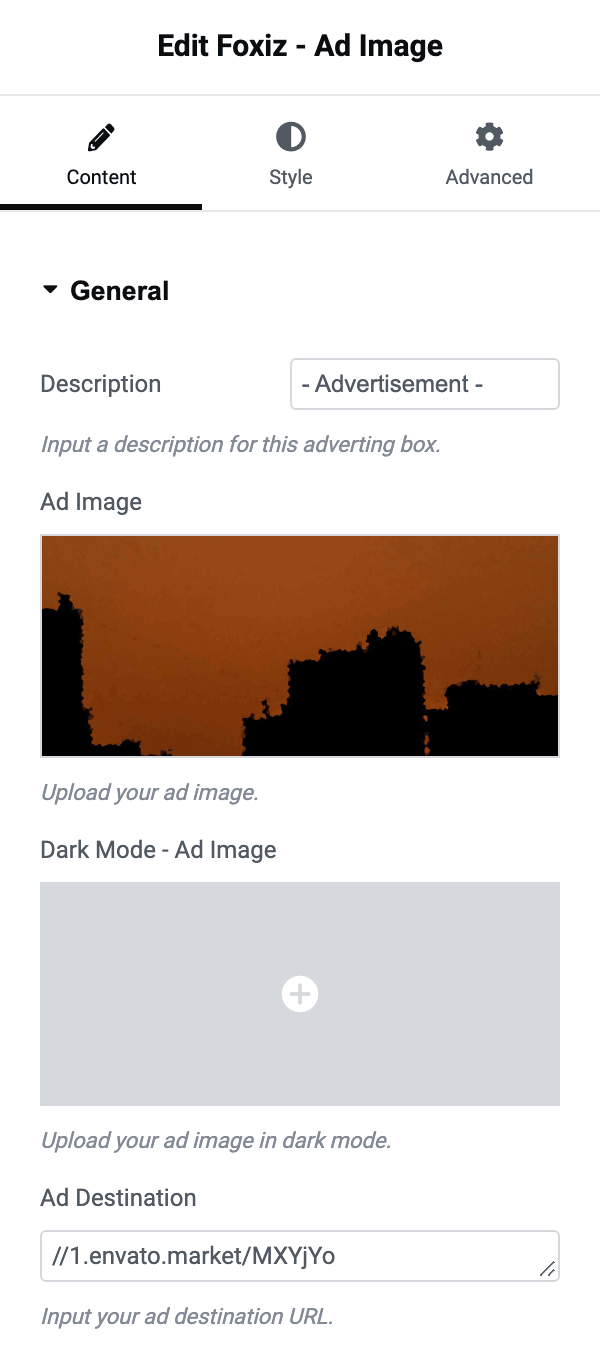
Its Image section adds three fields:
- Image Max Width, in pixels. Blank means full size.
- Lazy Load, which defaults to - Default -. Only Disable changes anything: it loads the banner straight away. On - Default - or Enable the banner is lazy loaded, whatever the site setting says.
- Border Radius, which rounds the banner's corners.
Foxiz - Ad Script takes the code your network gives you, in Ad/Adsense Code, under the same Description field. The four fields below it only matter for AdSense. Ad Size is set to Do not Override by default. The three device dropdowns below it are always visible, but they only take effect once Ad Size is on Custom Size Below. The last entry in all three lists reads Hide on Desktop; it hides the ad on whichever device's dropdown you pick it in.
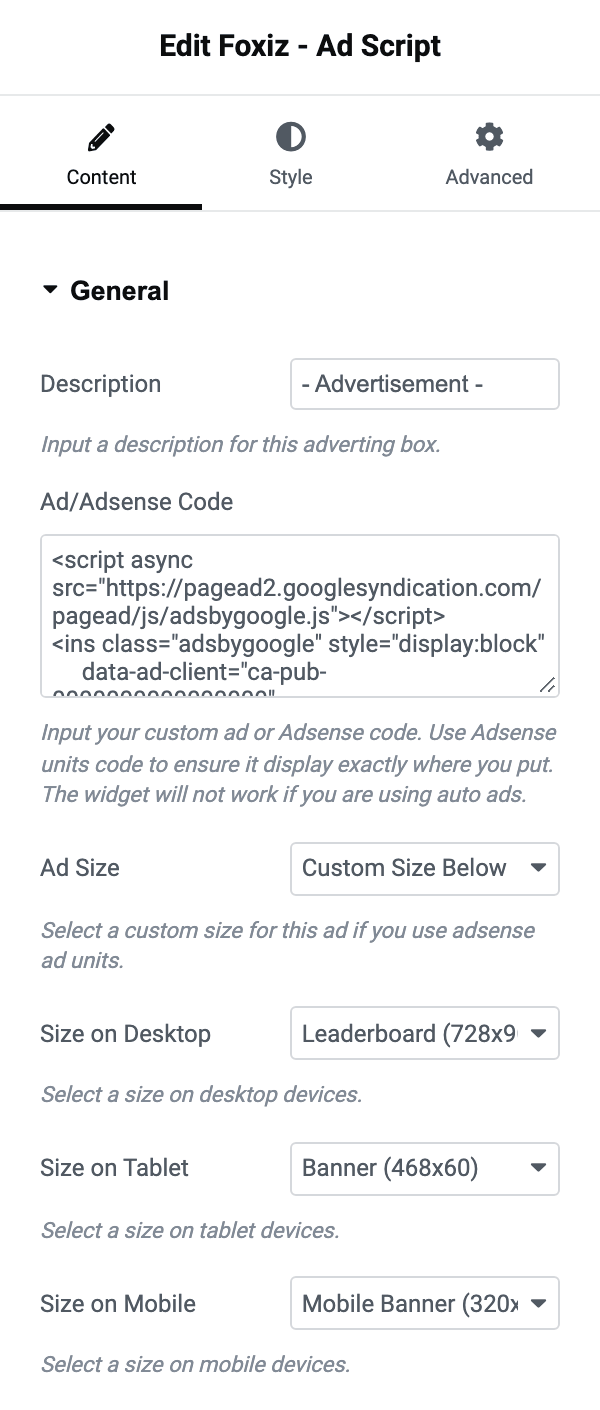
Those sizes only work on an AdSense ad unit code, the kind AdSense gives you for one ad unit. Any other code is printed as you pasted it, shortcodes included, and the size fields do nothing.
If the ad does not show
An ad block that has been saved and published can still print nothing at all, and Elementor gives no warning for any of the three reasons.
-
The field is empty. Foxiz - Ad Script returns nothing when Ad/Adsense Code is blank, and Foxiz - Ad Image returns nothing without an image. In the editor that looks like a block that failed to save.
-
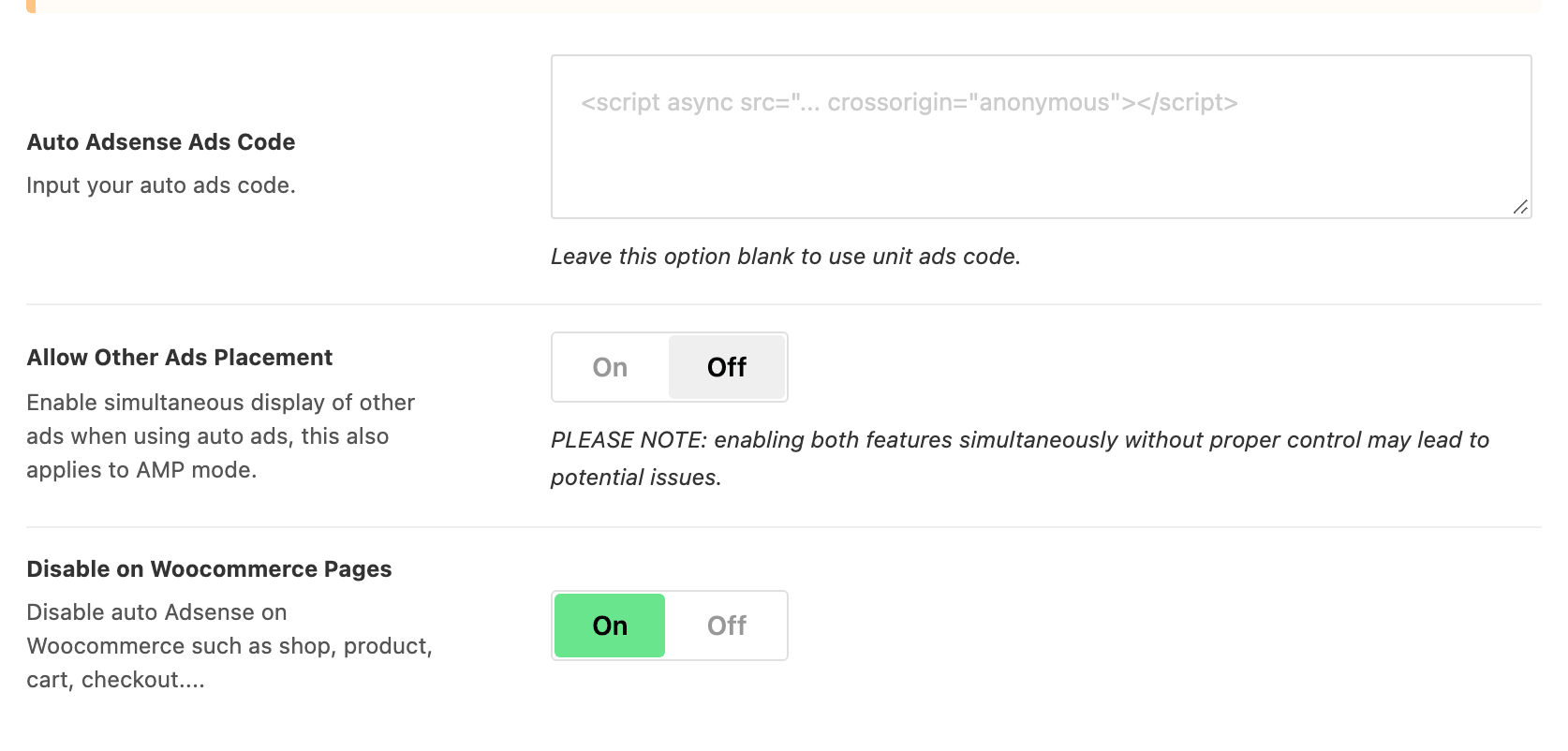
Auto Ads are switched on. If Theme Options > Ads & Slide Up > Adsense - Auto Ads holds a code and Allow Other Ads Placement is off, every AdSense unit elsewhere on the site is suppressed, including this block. The panel says the same thing from the other direction: do not run unit codes alongside an Auto Ads code.
-
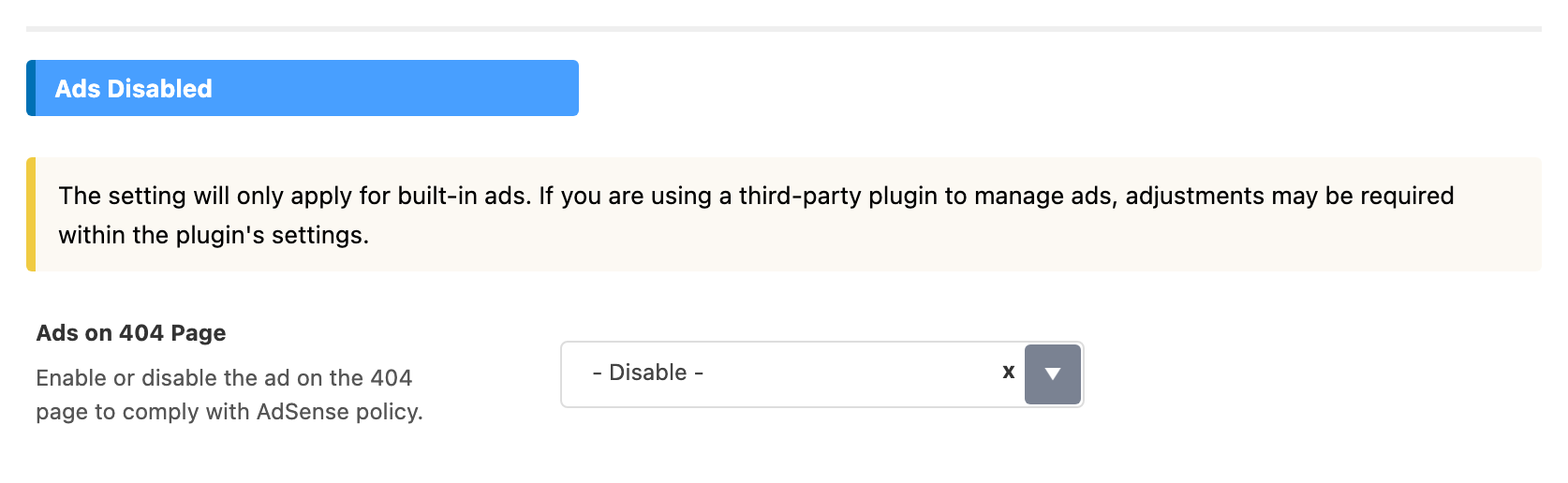
The page is the 404 page. Built in ads are off there by default, to stay inside AdSense policy. Theme Options > 404 Page > Ads Disabled > Ads on 404 Page is the switch.
Neither block renders on an AMP page. AMP has its own ad settings at Theme Options > AMP.
Every control on those blocks, including the Style tab, is in The Foxiz Ad Blocks in Elementor. It also covers the third advert block, Foxiz - Sidebar Banner, a heading, text and button over an image for your own promotions.
Did this answer your question?