How to add Ads to a Sidebar?
The theme supports the Foxiz - Widget Ad Image and Foxiz - Widget Ad Script widgets, which let you add as many adverts as you wish to any sidebar or footer section.

Widget Ad Image
To get started, follow the steps below:
-
Navigate to Appearance > Widgets.
-
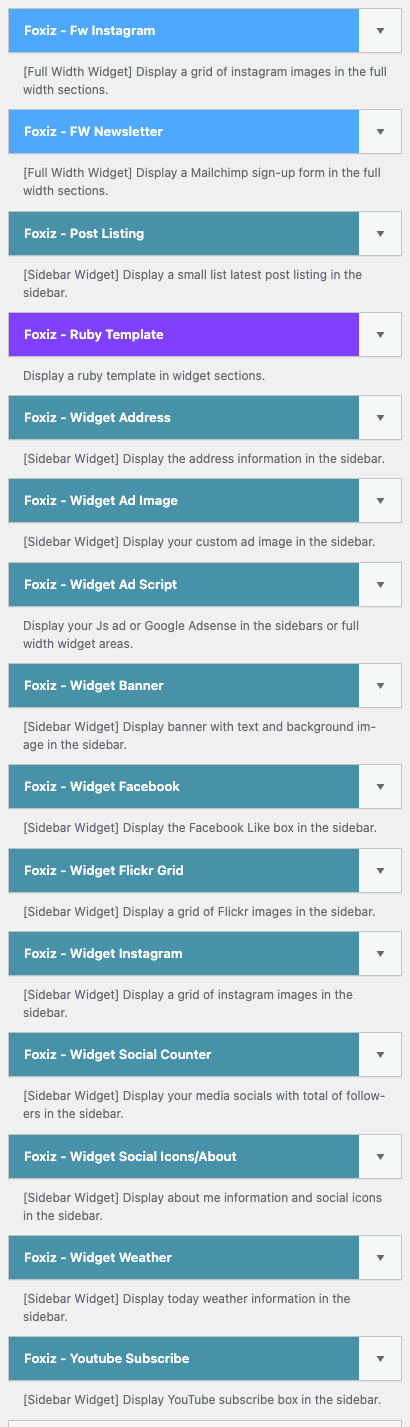
Drag and drop the "Foxiz - Widget Ad Image" widget to a sidebar you wish. In the widget list it describes itself as "[Sidebar Widget] Display your custom ad image in the sidebar." For the sidebar beside your posts, that is Standard Sidebar, the one single posts use unless you assigned another at Theme Options > Single Post > Sidebar Area > Assign a Sidebar. The other areas are listed in The Foxiz Ad Widgets.
-
Input a custom image and click on the "Save" button.
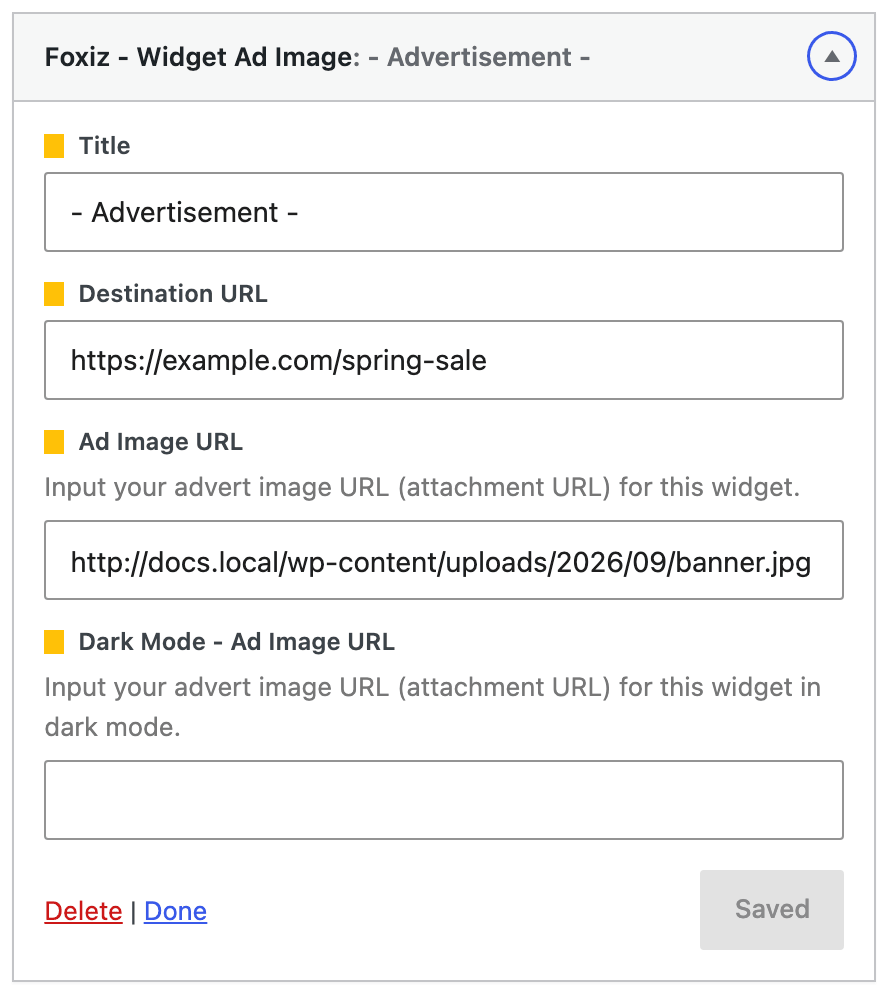
The widget has four fields, and the image ones are not upload buttons:
- Title, which defaults to "- Advertisement -" and prints as small text above the image. Empty it and no label is printed.
- Destination URL, where the image links to.
- Ad Image URL, a plain text box that wants the attachment URL of an image you have already uploaded. Upload the image in Media > Add New first, copy its file URL, and paste it here.
- Dark Mode - Ad Image URL, the same thing for readers in dark mode. Leave it blank and the single image is used in both modes.
With Ad Image URL empty the widget prints its title and nothing else, which is the usual reason a saved widget looks like an empty gap.
Widget Ad Script
To get started, follow the steps below:
-
Navigate to Appearance > Widgets.
-
Drag and drop the "Foxiz - Widget Ad Script" widget to a sidebar you wish. Its own description reads "Display your Js ad or Google Adsense in the sidebars or full width widget areas." Use Standard Sidebar for the one beside your posts.
-
Input your code and click on the "Save" button.
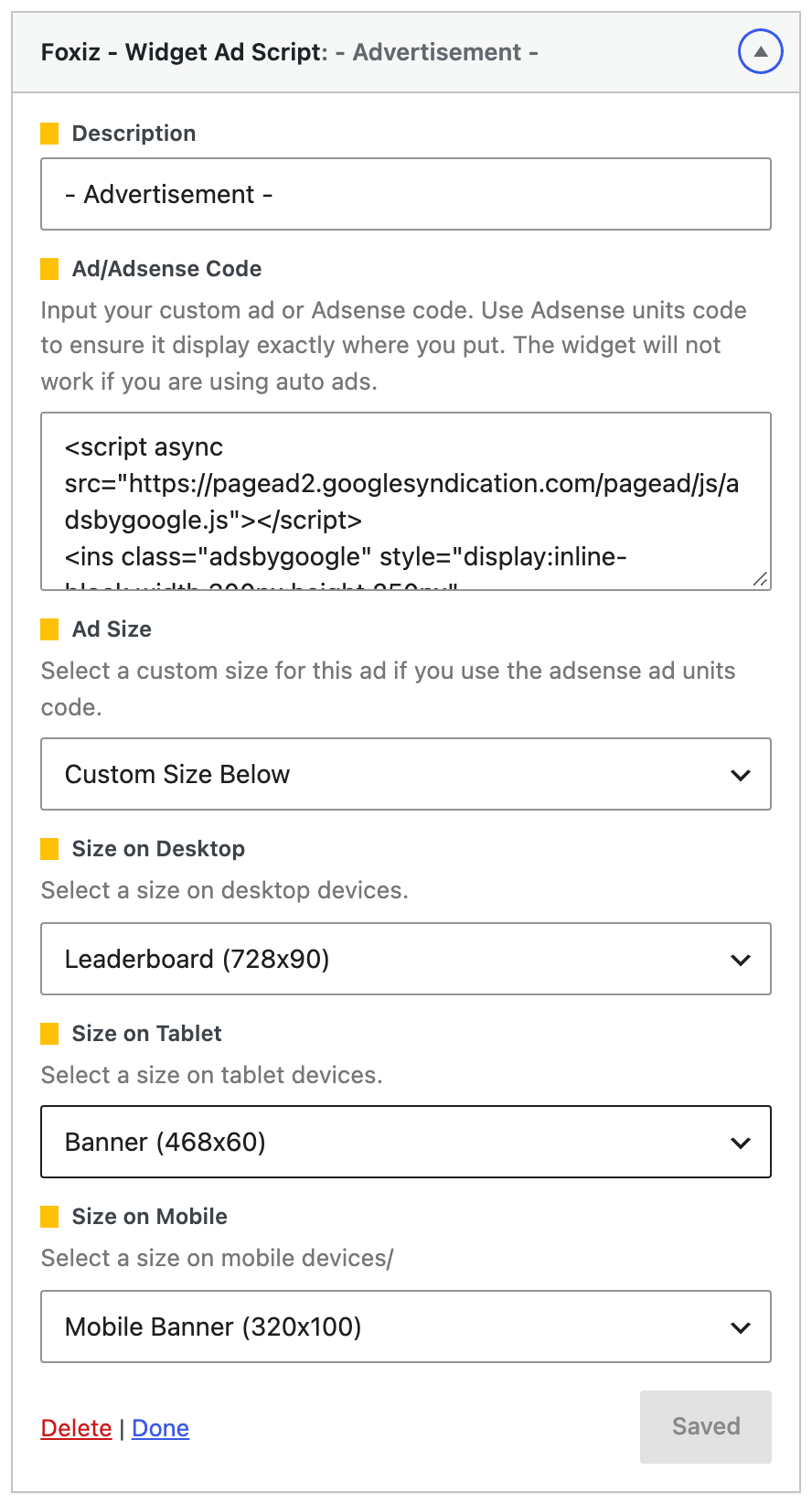
Its fields are Description, which defaults to "- Advertisement -", Ad/Adsense Code, and then Ad Size, Size on Desktop, Size on Tablet and Size on Mobile. Ad Size is set to Do not Override by default; the three device sizes only take effect once you switch it to Custom Size Below, and only for a genuine AdSense unit code, which the theme recognises by the data-ad-client and data-ad-slot attributes in it. Anything else is printed exactly as you pasted it.
The widget says so itself in its help text, and it is worth repeating: this widget will not work if you are using Auto Ads. A code in Theme Options > Ads & Slide Up > Adsense - Auto Ads suppresses every other AdSense unit on the site unless Allow Other Ads Placement is turned on.
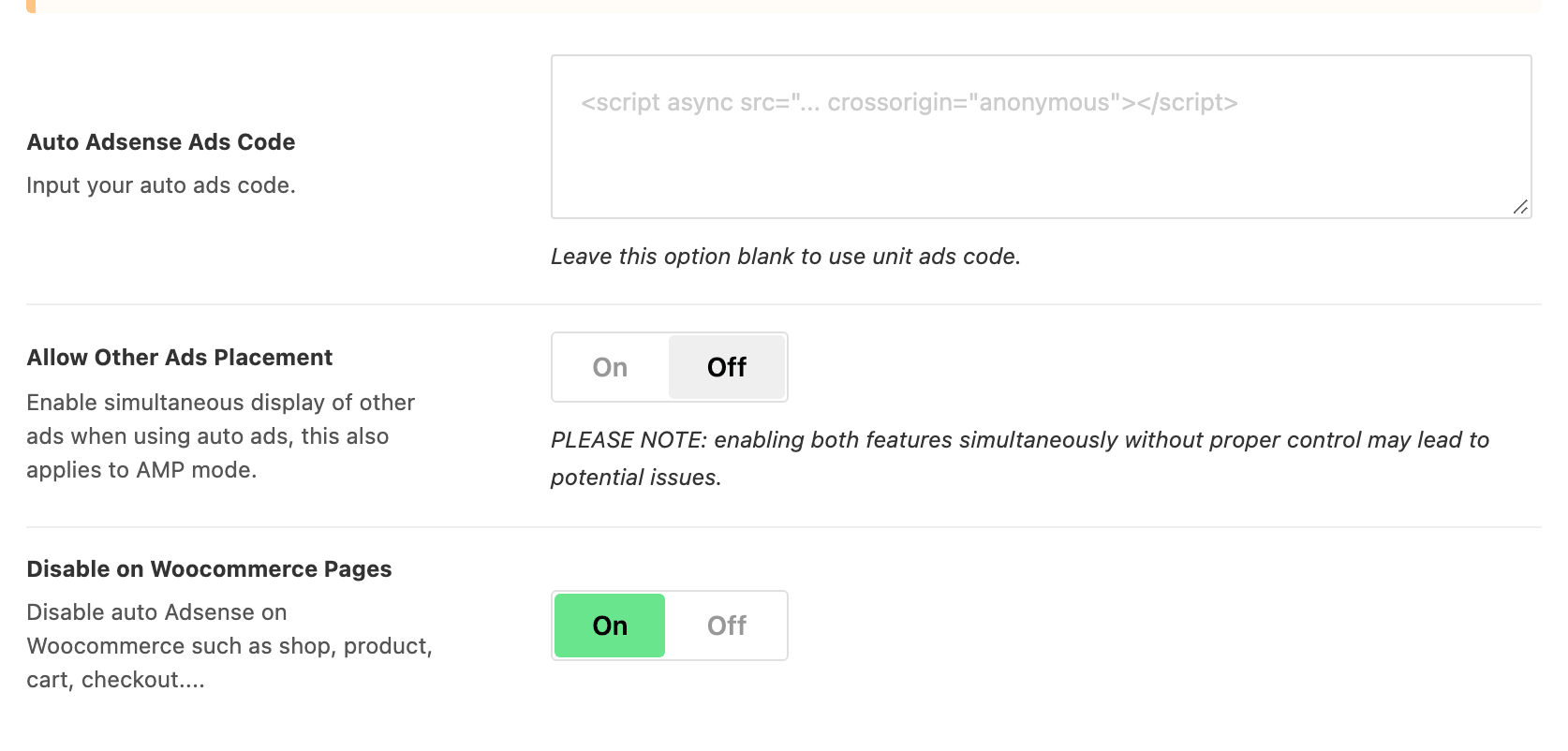
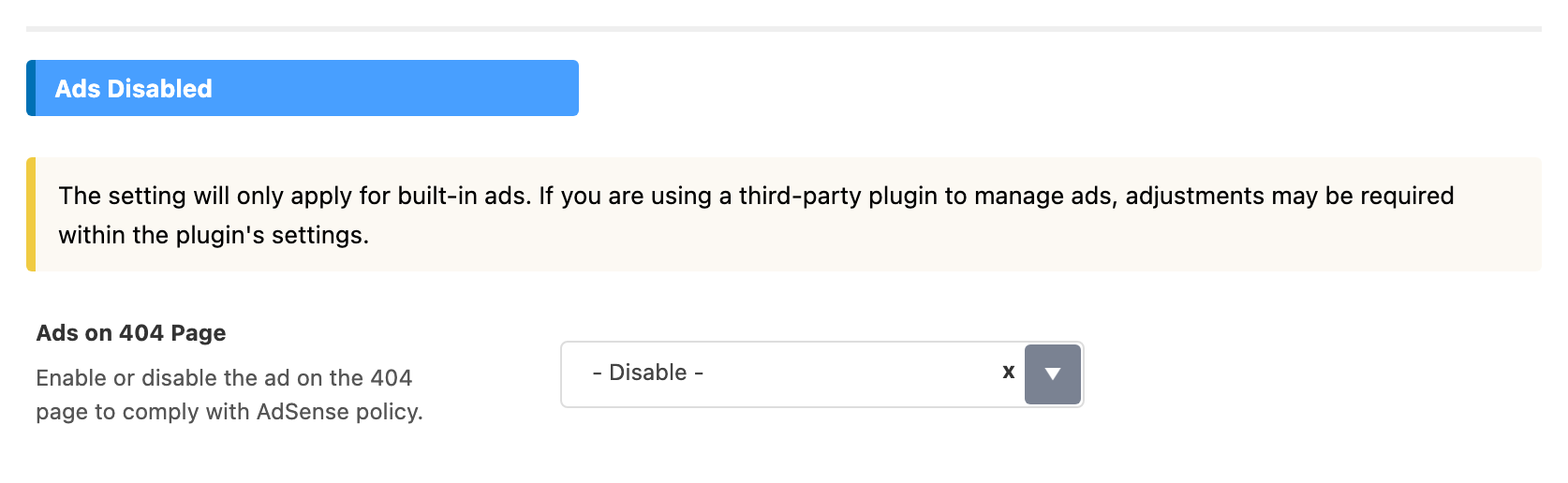
Neither widget renders on the 404 page unless you set Theme Options > 404 Page > Ads Disabled > Ads on 404 Page to Enable, and neither renders on AMP pages.
You can also use the HTML or text widget to add your adverts.
Every field on both widgets is in The Foxiz Ad Widgets.
Did this answer your question?