How to Moderate Topics and Set Their Status
Keymasters and Moderators can tidy the forums from two places: the links under each post on the front end, and Topics > All Topics in the admin. Merge and split are on the front end only.
On the front end
Sign in as a Keymaster or Moderator and open the topic. Under the topic's first post are its links:
- Edit: change the title, post, tags, type or status.
- Merge: move every reply into another topic, picked in Merge with this topic:. The other topic is kept.
- Close and Open: a closed topic takes no new replies. Readers see "The topic … is closed to new replies."
- Stick, and (to front) beside it, shown as (To Front) when your site capitalises meta text, as in the picture: pin the topic to the top of its forum, or of every forum. Unstick undoes it.
- Trash, then Restore or Delete.
- Spam and Unspam.
- Approve and Unapprove, for topics waiting for approval.

Keymasters also see the poster's IP address under each post, which helps spot a spammer posting under several names.
Each reply has its own links. Besides Edit, Trash and Spam, a moderator gets two more:
- Move sends the reply to another topic.
- Split starts a new topic from that reply on, or moves those replies into another topic in the same forum. It cannot be undone.
Members see only Edit, on their own posts, for the editing time set in Settings > Forums, and Reply.
In the admin
Go to Topics > All Topics and hover over a topic. Its links are the same as on the front end, except merge and split. Not Spam takes a topic out of spam, and closed topics show Open.

The list also shows each topic's Forum, Replies and Voices, the number of people taking part.
To act on several at once, tick them and use Bulk actions, which includes Spam and Unspam.
Mark a topic Resolved
Topic lists show a label beside each topic: Open, or Closed for a closed topic. In a support forum it helps more to show whether the question was answered. Foxiz gives you three labels for that.
- Go to Topics > All Topics and click Edit on the topic.
- In Topic Attributes, pick a Frontend Status: Resolved, Not Resolved or Has a Solution.
- Click Update.
The label you picked replaces Open or Closed in the topic list. Set the dropdown back to - Default - to take it off.

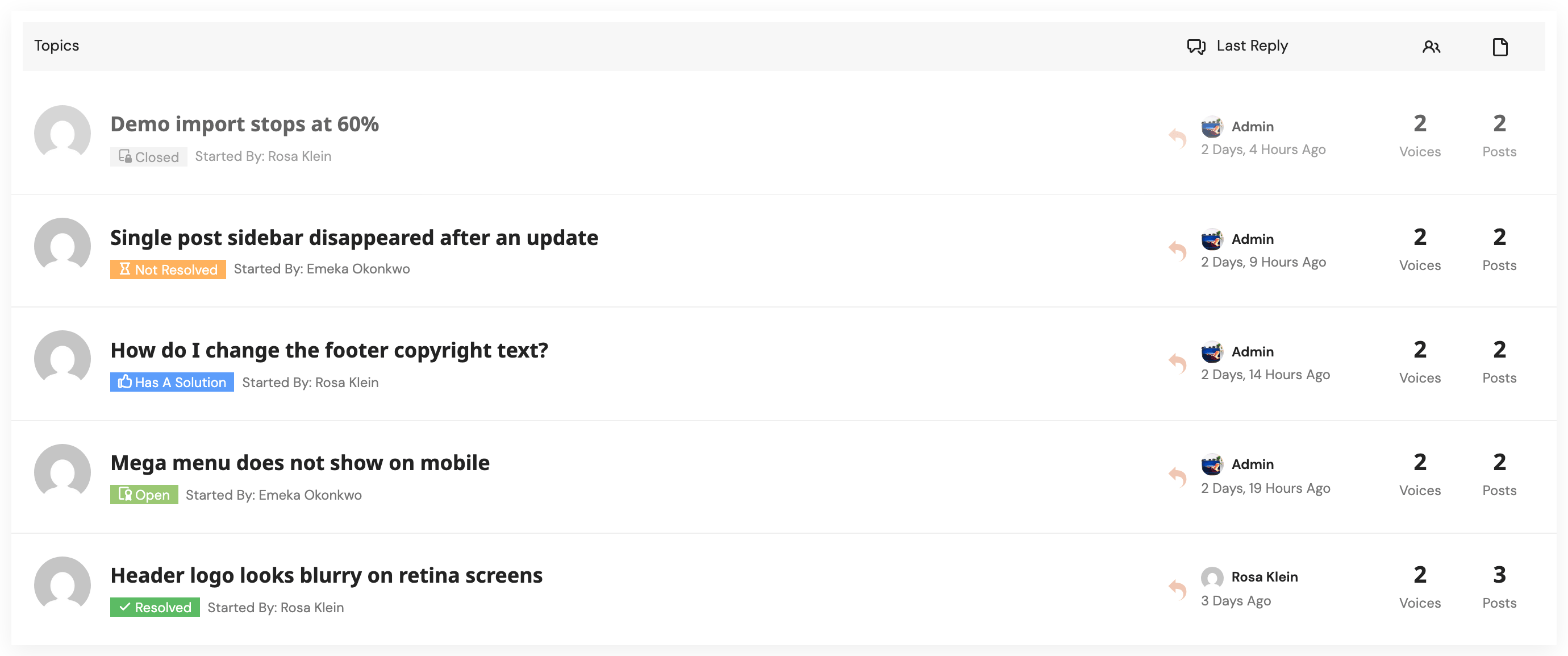
To rename the three labels, use Frontend Status - 1st Label, 2nd Label and 3rd Label on the Topic tab. The status is set in the admin only, so members cannot mark their own topic.
Private details in a support forum
Members sometimes need to share an order number or a login with you. Turn on Private Content on the General tab, and the topic and reply forms get a second box whose text only the poster and moderators can read. A custom topic field set to is private field? works the same way.
Did this answer your question?