How to Protect Login, Registration and Comment Forms with Cloudflare Turnstile
Foxiz has Cloudflare Turnstile built in, so you can stop bots on your login, registration, lost password and comment forms without a captcha plugin. Turnstile is free, and set to Invisible it asks nothing of a real visitor. Every protection is switched off by default, so nothing changes on your site until you add keys and turn one on.
What Turnstile protects
The screen has one switch per kind of form:
- Login: the Login Form block, the Popup Sign In and the default
wp-login.phpscreen. They all send to the same place, so one switch covers all three. - Registration: the Register Form block and the default registration screen.
- Lost Password: the password reset request forms. The Send password reset link you use on the Users screen keeps working.
- Comments: the post comment form and the review comment form. Logged in visitors are not challenged unless you also turn on Also challenge logged-in users on comments.
Three things it does not cover. Contact forms are not on the list, so a contact form keeps the spam protection its own plugin gives it (see How to Create a Contact Page). AMP pages cannot run the Turnstile script, so a form shown on an AMP page is not protected. And XML-RPC is left alone, because it never shows a widget; the screen tells you to block or disable xmlrpc.php separately if brute force logins are your worry.
Get your keys from Cloudflare
Turnstile needs two keys from a free Cloudflare account. Your site does not have to use Cloudflare for anything else.
- Sign in at https://dash.cloudflare.com, open Turnstile and add a widget, as the tip beside Site Key on the Foxiz screen says.
- Add the domain your site runs on as the widget's hostname. Cloudflare's own walkthrough is at https://developers.cloudflare.com/turnstile/get-started/.
- For Widget Mode, choose Invisible if you want visitors to see nothing at all. A widget made in Managed mode still shows its checkbox, whatever you set in Foxiz.
- Copy the Site Key and the Secret Key Cloudflare gives you. Both start with something like
0x4AAAAAAA, which is why they are easy to swap by mistake.
Set up Turnstile in Foxiz
-
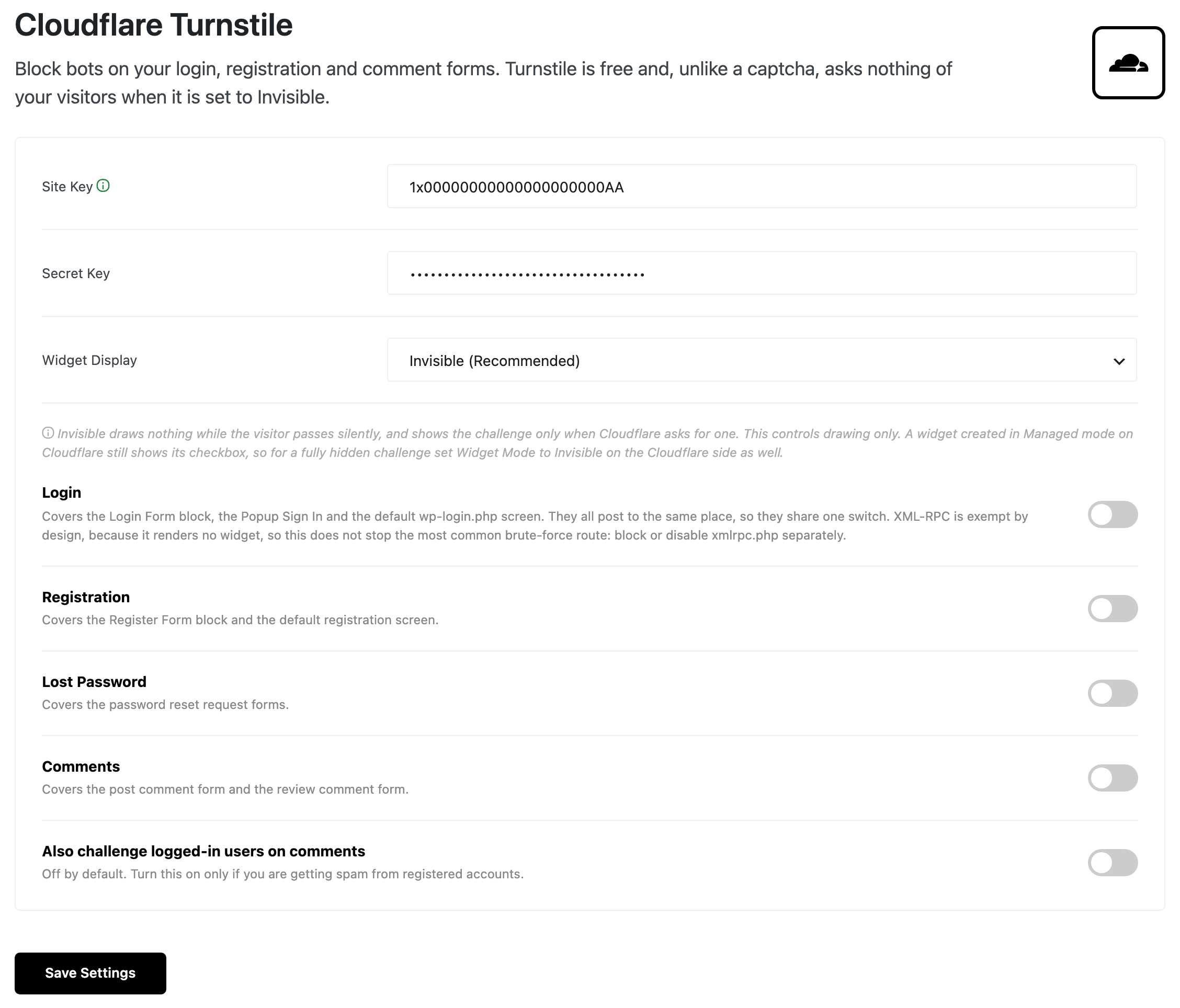
Go to Foxiz > Turnstile. The same screen is the Extra Features > Turnstile tab inside the Foxiz dashboard, titled Cloudflare Turnstile.
-
Paste the Site Key and the Secret Key.
-
Choose Widget Display.
-
Turn on the forms you want to protect.
-
Click Save Settings. The screen confirms with "Turnstile settings saved." and reloads.
If the site key does not look like a Turnstile site key and you are switching a protection on, Foxiz asks before it saves. Take the warning seriously: the usual cause is the Secret Key pasted into the Site Key field, and a wrong site key is the one mistake that refuses every protected form, your own login included.
Every setting on the screen
| Setting | Default | What it does |
|---|---|---|
| Site Key | empty | The public key Cloudflare gave you. Nothing is protected until both keys are saved. |
| Secret Key | empty | The private key. Once saved it is shown masked, with only its last four characters; leave the field blank when you change other settings and the stored key is kept. |
| Widget Display | Invisible (Recommended) | Invisible draws nothing while a visitor passes silently and shows the challenge only when Cloudflare asks for one. Always visible always draws the widget. |
| Login | off | Challenges every login form. |
| Registration | off | Challenges the registration forms. |
| Lost Password | off | Challenges the password reset request forms. |
| Comments | off | Challenges comments from visitors who are not logged in. |
| Also challenge logged-in users on comments | off | Extends Comments to logged in members. Turn it on only if spam is coming from registered accounts. |
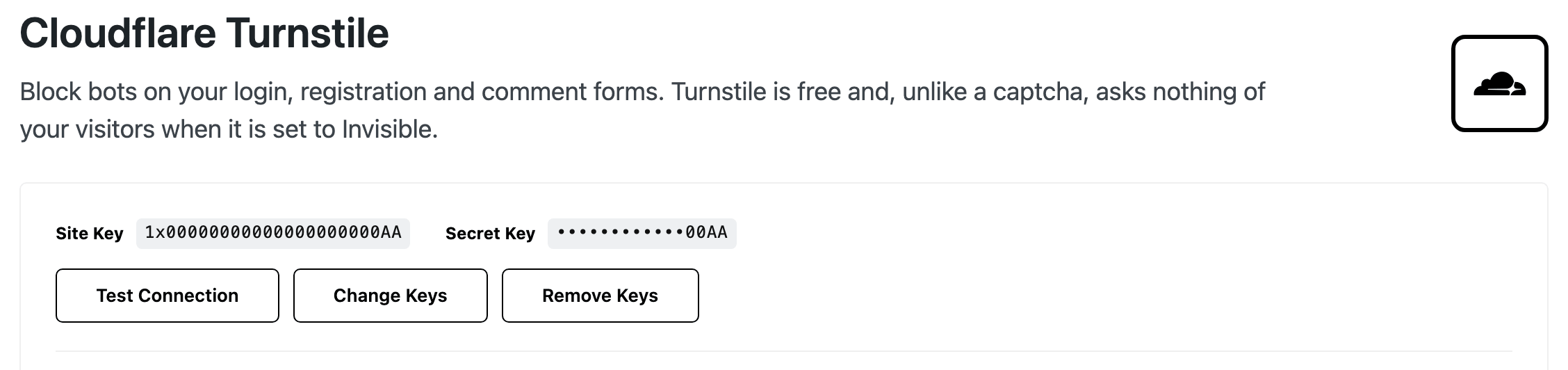
Once the keys are saved they fold into a summary with three buttons: Test Connection, Change Keys, which opens the two key fields again, and Remove Keys.
Run Turnstile or another captcha plugin on these forms, not both. If the screen finds one of the captcha plugins it knows about, such as Simple Cloudflare Turnstile, hCaptcha for WP or a reCaptcha plugin, it names it at the top: "These captcha plugins are active and may render a second widget on the same forms".
Where the widget appears
On every protected form the widget sits after the fields and above the submit button.
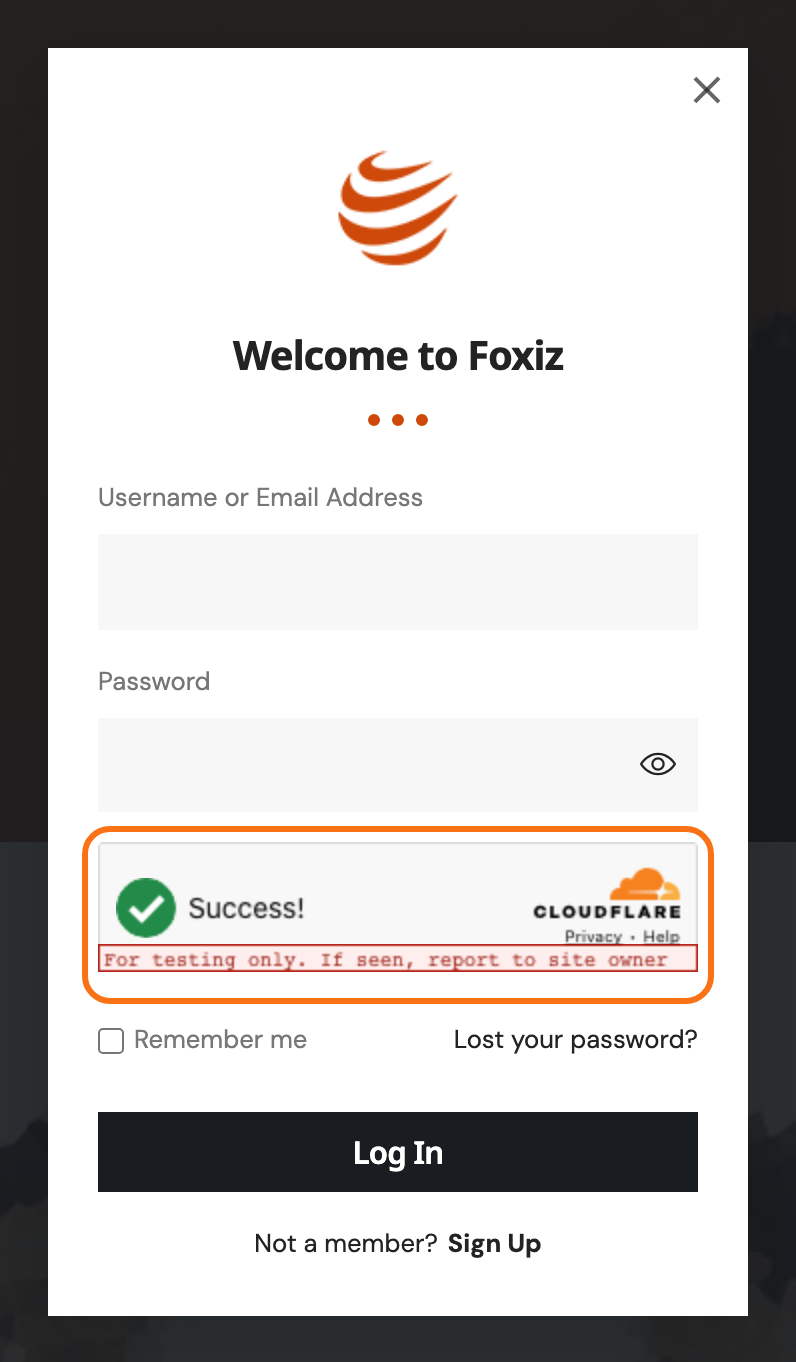
With Invisible (Recommended) most visitors never see it. When Cloudflare does want an interaction, the challenge appears in that spot, drawn dark when your site is in dark mode.
Two things that can make you think it is not working:
- The Cloudflare script only loads when someone starts using a protected form, so you will not find it in the page source of a page nobody has touched, and it costs your other pages nothing.
- The Elementor editor never draws it. Check a protected form on the live page instead.
Test it
- On Foxiz > Turnstile, click Test Connection. "Connection works and the secret key is accepted." means the secret is right and your server can reach Cloudflare. "Cloudflare rejected the secret key" means the wrong key is in the Secret Key field, and "This server could not reach Cloudflare" is a question for your host.
- Test Connection only checks the secret. It cannot tell you whether the site key is right, so test a real form as well. Stay logged in, open a private browser window, and log in there through your login form or
wp-login.php. - If you protected comments, post a comment from the same private window while logged out.
A form that passes works as before. A form that fails tells the visitor why: "Please complete the security check and try again." when no answer came back from the widget, "This security check has expired. Please reload the page and try again." when the page sat open too long, and "The security check failed. Please try again." otherwise. A refused comment shows these on a page titled "Comment Submission Failure", with a link back.
If the private window refuses every login with "Please complete the security check and try again.", the widget is not loading: check the Site Key and the hostname on the Cloudflare widget, while your other window is still logged in.
If Turnstile locks you out
A wrong secret key or a server that cannot reach Cloudflare does not lock anyone out. In both cases Foxiz lets the form through and the password check still applies. A wrong site key, or a widget whose hostname does not match your site, is what refuses every login.
If you are still logged in, go to Foxiz > Turnstile and either turn Login off and click Save Settings, or click Remove Keys. Remove Keys asks for no confirmation and clears everything on the screen, the keys and every switch, so the site is back to no protection at once.
The screen stays reachable for exactly this reason. Once both keys are saved, Turnstile keeps its place in the Foxiz menu even while your licence is inactive and the other Extra Features pages have gone from it. If the Foxiz theme itself is not active, the screen moves to Settings > Turnstile.
If you cannot log in at all, switch the module off from your site's files:
-
Connect to your site with FTP or your host's file manager and open
wp-config.php, in the folder that holdswp-adminandwp-content. -
Add this line above the line that says to stop editing:
define( 'FOXIZ_TURNSTILE_DISABLE', true ); -
Log in. No form is challenged while the line is there.
-
Fix the keys on Foxiz > Turnstile, then delete the line again. Until you do, Turnstile stays off however you set the screen.
If you are not sure how to edit wp-config.php, see What Is FTP?.
Next: How to Choose Where Readers Land After Login and Logout.
Did this answer your question?