How to Add Contact Information at the Right Sidebar?
Follow these steps to show your contact information, such as your Office Address and Phone Number, in the right sidebar of a page, as the theme demos do.
To get started, follow the steps below:
-
Create a custom sidebar for your contact page, for example
contact. To create a custom sidebar, you can refer to How to Create a Custom Sidebar?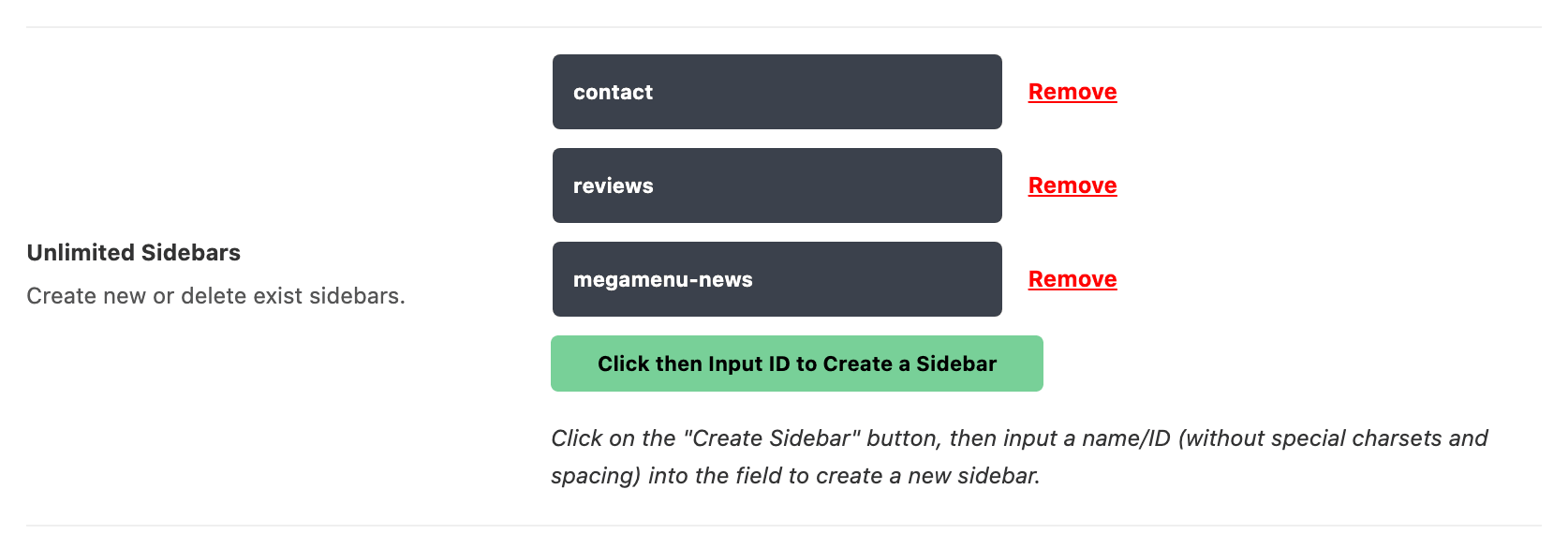
-
Navigate to Pages > All Pages, then select the contact page and click the edit link to navigate to the page editor panel.
-
At the bottom of the editor, click the Meta Boxes bar to open it, find Single Page Settings and open the Sidebar Area tab.
-
Assign the sidebar you have just created under the Assign a Sidebar option, then set Sidebar Position in the same tab to Right. Click Save.
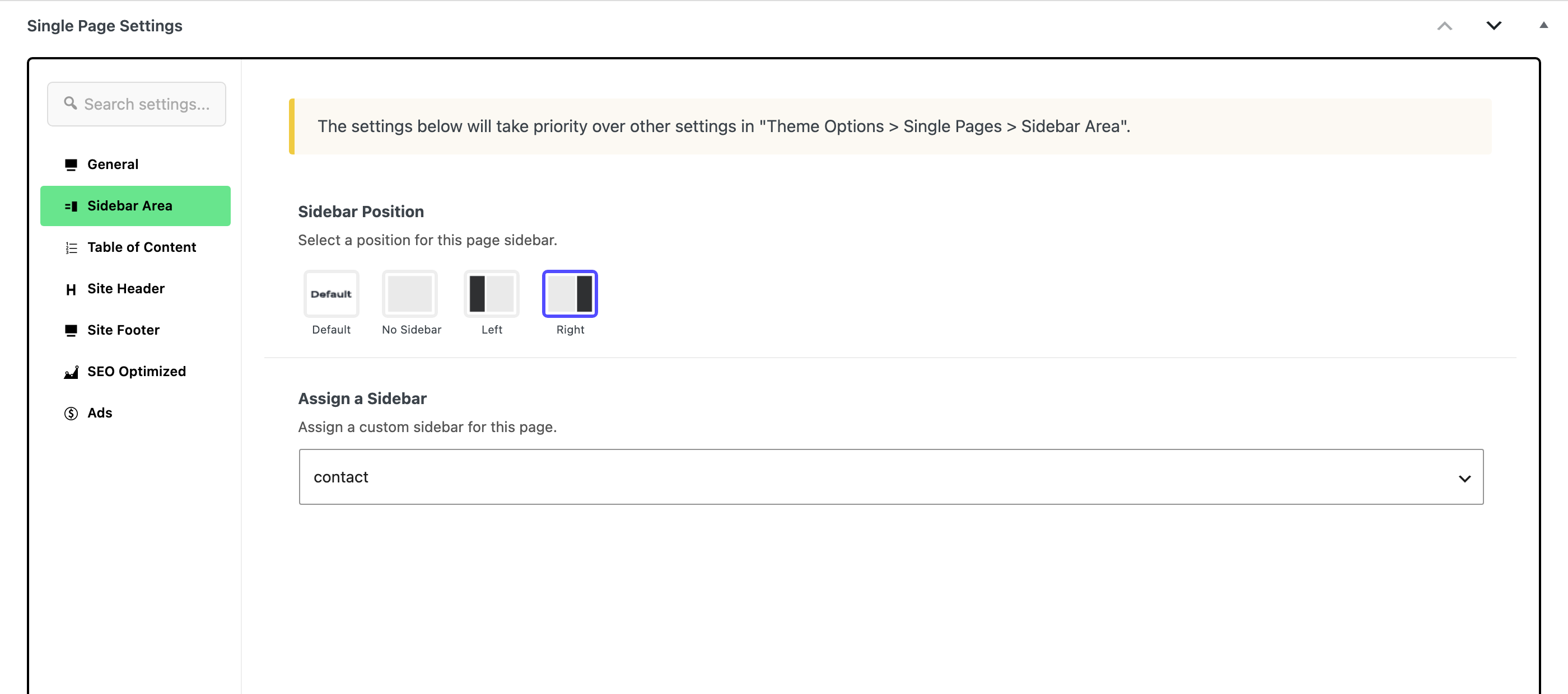
Step 4 is two settings, not one, and skipping the second is the usual reason this does not work. By default, single pages have Sidebar Position set to No Sidebar at Theme Options > Single Page > Sidebar Area, so a page with a sidebar assigned and no position still renders full width.
Adding the Foxiz - Widget Address widget to the contact sidebar section.
-
Navigate to Appearance > Widgets
-
Then drag and drop the Foxiz - Widget Address widget to the sidebar section you just created.
-
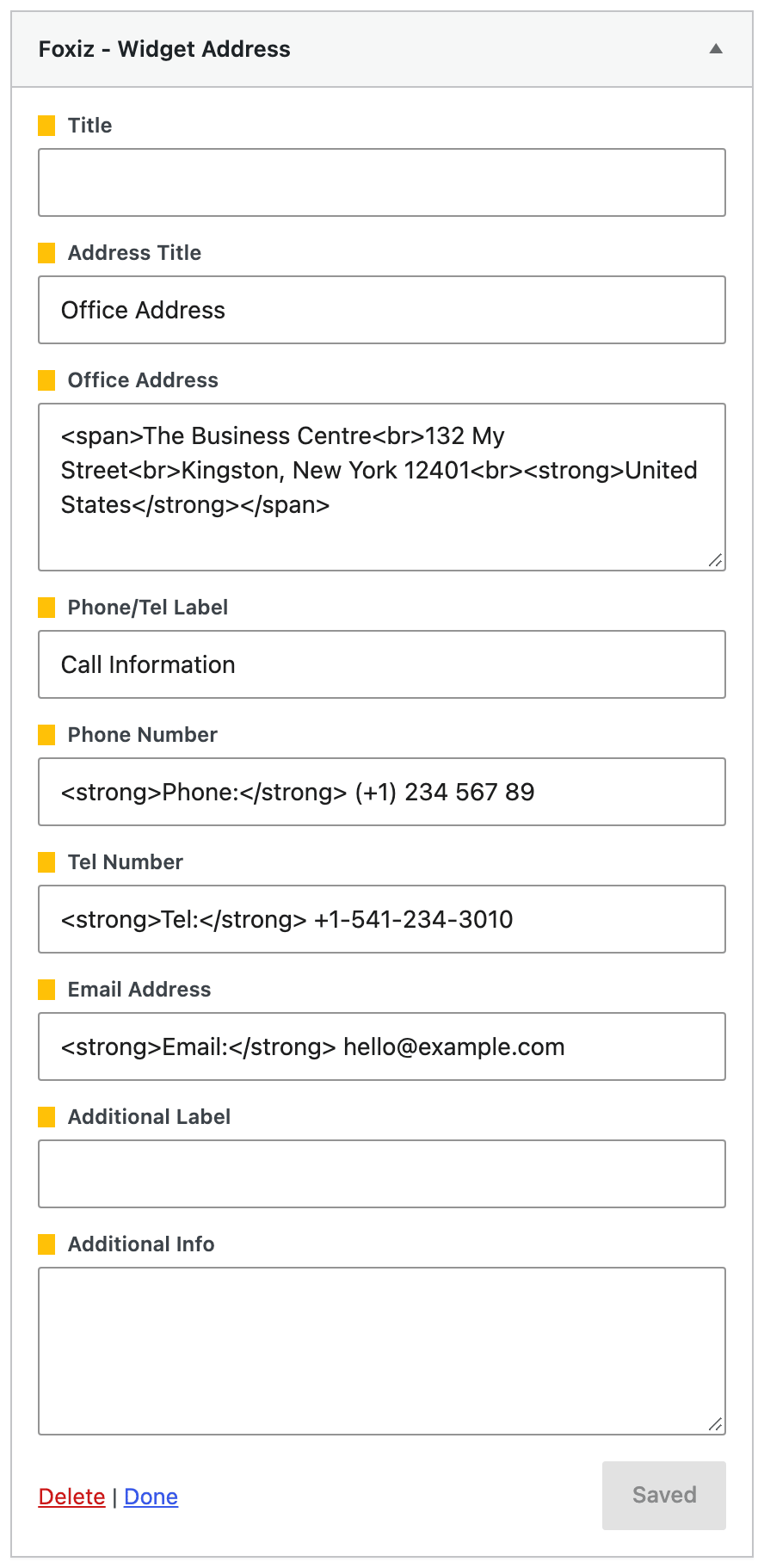
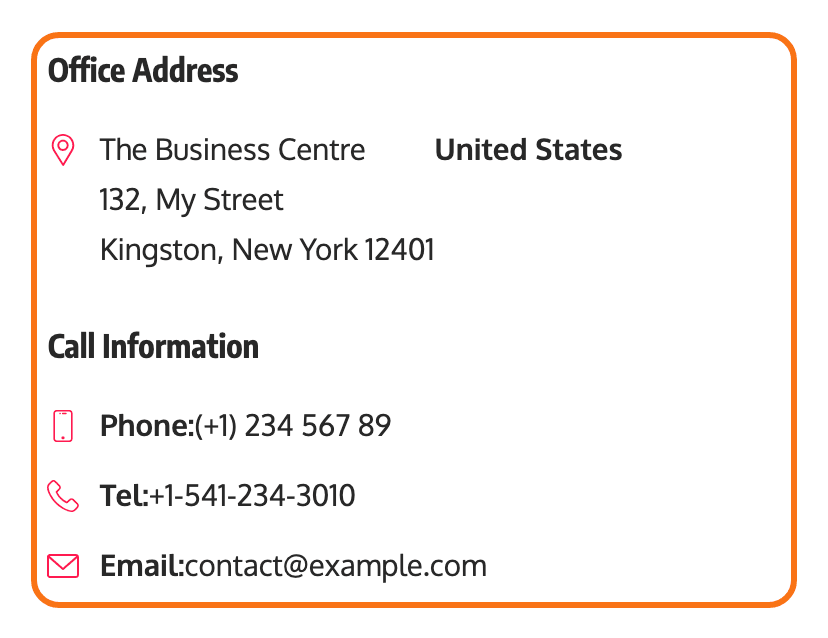
Then fill in your information. The fields accept raw HTML. You can refer to the screenshot below:
-
Click Save.
The widget has nine fields and prints only the ones you fill in, in this order:
- Title
- Address Title
- Office Address
- Phone/Tel Label
- Phone Number
- Tel Number
- Email Address
- Additional Label
- Additional Info
Leave a field blank and its line is skipped, so the same widget does a one line address or a full contact block.
Office Address, Phone Number, Tel Number and Email Address each print with their own icon: a map pin, a smartphone, a handset and an envelope. That is why a phone number belongs in Phone Number rather than in Additional Info.
HTML is kept only when the widget is saved by an account that is allowed to post HTML, such as an administrator. For other accounts the tags are removed when you save. If your markup keeps coming back as plain text, ask an administrator to save the widget.
Did this answer your question?