Assigning a sidebar to Posts & Pages
There are two ways to assign a sidebar to posts or pages.
- Globally for a specific type of page via Theme Options.
- Separately for a specific post/page via the Foxiz settings box in the page/post editor: Single Post Settings on a post, Single Page Settings on a page.
When both are set, the post's, page's or category's own setting wins. Its Assign a Sidebar starts on - Default -, which hands the choice back to Theme Options.
So work in this order: set the sidebar most posts or pages should have in Theme Options first. Then open only the posts, pages or categories that need a different one and change them.
Whichever route you take, the dropdown offers Standard Sidebar and every sidebar you created under Unlimited Sidebars, and nothing else. Footer columns, the More Menu Section and the two Single Content areas are widget areas but they are not assignable sidebars.
Assigning a sidebar is only half the job. Each of the screens below also carries a Sidebar Position, and if that is set to No Sidebar nothing is drawn no matter which sidebar you assigned. When a change here has no visible effect, check the position first.
Assigning a Sidebar to Single Posts
Globally for a specific type of pages via Theme Options > Single Post > Sidebar Area > Assign a Sidebar. Its default is Standard Sidebar.
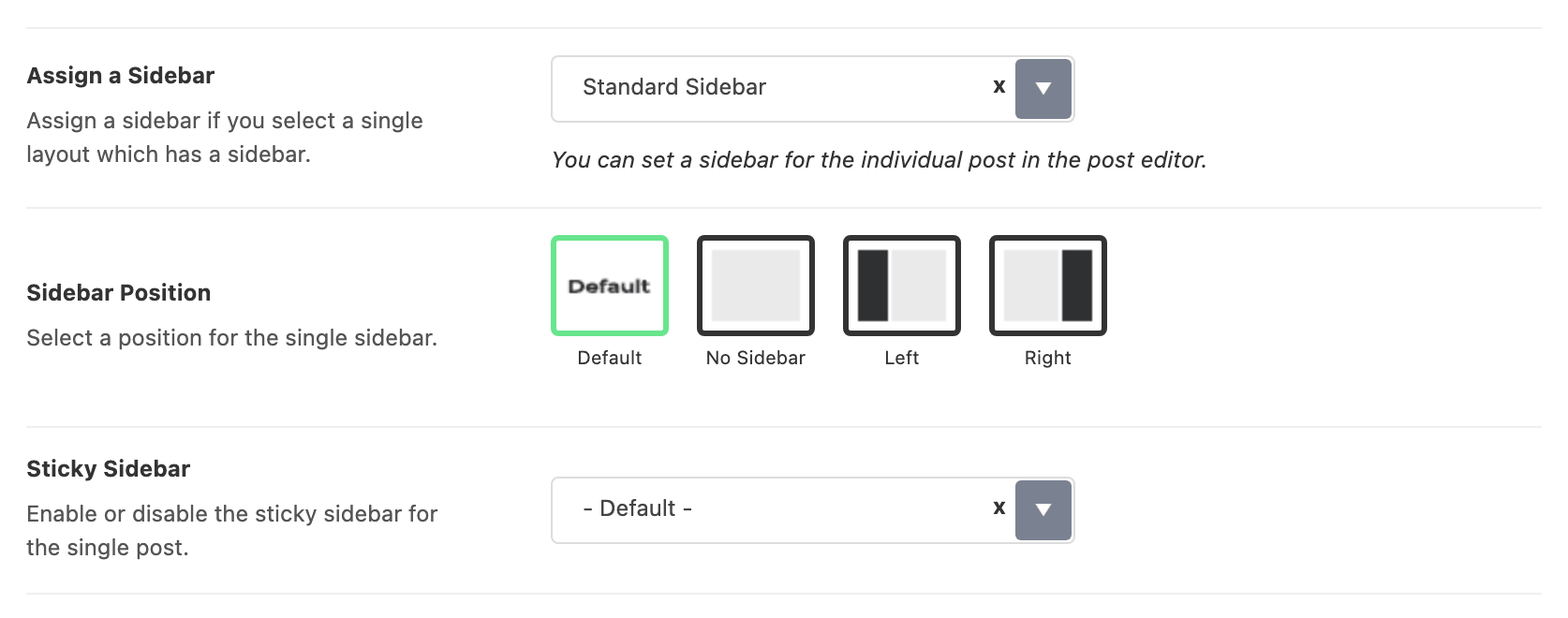
The Sidebar Position directly below it defaults to Default, which hands the decision to Theme Options > Sidebars > Sidebar Position, and that defaults to Right. So a post gets a right hand sidebar unless you change one of the two, and only on a single layout that has a sidebar at all.
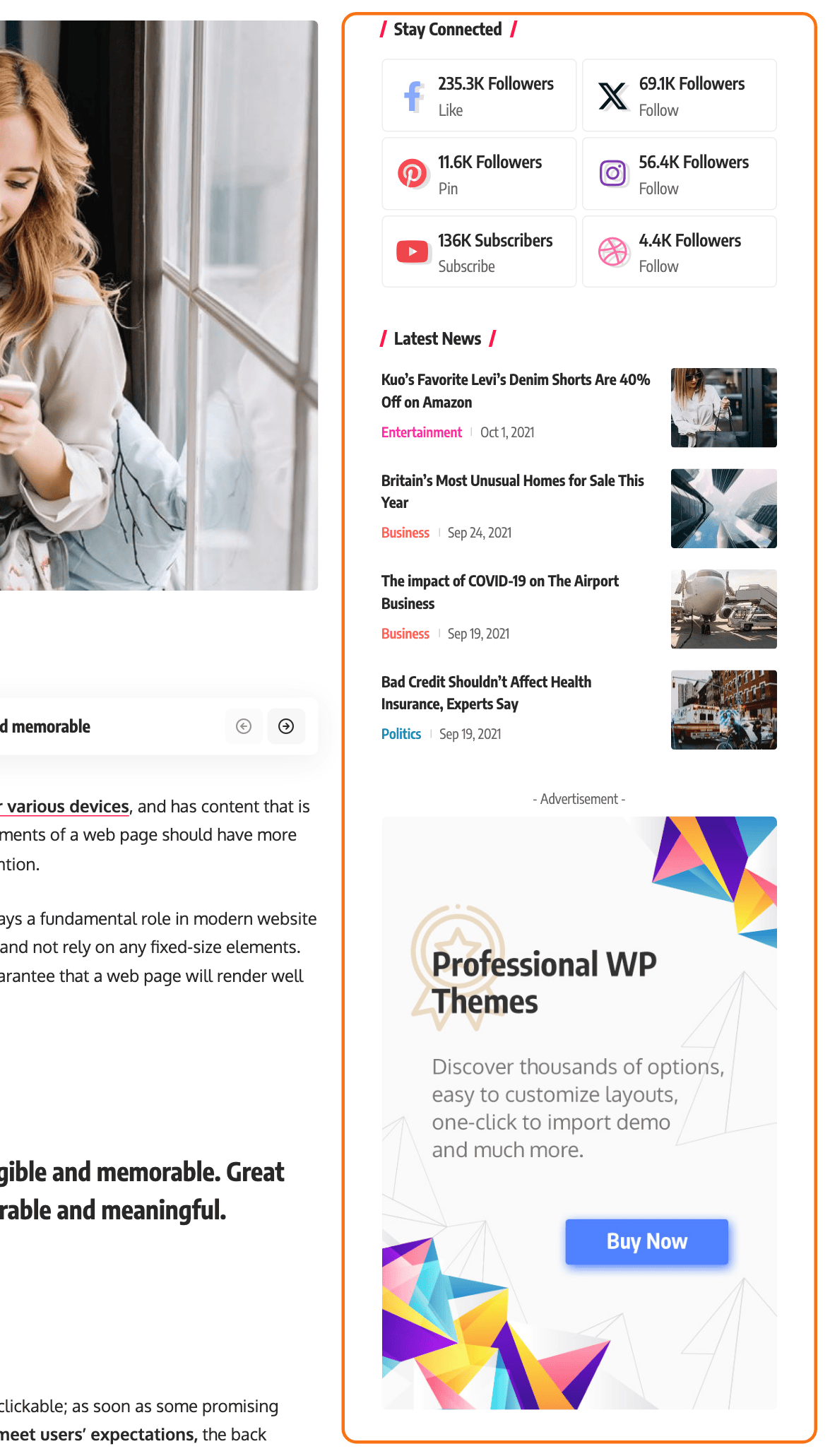
The same panel also sets how the sidebar sits next to the content:
- Sidebar Width is the sidebar's share of the row as a percentage, and it is blank by default, which keeps the standard one third. The content column takes what is left. It applies on screens 1025px wide and up, and although it sits under Single Post it also sizes the sidebar on single pages and custom post types. The blog, category, tag, archive, author and search listings keep their standard one third whatever you enter here.
- Left Extra Spacing adds space between the sidebar and the content, as a percentage of the sidebar's width; blank adds none. It goes on whichever side of the sidebar faces the content, so a left sidebar gets it on its right. Like the width, it applies from 1025px up and on every page that has a sidebar.
- Left Border draws a divider line between the content and the sidebar, in the style you pick. Its default is - None -. It is drawn on posts using one of the predefined single layouts, not a single post template, from 992px up.
Separately for a specific post:
-
Navigate to Posts > All Posts, hover the post and click Edit.
-
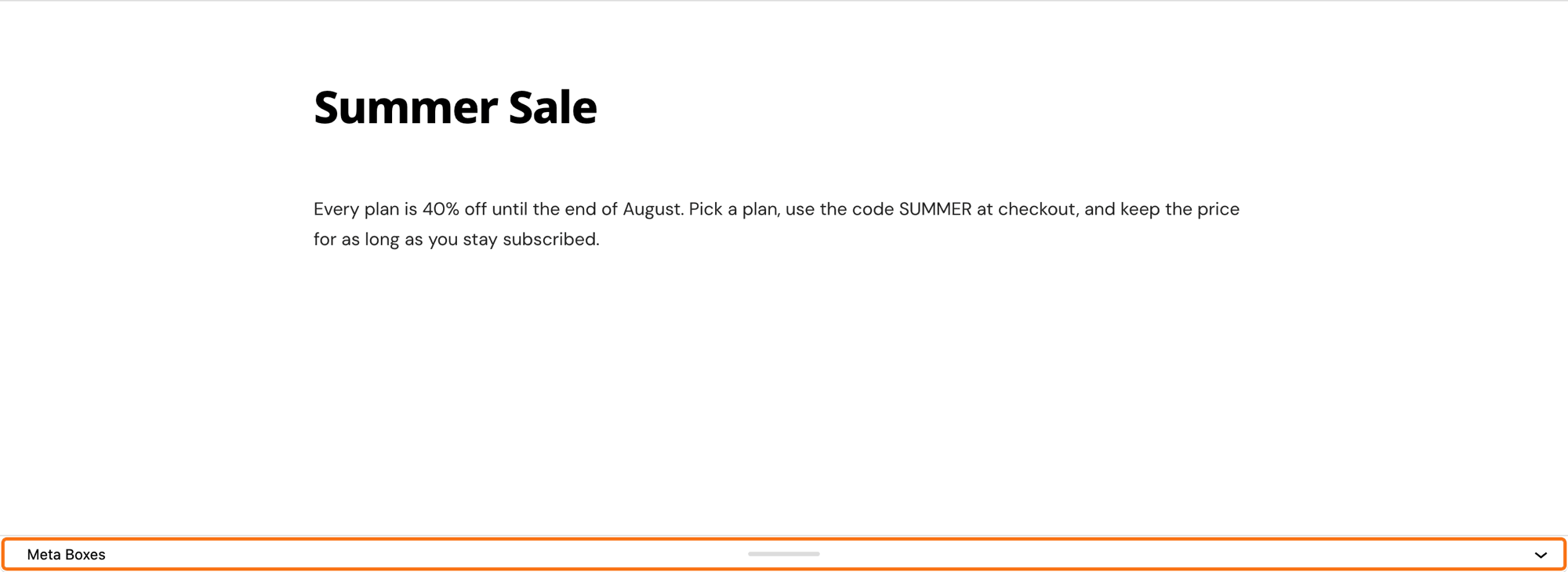
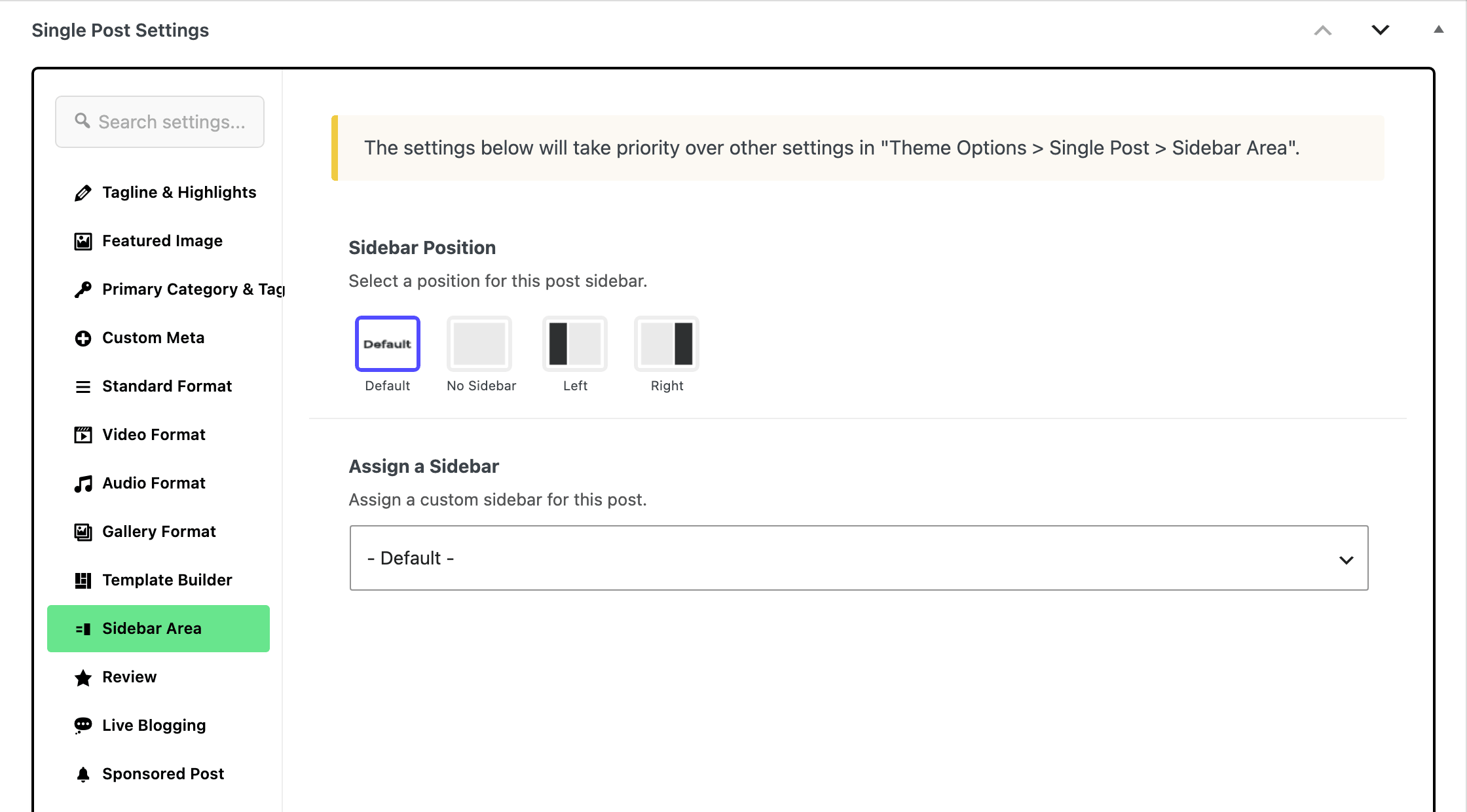
At the bottom of the editor, click the Meta Boxes bar to open it. Find the "Single Post Settings" panel and select the Sidebar Area tab.
-
Select a sidebar under the "Assign a Sidebar" option. It starts on - Default -, which means "use whatever Theme Options says".
The Sidebar Position above it decides whether the sidebar shows at all: Default follows Theme Options, No Sidebar hides it on this post, Left or Right places it.
-
Click Save to save your changes, or Publish on a post that is not published yet.
A custom post type has the same tab in its own Single Post Type Settings box, and its global default sits in the Post Types panel, which grows one Assign a Sidebar per post type registered by a plugin such as Custom Post Type UI or ACF.
If you cannot see the panel, Ensure that the box named "Single Post Settings" is switched on in the editor's preferences: click Options (the vertical three dots in the editor's top bar), choose Preferences, stay on the General tab, and turn on Single Post Settings under Advanced.
Assigning a Sidebar to Single Pages
In Theme Options > Single Page > Sidebar Area, Sidebar Position is set to No Sidebar by default, so single pages show no sidebar until you change it. The Assign a Sidebar field below it is already set to Standard Sidebar, which is why assigning a sidebar on its own appears to do nothing: set the position too.
To assign a sidebar to a page. Follow the steps below:
-
Navigate to Pages > All Pages, hover the page and click Edit.
-
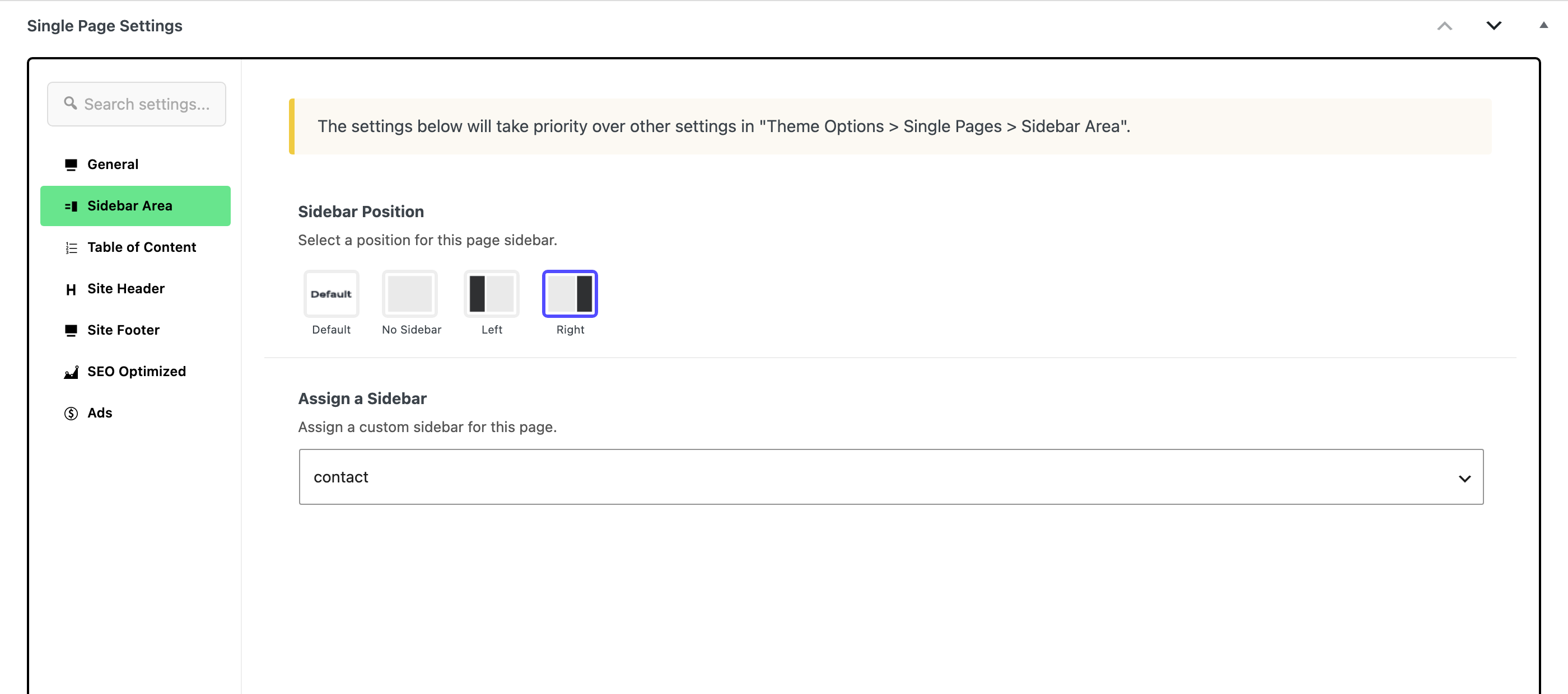
At the bottom of the editor, click the Meta Boxes bar to open it. Find the "Single Page Settings" box and select the Sidebar Area tab.
-
Under the "Assign a Sidebar" option, select a sidebar you want. Set Sidebar Position in the same tab to Left or Right as well, or the page keeps the global setting.
-
Click Save to save your changes, or Publish on a page that is not published yet.
Assigning a sidebar to category pages
Globally for all categories via Theme Options -> Category -> Post Listing - Sidebar -> Assign a Sidebar.
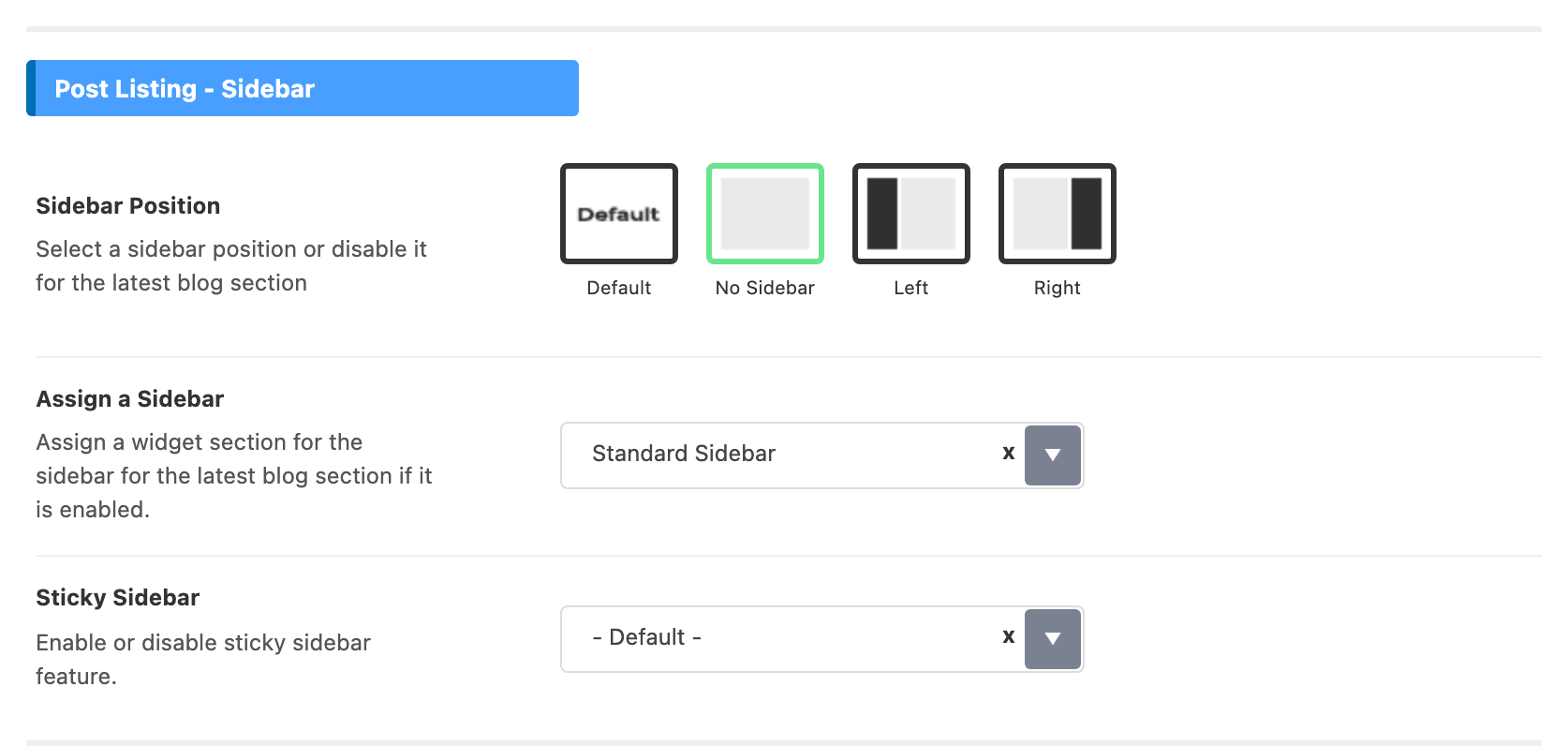
That whole section is hidden while or Use Ruby Template for the Post Listing has a shortcode in it, because a Ruby template draws its own layout. Clear that field if the sidebar settings are not on the screen. Category listings also have Sidebar Position set to No Sidebar by default.
Separately for a specific category:
-
Navigate to Posts -> Categories
-
In the category list on the right of the screen, hover the category you want to edit and click its Edit link.
-
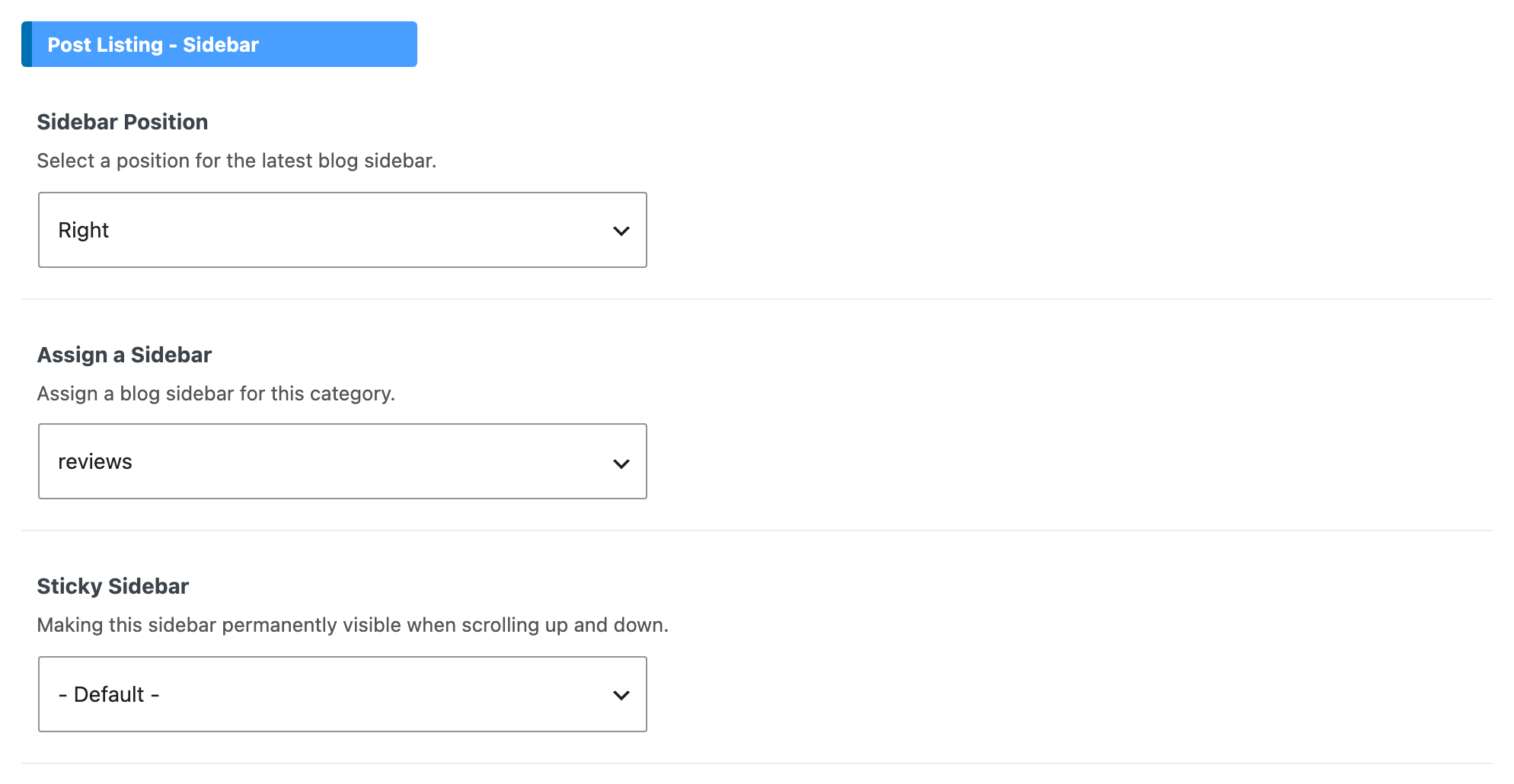
Scroll down the page to the Foxiz Category Settings box, open the Predefined Blog tab, then find "Assign a Sidebar" under Post Listing - Sidebar, Select a sidebar you want.
Set Sidebar Position just above it to Left or Right as well: on - Default - the category follows Theme Options > Category, which shows no sidebar out of the box.
-
Click Update at the bottom of the page.
Assigning sidebars to archive pages
Every one of these lives under Post Listing - Sidebar in its panel, next to a Sidebar Position whose default is No Sidebar, so set both.
- Archives: Navigate to Theme Options -> Archives -> Assign a Sidebar. The panel is named Archives, not "Archive Page".
- Search page: Navigate to Theme Options -> Search Page -> Assign a Sidebar.
- Author page: Navigate to Theme Options -> Author Page -> Assign a Sidebar.
- Blog index: Navigate to Theme Options -> Blog Index -> Assign a Sidebar. This is the only one of the four whose Sidebar Position defaults to Default rather than No Sidebar.
Theme Options > Tag Page has no sidebar settings of its own. A tag archive reads the Archives settings, so assign the tag sidebar there.
Did this answer your question?