How to Add Widgets Before and After the Post Content
Foxiz has two widget areas inside every single post, one above the article text and one below it. Whatever you put there shows on every post, so they suit the things you want on all of them:
- an advert at the top or bottom of each article,
- a short list of related posts under the article, like the one on the Foxiz demo,
- a fixed note, such as an affiliate disclosure or a "follow us" line.
On Appearance > Widgets the two areas are called:
- Single Content - Top Area: before the post content.
- Single Content - Bottom Area: after the post content.
They show nothing until you add a widget, so an empty area leaves no gap.
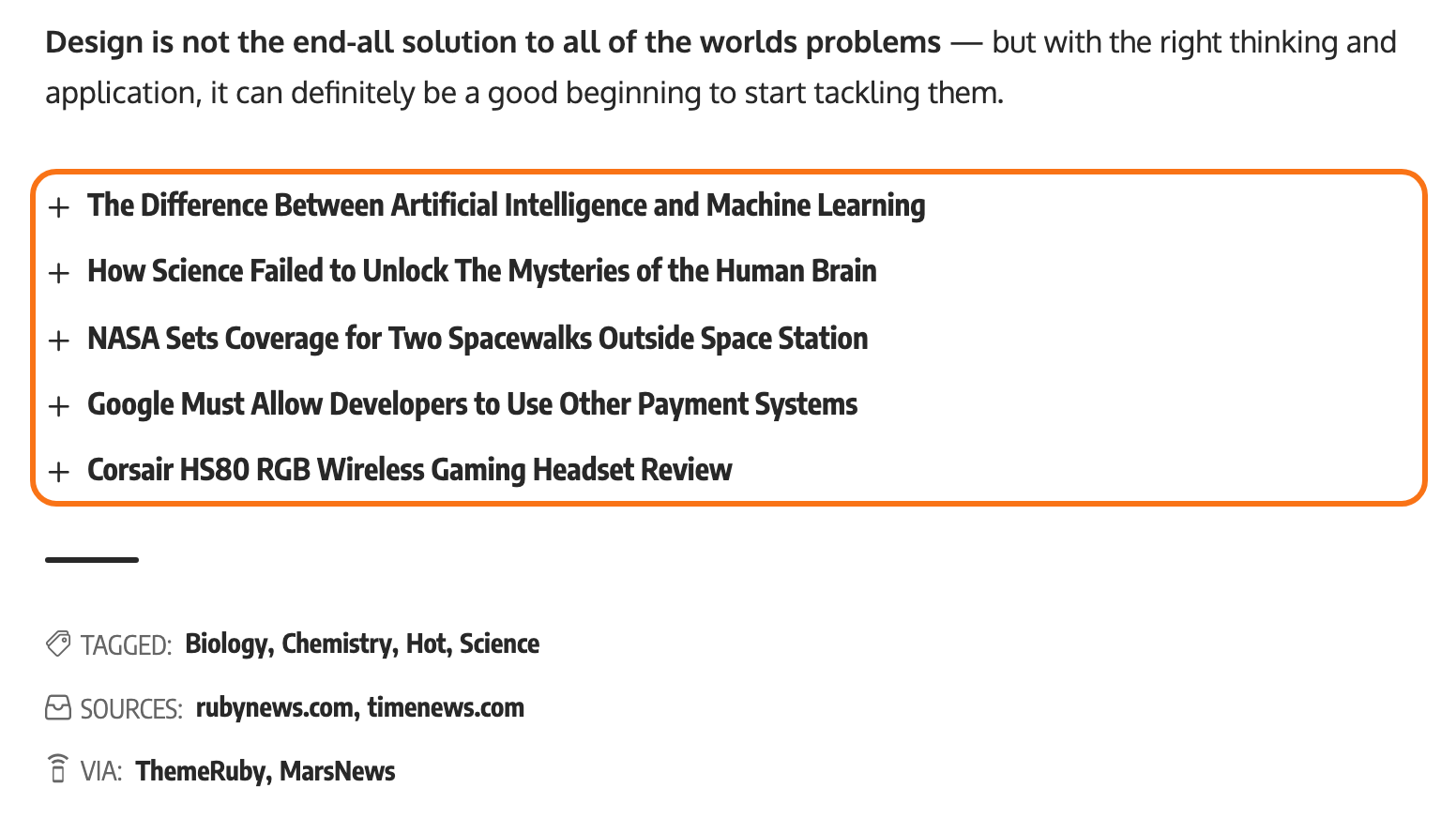
Where they sit in the post
Every single post layout uses the same post body, so the two areas sit in the same place whichever layout you choose. Podcast episodes and any custom post type that uses the Foxiz single post template get them too.
- Single Content - Top Area opens the post body. It sits above the AI summary, the Highlights box and the article text.
- Single Content - Bottom Area comes right after the article text, after the review box and the page links of a post split into pages. It sits above the tags, the sources and the newsletter box.
On an AMP page the widgets do not show. The AMP adverts set in Theme Options take their place: see How to Add Adverts to AMP Pages.
Add a related posts list after the post content
This is what the Foxiz demo does: a WordPress Text widget in the bottom area holding the related posts shortcode. The shortcode works out the related posts for each post it shows on, so one widget serves every post.
-
Go to Appearance > Widgets.
-
Drag a Text widget into Single Content - Bottom Area.
-
Leave Title empty, or type a heading such as "Read more". The title shows above the list.
-
In the text box, paste the shortcode:
[ruby_related total="5" layout="5"]This is the demo's version: a plain list of five post titles, no thumbnails. Inside these widget areas the theme drops the box's border and shadow, so the list sits flush with the article.
-
Click Save.
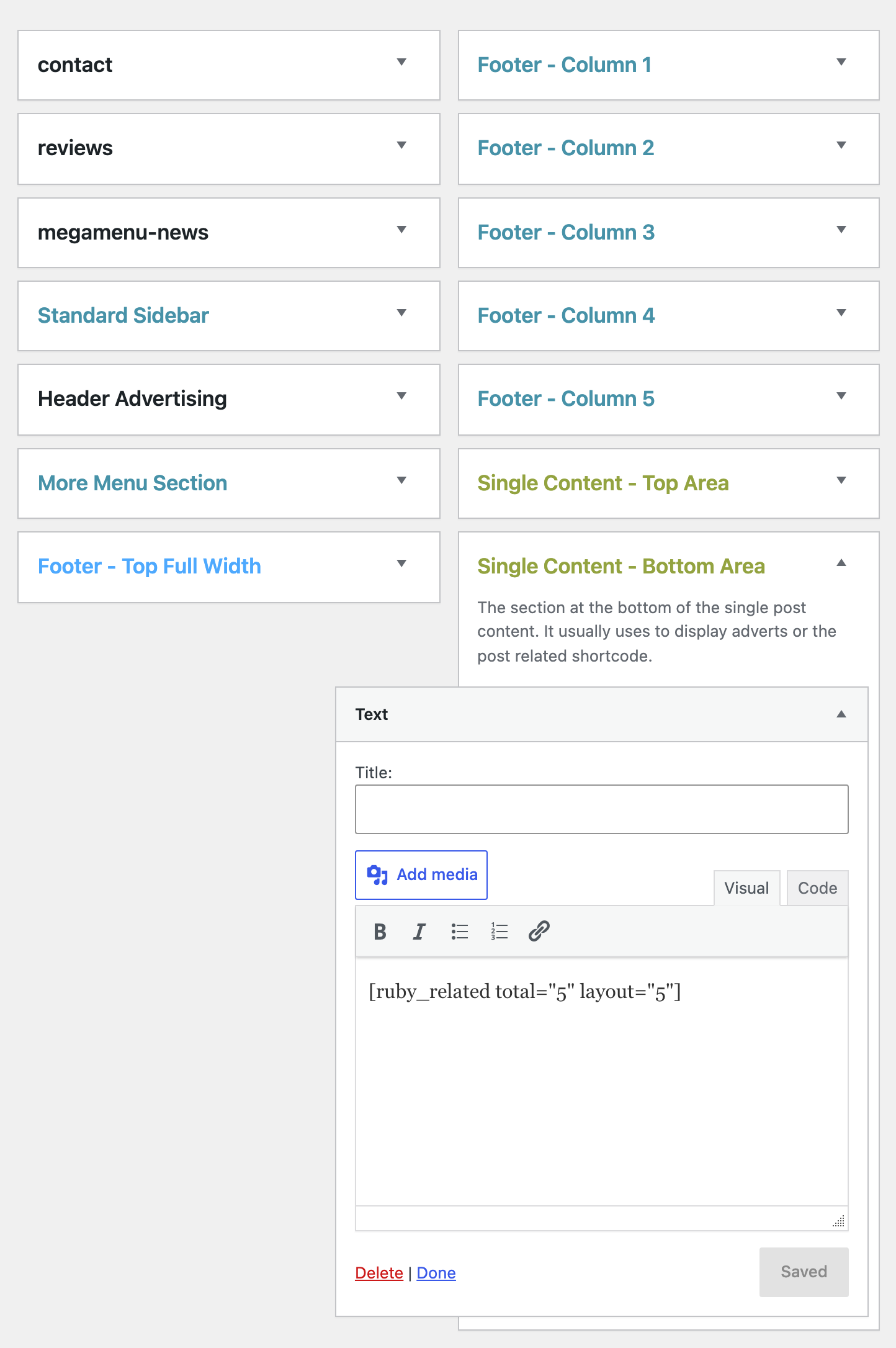
Open any post to check it. A post that shares no category or tag with another post shows no list, and nothing else.
Imported a demo and want its list gone instead? See How to Remove the Post List Below the Post Content.
To change the look, edit the shortcode:
layoutpicks one of six designs,1to6. Layout1puts a thumbnail on the first post.totalis the number of posts. Left out, it is only 2, so always set it.headingadds a title inside the box, as an alternative to the widget's own Title.
Every parameter is listed in Related Box Shortcode.
Use the Text widget, not Custom HTML. The Text widget runs shortcodes. The Custom HTML widget prints [ruby_related ...] as plain text on the page.
Two related lists on one post
Foxiz already adds a Related section at the foot of every post, from Theme Options > Single Post > Related & Popular. It is on by default. With the bottom area list as well, readers can see two related lists.
For most sites, keep both and make them look different, as the demo does: a compact title list (layout 5) right after the article, and the image grid of the Related section further down. If you want only one, set Related Section to - Disable - in that panel: see Related & Popular Box.
The bottom area list does not stop the automatic related box that Inner Content Related can drop between paragraphs. That box is skipped only when the post's own content holds a related shortcode.
Add an advert before or after the post content
Drag one of the Foxiz ad widgets into either area:
- Foxiz - Widget Ad Image for a banner image with a link,
- Foxiz - Widget Ad Script for AdSense or another network's code.
The step by step, with each widget's fields, is in Single Post Adverts.
For most sites, put the advert in the top area or the bottom area, not both. An advert above the first paragraph is the one readers see most, but it also pushes the article down. To place an ad inside the article text instead, use the Inline Single Content slots described in the same article.
Add a note or any other shortcode
The Text widget takes plain text, links and shortcodes, so the areas also hold:
- a disclosure line at the top, such as "This post contains affiliate links",
- a call to action at the bottom, such as a link to your newsletter page,
- a form from a plugin, through its shortcode.
You can stack several widgets in one area. They show in the order they sit on the Widgets screen; drag them to reorder.
To show a template built in Elementor, use the Foxiz - Ruby Template widget instead and pick the template in Select a Template. Its or Shortcode field also accepts a shortcode such as [ruby_related].
Hide the widgets on one post
A widget area shows on every post. To hide it on one:
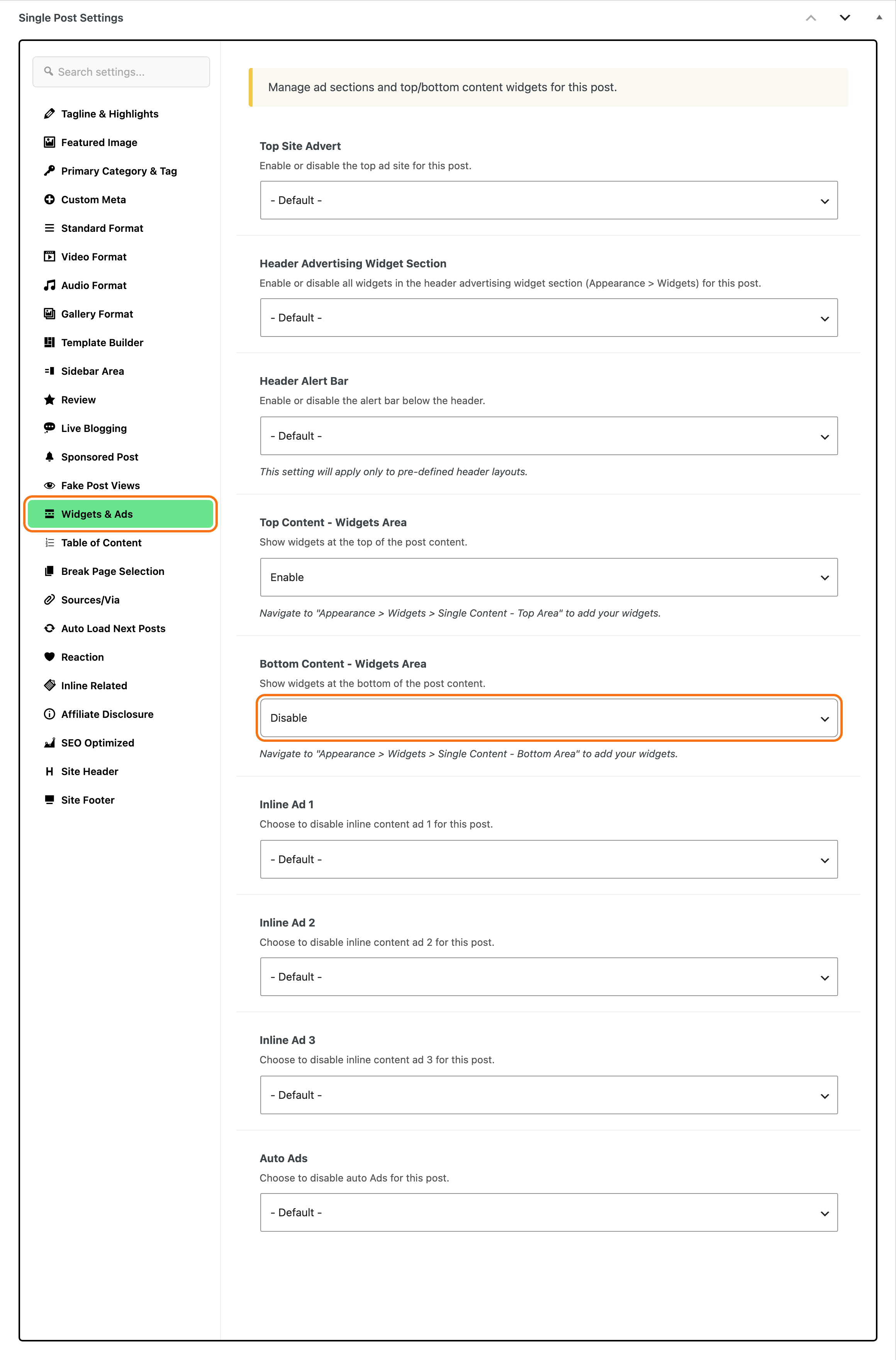
- Edit the post. At the bottom of the editor, click the Meta Boxes bar to open it, and find Single Post Settings.
- Open the Widgets & Ads tab.
- Set Top Content - Widgets Area or Bottom Content - Widgets Area to Disable.
- Update the post.
Both are enabled by default.
Did this answer your question?