How to Add Your Biography in the About/Social Widget
You can add a short biography to the Foxiz - Widget Social Icons/About widget with a few lines of HTML.
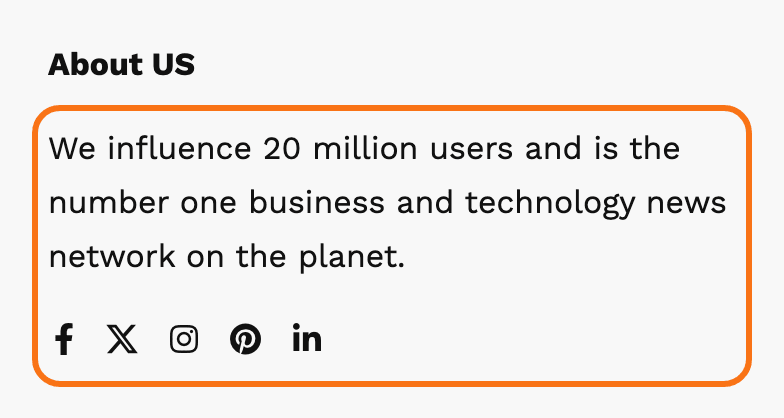
To get started, follow the steps below:
-
Navigate to Appearance > Widgets.
You get the classic drag and drop screen because Foxiz turns the WordPress block widget editor off for you. Theme Options > Sidebars > Widget Block Editor is disabled by default; switch it on and this screen becomes the block editor instead.
-
Drag and drop the Foxiz - Widget Social Icons/About to a sidebar section you wish. You can refer to Editing Sidebars and Widgets for further information.
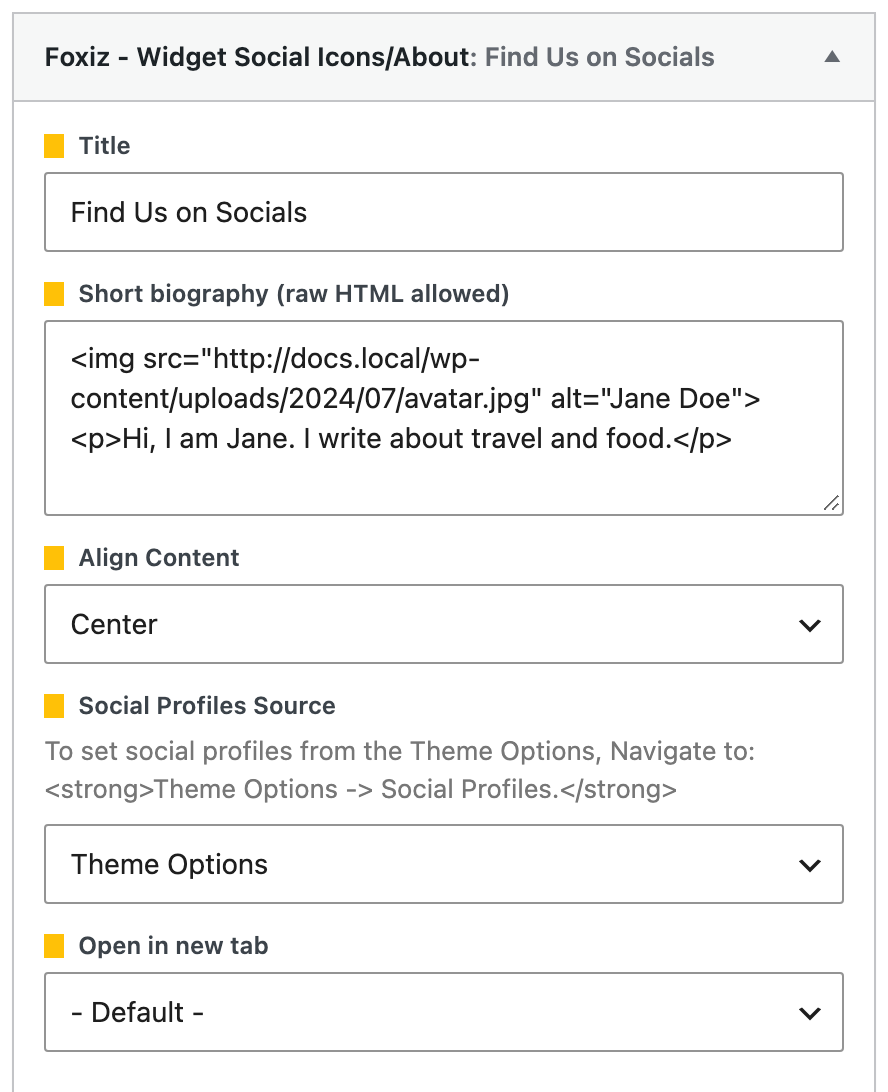
The biography goes in the widget's second field, Short biography (raw HTML allowed), a textarea directly under Title. Title starts out as "Find Us on Socials".
A photo and two lines of text are enough. Type this into the field, then put your own image address in
srcand your own words in the<p>:<img src="https://example.com/wp-content/uploads/my-photo.jpg" alt="Jane Doe"><p>Hi, I am Jane. I write about travel and food.</p>For your photo's address, upload the photo in Media > Library and copy its File URL (the last line of this page links the steps).
-
Select the Center option under the Align Content option.
Its default is Left, and it centres the social icons along with the biography.
-
Click Save.
"Raw HTML allowed" is not quite all HTML. On output the theme keeps <h1> to <h6>, <strong>, <b>, <em>, <i>, <a>, <code>, <p>, <div>, <ol>, <ul>, <li>, <br>, <button>, <figure>, <img>, <video> and <audio>, drops every other tag, strips on* event attributes, and replaces the target of a javascript: or data: link with a hash. A <span>, a <table> or an <iframe> will not survive.
If your HTML disappears when you save, your account is not allowed to save HTML and the widget removes the tags. Ask an administrator to save the widget for you.
You do not have to fill in any social account here. Social Profiles Source is set to Theme Options by default, which reads the profiles you set in Theme Options > Social Profiles; switch it to Use Custom only if this one widget needs a different set.
To get your image attachment URL for the src in step 2: you can refer to How to get attachment image URL?
Did this answer your question?